How to Change the Voice on Toyota Navigation System
Yes, you can change the voice on your Toyota Navigation system, and it is easier than you might think. This guide covers everything from accessing the settings menu to choosing between male and female voice options. Whether you drive a Toyota Camry, RAV4, or Highlander, you will find the exact steps to customize your Toyota navigation voice change in just a few minutes.
Have you ever been driving your Toyota and thought, “I wish this navigation voice sounded a bit different”? Maybe the current voice is too fast, too robotic, or just not your style. The good news is that you absolutely can change the voice on Toyota Navigation, and the process is much simpler than most people assume.
Your Toyota comes loaded with a built-in navigation system that includes customizable voice guidance. Whether you prefer a calm female voice giving you directions or a clear male voice guiding you through traffic, the options are there. You just need to know where to look. In this article, we will walk you through every step of the Toyota navigation voice change process. We will cover different Toyota models, explain the settings menu in plain language, and share tips to get the best experience out of your Toyota GPS voice settings.
By the time you finish reading, you will know exactly how to personalize your Toyota car navigation voice so every trip feels more comfortable and intuitive. No technical skills required. No expensive tools needed. Just a few taps on your screen or a few buttons on your dashboard.
Key Takeaways
- Easy Access: You can change the Toyota navigation voice through the settings menu on your touchscreen or audio system.
- Multiple Voice Options: Most Toyota models offer male and female voice choices, plus different languages and dialects.
- Model-Specific Steps: The process varies slightly depending on your Toyota model and infotainment system version.
- Voice Guidance Settings: You can adjust volume, speed, and frequency of voice prompts for a better driving experience.
- No Extra Cost: Changing the voice is a free built-in feature — no apps or upgrades needed.
- Troubleshooting Tips: We include common fixes if your voice settings are not working properly.
📑 Table of Contents
- Why Changing Your Toyota Navigation Voice Matters
- How to Access the Voice Settings on Toyota Navigation
- Available Voice Options Across Toyota Models
- Step-by-Step Guide to Change the Voice on Toyota Navigation
- Common Problems When Changing the Toyota Navigation Voice
- Expert Tips to Maximize Your Toyota Navigation Voice Experience
- How Toyota Navigation Voice Compares to Other Brands
- Conclusion
Why Changing Your Toyota Navigation Voice Matters
You might wonder why anyone would bother changing the default voice on their navigation system. The truth is, it matters more than you think. A voice you enjoy listening to makes long drives less tiring. It also helps you stay focused on the road because you actually want to listen to the directions.
Here are a few reasons why customizing your Toyota audio voice options makes a real difference:
- Better Clarity: Some default voices can be hard to understand, especially in noisy cabins. Switching to a clearer voice improves safety.
- Reduced Fatigue: A pleasant voice keeps you calm during stressful driving situations like heavy traffic or unfamiliar routes.
- Personal Preference: You spend hours in your car. Your navigation should sound the way you like it.
- Language Needs: If you speak a language other than English, changing the voice language can make directions much easier to follow.
- Volume and Speed: Adjusting how fast or loud the voice speaks can make a huge difference in how well you absorb the directions.
Think of it like choosing the ringtone on your phone. It is a small thing, but it adds up to a much better daily experience. Your Toyota infotainment voice is no different.
How to Access the Voice Settings on Toyota Navigation
The first step in changing your voice is finding the right menu. The exact path depends slightly on your Toyota model and the year it was made. But the general process is very similar across most newer Toyotas. Let us break it down.
For Toyota Models with a Touchscreen Display
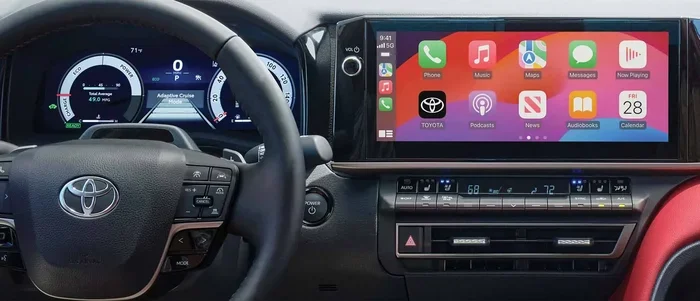
If your Toyota has a touchscreen infotainment system, you are in luck. The voice settings are usually easy to find. Start by pressing the “Settings” button on your home screen. It often looks like a gear icon. Once you are in settings, look for the “Audio” or “Navigation” section.
Inside that section, you should see a “Voice Guidance” or “Voice Settings” option. Tap on it, and you will be presented with a list of available voices. From here, you can preview each voice and select the one you like best. This is the main hub for your Toyota navigation system setup when it comes to voice customization.
For Toyota Models with a Non-Touchscreen Display
If your Toyota does not have a touchscreen, do not worry. You can still change the voice using the controls on your steering wheel or the audio system panel. Press the “Menu” or “Settings” button on your dashboard. Use the arrow keys to navigate to “Audio Settings” or “Navigation Settings.” Then scroll down to “Voice Guidance” and select your preferred voice.
The process takes just a minute or two once you know where to look. The key is to explore the “Settings” menu thoroughly. Most Toyota owners miss the voice options simply because they do not know exactly which submenu to open.
Available Voice Options Across Toyota Models
Toyota offers a decent range of voice options, but the exact selection depends on your model and the year it was manufactured. Here is a general overview of what you can expect.
Male and Female Voice Choices
Most Toyota navigation systems let you choose between a male voice and a female voice. Some models even offer multiple male and female voices, each with a slightly different tone or accent. This gives you real flexibility in how your Toyota driving directions voice sounds.
For example, newer Toyota models with the Entune system often include voices that sound more natural and less robotic than older versions. The improvement in voice quality has been significant over the years, making the Toyota multimedia system voice guidance much more pleasant to listen to.
Language and Accent Options
If you frequently drive in areas where multiple languages are spoken, or if you simply prefer directions in a different language, Toyota has you covered. Many Toyota navigation systems support English, Spanish, French, and other languages. Within each language, you may also find different accent options.
For instance, you might find both American English and British English voices available. This is especially helpful for people who travel internationally or who simply prefer a particular accent. Check your specific model to see which Toyota navigation language settings are supported.
Voice Speed and Volume Controls
Beyond choosing a voice, you can also control how fast it speaks and how loud it gets. This is part of the Toyota audio system settings and is incredibly useful. If you find the default speed too fast, you can slow it down. If you drive with loud music, you can turn up the voice volume so it cuts through the noise.
Here is a quick comparison of common voice customization options found across Toyota models:
- Voice Gender: Male or Female (multiple options on newer models)
- Language: English, Spanish, French, and others depending on the model
- Speed: Slow, Medium, or Fast
- Volume: Adjustable relative to music volume
- Prompt Frequency: Every turn, only major turns, or summary only
Step-by-Step Guide to Change the Voice on Toyota Navigation
Now that you know what options are available, let us get into the actual steps. We will walk you through the process model by model so you can find exactly what you need.
Toyota Camry Voice Change Steps
The Toyota Camry is one of the most popular sedans on the road, and changing its navigation voice is straightforward. Start by pressing the “Setup” or “Settings” button on your audio system. Navigate to “Navigation” and then select “Voice Settings.” Choose “Voice Guidance” and browse through the available voices. Select the one you prefer, and you are done.
If you are using an older Camry model without a touchscreen, use the rotary dial on the center console to scroll through the same menu path. The voice options are all built into the system, so no extra purchases are needed.
Toyota RAV4 Voice Change Steps
For the Toyota RAV4, the process is very similar. Press the “Settings” icon on your touchscreen. Go to “Audio” or “Navigation Settings.” Look for “Voice Guidance” and tap it. You will see a list of voices. Tap on any voice to preview it, and then select the one you want.
Newer RAV4 models with the updated infotainment system offer even more voice variety. The voices sound more natural, and the customization options are more detailed. If you have a 2019 or newer RAV4, you will likely find the best voice selection of any RAV4 generation.
Toyota Highlander Voice Change Steps
The Toyota Highlander follows the same general process. Access the settings menu, find the navigation or audio section, and look for voice guidance settings. Highlander owners with the JBL audio system may notice that the voice clarity is especially good, thanks to the premium speakers.
One tip for Highlander owners: if you have the upgraded navigation system, you may get access to additional voice options that are not available on base models. It is worth exploring the full settings menu to see everything available to you.
Quick Tips for Any Toyota Model
No matter which Toyota you drive, these quick tips will help you get the most out of your voice settings:
- Preview Before Selecting: Always preview a voice before committing to it. Most systems play a short sample so you can hear how it sounds.
- Check for Updates: Toyota occasionally releases system updates that add new voices or improve existing ones. Keep your system updated.
- Test in Different Conditions: Try the voice at different volumes and with your music playing to make sure it is easy to hear in real driving situations.
- Reset if Needed: If you accidentally change a setting and things sound off, you can always reset to default from the same settings menu.
Common Problems When Changing the Toyota Navigation Voice
Even though the process is simple, sometimes things do not go as planned. Here are the most common issues Toyota owners face when trying to change their navigation voice, along with easy fixes.
Voice Settings Are Grayed Out or Unavailable
If you cannot access the voice settings, the most common reason is that your navigation system is not active. Make sure you have a navigation system installed in your Toyota. Some base models do not include built-in navigation, and in those cases, voice guidance options may be limited or unavailable through the standard settings.
Another reason could be that the system needs a restart. Try turning off your Toyota completely, waiting 30 seconds, and then turning it back on. This often fixes temporary glitches that lock you out of certain settings.
The New Voice Sounds Different Than Expected
Sometimes a voice sounds great in the preview but different once you are actually driving. This can happen because the preview plays in a quiet environment, while driving adds road noise and music. If this happens, try adjusting the voice volume separately from your music volume. Most Toyota systems let you set the navigation voice volume independently.
Voice Directions Are Not Working After Change
If you change the voice and then find that directions are not speaking at all, check that the “Voice Guidance” toggle is turned on. It is an easy thing to accidentally turn off. Go back to the voice settings and make sure the feature is enabled.
Also, check your map data. If your navigation maps are outdated, the system might not generate directions properly, which can make it seem like the voice is not working when the real issue is the maps.
Expert Tips to Maximize Your Toyota Navigation Voice Experience
Changing the voice is just the beginning. There are several ways to get even more out of your Toyota navigation system. Here are some expert tips that most guides do not mention.
Use the “Only Major Turns” Setting: If you find the voice giving you too many instructions, switch to “Only Major Turns.” This reduces the number of prompts and makes the experience less overwhelming, especially on long highway drives.
Pair Voice with Visual Cues: Your Toyota navigation screen shows visual arrows and street names alongside the voice directions. Use both together for the safest experience. The voice tells you when to turn, and the screen confirms exactly where.
Set Up Favorites: Save your most common destinations in the navigation system. This way, when you start the car, the route is already calculated, and your Toyota car speaker voice will guide you right from the start without any delay.
Keep the System Updated: Toyota releases map updates regularly. These updates often include improved voice recordings and better route calculations. Connect your system to Wi-Fi if your Toyota supports it, and check for updates at least once a month.
Explore Third-Party Apps: If you are not satisfied with the built-in voices, some Toyota owners use their phone to run navigation apps like Google Maps or Waze through their car’s Bluetooth or Apple CarPlay/Android Auto connection. This gives you access to a wider range of voices and more frequent updates. However, the built-in system is still great for most people and works without needing a phone connection.
How Toyota Navigation Voice Compares to Other Brands
It is always helpful to know how your system stacks up against the competition. Toyota navigation voices are generally clear and easy to understand. They are not the most advanced voices on the market — systems like BMW and Mercedes sometimes offer more natural-sounding, AI-driven voices — but for the price point of a Toyota, the voice quality is very solid.
One area where Toyota shines is consistency. The voices across all Toyota models sound similar and are easy to learn. If you drive multiple Toyotas, you will not have to relearn how the voice sounds each time. This familiarity is a real advantage for daily drivers.
Also, the Toyota navigation voice change process is simpler than in many other brands. You do not need a computer or a special app. Everything is built right into the car’s system, which makes it accessible to everyone.
Conclusion
Changing the voice on your Toyota Navigation system is one of the easiest and most satisfying customizations you can make. It takes just a few minutes, costs nothing, and immediately improves your driving experience. Whether you want a different gender, a different language, or just a clearer voice, your Toyota has options built right in.
We have covered everything from accessing the settings menu to troubleshooting common problems. You now know how to change the voice on Toyota Navigation systems across the Camry, RAV4, Highlander, and other popular models. The next time you get in your car, take a few minutes to explore the voice settings. You might be surprised by how much better your drives feel with a voice you actually enjoy listening to.
Your Toyota GPS voice settings are there to serve you. Take control of them, and make every journey a little more pleasant. Safe travels!
Frequently Asked Questions
Can I change the voice on my Toyota Navigation to a different language?
Yes, most Toyota navigation systems support multiple languages for voice guidance. You can find this option in the Voice Settings menu under Navigation or Audio Settings. Check your specific model to see which languages are available.
Why can’t I find the voice settings on my Toyota?
If you cannot locate the voice settings, your Toyota model may not have a built-in navigation system, or the system may need a restart. Try turning the car off and back on, and check the Settings menu under “Navigation” or “Audio.” If you still cannot find it, consult your owner’s manual for model-specific instructions.
Can I change the voice gender on Toyota Navigation?
Absolutely. Most Toyota models let you choose between a male and female voice. Newer models with updated infotainment systems may even offer multiple male and female voice options to choose from.
Does changing the navigation voice cost anything?
No, changing the voice on your Toyota Navigation system is completely free. It is a built-in feature that comes with your vehicle. No apps, subscriptions, or extra purchases are required.
Can I adjust how fast the navigation voice speaks?
Yes, most Toyota systems let you control the speaking speed of the navigation voice. Look for a “Speed” or “Speech Rate” option in the Voice Guidance settings. You can usually choose between slow, medium, and fast.
Will changing the voice affect my navigation directions?
No, changing the voice only affects how the directions sound. The actual route guidance, turn-by-turn directions, and map display all remain the same. You will still receive the same accurate navigation assistance.