Can I Use Apple CarPlay Wirelessly And How To Set It Up
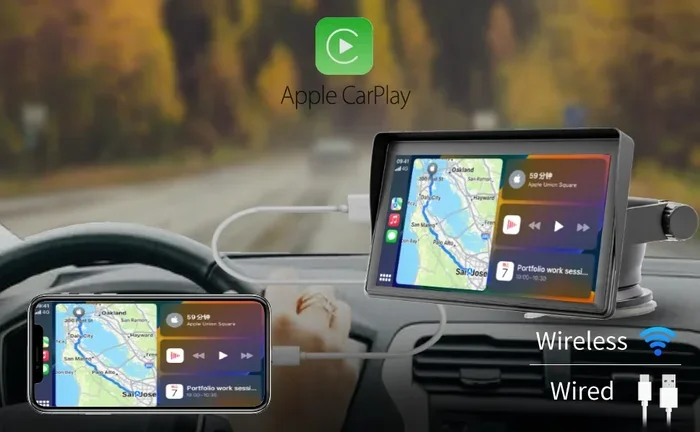
Yes, you can use Apple CarPlay wirelessly if your car and iPhone support it. Wireless Apple CarPlay lets you connect your phone to your car without any cables, giving you a cleaner dashboard and easier access to navigation, music, and calls. In this guide, we walk you through setup, compatibility, and common fixes.
So you want to ditch the cable and go wireless with Apple CarPlay. Maybe you are tired of fumbling with a USB cord every time you get in the car. Or maybe you just want a cleaner, clutter-free dashboard. Whatever the reason, the good news is that wireless Apple CarPlay is real, and it works really well.
But can everyone use it? Not quite. Whether you can go wireless depends on your car model, your car stereo, and your iPhone. In this guide, we will walk you through everything you need to know about using Apple CarPlay wirelessly. We will cover compatibility, setup steps, troubleshooting tips, and much more.
By the end of this article, you will know exactly whether your car supports wireless Apple CarPlay and how to get it running in just a few minutes. Let us dive right in.
Key Takeaways
- Wireless Apple CarPlay is available: Many newer cars and iPhones support it natively.
- Check compatibility first: Both your car stereo and iPhone must support wireless CarPlay.
- Setup is simple: You can enable it through your car settings or use a wireless adapter.
- Wireless vs wired matters: Each has pros and cons for speed and convenience.
- Troubleshooting is straightforward: Most connection issues have easy fixes.
- Keep software updated: iOS and car firmware updates often improve wireless CarPlay performance.
- Aftermarket options exist: Wireless CarPlay adapters work with older car models too.
📑 Table of Contents
- What Is Wireless Apple CarPlay?
- Which Cars Support Wireless Apple CarPlay?
- How To Set Up Wireless Apple CarPlay
- Wireless CarPlay vs Wired CarPlay
- Using A Wireless CarPlay Adapter For Older Cars
- Troubleshooting Common Wireless CarPlay Issues
- Tips To Get The Best Wireless CarPlay Experience
- Is Wireless CarPlay Here To Stay?
What Is Wireless Apple CarPlay?
Wireless Apple CarPlay is a feature that lets you connect your iPhone to your car’s infotainment system without using a USB cable. Instead of plugging in your phone, you pair it through WiFi or Bluetooth. Once connected, you get full access to CarPlay features like Maps, music, messages, and phone calls right on your car screen.
Apple introduced wireless CarPlay support starting with iOS 12 in 2018. Since then, more and more car manufacturers have added it as a standard or optional feature. Today, many new vehicles from brands like BMW, Mercedes-Benz, Hyundai, and Ford come with wireless CarPlay ready.
The experience feels very similar to wired CarPlay. You still see your apps on the car display. You still use Siri for voice commands. The main difference is that there is no cable involved. This means less clutter on your dashboard and no worrying about which USB port works.
How Does Wireless CarPlay Connect?
Wireless Apple CarPlay uses a combination of Bluetooth and WiFi to establish a connection. Bluetooth handles the initial pairing and audio streaming. WiFi handles the data transfer for apps, maps, and media. This dual-connection approach ensures a smooth and responsive experience.
When you first set up wireless CarPlay, your iPhone and car stereo communicate over Bluetooth. Once paired, the car and iPhone create a dedicated WiFi network between them. This private network keeps your connection fast and secure. You do not need to use your home WiFi or mobile data for CarPlay to work.
Which Cars Support Wireless Apple CarPlay?
Not every car supports wireless CarPlay. In fact, many older models only offer wired CarPlay or no CarPlay at all. So before you get too excited, it is important to check whether your specific vehicle is compatible.
Car Brands With Wireless CarPlay Support
Many popular car brands now offer wireless Apple CarPlay as either a standard or available feature. Here are some of the most common ones:
- BMW – Most models from 2019 onward support wireless CarPlay.
- Mercedes-Benz – Many newer models include wireless CarPlay as standard.
- Hyundai – Several models from 2020 and newer offer wireless support.
- Ford – Select models from 2021 onward support wireless CarPlay.
- Toyota – Newer models in the 2022+ range often include it.
- Honda – Certain trims from 2021 and up support wireless CarPlay.
- Kia – Many models from 2020 onward come with wireless support.
- Volkswagen – Newer models with the MIB3 infotainment system support it.
- Audi – Select models from recent years offer wireless CarPlay.
- Subaru – Some 2020+ models include wireless CarPlay.
How To Check If Your Car Supports It
If you are not sure whether your car supports wireless CarPlay, there are a few easy ways to find out. First, check your car’s owner manual. Look for mentions of Apple CarPlay and whether it specifies wireless or wired only.
Second, check your car’s infotainment system settings. Go to the settings menu on your car screen and look for Apple CarPlay or Smartphone Integration. If you see a WiFi or wireless option there, your car likely supports it.
Third, you can visit the car manufacturer’s website and look up your specific model year and trim level. They usually list CarPlay support and whether it is wired or wireless.
How To Set Up Wireless Apple CarPlay
Setting up wireless Apple CarPlay is actually quite simple. The process may vary slightly depending on your car and iPhone model, but the general steps are very similar. Let us walk you through it.
Step 1: Make Sure Your iPhone Is Compatible
First, check your iPhone model. Wireless Apple CarPlay works with iPhone 12 and later models running iOS 12 or newer. If you have an older iPhone, you might still be able to use CarPlay, but it will likely be wired only.
Also, make sure your iPhone is fully updated. Go to Settings, then General, then Software Update. Install any available updates before you try to set up wireless CarPlay. These updates often include improvements to CarPlay connectivity.
Step 2: Enable CarPlay On Your Car
Next, go to your car’s infotainment settings. Look for Apple CarPlay or Bluetooth settings. Turn on wireless CarPlay if the option is available. Some cars may ask you to confirm the WiFi connection. Follow the on-screen prompts on your car display.
If your car does not have a wireless CarPlay option in its settings, it might only support wired CarPlay. In that case, you would need a wireless CarPlay adapter, which we will talk about later in this article.
Step 3: Pair Your iPhone With Your Car
Now it is time to connect your iPhone. Go to Settings on your iPhone and tap General, then CarPlay. Your car should appear in the list of available vehicles. Tap on your car’s name to pair it.
Your car screen may ask you to confirm the connection. Once you do, your iPhone will connect wirelessly. You should see the CarPlay home screen appear on your car display within a few seconds.
Step 4: Set CarPlay As Your Default
Some cars let you set CarPlay as the default view when you start the engine. This means CarPlay will automatically launch every time you get in the car. Check your car settings to see if this option is available. It is a really nice convenience feature.
Quick Tips For First-Time Setup
- Make sure Bluetooth and WiFi are turned on for your iPhone.
- Disable VPN apps before connecting, as they can interfere with CarPlay.
- Restart both your iPhone and your car infotainment system if the connection fails.
- Keep your iPhone within the car while setting up the initial connection.
Wireless CarPlay vs Wired CarPlay
Both wireless and wired Apple CarPlay offer the same core features. You get access to Maps, music, messages, and phone calls on your car screen. But there are some real differences that are worth knowing about before you choose one over the other.
Speed And Reliability
Wired CarPlay tends to be slightly faster and more stable. The USB connection provides a direct, consistent data link. Wireless CarPlay uses WiFi, which can sometimes experience minor lag or interference. For most people, though, the difference is barely noticeable in everyday use.
Convenience
This is where wireless CarPlay really shines. You just get in the car, and it connects automatically. No fumbling with cables, no worrying about which USB port works. It is a small thing, but once you experience wireless CarPlay, going back to a cable feels like a step backward.
Charging
One thing to keep in mind is that wired CarPlay charges your iPhone while you drive. Wireless CarPlay does not charge your phone at the same rate. Your iPhone battery may drain slightly faster during long drives when using wireless CarPlay. If battery life is a concern, you might want to plug in a wireless charger or use a USB cable for power.
Cost
Wired CarPlay comes standard in many cars that offer CarPlay at all. Wireless CarPlay is sometimes an extra-cost option, especially in lower trim levels. If you are buying a new car, check whether wireless CarPlay is included or if it costs extra.
Comparison Table
| Feature | Wireless CarPlay | Wired CarPlay |
|---|---|---|
| Connection Method | WiFi and Bluetooth | USB Cable |
| Setup | Automatic after pairing | Plug in cable each time |
| Speed | Very good | Slightly faster |
| Charging | No charging | Charges iPhone |
| Cable Clutter | None | Cable on dashboard |
| Availability | Newer cars and iPhones | Wider range of cars |
| Reliability | Very good | Excellent |
Using A Wireless CarPlay Adapter For Older Cars
What if your car does not natively support wireless CarPlay? Do not worry. You are not out of luck. There are several wireless CarPlay adapters available on the market that can add wireless functionality to your existing car stereo.
How Wireless CarPlay Adapters Work
A wireless CarPlay adapter is a small device that plugs into your car’s USB port or connects to the car’s WiFi system. It acts as a bridge between your iPhone and your car stereo, enabling wireless CarPlay on cars that only support wired connections.
These adapters are usually small and easy to hide behind your car’s center console. They create their own WiFi network that your iPhone connects to, just like a native wireless CarPlay system.
Popular Wireless CarPlay Adapters
There are several well-known wireless CarPlay adapters that work well with most car stereos. Some popular options include the Carlinkit Wireless CarPlay Adapter, the AAIX Wireless CarPlay Adapter, and the Nonda Wireless CarPlay Adapter. These devices typically cost between 50 and 150 dollars, depending on the model and features.
Things To Consider Before Buying An Adapter
- Compatibility: Make sure the adapter works with your car stereo brand and model.
- Setup complexity: Some adapters require professional installation, while others are plug-and-play.
- Connection quality: Look for adapters that support both WiFi and Bluetooth for the best experience.
- Price: More expensive adapters often offer better connection stability and faster speeds.
- Firmware updates: Choose a brand that provides regular firmware updates to improve performance.
Are Wireless Adapters Worth It?
For most people, a wireless CarPlay adapter is a great investment. It brings the convenience of wireless connectivity to cars that would otherwise be limited to wired connections. The setup is usually straightforward, and the improvement in daily usability is significant. If you use CarPlay every day, an adapter can really enhance your driving experience.
Troubleshooting Common Wireless CarPlay Issues
Wireless Apple CarPlay is generally reliable, but like any wireless technology, it can sometimes have issues. If your wireless CarPlay is not working as expected, try these troubleshooting steps before you give up.
CarPlay Will Not Connect Wirelessly
If your CarPlay will not connect at all, start with the basics. Make sure Bluetooth and WiFi are turned on for your iPhone. Restart your iPhone and your car infotainment system. Sometimes a simple restart fixes the issue immediately.
Next, go to Settings on your iPhone, then General, then CarPlay. Remove your car from the list and try pairing it again from scratch. This often resolves connection problems caused by a glitchy pairing.
CarPlay Connects But Is Slow Or Laggy
If your wireless CarPlay connects but feels slow, the issue is usually related to WiFi interference. Other wireless devices in your car, like a phone hotspot or a tablet, can interfere with the CarPlay WiFi signal. Turn off any unnecessary wireless devices and try again.
Also, check if your car is in a location with a lot of WiFi traffic, like a parking garage or a busy city street. Moving to a less crowded area can sometimes improve performance.
CarPlay Disconnects Randomly
Random disconnections are a common complaint with wireless CarPlay. This often happens when your iPhone switches between WiFi networks or when the car’s WiFi signal is weak. Make sure your car is not too far from your iPhone when you start the connection.
If disconnections persist, try resetting your car’s infotainment system. Most car manuals will tell you how to do this. It usually involves holding down a power button for 10 to 15 seconds. This clears any temporary glitches that might be causing the disconnections.
CarPlay Shows But Apps Do Not Work
Sometimes wireless CarPlay connects and the screen shows up, but apps like Maps or Music do not respond. This can happen if your iPhone’s software is out of date. Update your iPhone to the latest iOS version and try again.
Also, make sure your car’s firmware is up to date. Car manufacturers release updates that improve CarPlay compatibility. Check with your dealer or look for updates in your car’s settings menu.
Tips To Get The Best Wireless CarPlay Experience
Want to make sure your wireless Apple CarPlay works as smoothly as possible? Here are some practical tips that can help.
Keep Your iPhone And Car Updated
Software updates are one of the best ways to improve wireless CarPlay performance. Apple regularly releases iOS updates that fix CarPlay bugs and improve connection stability. Similarly, car manufacturers push firmware updates for their infotainment systems. Keep both your iPhone and your car up to date.
Use A Dedicated WiFi Band
Some cars allow you to choose which WiFi band CarPlay uses. If your car offers this option, use the 5GHz band for better speeds and less interference. The 2.4GHz band is more common but can be crowded with other devices.
Restart Weekly
Just like any connected device, your car’s infotainment system benefits from a regular restart. Try restarting your car’s system once a week. This clears out temporary files and refreshes the connection, keeping wireless CarPlay running smoothly.
Limit Background Apps On Your iPhone
Having too many apps running in the background can slow down your CarPlay connection. Before you start driving, close any apps you are not using. This frees up resources and helps wireless CarPlay perform at its best.
Keep Your iPhone Charged
Since wireless CarPlay does not charge your iPhone like a cable does, your battery may drain faster during long trips. Consider using a wireless charging pad or a USB cable just for power while using wireless CarPlay for the screen and audio.
Is Wireless CarPlay Here To Stay?
Absolutely. Wireless Apple CarPlay is becoming the new standard in the automotive industry. More and more car manufacturers are dropping wired-only CarPlay in favor of wireless. Apple continues to invest in improving wireless CarPlay with each new iOS release, making it faster and more reliable every year.
If you are buying a new car soon, wireless CarPlay should be high on your must-have list. It adds real convenience to your daily drive and makes the entire in-car experience feel more modern and seamless.
Even if your current car does not support wireless CarPlay natively, a wireless adapter can bridge the gap. It is an affordable upgrade that can transform your daily commute and road trips.
So yes, you can absolutely use Apple CarPlay wirelessly. With the right car, the right iPhone, and a little patience during setup, you will wonder how you ever drove with a cable again. Enjoy the freedom of a wireless connection and make your drives a little more enjoyable every day.
Frequently Asked Questions
Can I use Apple CarPlay wirelessly on any iPhone?
Wireless Apple CarPlay works with iPhone 12 and later models running iOS 12 or newer. Older iPhones may only support wired CarPlay. Check your iPhone model and iOS version to confirm compatibility before trying to connect wirelessly.
Do I need a special car to use wireless Apple CarPlay?
Yes, your car’s infotainment system must support wireless CarPlay. Many newer vehicles from brands like BMW, Hyundai, Ford, and Mercedes-Benz offer this feature. Check your car manual or the manufacturer’s website to verify if your specific model supports wireless CarPlay.
Can I add wireless CarPlay to an older car that only has wired CarPlay?
Yes, you can use a wireless CarPlay adapter to add wireless functionality to older cars. These adapters plug into your car’s USB port and create a wireless bridge between your iPhone and the car stereo. Popular options include Carlinkit and AAIX adapters, which are easy to set up and affordable.
Why does my wireless Apple CarPlay keep disconnecting?
Random disconnections are usually caused by WiFi interference or outdated software. Try restarting both your iPhone and your car’s infotainment system. Make sure your iOS and car firmware are up to date. Also, reduce the number of wireless devices in your car that might be competing for the same WiFi signal.
Does wireless CarPlay charge my iPhone?
No, wireless Apple CarPlay does not charge your iPhone while driving. The connection uses WiFi and Bluetooth, not USB power. If battery drain is a concern, consider using a wireless charging pad on your dashboard or keeping a USB cable plugged in for power while using wireless CarPlay for display and audio.
Is wireless CarPlay slower than wired CarPlay?
Wireless CarPlay is slightly slower than wired in some cases, but the difference is barely noticeable for most everyday tasks like navigation and music streaming. Wired CarPlay offers a more direct and stable connection, but wireless CarPlay provides much more convenience with no cable clutter. For the average driver, the trade-off is well worth it.
=== CONCLUSION ===
Apple CarPlay wireless is a fantastic feature that brings real convenience to your daily driving. Whether your car supports it natively or you add it with an adapter, going wireless means no cables, no clutter, and a cleaner dashboard. The setup process is straightforward, and once it is working, you will wonder how you ever managed with a cord.
Remember to check your car compatibility before you get started. Make sure your iPhone is updated and that both your car and phone are running the latest software. If you run into issues, the troubleshooting steps in this guide should help you get back on track quickly.
Wireless Apple CarPlay is not just a luxury anymore. It is becoming a standard expectation for modern cars. If you are in the market for a new vehicle or looking to upgrade your current setup, wireless CarPlay is absolutely worth having. Follow the tips in this article, and you will be enjoying a seamless, cable-free driving experience in no time.