How to Use Tool32 for BMW and Get Diagnostics Right
Tool32 BMW is a powerful diagnostic tool that helps you read fault codes, run vehicle diagnostics, and code BMW modules with ease. This guide walks you through everything you need to know about How to Use Tool32 for BMW, from setup to advanced troubleshooting. Whether you are a DIY mechanic or a professional, you will find practical tips to get the most out of your Tool32 BMW setup and keep your car running right.
If you own a BMW, you know that keeping your car in top shape takes the right tools. One of the most popular tools in the BMW community is Tool32 BMW. It is a car diagnostic software that helps you read fault codes, clear errors, and even code your BMW modules. Whether you are a weekend DIYer or a professional automotive diagnostic equipment user, Tool32 BMW can make your life much easier.
But how do you actually use it? That is exactly what this guide covers. You will learn how to set up Tool32 BMW, run BMW fault diagnosis, perform BMW coding and module programming, and avoid the mistakes that trip up many users. By the end, you will feel confident using Tool32 BMW on your own vehicle.
BMW maintenance and troubleshooting have changed a lot over the years. Older tools like INPA are still around, but Tool32 BMW offers a modern, user-friendly interface that works well on today’s laptops and tablets. It supports OBD2 scanner connections and gives you access to diagnostic live data that was once only available in dealer shops. Let us dive in and explore everything you need to know.
Key Takeaways
- Tool32 BMW is a versatile diagnostic tool: It lets you read fault codes, clear errors, and run live data on your BMW.
- Setup is simple: You need a compatible cable, a laptop, and the Tool32 BMW software installed correctly.
- BMW coding is safe when done right: Always back up modules before making changes with your Tool32 BMW device.
- Live data helps with BMW fault diagnosis: Use real-time sensor readings to pinpoint problems faster than ever.
- Avoid common mistakes: Never skip module backups, use outdated software, or disconnect during a coding session.
- Tool32 BMW works for many models: From E-series to G-series, this tool covers a wide range of BMW vehicles.
- Regular updates matter: Keep your Tool32 BMW software current to ensure compatibility with newer BMW models.
📑 Table of Contents
What Is Tool32 and Why BMW Owners Need It
Tool32 BMW is a scan tool software designed specifically for BMW vehicles. It connects to your car through a diagnostic connector and communicates with the various electronic modules. Think of it as a bridge between your laptop and your BMW’s brain.
What Tool32 BMW Can Do
The Tool32 BMW software gives you access to a wide range of functions. Here is what you can do with it:
- Read and clear BMW fault codes from all major modules
- View diagnostic live data from sensors and actuators in real time
- Perform BMW coding to change settings and features
- Program and flash BMW ECU programming modules
- Run BMW service reset procedures after maintenance
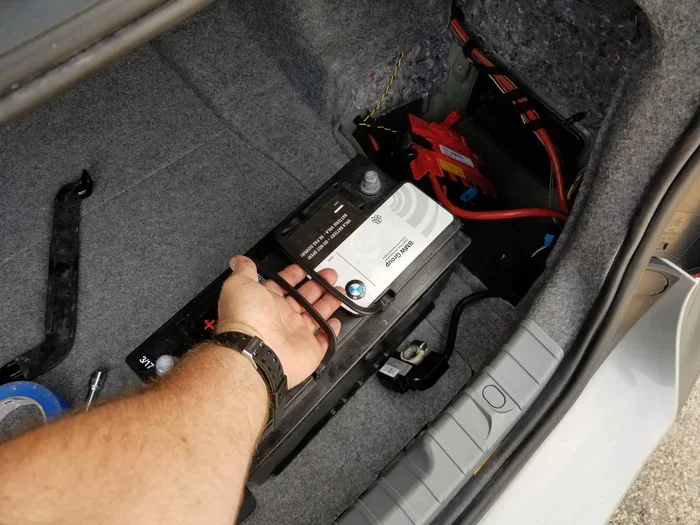
- Register a new BMW battery when you replace it
- Access BMW troubleshooting guides and live data streams
These are the same functions that dealers use, but Tool32 BMW puts them in your hands. You do not need to visit a dealership every time something goes wrong. With vehicle diagnostics right on your screen, you save time and money.
Who Should Use Tool32 BMW
Tool32 BMW is great for several types of users. DIY mechanics love it because it gives them professional-grade BMW fault diagnosis at home. Independent shops use it because it is more affordable than dealer tools. Even BMW enthusiasts who want to customize their cars use Tool32 BMW for coding changes.
If you work on BMWs regularly, Tool32 BMW should be in your toolkit. It supports many BMW models and years, making it a versatile choice for any BMW maintenance routine.
Quick Tips
- Always use a known-good cable when connecting Tool32 BMW to your car
- Make sure your laptop is plugged into power during long coding sessions
- Close all other programs before launching Tool32 BMW for best performance
- Keep a backup of your BMW modules before making any changes
Getting Started with Tool32 BMW Setup
Setting up Tool32 BMW is straightforward, but you need the right hardware and software. Here is everything you need to get started.
Hardware You Need
Before you install Tool32 BMW, gather these items:
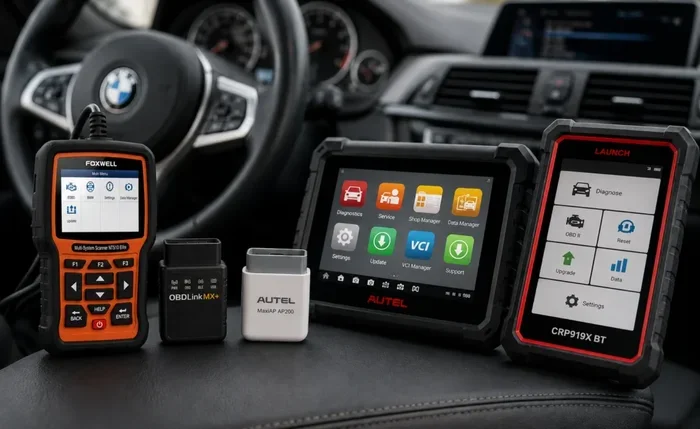
- A compatible cable: Most users prefer a USB-to-OBD2 cable or a Bluetooth OBD2 adapter for wireless connections
- A laptop or tablet: Windows laptops work best with Tool32 BMW software
- The diagnostic connector: BMW vehicles use a standard OBD2 port, usually found under the dashboard on the driver side
Make sure your cable is compatible with BMW diagnostic connector standards. Cheap cables can cause connection issues and lead to inaccurate BMW fault codes readings.
Installing the Tool32 BMW Software
Once you have your hardware, follow these steps to install Tool32 BMW:
- Download the Tool32 BMW software from the official source
- Run the installer and follow the on-screen prompts
- Connect your cable to the OBD2 port and your laptop
- Launch Tool32 BMW and let it detect your vehicle
- Select your BMW model, year, and engine type
- Update the software to the latest version for full BMW model coverage
Taking the time to set things up correctly pays off. A proper Tool32 BMW installation ensures stable connections and accurate vehicle diagnostics every time you use it.
Common Mistakes
- Using an incompatible cable: This is the number one reason Tool32 BMW fails to connect. Always check compatibility before buying
- Skipping software updates: Outdated Tool32 BMW software may not support newer BMW models or ECU programming features
- Ignoring driver installation: Some cables need specific drivers installed before Tool32 BMW can recognize them
Running Diagnostics with Tool32 BMW
Once Tool32 BMW is set up, running vehicle diagnostics is simple. This is where the tool really shines for everyday BMW troubleshooting.
How to Connect to Your BMW
Start by plugging your cable into the BMW OBD2 port. Then connect the other end to your laptop or pair your Bluetooth adapter. Open Tool32 BMW and the software should detect your vehicle automatically.
If it does not connect, try these steps:
- Check that the cable is firmly seated in both the car and the laptop
- Make sure the car is in accessory mode (do not start the engine)
- Restart Tool32 BMW and try again
- Update your cable drivers if needed
Reading and Clearing BMW Fault Codes
The main function of Tool32 BMW is reading BMW fault codes. These codes tell you what is wrong with your vehicle. Here is how to do it:
- Navigate to the Diagnosis section in Tool32 BMW
- Select the module you want to check (engine, transmission, ABS, airbags, etc.)
- Click Read Fault Codes
- Review the codes displayed on screen
- Use the built-in help or online resources to understand what each code means
- After fixing the issue, click Clear Fault Codes to reset them
Always clear codes only after you have fixed the problem. Clearing codes without repairs will just mask the issue and the codes will come back.
Using Live Data for BMW Diagnostics
Diagnostic live data is one of the most powerful features of Tool32 BMW. It shows you real-time sensor readings while your car is running. You can watch things like:
- Engine RPM and coolant temperature
- Oxygen sensor readings
- Fuel trim values
- Boost pressure (for turbocharged BMWs)
- Battery voltage and charging system data
Live data helps you confirm what the BMW fault codes are telling you. If a code points to a sensor problem, live data lets you see if that sensor is actually reading correctly. This makes BMW fault diagnosis much more accurate.
Expert Insight
Professional BMW technicians always check diagnostic live data before replacing parts. Tool32 BMW gives you access to the same data stream that dealers use. This saves you from buying expensive parts that are not actually the problem.
Common Mistakes
- Clearing codes before diagnosing: This erases valuable data you need to find the root cause
- Ignoring pending codes: Pending codes are early warnings. Address them before they become full BMW fault codes
- Not recording live data: Save screenshots of live data readings for later reference and comparison
Coding and Programming BMW Modules with Tool32
BMW coding is one of the most exciting features of Tool32 BMW. It lets you change settings, activate features, and customize your car’s behavior. But coding requires care, so let us walk through it properly.
What BMW Coding Means
Every BMW module has settings stored in its software. These settings control things like how the doors lock, whether the auto high beams are active, and what features are enabled. BMW coding changes those settings using Tool32 BMW.
For example, you can use Tool32 BMW to:
- Enable hidden features that are already in your car
- Change how certain systems behave
- Program a new BMW battery after replacement
- Reset BMW service intervals after maintenance
- Adjust BMW ECU programming parameters
Step-by-Step Coding Process
Follow these steps for safe BMW coding with Tool32 BMW:
- Back up the module: This is the most important step. Always save a copy of the module before changing anything
- Select the module you want to code in Tool32 BMW
- Read the current coding values and save them
- Make your changes one at a time
- Write the new coding to the module
- Test the change and verify it works
- If something goes wrong, restore the backup you saved in step one
Never rush through coding. Take your time and understand each change you make. Tool32 BMW makes it easy to undo changes if you have a backup, but coding mistakes can sometimes cause issues that need professional help to fix.
Quick Tips for Safe Coding
- Always back up first: A backup can save you hours of work if something goes wrong
- Change one setting at a time: This makes it easy to identify which change caused any issues
- Keep notes: Write down what you changed and why. You will thank yourself later
- Do not code while driving: Only code when the car is safely parked
Expert Insight
Experienced BMW techs recommend using Tool32 BMW for coding only after you understand what each parameter does. If you are new to BMW coding, start with simple changes like service resets before attempting more advanced module programming.
Tool32 BMW vs Other BMW Diagnostic Tools
There are several diagnostic tools available for BMW owners. How does Tool32 BMW compare to the alternatives? Let us look at the most popular options.
Comparison Table
| Feature | Tool32 BMW | INPA | ISTA | BimmerLink |
|---|---|---|---|---|
| Price | Affordable | Free (older) | Free (dealer-based) | Affordable |
| Ease of Use | Very user-friendly | Older interface | Complex setup | Simple and clean |
| BMW Model Coverage | Wide range | Older models mainly | All current models | Good coverage |
| Coding Support | Full coding support | Limited | Full dealer coding | Basic coding |
| Live Data | Yes, real-time | Yes | Yes | Yes |
| Update Frequency | Regular updates | Rarely updated | Dealer-controlled | Occasional updates |
| Best For | DIY mechanics and enthusiasts | Older BMW models | Dealer-level work | Basic BMW troubleshooting |
Which Tool Should You Choose
If you are a DIY owner or independent mechanic, Tool32 BMW offers the best balance of features, ease of use, and affordability. INPA is outdated and works mainly on older BMWs. ISTA is powerful but requires dealer-level access. Tool32 BMW gives you professional-grade BMW diagnostic tool capabilities without the dealer price tag.
For BMW maintenance and everyday diagnostics, Tool32 BMW is hard to beat. It covers most models, provides excellent vehicle diagnostics, and makes BMW coding accessible to regular owners.
Troubleshooting Common Tool32 BMW Issues
Even the best tools can have issues. Here are the most common problems users face with Tool32 BMW and how to fix them.
When Tool32 BMW Won’t Connect
If Tool32 BMW does not detect your vehicle, check these things first:
- Is the OBD2 cable firmly connected at both ends?
- Is the car in accessory mode?
- Have you installed the correct drivers for your cable?
- Is the Tool32 BMW software up to date?
- Have you tried a different USB port on your laptop?
Most connection issues are solved by checking the cable and drivers. If the problem persists, try a different cable or adapter.
Fixing Software Errors
Sometimes Tool32 BMW will show errors during use. Here is what to do:
- Restart the software: Close Tool32 BMW completely and reopen it
- Check for updates: Outdated software can cause errors with newer BMW models
- Reinstall the software: A fresh install often fixes persistent issues
- Check your cable: Faulty cables are a common cause of software errors
- Contact support: The Tool32 BMW community and support forums can help with specific error messages
Common Mistakes
- Using an outdated cable: Old OBD2 cables may not support the data speeds needed for modern BMW module programming
- Not restarting between sessions: Always restart Tool32 BMW if you encounter any errors
- Ignoring error messages: Error messages often contain clues about what went wrong. Read them carefully
Expert Insight
Many BMW troubleshooting issues with Tool32 BMW come down to cable quality. Invest in a well-reviewed cable or adapter from a trusted brand. A good cable prevents most connection headaches and ensures reliable BMW fault diagnosis every time.
Maximizing Your Tool32 BMW Experience
To get the most out of Tool32 BMW, follow these best practices for daily use and long-term maintenance.
Keep Your Software Updated
BMW releases new models and updates existing ones regularly. Tool32 BMW updates ensure you can work on the latest vehicles and access the newest BMW ECU programming features. Check for updates at least once a month.
Build a Library of BMW Fault Codes
Over time, you will encounter many BMW fault codes. Keep a personal reference of the codes you see most often and what they mean. This makes future BMW fault diagnosis much faster.
Use Tool32 BMW for Regular Maintenance
Do not wait for something to break. Use Tool32 BMW for regular check-ups:
- Read fault codes during every oil change
- Check diagnostic live data seasonally
- Perform BMW service reset after every maintenance job
- Register new batteries immediately after installation
Regular use of Tool32 BMW catches small problems before they become big, expensive repairs. It is one of the best investments you can make for BMW maintenance.
Join the Community
The Tool32 BMW user community is active and helpful. Join forums and groups where users share tips, coding profiles, and troubleshooting advice. Learning from other Tool32 BMW users accelerates your growth and helps you avoid common pitfalls.
Quick Tips for Long-Term Use
- Back up your Tool32 BMW settings and profiles regularly
- Keep a log of every coding change you make
- Store your cable safely to prevent damage
- Share your experiences with the community to help others
Conclusion
How to Use Tool32 for BMW is a skill that pays off quickly. Whether you are reading BMW fault codes, running diagnostic live data, or performing BMW coding, Tool32 BMW gives you professional-grade vehicle diagnostics at your fingertips. The setup is simple, the features are powerful, and the results are reliable.
Remember to always back up your modules before coding, keep your software updated, and take your time with each procedure. Avoid the common mistakes that trip up new users, and lean on the Tool32 BMW community when you need help.
With Tool32 BMW in your toolkit, you have everything you need for professional-level BMW maintenance, BMW troubleshooting, and BMW fault diagnosis. Start using it today, and you will wonder how you ever managed without it.
Frequently Asked Questions
What is Tool32 BMW used for?
Tool32 BMW is a car diagnostic software used to read fault codes, clear errors, view live data, and code BMW modules. It is a versatile BMW diagnostic tool that replaces many dealer-only functions for DIY mechanics and independent shops.
Is Tool32 BMW compatible with all BMW models?
Tool32 BMW supports a wide range of BMW models, from older E-series to newer G-series vehicles. However, you should check the software version and update it regularly to ensure full BMW model coverage for your specific car.
Do I need special hardware to use Tool32 BMW?
Yes, you need a compatible OBD2 cable or Bluetooth adapter and a Windows laptop. The cable connects to your BMW’s diagnostic connector under the dashboard. Using a quality cable ensures stable connections and accurate vehicle diagnostics.
Is BMW coding with Tool32 safe?
BMW coding with Tool32 BMW is safe as long as you follow best practices. Always back up the module before making changes, change one setting at a time, and understand what each parameter does. If you are new to BMW coding, start with simple changes first.
How often should I update Tool32 BMW software?
You should check for Tool32 BMW software updates at least once a month. Regular updates ensure compatibility with newer BMW models, fix bugs, and add new BMW ECU programming features that improve your diagnostic capabilities.
Can Tool32 BMW replace a dealer visit?
For most BMW maintenance and diagnostic tasks, Tool32 BMW can replace a dealer visit. It provides the same BMW fault diagnosis and scan tool software functions that dealers use. However, some complex repairs may still require professional dealer equipment or expertise.