What Is a Maintenance Mode and Why Your Website Needs It
A maintenance mode is a temporary state that puts your website into a protected, restricted-access mode while you perform updates, repairs, or backend changes. It shields your visitors from broken pages, error messages, and incomplete content during site work. Every website owner should understand how maintenance mode works because it directly impacts user trust, SEO rankings, and overall site health. This guide covers everything from the basics to advanced strategies for using maintenance mode effectively.
Imagine this. You are in the middle of updating your website. Plugins need fresh versions. The design needs a refresh. The backend needs a security patch. You hit a button, and suddenly your site looks broken. Visitors land on error pages. Links lead nowhere. And your hard-earned search engine rankings start to wobble.
This is exactly the scenario that maintenance mode exists to prevent. It acts as a protective shield for your website during any kind of work that needs to happen behind the scenes. Whether you are a small business owner, a freelance developer, or managing a large e-commerce store, understanding how maintenance mode works can save you from headaches, lost revenue, and damaged reputation.
In this article, we will walk through everything you need to know about maintenance mode. We will cover what it is, why it matters, the different types available, and how to set it up the right way. By the end, you will have a clear picture of how to keep your site safe and your visitors happy during any kind of update or repair.
Key Takeaways
- Maintenance mode protects visitors: It prevents people from seeing broken pages or unfinished content while you work on your site.
- It safeguards your SEO rankings: Search engines penalize sites with frequent errors, and maintenance mode helps avoid that.
- Multiple types exist: From simple “coming soon” pages to full-site lockouts, you can choose what fits your needs.
- Setting it up is easy: Plugins, hosting tools, and manual methods all make activation straightforward.
- Best practices matter: Timing, messaging, and testing your maintenance page make a big difference in user experience.
- It’s not just for WordPress: Every platform and website builder supports some form of maintenance mode.
📑 Table of Contents
What Is Maintenance Mode?
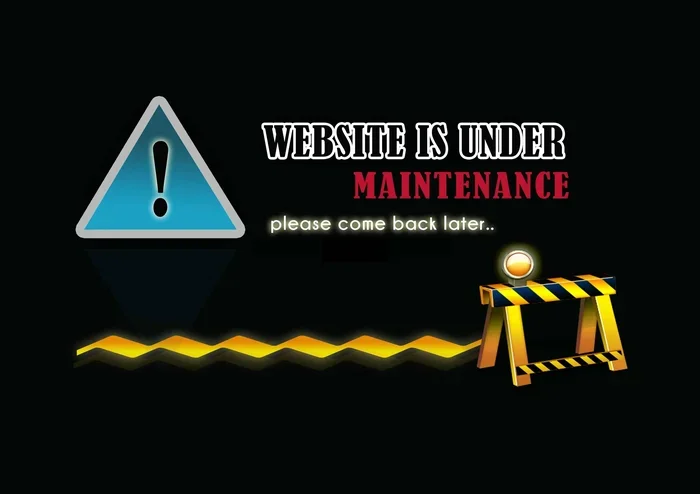
Maintenance mode is a temporary state that restricts public access to your website while you perform updates, fixes, or improvements. When a site enters maintenance mode, visitors see a custom page instead of the normal content. This page usually displays a message letting people know the site is temporarily unavailable.
Think of it like a “Closed for Renovation” sign on a store door. The store is still there. The work is happening inside. But customers know they need to wait a bit before they can walk in. Website maintenance mode does the exact same thing for your online presence.
During scheduled maintenance, the backend of your site stays active. You can edit files, update databases, install plugins, and make changes. But the front end stays hidden from regular visitors. This separation is crucial because it keeps your site functional for you while protecting the experience for everyone else.
How Does Maintenance Mode Work Technically?
When you activate maintenance mode, your server or CMS triggers a special flag. This flag tells the system to serve a different page to all public visitors. The technical process depends on your platform and setup. Most WordPress maintenance plugins work by creating a temporary file or checking a setting that overrides the normal page delivery process.
Some hosting providers handle this at the server level. They intercept incoming requests and redirect them to a static HTML page. This approach is fast and reliable because it does not load your full WordPress or CMS installation. The site owner and administrators usually retain full access through specific login credentials or IP whitelisting.
The key takeaway here is that maintenance mode is not about shutting down your site permanently. It is a controlled, temporary state designed to keep things running smoothly behind the curtain while the public sees a polite waiting message.
Why Websites Go Into Maintenance Mode
There are many reasons a website might need to enter maintenance mode. Understanding these reasons helps you plan better and avoid surprises. Let us look at the most common scenarios.
Plugin and Core Updates
Content management systems like WordPress release regular updates. These updates often include security patches, bug fixes, and new features. Installing updates sometimes requires database changes or file replacements. If a visitor lands on your site mid-update, they could encounter a broken layout, missing content, or a security vulnerability.
Backend updates are one of the top reasons sites go into maintenance mode. A simple plugin update might seem harmless, but it can alter how your site functions. Putting the site into maintenance mode before updating ensures nothing gets interrupted by incoming traffic.
Design and Theme Changes
Redesigning a website is exciting but risky. When you swap out themes or restructure pages, there is often a period where things do not look right. CSS files might not load properly. New layouts could break on older browsers. A maintenance page keeps visitors from seeing an unfinished or ugly version of your site.
Server Migrations and Hosting Changes
Moving your website to a new server or switching hosting providers involves DNS changes, file transfers, and database migrations. This process can take hours or even days. During that time, your site might be unstable. Scheduled maintenance windows allow you to control the narrative and keep visitors informed.
Security Fixes and Emergency Patches
Sometimes you discover a vulnerability that needs immediate attention. In these cases, you might need to take the site offline quickly to apply a fix. Having maintenance mode ready to go means you can lock the site down fast without scrambling to build a holding page from scratch.
How Maintenance Mode Protects Your Visitors
One of the biggest benefits of maintenance mode is how it protects the people who visit your website. Without it, your visitors face a poor experience that can damage trust and drive them away forever.
Preventing Error Pages
Nothing frustrates a web visitor more than landing on a 503 Service Unavailable error or a blank white page. These error pages signal that something is wrong. Visitors do not know if the site is broken forever or just having a temporary issue. They leave and usually do not come back.
A well-designed maintenance page replaces those scary error messages with a friendly, professional notice. It tells visitors exactly what is happening and when they can expect the site to be back. This simple change can turn a potential lost visitor into a patient, understanding return customer.
Maintaining User Trust
Trust is the foundation of any online relationship. When visitors come to your site, they expect it to work. If they encounter frequent errors or broken pages, they start to doubt your professionalism. Website accessibility during normal hours builds trust. And maintenance mode builds trust during downtime by showing that you are in control.
Think about it from the visitor’s perspective. Would you rather see a clean page that says, “We are making improvements. Back shortly,” or would you rather see a jumbled mess of half-loaded images and broken links? The answer is obvious.
Protecting SEO Rankings
Search engines like Google have strict guidelines about website uptime. If your site frequently shows error pages or returns server errors, search bots notice. Over time, this can hurt your search rankings. Google wants to send users to sites that work reliably.
When you use maintenance mode properly, search engines understand that the downtime is temporary. A well-configured maintenance page with the right HTTP status code (usually 503) tells search engines to come back later rather than de-index your site. This is a critical distinction that many website owners overlook.
Common Types of Maintenance Mode Pages
Not all maintenance mode setups look the same. Different websites need different approaches depending on their purpose, audience, and platform. Here are the most common types.
| Type | Best For | Key Features |
|---|---|---|
| Coming Soon Page | New sites or pre-launch | Builds email list, countdown timer, simple design |
| Under Construction Page | Active sites undergoing updates | Shows estimated return time, contact info, brand styling |
| Full Site Lockout | Security patches or emergency fixes | No content visible, admin access only, minimal design |
| Custom Maintenance Page | Branded, professional sites | Matches site branding, includes navigation, social links |
| Automated Maintenance Page | E-commerce and high-traffic sites | Auto-activates during updates, integrates with caching systems |
Coming Soon vs. Maintenance Mode
People often confuse a coming soon page with maintenance mode. While they look similar, they serve different purposes. A coming soon page appears before a site launches publicly. It builds anticipation and collects emails from interested visitors. Maintenance mode, on the other hand, activates on a live, working site that needs temporary protection during updates or repairs.
Some tools blur the line between these two. Many maintenance plugins offer both modes in a single package. This flexibility is helpful because you can use the same tool for pre-launch and post-launch maintenance needs.
What Makes a Good Maintenance Page?
A good maintenance page does more than just say the site is down. It provides value and keeps visitors engaged. Here are the elements every effective maintenance page should include:
- A clear message: Explain in simple terms that the site is undergoing maintenance.
- An estimated return time: Give visitors a timeframe so they know when to check back.
- Brand consistency: Use your logo, colors, and fonts to maintain brand identity.
- Contact or support options: Provide an email address or link to social media for urgent inquiries.
- Navigation links: Even in maintenance mode, you can link to your social profiles or other properties.
- A call to action: Encourage visitors to subscribe to updates or follow you on social channels.
Best Practices for Using Maintenance Mode
Simply turning on maintenance mode is not enough. How you use it makes all the difference. Follow these best practices to get the most out of your maintenance mode setup.
Plan Your Maintenance Window
Timing is everything when it comes to site maintenance. Avoid activating maintenance mode during peak traffic hours. If your audience is primarily in the United States and your busiest hours are between 9 AM and 5 PM, schedule your updates for the early morning or late evening. This minimizes the number of visitors who encounter the maintenance page.
Always communicate your maintenance window in advance if possible. Send an email to your subscribers, post on social media, or add a notice to your site a day before. This proactive approach shows professionalism and consideration for your audience.
Test Your Maintenance Page Before You Need It
Do not wait until you are in the middle of an emergency update to see if your maintenance page works. Test it beforehand. Activate maintenance mode on a staging site or during a low-traffic period. Check how the page looks on different devices and browsers.
Make sure your admin access still works. You do not want to accidentally lock yourself out of your own site while trying to fix something. Most maintenance plugins include an option to exempt your IP address from the maintenance page restriction.
Keep Maintenance Periods Short
The longer your site stays in maintenance mode, the more damage it can do to user trust and SEO. Aim to keep maintenance windows as short as possible. Prepare everything you need before you activate maintenance mode. Have a checklist of all the updates and changes you plan to make.
If a complex update requires more time, consider breaking it into smaller phases. This approach reduces risk and keeps each maintenance window manageable. Visitors appreciate transparency, so if you need more time, update your maintenance page with a revised estimate.
Monitor Your Site After Exiting Maintenance Mode
Once you deactivate maintenance mode, do not just assume everything is fine. Check your site thoroughly. Visit every important page. Test your forms, checkout process, and any interactive features. Use uptime monitoring tools to confirm that your site is accessible to all visitors.
Watch your analytics for any unusual spikes in bounce rate or drop in traffic. These can be early warning signs that something went wrong during the update. Catching these issues quickly allows you to address them before they escalate.
How to Set Up Maintenance Mode
Setting up maintenance mode is easier than most people think. The method you choose depends on your platform, technical comfort level, and specific needs. Let us explore the most common approaches.
Using a Maintenance Plugin (WordPress)
If you run a WordPress site, plugins make activation incredibly simple. Popular options like WP Maintenance Mode, SeedProd, and Come Later offer drag-and-drop editors and pre-designed templates. You install the plugin, activate it, customize your maintenance page, and you are done.
Most plugins also include features like countdown timers, email subscription opt-ins, and IP whitelisting. This means you can work on your site while visitors see your custom maintenance page. You can even exclude certain user roles so that contributors and editors can still access the backend.
Using Your Hosting Provider’s Built-In Tools
Many web hosting companies offer built-in maintenance mode features. Companies like SiteGround, Bluehost, and WP Engine include one-click maintenance mode in their control panels. These tools are convenient because they work at the server level and do not require any plugin installation.
The downside is that hosting-level maintenance modes are sometimes less customizable. You might get a basic page with limited design options. However, for quick emergency situations, these built-in tools are fast and reliable.
Manual Maintenance Mode Setup
For developers and advanced users, a manual approach gives you complete control. You create a maintenance.html file and configure your server to serve it when needed. In Apache servers, you can use an .htaccess file to redirect all traffic to your maintenance page.
This method has the advantage of being lightweight and fast. There are no plugins to slow down your site, and you have full control over the HTML, CSS, and messaging. The trade-off is that it requires technical knowledge and manual effort each time you need to activate or deactivate the mode.
Quick Tips for a Smooth Maintenance Mode Experience
- Always notify your audience before scheduled maintenance.
- Keep your maintenance page message short and clear.
- Include your brand logo and colors on the maintenance page.
- Set up a countdown timer if you know exactly how long the work will take.
- Test your maintenance page on mobile devices before activating it.
- Have a rollback plan in case something goes wrong during updates.
- Deactivate maintenance mode as soon as your work is complete.
Common Mistakes to Avoid with Maintenance Mode
Even with the best intentions, website owners sometimes make mistakes when using maintenance mode. Being aware of these pitfalls helps you avoid them.
Forgetting to Deactivate It
This is the most common mistake. You finish your updates, but you forget to turn off maintenance mode. Your visitors see the maintenance page for hours or even days. This leads to frustration, lost traffic, and potential revenue loss. Always set a reminder to check your maintenance status after completing your work.
Not Having a Return Time on the Page
Visitors want to know when the site will be back. If your maintenance page does not include an estimated return time, people will assume the worst and leave. Even if you do not know the exact time, give them a rough estimate like “We expect to be back within a few hours.”
Using a Generic or Unprofessional Page
A bare-bones maintenance page that looks like it was thrown together in five minutes sends the wrong message. It suggests that your site is not well-maintained or that you do not care about the visitor experience. Take the time to design a custom maintenance page that reflects your brand quality.
Ignoring SEO Best Practices
Using the wrong HTTP status code when activating maintenance mode can hurt your SEO. Always use a 503 Service Unavailable status. This tells search engines that the downtime is temporary and they should return to crawl your site later. Using a 500 or 404 status code can send the wrong signal and potentially impact your rankings.
Conclusion
Maintenance mode is one of the most essential tools in any website owner’s toolkit. It protects your visitors from frustrating error pages, preserves your hard-earned SEO rankings, and gives you the freedom to make necessary updates without worry. Whether you are running a small blog, a growing e-commerce store, or a large corporate site, knowing how to use maintenance mode effectively is a non-negotiable skill.
The key is to be proactive. Set up your maintenance page before you need it. Choose the right type of maintenance mode for your situation. Follow best practices like planning your maintenance window, testing beforehand, and keeping the downtime as short as possible. And always remember to deactivate it when the work is done.
Your website is one of the most important assets your business has. Treating it with care during updates and maintenance ensures that it continues to serve your visitors and your goals for years to come. Start implementing maintenance mode today, and you will wonder how you ever managed without it.
Frequently Asked Questions
What does maintenance mode mean for a website?
Maintenance mode means your website is temporarily restricted from public access while you perform updates, fixes, or improvements. Visitors see a custom holding page instead of your normal content. This protects them from errors and gives you a safe space to work on the backend without interruptions.
Will maintenance mode hurt my SEO?
No, not if you do it correctly. Using a 503 HTTP status code during scheduled maintenance tells search engines that the downtime is temporary. They will return to index your site once it is back online. The real SEO risk comes from leaving your site in maintenance mode too long or not using the right status code.
How long should a website stay in maintenance mode?
Keep it as short as possible. Most maintenance windows should last between 15 minutes and a couple of hours. If your updates require more time, communicate clearly with your visitors by updating the estimated return time on your maintenance page. Prolonged downtime erodes trust and can impact your search rankings.
Can visitors still access my site during maintenance mode?
By default, no. Regular visitors see the maintenance page instead of your site content. However, most maintenance mode tools allow you to whitelist specific IP addresses. This means you and your team can still access the site normally while working on it.
Do I need a plugin for maintenance mode?
Not necessarily. While plugins are the easiest option for WordPress users, many hosting providers offer built-in maintenance mode features. Advanced users can also set up manual maintenance mode through server configuration files like .htaccess. The best method depends on your technical comfort level and platform.
What should I include on my maintenance page?
Your maintenance page should include a clear message explaining the site is temporarily unavailable, an estimated return time, your brand logo and styling, contact or support options, and links to your social media profiles. A well-designed maintenance page keeps visitors engaged and preserves their trust in your brand.