How to Connect Bluetooth to an Acura MDX Step by Step
Learning how to connect Bluetooth to an Acura MDX is quick and simple once you know the steps. This guide walks you through pairing your phone, troubleshooting common issues, and getting the most out of your Acura MDX Bluetooth setup. Whether you own a 2024 Acura MDX or an older model, these tips will help you stay connected on the road.
Getting your phone connected to your car should not be a headache. If you own an Acura MDX, you are in luck. The Acura MDX Bluetooth system is designed to make wireless connectivity easy and reliable. Whether you want to stream music, take hands-free calls, or use navigation apps, pairing your phone is the first step.
This guide shows you exactly how to connect Bluetooth to an Acura MDX from start to finish. We cover every Acura MDX model year, from older versions to the latest 2024 Acura MDX. You will find clear steps, helpful tips, and solutions to common problems. By the end, you will be streaming and calling with confidence.
The good news is that the Acura MDX Bluetooth pairing process is user-friendly. You do not need to be a tech expert. Just follow along, and your phone will be connected in no time. Let us dive in and get you set up.
Key Takeaways
- Easy Pairing Process: Connecting Bluetooth to an Acura MDX takes just a few minutes using the infotainment system.
- Multiple Devices Supported: The Acura MDX Bluetooth setup allows you to pair more than one phone at a time.
- Hands-Free Calling Works Seamlessly: Once paired, you can make and receive calls without touching your phone.
- Audio Streaming Is Built In: Stream music, podcasts, and audiobooks through your Acura MDX speakers wirelessly.
- Troubleshooting Is Straightforward: Most Bluetooth problems can be fixed with a simple reset or re-pairing.
- Keep Your System Updated: Regular software updates improve Acura MDX Bluetooth performance and compatibility.
📑 Table of Contents
- Why Bluetooth Connectivity Matters in the Acura MDX
- How to Connect Bluetooth to an Acura MDX: Step-by-Step Guide
- Acura MDX Bluetooth Settings: What You Can Customize
- Troubleshooting Common Bluetooth Issues with the Acura MDX
- Tips for the Best Bluetooth Experience in Your Acura MDX
- Acura MDX Bluetooth Across Different Model Years
- Final Thoughts on Connecting Bluetooth to Your Acura MDX
Why Bluetooth Connectivity Matters in the Acura MDX
Bluetooth is more than just a convenience feature. It is a safety tool and an entertainment hub rolled into one. When you connect Bluetooth to Acura MDX, you unlock a hands-free driving experience that keeps your eyes on the road and your hands on the wheel.
Modern Acura MDX models come with a sophisticated infotainment system. This system supports wireless audio streaming, phone book access, and voice commands. Without Bluetooth, you are stuck using cables or missing out entirely. With Bluetooth, everything works wirelessly and seamlessly.
Here is why Bluetooth matters so much in the Acura MDX:
- Safety: Hands-free calling reduces distractions while driving.
- Convenience: Your phone connects automatically when you get in the car.
- Entertainment: Stream Spotify, Apple Music, and podcasts through your car speakers.
- Integration: Access contacts and call history directly from the MDX touchscreen.
- No Cables: Say goodbye to tangled charging cords and aux cables.
The Acura MDX Bluetooth setup is built into the car’s main menu system. Once you complete the initial pairing, your phone will remember the connection. Every time you get in, the system recognizes your device and reconnects automatically. This is one of the best features of the Acura MDX wireless connectivity system.
How to Connect Bluetooth to an Acura MDX: Step-by-Step Guide
Now let us get into the actual steps. How to connect Bluetooth to an Acura MDX depends slightly on your model year, but the core process is the same across all recent models. Below, we walk you through the exact steps for the most common Acura MDX infotainment systems.
Step 1: Prepare Your Phone
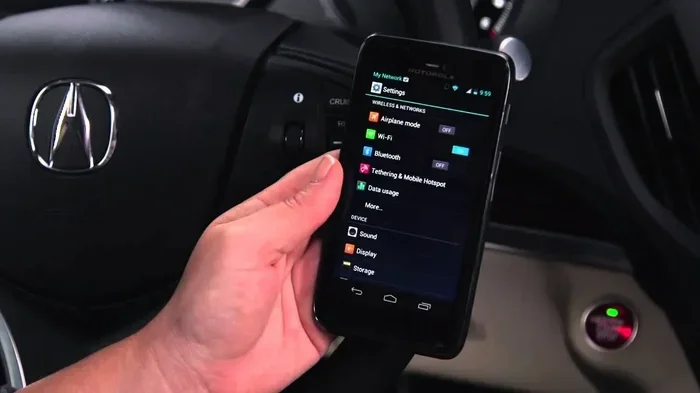
Before you touch the Acura MDX controls, prepare your phone first. Make sure Bluetooth is turned on. You can usually find this in your phone’s quick settings panel. On iPhones, swipe down from the top right. On Android phones, swipe down from the top.
Also, make sure your phone is not connected to another device already. If your phone is paired with a smartwatch or another car, it might interfere with the Acura MDX Bluetooth setup. Disconnect those temporarily if needed.
Keep your phone within arm’s reach of the driver’s seat during the pairing process. This ensures a strong signal while the devices search for each other.
Step 2: Access the Infotainment System
Start your Acura MDX and press the Home button on the infotainment touchscreen. The Home button is usually at the bottom left of the screen. From the main menu, look for the Settings icon. It looks like a gear or cogwheel.
On some Acura MDX models, you may need to tap the phone icon first. This opens the phone or connection menu directly. Either way, you are looking for the Bluetooth or Phone Settings section.
Once you are in the settings menu, find the Bluetooth option. Tap on it to open the Bluetooth settings panel. This is where all the magic happens.
Step 3: Put the Acura MDX in Pairing Mode
In the Bluetooth settings menu, you will see an option to search for new devices. Tap on Search for Devices or Add New Device. The Acura MDX will now become visible to nearby Bluetooth devices.
Your phone should detect the Acura MDX in its list of available devices. The name usually shows up as Acura MDX or Acura-XXXX. Tap on it to begin the pairing process.
On some models, a passcode will appear on both screens. Make sure the codes match, then confirm on both devices. This is a security step to ensure only your phone connects to the Acura MDX Bluetooth system.
Step 4: Confirm the Connection
Once pairing is complete, you will see a confirmation on the Acura MDX screen. Your phone name should now appear in the list of connected devices. You may also see options to allow access to contacts, call history, and audio streaming.
Allow all permissions when prompted. This ensures full functionality of the Acura MDX wireless connectivity features. You want access to phone calls, music streaming, and messaging integration.
Test the connection by playing music from your phone. You should hear it come through the car speakers. Try making a call using the steering wheel phone button to confirm hands-free calling works too.
Step 5: Save and Repeat for Additional Devices
The Acura MDX Bluetooth setup supports multiple paired devices. If you have a second phone or a tablet, you can repeat the same steps. The system remembers up to several paired devices at once.
To switch between devices, go back to the Bluetooth menu and select the device you want to use. The Acura MDX will disconnect from the current device and connect to the new one. This makes it easy to share your car with a passenger or spouse.
Quick Tips for a Smooth Pairing Process:
- Keep your phone’s software updated to the latest version.
- Restart your phone before pairing if you run into issues.
- Make sure the Acura MDX infotainment system is fully updated.
- Turn off other Bluetooth devices nearby that might cause interference.
- Be patient during the search process. It may take 10 to 20 seconds.
Acura MDX Bluetooth Settings: What You Can Customize
Once your phone is connected, the Acura MDX gives you control over how Bluetooth works. Understanding these settings helps you get the best experience every time you drive.
Audio Streaming Settings
The Acura MDX infotainment system lets you control audio streaming separately from phone calls. You can adjust the volume for music and calls independently. Go to the Bluetooth settings and look for Audio Streaming options. Here, you can turn streaming on or off for each connected device.
If you prefer to listen to the radio while your phone is connected, you can do that too. Simply pause the music stream when you want to hear the FM stations. The Acura MDX handles this switching smoothly.
Phone Call Settings
Hands-free calling is one of the biggest benefits of the Acura MDX Bluetooth system. In the phone call settings, you can choose how calls are routed. Calls can come through the car speakers and microphone automatically.
You can also set the Acura MDX to ask which device to use for calls when multiple phones are connected. This is helpful in households where more than one person drives the same car.
Voice Control Integration
The Acura MDX supports voice commands through the Bluetooth connection. You can use voice control to make calls, play music, and access navigation. Press and hold the voice command button on the steering wheel to activate this feature.
Make sure your phone’s voice assistant is enabled for the best results. On iPhones, this is Siri. On Android phones, it is Google Assistant. The Acura MDX Bluetooth system works with both platforms seamlessly.
Troubleshooting Common Bluetooth Issues with the Acura MDX
Even with a great system like the Acura MDX, Bluetooth issues can happen. The good news is that most problems have simple fixes. Here are the most common issues and how to solve them.
Bluetooth Will Not Connect
If your phone will not pair with the Acura MDX, try these steps. First, turn Bluetooth off on your phone and then back on again. This refreshes the connection search. Next, restart the Acura MDX infotainment system by holding down the power button for about 10 seconds.
If that does not work, delete the Acura MDX from your phone’s Bluetooth memory and try pairing again. Sometimes old connection data causes conflicts. A fresh start solves this problem most of the time.
Audio Cuts Out or Sounds Scratchy
Interference can cause audio dropouts or poor sound quality. Move your phone closer to the center console. Bluetooth has a limited range, and thick car walls or electronic interference can weaken the signal.
Also check if other wireless devices are causing interference. Wi-Fi routers, USB chargers, and even other phones can disrupt the Acura MDX Bluetooth connection. Turn off unnecessary devices and see if the audio improves.
Phone Connects but No Sound
This is a common issue that is easy to fix. Check the volume on both your phone and the Acura MDX infotainment system. Sometimes the media volume is turned down even though the call volume is fine.
Go to the Acura MDX audio settings and make sure the correct audio source is selected. If your phone is connected via Bluetooth, the source should be set to Bluetooth Audio. You can also try pressing the audio source button on the steering wheel to cycle through options.
Acura MDX Bluetooth Reset: When All Else Fails
A full reset can solve stubborn Bluetooth problems. To reset the Acura MDX Bluetooth system, go to Settings, then Bluetooth, and select Clear All Paired Devices. This removes all saved connections and gives you a clean slate.
After clearing the devices, restart the infotainment system. Then go through the pairing process again from scratch. This fixes most persistent connection issues with the Acura MDX wireless connectivity system.
Tips for the Best Bluetooth Experience in Your Acura MDX
Once your Bluetooth is working, a few simple habits keep everything running smoothly. These tips help you get the most out of your Acura MDX Bluetooth setup every single day.
Keep Your Software Updated
Acura releases software updates for the infotainment system regularly. These updates improve Bluetooth performance and fix bugs. Check for updates at your local Acura dealer or through the AcuraLink system if your model supports it.
On the phone side, keep your iOS or Android software current too. Phone updates often include improvements to Bluetooth compatibility. An outdated phone operating system can cause connection problems with the Acura MDX.
Manage Multiple Devices Smartly
If you pair multiple phones with the Acura MDX, manage them wisely. Remove devices you no longer use. This keeps the Bluetooth list clean and reduces connection confusion.
Set your primary phone as the default device. Most Acura MDX systems let you choose which phone connects automatically when you start the car. This saves you the hassle of selecting the right device every time.
Use the Steering Wheel Controls
The Acura MDX steering wheel has dedicated buttons for phone and audio controls. Use these to answer calls, change tracks, and adjust volume without taking your hands off the wheel. This is the safest and most convenient way to use Acura MDX Bluetooth while driving.
Protect Your Privacy
When you connect your phone to the Acura MDX, the car accesses your contacts and call history. If you share your car with others, be mindful of this. You can set privacy preferences in the Bluetooth settings to control what data is shared with each connected device.
Charge Your Phone While Driving
Bluetooth use does not drain your phone battery as quickly as you might think. But streaming music and taking calls can still use power. Use the Acura MDX USB port or wireless charging pad if your model has one. Keeping your phone charged ensures the Bluetooth connection stays strong throughout your drive.
Acura MDX Bluetooth Across Different Model Years
The Acura MDX Bluetooth system has evolved over the years. Newer models offer faster pairing, better audio quality, and more device support. Here is a quick look at what to expect across different Acura MDX generations.
Older MDX models from 2014 and earlier may have a slightly different pairing process. They might require you to use the audio system knob instead of the touchscreen. The core steps remain the same, but the interface looks different.
Mid-range models from 2016 to 2020 introduced touchscreen controls and improved Bluetooth 4.0 connectivity. These models offer faster pairing and more stable connections. The latest 2023 and 2024 Acura MDX models support the newest Bluetooth standards and offer the smoothest experience.
Regardless of your model year, the basic process of how to connect Bluetooth to an Acura MDX remains consistent. The steps we outlined above work for most Acura MDX vehicles on the road today.
Final Thoughts on Connecting Bluetooth to Your Acura MDX
Connecting Bluetooth to an Acura MDX is one of the simplest and most rewarding things you can do with your vehicle. It transforms your daily commute, road trips, and errands into a connected, entertaining, and safer driving experience.
With the step-by-step guide above, you now know exactly how to connect Bluetooth to an Acura MDX from start to finish. You also know how to troubleshoot common issues and optimize your setup for the best performance. The Acura MDX Bluetooth system is built to be reliable, intuitive, and easy to use.
Take a few minutes today to pair your phone if you have not already. Once it is set up, you will wonder how you ever drove without it. Enjoy the freedom of hands-free calling, wireless music streaming, and seamless connectivity every time you turn the key.
The Acura MDX is a premium SUV, and its Bluetooth system matches that premium quality. Treat yourself to the convenience and safety that wireless connectivity brings. Your drives will never be the same.
Frequently Asked Questions
Can I connect more than one phone to my Acura MDX Bluetooth?
Yes, the Acura MDX Bluetooth system supports multiple paired devices. You can connect up to several phones at once. When you start the car, it automatically connects to the default device. You can manually switch between phones in the Bluetooth settings menu.
Why is my Acura MDX Bluetooth not showing up on my phone?
This usually happens when the Acura MDX is not in pairing mode. Make sure you have tapped Search for Devices or Add New Device in the Bluetooth settings. Also check that Bluetooth is turned on and visible on your phone. Restarting both the infotainment system and your phone often fixes this issue.
Can I stream music from any app through Acura MDX Bluetooth?
Yes, once your phone is paired, any app that uses audio streaming will work through the Acura MDX speakers. This includes Spotify, Apple Music, YouTube Music, and podcast apps. Just make sure audio streaming is enabled in the Bluetooth settings on both your phone and the Acura MDX.
How do I delete a paired device from my Acura MDX?
Go to Settings, then Bluetooth, on the Acura MDX infotainment screen. Find the device you want to remove and select Delete or Forget Device. This removes it from the paired list. You will need to pair it again from scratch if you want to connect it later.
Does the Acura MDX support wireless Apple CarPlay or Android Auto?
Many recent Acura MDX models support wireless Apple CarPlay and Android Auto. However, this is separate from the standard Bluetooth connection. CarPlay and Android Auto offer a different interface and additional features. Check your specific model year to confirm wireless compatibility.
What should I do if the Bluetooth connection keeps dropping?
Interference or outdated software is usually the cause. First, make sure both your phone and the Acura MDX infotainment system are fully updated. Then, try removing the Acura MDX from your phone’s Bluetooth list and re-pairing. If the problem persists, a full Bluetooth reset on the Acura MDX often resolves it.