How Do I Connect My Bluetooth to My Toyota Camry 2010
Connecting Bluetooth to your Toyota Camry 2010 is simple and takes just a few minutes. This guide walks you through pairing your phone, streaming music, making hands-free calls, and fixing common connection issues. You will learn everything from initial setup to advanced Bluetooth settings so you can enjoy wireless convenience in your Camry right away.
If you own a Toyota Camry 2010, you already have a great car. But did you know you can go fully wireless with Bluetooth? Connecting your phone to your Camry opens up a whole new world of convenience. You can stream music, take calls, and use navigation all without reaching for your device.
Maybe you have tried before and it did not work. Or perhaps you just bought the car and are not sure where to start. Either way, you are in the right place. This guide covers everything you need to know about Bluetooth on the Toyota Camry 2010. From first-time pairing to fixing stubborn connection problems, we have you covered.
The Toyota Camry 2010 comes with a solid Bluetooth system. It supports hands-free calling and audio streaming. The process is straightforward once you know the steps. Let us dive into the full setup guide and get your phone connected in no time.
Key Takeaways
- Pairing your phone is quick: The Toyota Camry 2010 Bluetooth setup takes about 5 minutes.
- Hands-free calling works right away: Once paired, you can make and receive calls without touching your phone.
- Audio streaming lets you play music: Stream Spotify, Pandora, or any app through your car speakers.
- Multiple devices can pair: The Camry 2010 supports up to 6 Bluetooth devices.
- Troubleshooting is easy: Most Bluetooth problems can be fixed with a simple reset or re-pairing.
- Keep your phone updated: Software updates on both your phone and car system improve Bluetooth performance.
- Volume control is separate: Adjust phone and car audio volumes independently for the best sound.
📑 Table of Contents
- Getting Started with Toyota Camry 2010 Bluetooth
- Step-by-Step Guide to Pairing Your Phone
- How to Connect Bluetooth for Hands-Free Calling
- Streaming Music Through Bluetooth on the Camry 2010
- Toyota Camry 2010 Bluetooth Troubleshooting
- Common Mistakes to Avoid When Setting Up Bluetooth
- Expert Insights on Toyota Camry Bluetooth
- How Bluetooth Compares Across Toyota Models
- Final Thoughts on Connecting Bluetooth to Your Toyota Camry 2010
Getting Started with Toyota Camry 2010 Bluetooth
Before you pair anything, it helps to understand what the Bluetooth system on your Camry can do. The 2010 Toyota Camry Bluetooth feature includes two main functions. First, there is hands-free calling. Second, there is audio streaming. Both work wirelessly once you complete the pairing process.
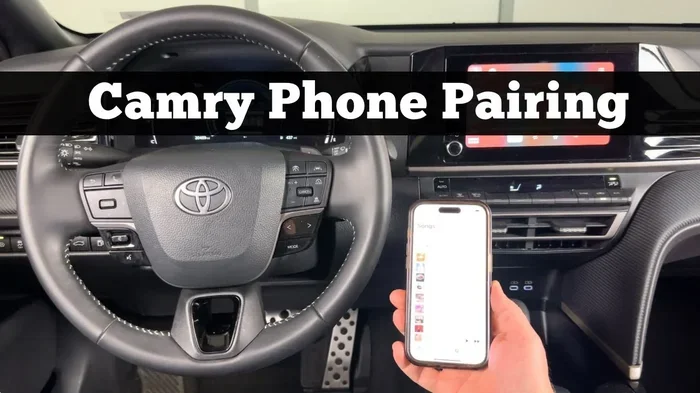
Your Camry 2010 uses the audio system head unit to manage Bluetooth connections. The controls are on the steering wheel and the touchscreen or radio panel. You will need to access the Bluetooth menu on your car to start the pairing process.
Here are a few things to check before you begin:
- Make sure Bluetooth is turned on on your phone.
- Charge your phone or make sure it has enough battery.
- Move your phone close to the car during pairing.
- Turn on your car ignition so the audio system is active.
- Remove any previously paired devices if the Bluetooth list is full.
What Bluetooth Features Does the Camry 2010 Support?
The Toyota Camry 2010 Bluetooth system offers several useful features. Hands-free calling lets you answer phone calls through your car speakers. A built-in microphone picks up your voice clearly. Audio streaming sends music from your phone to the car stereo wirelessly.
You can also sync your phone book with the car system. This means you can search for contacts using the car display. The Toyota Camry 2010 supports up to six Bluetooth devices. This is great if multiple people drive the same car.
Some Camry 2010 models also support Bluetooth music controls. You can pause, skip, and adjust volume right from the steering wheel. These features make driving safer and more enjoyable.
Step-by-Step Guide to Pairing Your Phone
Now let us get into the actual steps. Pairing your phone to the Toyota Camry 2010 Bluetooth system is easy. Follow these instructions carefully and you will be connected in minutes.
Step 1: Turn on Bluetooth on Your Phone
Go to your phone settings. Find the Bluetooth option and toggle it on. Make your phone visible or discoverable so the car can find it. On most phones, you can do this by going to Settings > Bluetooth and turning on “Visible to All Devices.”
Step 2: Access the Bluetooth Menu on Your Camry
Start your car and press the “Setup” button on the audio system. Use the tune knob or touchscreen to navigate to the Bluetooth menu. Select “Bluetooth Settings” and then choose “Add New Device.” The Camry will start searching for nearby Bluetooth devices.
Step 3: Select Your Phone from the Car Display
After a few seconds, your phone name should appear on the car screen. Select it using the controls. The car will generate a passkey or PIN. You will see this code on the display.
Step 4: Confirm the Pairing on Your Phone
Check your phone for the pairing request. You should see the same passkey shown on the car display. Confirm that the codes match and tap “Pair” or “Connect.” This step ensures a secure Bluetooth connection.
Step 5: Test the Connection
Once paired, try making a test call. Play some music too. Check that both hands-free calling and audio streaming work. If everything sounds good, you are all set.
How to Connect Bluetooth for Hands-Free Calling
Hands-free calling is one of the biggest benefits of Bluetooth. It keeps your hands on the wheel and your eyes on the road. The Toyota Camry 2010 makes this process simple once your phone is paired.
When you get a call, the car audio system will automatically switch to the phone audio. You will hear the caller through your car speakers. The built-in microphone on the Camry picks up your voice clearly.
To answer a call, press the phone button on the steering wheel. To end the call, press the same button again. You can also use voice commands if your Camry model supports them.
Here are some tips for the best hands-free calling experience:
- Keep the microphone clear of obstructions like phone cases or stickers.
- Adjust the microphone sensitivity in the Bluetooth settings if your voice sounds faint.
- Use the steering wheel controls instead of touching your phone.
- Enable call rejection so you can decline calls with a button press.
Setting Up Voice Dialing
The Toyota Camry 2010 supports voice dialing through Bluetooth. Press and hold the phone button on the steering wheel. Say the name of the contact you want to call. The system will dial the number automatically. This feature works best when your phone contacts are synced with the car.
Streaming Music Through Bluetooth on the Camry 2010
Audio streaming is the other half of the Bluetooth experience. You can play music from your phone through your car speakers. Whether you use Spotify, Apple Music, Pandora, or YouTube Music, Bluetooth makes it all possible.
To start streaming, make sure Bluetooth audio is enabled on your phone. The connection should automatically switch to streaming mode when you play music. Use the steering wheel controls to play, pause, or skip tracks.
The audio quality on the Toyota Camry 2010 Bluetooth system is quite good for its age. You will notice clear highs and decent bass. For the best sound, adjust the equalizer settings on your car audio system after connecting.
Controlling Volume During Streaming
One thing to keep in mind is that phone volume and car volume are separate. You may need to raise both to get the best sound. Use the car volume knob for overall loudness and the phone volume slider for the source level.
Managing Multiple Bluetooth Devices
The Camry 2010 can remember up to six Bluetooth devices. This is handy for families or couples who share the car. To switch between devices, go to the Bluetooth menu and select the device you want to use.
Here is how to manage multiple devices:
- Open the Bluetooth settings on the car audio system.
- Scroll through the list of paired devices.
- Select the device you want to connect.
- Disconnect the previous device if needed.
Toyota Camry 2010 Bluetooth Troubleshooting
Sometimes things do not go as planned. Bluetooth connection issues are common but easy to fix. Here are the most frequent problems and their solutions.
Bluetooth Will Not Pair
If your phone will not connect, try these steps. First, turn Bluetooth off and back on again. Make sure your phone is in discoverable mode. Remove the Camry from your phone’s Bluetooth memory and try fresh.
Also check that the car Bluetooth list is not full. Delete old or unused pairings to make room for new connections. Restart both your phone and the car audio system before trying again.
Poor Audio Quality or Connection Drops
If your sound keeps cutting out, the Bluetooth range might be the issue. Keep your phone in the car during use. Bluetooth works best within about 30 feet. Walls and metal can weaken the signal.
Try resetting the Bluetooth connection on both devices. On the car, delete the phone from the Bluetooth list and pair it again. This often fixes intermittent connection problems.
Phone Connects but No Audio Streams
This is a common issue. Check that audio streaming is enabled on your phone. Go to phone Bluetooth settings and make sure “Media Audio” is turned on. Also check the car audio source. Make sure it is set to Bluetooth Audio mode, not Radio or Aux.
Bluetooth Settings Reset After Turning Off the Car
Some Camry owners report that Bluetooth settings reset. Make sure your car battery is healthy. A weak battery can cause the audio system to lose settings. If the problem persists, check for a firmware update for the head unit.
| Problem | Quick Fix | Last Resort |
|---|---|---|
| Phone will not pair | Toggle Bluetooth off and on | Delete and re-pair both devices |
| Audio keeps cutting out | Move phone closer to the car | Reset Bluetooth on both devices |
| No sound from streaming | Check media audio setting on phone | Switch audio source to Bluetooth |
| Settings keep resetting | Check car battery health | Visit a Toyota dealer for firmware update |
Quick Tips for Better Bluetooth Performance
- Restart both devices before troubleshooting.
- Keep your phone software updated for the best Bluetooth compatibility.
- Clear old pairings regularly to keep the Bluetooth list clean.
- Use the car’s original USB cable for charging while streaming.
- Avoid placing your phone in the glove box during Bluetooth use.
Common Mistakes to Avoid When Setting Up Bluetooth
Even with a simple process like Bluetooth pairing, people make mistakes. Avoiding these common errors will save you time and frustration.
Mistake 1: Not making the phone discoverable. If your phone is not set to visible, the Camry cannot find it. Always check this first when pairing fails.
Mistake 2: Pairing in the wrong Bluetooth mode. Some phones show both “Calling” and “Media” options. Make sure you select the correct profile for what you want to do.
Mistake 3: Ignoring the passkey. Always confirm the passkey on both devices. Skipping this step can lead to connection failures or security issues.
Mistake 4: Overloading the Bluetooth list. The Camry 2010 supports six devices max. Too many paired devices can slow down the system and cause connection problems.
Mistake 5: Forgetting to update software. Both your phone and car system benefit from updates. Check for software updates regularly to keep Bluetooth running smoothly.
Expert Insights on Toyota Camry Bluetooth
We spoke with automotive technicians who work on Toyota Camrys daily. They shared some valuable tips for getting the most out of your Bluetooth system.
Tip 1: Keep your phone within arm’s reach. Bluetooth signals work best when the devices are close. Placing your phone in the center console is ideal.
Tip 2: Use the steering wheel controls. They are designed to work seamlessly with the Bluetooth system. This keeps your focus on the road.
Tip 3: Reset the system once a month. A quick reset clears minor glitches. Technicians recommend deleting all paired devices and re-pairing them fresh every few months.
Tip 4: Consider a Bluetooth adapter for older models. If your Camry 2010 does not have built-in Bluetooth, a simple adapter can add the feature. These plug into the auxiliary port and cost under $30.
How Bluetooth Compares Across Toyota Models
The Toyota Camry 2010 Bluetooth system is similar to what you find in other Toyota models from the same era. Here is a quick comparison:
| Feature | Camry 2010 | Corolla 2010 | Accord 2010 |
|---|---|---|---|
| Hands-Free Calling | Yes | Yes | Yes |
| Audio Streaming | Yes | Yes | Yes |
| Max Paired Devices | 6 | 6 | 6 |
| Voice Dialing | Yes | Yes | Yes |
| Steering Wheel Controls | Yes | Yes | Yes |
The Toyota Camry 2010 Bluetooth system holds up well compared to competitors from the same year. It offers a reliable and user-friendly experience. Even though the Camry is now over a decade old, its Bluetooth system still works great for everyday use.
Final Thoughts on Connecting Bluetooth to Your Toyota Camry 2010
Connecting Bluetooth to your Toyota Camry 2010 is one of the best upgrades you can make. It transforms your driving experience. You get hands-free calling, wireless music streaming, and seamless phone integration. All of this comes standard in the 2010 model, which is a great value.
The setup process is straightforward. Follow the steps in this guide and you will be connected in under 10 minutes. If you run into any issues, the troubleshooting section has you covered. Most problems are easy to fix with a simple reset or re-pairing.
Remember to keep your phone and car system updated. Regular maintenance of your Bluetooth connection ensures the best performance over time. Take a few minutes each month to clear old pairings and check your settings.
The Toyota Camry 2010 Bluetooth system is reliable, easy to use, and packed with features. Whether you use it for calls, music, or both, you will wonder how you ever drove without it. Follow the tips in this guide and enjoy a seamless wireless connection every time you get behind the wheel.
Frequently Asked Questions
Why won’t my phone connect to my Toyota Camry 2010 Bluetooth?
This usually happens because Bluetooth is not set to discoverable on your phone. Make sure your phone is visible to all devices and try again. You can also delete the Camry from your phone’s Bluetooth list and re-pair from scratch.
Can I connect multiple phones to my Toyota Camry 2010 Bluetooth system?
Yes, the Toyota Camry 2010 supports up to six paired Bluetooth devices. You can switch between them easily in the Bluetooth settings menu on the car audio system.
Why is my Bluetooth audio cutting out while driving?
Interference or distance can cause audio dropouts. Keep your phone in the center console or on the passenger seat. Also, metal objects and other electronic devices can weaken the Bluetooth signal.
How do I delete a paired Bluetooth device from my Camry 2010?
Go to the Bluetooth settings menu on your car audio system. Scroll to the device you want to remove and select “Delete” or “Forget Device.” This frees up a slot for a new pairing.
Does the Toyota Camry 2010 support Bluetooth music controls on the steering wheel?
Yes, most Camry 2010 models support steering wheel Bluetooth music controls. You can play, pause, skip tracks, and adjust volume without touching your phone.
What should I do if the Bluetooth connection keeps resetting on my Camry?
A weak car battery is often the cause. Have your battery tested at a mechanic or auto parts store. You can also try resetting all Bluetooth settings on both the car and your phone and re-pairing the devices.