How To Put Phone In Pairing Mode In Just 30 Seconds
Putting your phone in pairing mode is the first step to seamless Bluetooth connectivity in your car. Whether you use an iPhone or Android device, this simple process takes under 30 seconds and unlocks hands-free calling, music streaming, and GPS navigation. This guide walks you through every step with clear, easy-to-follow instructions for both platforms.
Have you ever jumped into your car, ready to hit the road, only to realize your phone in pairing mode is the missing link to your favorite music and hands-free calling? It happens to all of us. The good news is that getting your phone in pairing mode takes less than 30 seconds once you know exactly where to tap and swipe.
Bluetooth pairing is the bridge between your smartphone and your car’s audio system. It lets you stream music, answer calls, and use GPS navigation without ever touching your phone. In this guide, we will walk you through the entire process for both iPhone and Android devices. You will also learn how to fix common issues and make every connection smoother than the last.
By the end of this article, you will never struggle with phone in pairing mode again. We have broken everything down into simple, bite-sized steps. No jargon. No confusion. Just clear instructions that work every single time.
Key Takeaways
- Quick Process: Putting your phone in pairing mode takes just 30 seconds once you know where to look.
- Works on Both Platforms: iPhone and Android devices have slightly different steps, but the process is equally simple.
- Car Bluetooth Matters: Pairing your phone correctly gives you hands-free calling and wireless music streaming while driving.
- Troubleshooting Helps: Knowing common pairing problems saves time and frustration when connecting your car audio system.
- Pro Tips Exist: A few simple habits make future Bluetooth connections faster and more reliable every time.
📑 Table of Contents
- What Does It Mean to Put Your Phone in Pairing Mode?
- How To Put Phone In Pairing Mode on iPhone
- How To Put Phone In Pairing Mode on Android
- How To Connect Your Phone to Your Car’s Bluetooth System
- Common Pairing Problems and How To Fix Them
- Tips To Make Bluetooth Pairing Faster and Smoother
- Key Takeaways
- Conclusion
What Does It Mean to Put Your Phone in Pairing Mode?
Before we dive into the steps, let us understand what phone in pairing mode actually means. When your phone is in pairing mode, it becomes visible to other Bluetooth devices nearby. Your car’s infotainment system is one of those devices. Once visible, the two can find each other and create a wireless connection.
Think of it like waving hello across a room. Your phone sends out a signal that says, “Hey, I am here and ready to connect.” Your car stereo picks up that signal and responds. That is all Bluetooth pairing is at its core. Simple, right?
Once paired, your devices remember each other. This means you usually do not need to put your phone in pairing mode every single time you get in the car. But if you reset settings, buy a new phone, or drive a different car, you will need to pair again.
Why Is Bluetooth Pairing Important for Drivers?
Bluetooth pairing is not just about convenience. It is a safety feature too. Hands-free calling lets you keep your eyes on the road and your hands on the wheel. Wireless music streaming means you stay focused instead of fumbling with cables. Your car’s infotainment system becomes a natural extension of your phone when the connection is set up correctly.
Many modern vehicles now support wireless streaming and even phone mirroring through Apple CarPlay or Android Auto. All of these features start with one simple step: putting your phone in pairing mode.
How To Put Phone In Pairing Mode on iPhone
iPhone users have a straightforward path to Bluetooth pairing. Apple keeps the process simple and consistent across most models. Here is exactly what to do.
Step-by-Step Guide for iPhone
Follow these steps to get your phone in pairing mode quickly:
- Unlock your iPhone and open the Settings app. It is the gray gear icon on your home screen.
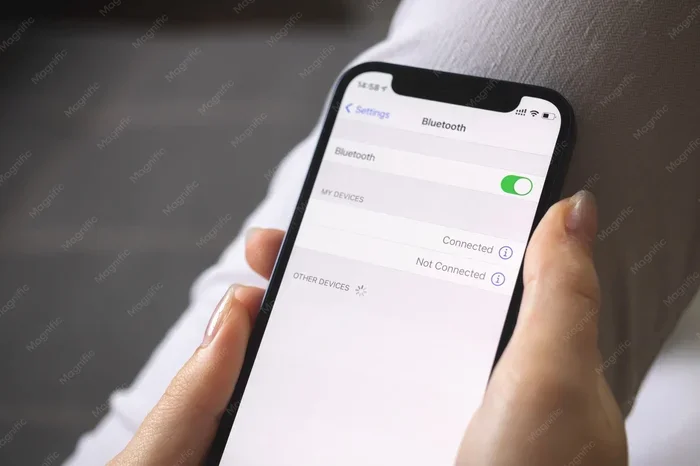
- Tap on Bluetooth near the top of the settings menu.
- Toggle the switch next to Bluetooth to the ON position. It should turn green.
- Your iPhone will automatically start searching for nearby devices. Wait a few seconds.
- Look for your car’s name in the list of available devices. It might say something like “My Car Audio” or your car’s brand name.
- Tap on your car’s name. Your phone in pairing mode is now attempting to connect.
- If a code appears on both screens, make sure they match. Then tap “Pair” on your iPhone.
That is it. Your iPhone is now connected to your car’s car audio system via Bluetooth connectivity. You can start playing music or making calls right away.
Quick iPhone Tips for Faster Pairing
- Make sure your iPhone is updated. Older iOS versions sometimes have Bluetooth troubleshooting issues.
- Turn Bluetooth off and back on if your phone does not find your car immediately.
- Restart your iPhone before pairing if you have not done so in a while. This clears minor glitches.
- Keep your phone close to the car’s console during the initial pairing process.
How To Put Phone In Pairing Mode on Android
Android devices work similarly but with slight differences depending on your brand. Samsung, Google Pixel, Motorola, and others all follow the same basic process for device pairing. Let us walk through it.
Step-by-Step Guide for Android
Here is how to get your phone in pairing mode on an Android device:
- Open the Settings app on your Android phone. The gear icon is usually in your app drawer or notification panel.
- Scroll down and tap on Connected Devices or Bluetooth & Device Connection. The exact name varies by brand.
- Tap on Bluetooth to turn it on. You will see a toggle switch. Slide it to the ON position.
- Your Android phone will begin scanning for nearby Bluetooth devices.
- Look for your car’s name in the list of available devices.
- Tap on your car’s name to initiate Bluetooth pairing.
- Confirm any pairing request that appears on either your phone or your car’s screen.
Some Android phones have a shortcut. You can swipe down from the top of your screen to access the quick settings panel. Tap the Bluetooth icon to turn it on, then long-press it to go directly to the Bluetooth settings page. This saves a few taps.
Android-Specific Pairing Tips
- Check your phone’s Bluetooth visibility settings. Some Android devices hide from other devices by default. Go to Bluetooth settings and look for “Visible to all nearby Bluetooth devices.”
- Clear old paired devices. If your phone remembers too many cars or devices, it can slow down the scanning process.
- Restart your phone’s Bluetooth by turning it off for 10 seconds, then back on.
- Update your phone’s software regularly. Bluetooth improvements often come through system updates.
How To Connect Your Phone to Your Car’s Bluetooth System
Now that your phone is in pairing mode, it is time to connect it to your car. The process depends slightly on your car’s infotainment system, but the general steps remain the same across most vehicles.
Preparing Your Car for Pairing
Before your car can find your phone, you need to put the car’s system into discovery mode too. Here is what to do:
- Start your car’s engine or turn the ignition to accessory mode.
- Press the Bluetooth button on your steering wheel or the car’s infotainment screen.
- Navigate to “Settings” and then “Bluetooth” or “Phone Connection.”
- Select “Search for New Devices” or “Add New Phone.”
- Your car’s screen will now display a list of nearby Bluetooth devices.
Completing the Connection
Once your car finds your phone in pairing mode, select your phone from the list. Both screens may show a matching number. Confirm the match on both devices. Your car audio system is now connected to your smartphone.
After the first connection, your car and phone will usually remember each other. Future connections often happen automatically when you get in the car. This is the beauty of wireless connectivity once the initial setup is done.
What If Your Car Does Not Have Bluetooth?
Not every car has built-in Bluetooth. Older models may not support wireless streaming at all. In that case, you have a few options:
- Bluetooth FM transmitter: A small device that plugs into your car’s cigarette lighter and broadcasts audio over an FM frequency.
- Auxiliary cable: A simple 3.5mm cable connects your phone’s headphone jack to your car’s AUX input.
- Bluetooth adapter: Some cars support aftermarket Bluetooth adapters that plug into the existing audio system.
These alternatives are not as seamless as built-in Bluetooth, but they get the job done for hands-free calling and music playback.
Common Pairing Problems and How To Fix Them
Even when you follow every step perfectly, things sometimes go wrong. Bluetooth pairing issues are incredibly common and usually easy to fix. Let us look at the most frequent problems and their solutions.
Phone Not Finding the Car
This is the most common issue when trying to get your phone in pairing mode working with your car. Try these fixes:
- Make sure your car’s Bluetooth is turned on and set to “Discoverable” mode.
- Move your phone closer to the car’s infotainment system. Bluetooth range is typically about 30 feet.
- Turn your phone’s Bluetooth off and back on again.
- Restart both your phone and your car’s infotainment system.
- Check if another device is already connected to your car’s Bluetooth. Some systems only allow one active connection at a time.
Connection Keeps Dropping
A stable phone connection should not drop randomly. If it does, here is what to check:
- Distance matters. Stay within the Bluetooth range of your car. Going too far causes disconnections.
- Interference from other devices. USB 3.0 ports and Wi-Fi routers can interfere with Bluetooth signals.
- Outdated software. Update both your phone and your car’s infotainment system if possible.
- Clear the paired device list on both your phone and your car, then pair fresh.
Audio Quality Is Poor
If your phone sync is working but the sound quality is bad, try these steps:
- Check that your car’s audio system is set to the Bluetooth input, not the radio or AUX.
- Make sure your phone’s media volume is turned up separately from the ringtone volume.
- Restart the Bluetooth connection by unpairing and then re-pairing your devices.
- If you use wireless streaming, check that your car supports high-quality Bluetooth codecs like aptX or LDAC.
Pairing Code Not Working
Sometimes the Bluetooth pairing code displayed on your car screen does not match the one on your phone. In this case:
- Cancel the pairing attempt on both devices.
- Start the device pairing process again from scratch.
- If the problem persists, delete your car from your phone’s Bluetooth memory and vice versa, then try a fresh connection.
Tips To Make Bluetooth Pairing Faster and Smoother
Once you have successfully connected your phone, a few simple habits will make every future connection faster and more reliable. These tips apply to both iPhone and Android users.
Keep Your Software Updated
Both your phone and your car receive software updates that improve Bluetooth connectivity. Check for updates regularly. Manufacturers often release patches that fix Bluetooth troubleshooting issues and improve overall performance.
Name Your Devices Clearly
Give your car’s Bluetooth system a recognizable name if your infotainment system allows it. Instead of a generic label, use something like “My Honda Civic.” This makes it easier to identify when your phone in pairing mode searches for available devices.
Unpair Devices You No Longer Use
Your phone and car can remember many paired devices. But too many stored connections slow things down. Periodically go through your Bluetooth settings and remove devices you no longer use. This keeps the device pairing process clean and fast.
Restart Before Big Trips
Before a long road trip, restart both your phone and your car’s infotainment system. This clears temporary glitches and ensures your car stereo pairing works flawlessly when you need it most.
Use Do Not Disturb While Driving
Both iPhone and Android offer a “Do Not Disturb While Driving” feature. When paired with Bluetooth, this mutes notifications and reads incoming messages aloud. It is a great safety addition once your phone connection is established.
Explore Advanced Features
Once your phone is connected, explore what your car’s system can do. Many modern vehicles support phone mirroring through Apple CarPlay or Android Auto. These features put your favorite apps right on the car’s screen, making navigation and communication even easier.
Some cars also support wireless charging through the console. While not directly related to Bluetooth connectivity, it is another way to keep your phone powered and ready to connect without cables.
Key Takeaways
- Fast Process: Putting your phone in pairing mode takes under 30 seconds once you know the steps.
- iPhone and Android Both Work: The process is slightly different but equally simple on both platforms.
- Car Setup Matters Too: Your car’s infotainment system must also be in discovery mode for successful Bluetooth pairing.
- Troubleshooting Is Simple: Most pairing issues resolve with a restart, a software update, or clearing old connections.
- Good Habits Help: Keeping software updated, naming devices clearly, and unpairing unused devices make every connection better.
Conclusion
Getting your phone in pairing mode is one of the simplest yet most valuable skills for any driver. In less than 30 seconds, you can unlock hands-free calling, wireless music streaming, and seamless GPS navigation. Whether you drive an iPhone or an Android, the process is quick, straightforward, and works the same way every time.
The key is understanding how Bluetooth connectivity works and following the right steps for your specific device. Once you have paired your phone with your car’s infotainment system, the connection usually handles itself from that point forward.
Remember the troubleshooting tips when things do not go perfectly. Most Bluetooth pairing issues have simple solutions. Keep your software updated, stay within range, and do not hesitate to restart a device when needed.
Now that you know exactly how to put your phone in pairing mode, you can enjoy every drive with your favorite music, hands-free calls, and reliable navigation. Get in your car, follow the steps, and get connected in just 30 seconds. Your next drive will be smarter, safer, and more enjoyable.
Frequently Asked Questions
How long does it take to put a phone in pairing mode?
It typically takes less than 30 seconds to put your phone in pairing mode. Once Bluetooth is turned on, your phone immediately starts searching for nearby devices. The full connection process, including confirming a pairing code, usually takes about one minute.
Why can’t my car find my phone when it is in pairing mode?
Several factors can cause this. Make sure your car’s system is set to “Discoverable” mode. Move your phone closer to the car’s console. Also check that Bluetooth is turned on for both devices. Restarting both devices often resolves the issue quickly.
Do I need to put my phone in pairing mode every time I get in the car?
No. After the initial Bluetooth pairing, your phone and car usually remember each other. Future connections happen automatically when both Bluetooth is turned on. You only need to manually put your phone in pairing mode if you reset your devices or connect a new car.
Is it safe to pair my phone with a rental car?
Yes, it is generally safe. However, always remember to unpair your phone from the rental car before returning it. This protects your personal data and prevents the next driver from accessing your contacts or call history through the car’s system.
What is the difference between pairing mode and connected mode?
Pairing mode means your phone is visible and searching for devices to connect with. Connected mode means your phone has successfully established a Bluetooth connection with your car. Once connected, you do not need to re-enter pairing mode unless you disconnect or reset the devices.
Can I pair multiple phones with my car’s Bluetooth system?
Yes, most car infotainment systems support multiple paired phones. However, only one phone can be actively connected at a time in many vehicles. The first phone that connects automatically usually gets priority. You can switch between paired phones through your car’s Bluetooth settings menu.