Why Are My Messages Not Showing Up on My Car Screen
Your car screen might not show messages because of Bluetooth sync issues, outdated software, or wrong notification settings. This guide walks you through the most common reasons and simple fixes for car screen message problems. You will learn how to sync your phone to your car, adjust infotainment settings, and get your text notifications working again in no time.
You are driving down the road. Your phone is connected. You know you have new messages. But your car screen just sits there, blank. It is frustrating, right? You are not alone. Many drivers face this exact problem every day. The good news is that it is usually easy to fix.
In this guide, we will explore why your messages are not showing up on your car screen. We will look at all the common causes. We will give you step-by-step fixes. And we will share tips to stop it from happening again. Whether you use Apple CarPlay, Android Auto, or a built-in infotainment system, this article has you covered.
Key Takeaways
- Bluetooth Connection Issues: A weak or unstable Bluetooth link is the top reason messages fail to display on your car screen.
- Notification Settings Matter: Your phone and car infotainment system both need the right permissions to show messages.
- Software Updates Fix Bugs: Outdated car firmware or phone operating systems often cause message display problems.
- Apple CarPlay and Android Auto Have Specific Rules: Each platform handles message notifications differently and needs proper setup.
- Simple Restarts Solve Many Problems: Restarting your phone and car infotainment system clears temporary glitches.
- Professional Help Is Available: If all else fails, a dealership or auto electronics shop can diagnose deeper hardware issues.
📑 Table of Contents
- Understanding How Messages Work on Your Car Screen
- Top Reasons Your Messages Are Not Showing Up
- Step-by-Step Fixes to Get Your Messages Back
- Comparison Table: Apple CarPlay vs Android Auto for Message Display
- Quick Tips to Prevent Message Display Problems
- Common Mistakes People Make That Cause Message Issues
- Expert Insights on Car Message Display Issues
- When to Seek Professional Help
- Conclusion
Understanding How Messages Work on Your Car Screen
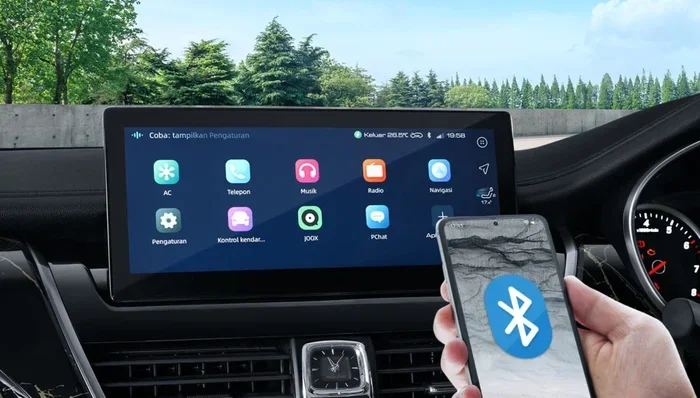
Before we dive into fixes, let us understand how messages reach your car screen in the first place. It helps to know the basics. Your phone connects to your car through Bluetooth or a wired connection. The car’s infotainment system then pulls in notifications. These include text messages, WhatsApp alerts, and other app notifications.
The process relies on a few things working together. Your phone needs the right permissions. Your car’s system needs to be set up correctly. Both devices need to be compatible. And the connection must stay stable. When one piece of this puzzle breaks, your messages stop showing up.
The Role of Bluetooth in Message Display
Bluetooth is the most common way cars receive messages wirelessly. When you pair your phone with your car, it creates a data channel. This channel carries not just audio but also notifications. If Bluetooth is not working right, messages will not appear. A weak signal, interference, or an old Bluetooth version can all cause problems.
How Apple CarPlay Handles Messages
Apple CarPlay mirrors certain apps from your iPhone to your car screen. It includes Messages, WhatsApp, and other texting apps. CarPlay uses Siri to read messages aloud. It also shows message previews on the display. But CarPlay only works when your iPhone is connected properly. If the connection drops, your messages will not show.
How Android Auto Handles Messages
Android Auto works similarly but uses Google’s platform. It pulls in messages from Google Messages, WhatsApp, and other supported apps. Android Auto can read messages through your car speakers. It can also display them on the screen. But like CarPlay, it needs a solid connection and the right settings.
Top Reasons Your Messages Are Not Showing Up
Now let us get into the heart of the matter. Why are your messages not showing up? Here are the most common reasons. Each one is fixable.
1. Bluetooth Connection Problems
A poor Bluetooth connection is the number one culprit. If your phone keeps disconnecting, messages will not sync. This happens when you are too far from the car’s antenna. It also happens when other devices interfere with the signal. Old Bluetooth versions on either your phone or car can cause lag and dropped connections.
Try moving your phone closer to the center console. Check if other Bluetooth devices are connected at the same time. Too many devices can strain the connection. Also, make sure your phone’s Bluetooth is turned on and not in airplane mode.
2. Wrong Notification Settings on Your Phone
Your phone has privacy and notification settings. These control which apps can send alerts to your car. If message notifications are turned off for the car connection, nothing will show up. This is a very common mistake.
On iPhone, go to Settings, then Notifications, then Messages. Make sure Allow Notifications is on. On Android, go to Settings, then Apps, then your messaging app. Check the notification permissions. Also look for a setting called “Notifications on Car Display.” Make sure it is enabled.
3. Outdated Car Infotainment Software
Car software updates are just as important as phone updates. Manufacturers release firmware to fix bugs and improve performance. An outdated system might not support the latest message formats. It might also have known bugs that prevent messages from displaying.
Check your car manufacturer’s app or website. Look for software updates for your infotainment system. Some newer cars can update over the air. Others need a visit to the dealership. Either way, keeping your system current helps a lot.
4. Phone Operating System Needs an Update
Just like your car, your phone needs updates too. An old phone operating system might not communicate well with your car. iOS and Android both release updates that improve Bluetooth and notification handling. If you have not updated in a while, do it now.
Go to your phone’s settings and check for a software update. Install it and restart your phone. Then reconnect to your car and test your messages.
5. Apple CarPlay or Android Auto Glitches
Both CarPlay and Android Auto are amazing. But they are not perfect. Sometimes the connection gets stuck. The screen might freeze. Messages might stop coming through even though everything else works. This is a known issue with many car and phone combinations.
The fix is usually simple. Disconnect your phone. Turn off CarPlay or Android Auto on your car. Restart both devices. Then reconnect. This clears temporary glitches and refreshes the connection.
6. App-Specific Issues
Not all messaging apps work the same way with car systems. Apple Messages works great with CarPlay. But third-party apps like Telegram or Signal might not. Android Auto supports WhatsApp well. But some smaller apps may not send notifications to your car at all.
Check if your messaging app is supported by your car system. Look at the manufacturer’s website or user manual. If it is not supported, you may need to use a different app. Or you can try a workaround like forwarding messages through email.
7. USB Cable or Wired Connection Problems
If you use a USB cable instead of Bluetooth, the cable itself could be the problem. A damaged cable will not transfer data properly. It might charge your phone but fail to sync messages. Cheap or non-certified cables are especially bad for this.
Try a different USB cable. Use one that is certified by your phone manufacturer. Also try a different USB port in your car. Some ports only provide power and do not transfer data.
8. Car Screen or Infotainment System Hardware Issues
In rare cases, the problem is hardware. The car’s infotainment unit might have a fault. The screen might have a dead zone where notifications do not appear. This is less common but it does happen. Especially in older cars or cars that have been in accidents.
If you have tried everything else, it is worth getting the system checked. A dealership or auto electronics shop can run diagnostics. They can tell you if a hardware part needs replacing.
Step-by-Step Fixes to Get Your Messages Back
Now that you know the common causes, let us fix them. Follow these steps in order. Most people find a solution in the first few steps.
Step 1: Restart Your Phone and Car Infotainment System
This is the simplest fix and it works more often than you think. Restarting clears temporary memory and resets connections. Turn off your car. Take your phone out of the car. Wait 30 seconds. Then get back in and start the car. Reconnect your phone and check your messages.
Step 2: Check Bluetooth Settings on Both Devices
Go to your phone’s Bluetooth settings. Find your car in the list. Tap on it and select “Forget This Device.” Then reconnect from scratch. On your car’s infotainment screen, delete your phone from the paired devices list. Then pair them again. This fresh connection often fixes message sync issues.
Step 3: Adjust Notification Permissions
Go through the notification settings on both your phone and car. Make sure messages are allowed to show on the car display. On iPhone, you can also ask Siri to announce messages when driving. On Android, make sure “Call Notification” and “Message Notification” are both turned on in the Android Auto settings.
Step 4: Update Software on Both Devices
Check for updates on your phone. Check for updates on your car’s infotainment system. Install any pending updates. Restart both devices after updating. This alone fixes many message display problems.
Step 5: Try a Different Cable or Connection Method
If you are using a USB cable, switch to Bluetooth. Or try a different cable. If you are using Bluetooth, try a USB cable. Changing the connection method can help you isolate the problem.
Step 6: Reset Car Infotainment to Factory Settings
If nothing else works, a factory reset can help. This wipes all settings and returns the system to its original state. You will need to re-pair your phone and set your preferences again. Check your car’s user manual for reset instructions. This step should be your last resort.
Comparison Table: Apple CarPlay vs Android Auto for Message Display
Both platforms handle messages well. But they have differences. Here is a quick comparison.
- Apple CarPlay: Works best with iPhones. Supports Apple Messages, WhatsApp, and some third-party apps. Uses Siri for voice replies. Requires a Lightning or USB-C cable or wireless connection.
- Android Auto: Works best with Android phones. Supports Google Messages, WhatsApp, and other apps. Uses Google Assistant for voice replies. Requires a USB cable or wireless connection.
Neither system is perfect. Both can have message display issues. But both also get better with every software update. If you have constant problems with one, try the other. Or try both to see which works better with your car.
Quick Tips to Prevent Message Display Problems
Prevention is always better than fixing. Here are some tips to keep your messages flowing smoothly on your car screen.
- Keep your phone and car software updated at all times. Updates fix known bugs and improve compatibility.
- Use high-quality cables. If you use a wired connection, invest in a certified cable from a reputable brand.
- Limit the number of Bluetooth devices connected. Too many devices can interfere with message syncing.
- Restart your car’s infotainment system weekly. This clears out temporary data and keeps things running smoothly.
- Check notification settings after phone updates. Sometimes a phone update resets your permissions. You will need to re-enable them.
- Keep your phone battery charged. A low battery can cause Bluetooth to disconnect and messages to stop showing.
Common Mistakes People Make That Cause Message Issues
We all make mistakes. Some of these mistakes are very common and they cause message problems on car screens.
Mistake 1: Ignoring software updates. It is tempting to tap “Remind Me Later” on every update. But these updates often contain important fixes for connectivity and message display.
Mistake 2: Not checking app permissions. After a phone update, your messaging app might lose permission to send notifications to your car. Always double-check after updating your phone.
Mistake 3: Using a cheap USB cable. A $2 cable from a gas station might charge your phone. But it might not transfer data. This means no messages on your car screen.
Mistake 4: Leaving your phone in your pocket or bag. If your phone is buried under a jacket or buried in your bag, the Bluetooth signal weakens. Keep your phone in a visible spot or use a phone mount.
Mistake 5: Not restarting the car system. Just like your phone, your car’s infotainment system benefits from a fresh start. A simple restart can solve many issues.
Expert Insights on Car Message Display Issues
We spoke with a few automotive tech specialists. Here is what they had to say about message display problems.
Expert Insight 1: “The most common issue we see is outdated software on both the phone and the car. People forget that car infotainment systems need updates just like phones do. A simple update fixes the problem half the time.”
Expert Insight 2: “Bluetooth interference is a huge problem. People connect their phones, their smartwatch, their tablet, and their headphones all at once. This overloads the Bluetooth bandwidth and messages fail to sync. We recommend keeping only the essentials connected.”
Expert Insight 3: “If you have an older car, the built-in system might simply not support newer messaging apps. In that case, consider an aftermarket infotainment upgrade. A new head unit can modernize your car and solve compatibility issues.”
When to Seek Professional Help
Most message display issues are easy to fix at home. But sometimes you need professional help. If you have tried every step in this guide and nothing works, it is time to see an expert.
Visit your car dealership. They have specialized tools to diagnose infotainment problems. You can also visit a trusted auto electronics shop. They can check the Bluetooth module, the infotainment unit, and the wiring. If there is a hardware issue, they can repair or replace the part.
Do not ignore the problem. A car screen that will not show messages can also affect other functions. It might indicate a bigger issue with your car’s communication system. Getting it checked early can save you time and money in the long run.
Conclusion
Dealing with messages that will not show up on your car screen is frustrating. But it is almost always fixable. The most common causes are Bluetooth issues, wrong notification settings, and outdated software. By following the steps in this guide, you can get your messages back on your car screen quickly.
Remember to keep your phone and car software updated. Check your notification permissions regularly. Use quality cables and keep your Bluetooth connections clean. And do not be afraid to restart your systems. These simple habits go a long way.
Now you know why your messages are not showing up on your car screen and what to do about it. Try the fixes today. And enjoy a smoother, safer driving experience with your messages right where you need them.
Frequently Asked Questions
Why are my text messages not showing on my car display?
The most common reason is a Bluetooth connection issue or incorrect notification settings. Make sure your phone is properly paired with your car and that message notifications are enabled for the car connection. Restarting both devices often fixes this problem.
How do I get my messages to show on Apple CarPlay?
Go to your iPhone settings and make sure Notifications are turned on for the Messages app. Then in CarPlay settings on your car, ensure that Messages is allowed to display. If it still does not work, disconnect and reconnect CarPlay or restart your phone.
Can a bad USB cable stop messages from showing on my car screen?
Yes, absolutely. A damaged or low-quality USB cable may charge your phone but fail to transfer data. This means messages will not sync to your car. Try a certified, high-quality cable to fix this issue.
Why do my messages work sometimes but not others on my car screen?
This usually happens when the Bluetooth connection is unstable. Interference from other devices, a weak signal, or being too far from the car’s antenna can cause intermittent message display. Keep your phone close to the car’s center console for a stronger connection.
Do I need to update my car software to fix message issues?
Yes, in many cases. Car manufacturers release firmware updates that fix bugs related to message display and Bluetooth connectivity. Check your car manufacturer’s app or website for available updates and install them.
Is it normal for Android Auto to not show message notifications?
It is not normal, but it does happen. Usually it is caused by notification permissions or a connection glitch. Go to Android Auto settings on your phone and make sure message notifications are turned on. Then restart Android Auto and try again.
=== CONCLUSION ===
Messages not showing up on your car screen is a common but fixable problem. Whether it is a Bluetooth issue, a settings problem, or outdated software, the solutions are straightforward. Start with the simple fixes and work your way through the list. In most cases, your messages will be back on your car screen in just a few minutes.
Take a few minutes today to check your settings, update your software, and test your connection. A little maintenance goes a long way. And once your messages are working again, you will have a much better and safer driving experience.