How to Find Your BMW WiFi Password in 5 Easy Steps
Finding your BMW WiFi password is simpler than you think, and this guide walks you through it in just five clear steps. Whether you need the default password, want to reset it, or troubleshoot a connection issue, we have you covered. You will learn exactly where to look in your iDrive system, how to connect your phone or laptop, and how to fix common problems. BMW WiFi hotspot setup takes only minutes once you know where to find the right settings. By the end, you will be confidently connected and streaming on the road.
Have you ever sat in your BMW, ready to stream music or share directions with passengers, only to realize you do not know the WiFi password? It happens more often than you might think. Finding your BMW WiFi password does not need to be a frustrating experience. This guide breaks the entire process down into five simple, easy-to-follow steps that anyone can handle.
Modern BMW vehicles come packed with technology, and the built-in WiFi hotspot is one of the most useful features. It lets you connect your phone, tablet, or laptop to the internet while you drive or sit parked. But if you have never set it up before, locating the password can feel like a treasure hunt. BMW WiFi setup should not be complicated, and it is not. We will show you exactly where to look and what to do.
Whether you drive a new BMW 3 Series or an older X5 model, the process is very similar. The iDrive infotainment system controls all WiFi settings. Once you know which menu to open, everything clicks into place fast. BMW connected drive features make your car a rolling WiFi hotspot, and we will help you unlock that capability right now.
Key Takeaways
- BMW WiFi password location: You can find it in the iDrive system under the Connection or Network settings menu.
- Default credentials are easy to access: Most BMW models store the WiFi network name and password on a label or in the owner’s manual.
- Resetting is straightforward: You can change your BMW WiFi password directly through the iDrive infotainment screen.
- Troubleshooting is simple: Common issues like weak signal or connection failure often have quick fixes you can do yourself.
- BMW WiFi works with all devices: Phones, tablets, and laptops can all connect to the BMW hotspot using standard WiFi setup steps.
- Security matters: Always change the default password to keep your BMW wireless network safe and private.
📑 Table of Contents
- Step 1: Locate the WiFi Settings in Your BMW
- Step 2: Access Your BMW WiFi Network Name and Password
- Step 3: Connect Your Device to the BMW WiFi Hotspot
- Step 4: Troubleshoot When Your BMW WiFi Password Does Not Work
- Step 5: Change or Reset Your BMW WiFi Password
- Expert Tips for Getting the Best BMW WiFi Experience
- BMW WiFi vs. Phone Hotspot: Which Is Better?
- Frequently Asked Questions
- Final Thoughts
Step 1: Locate the WiFi Settings in Your BMW
The first step to finding your BMW WiFi password is knowing where to look inside the car. Every BMW with a WiFi hotspot has the settings built into the iDrive system. You do not need any special tools or apps. Just follow these simple directions.
Start the car or turn on the ignition. Make sure the iDrive screen is active. You do not need to be driving to access these settings. In fact, it is safest to do this while parked.
Navigating the iDrive Menu
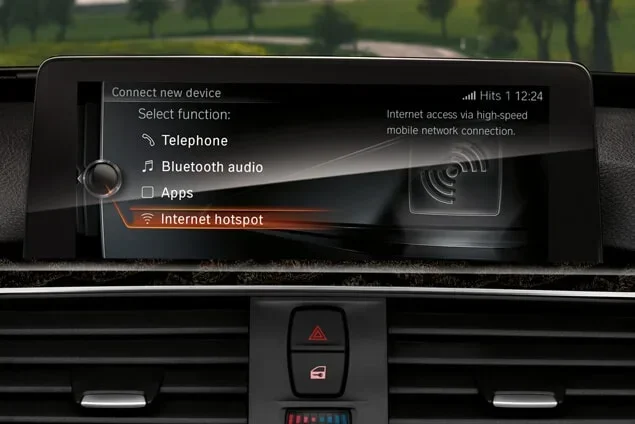
On the iDrive controller or touchscreen, look for the Settings icon. It usually looks like a gear. Tap or click on it. You will see a list of options. Look for “Connection” or “Network” depending on your model year.
Inside the Connection menu, find the WiFi or Mobile Hotspot option. This is where your BMW wireless network lives. The screen will show the network name, signal strength, and connection status. BMW WiFi settings are organized clearly, so you should not get lost.
Here is a quick breakdown of what you might see:
- Network Name (SSID): This is the name of your BMW WiFi network. It usually starts with “BMW” followed by a few characters.
- Password Field: The WiFi password is either displayed or hidden behind a toggle for security.
- Signal Strength: Shows how strong the hotspot signal is at your current location.
- Connected Devices: Lists any devices currently using the BMW WiFi hotspot.
Quick Tip: If you cannot find the WiFi option, try searching for “WiFi” or “Hotspot” in the iDrive search bar. BMW models from 2018 onward have a search function that makes this even easier.
Step 2: Access Your BMW WiFi Network Name and Password
Now that you are in the right menu, it is time to find the actual password. There are a few different ways this information is stored, depending on your BMW model and year.
Check the Default Credentials
Most BMW vehicles come with a default WiFi network name and password. These are set by the manufacturer and printed in two common places. First, check the owner’s manual. The WiFi details are often listed in the connectivity section. Second, look for a small sticker inside the sun visor or on the driver’s door frame. Some models also have the credentials printed on a card in the glove box.
The default network name will look something like “BMW_XXXX” where XXXX is a unique code for your vehicle. The default password is usually a simple combination of letters and numbers. It might be printed right next to the network name on the sticker.
View the Password on the iDrive Screen
If you cannot find the sticker or manual, do not worry. You can view the password directly on the iDrive screen. Go to the WiFi or Mobile Hotspot settings. Look for an option that says “Show Password” or a small eye icon. Tap it, and the BMW WiFi password will appear on screen.
Once you see the password, write it down somewhere safe. You might want to take a photo with your phone for quick reference. BMW hotspot password reset is also possible from this same menu, which we will cover in Step 5.
Expert Insight: BMW changed how they store WiFi passwords across model years. Newer models with the latest iDrive system often let you manage everything from the touchscreen. Older models might require using the iDrive controller knob to navigate. If your car has a controller, use the directional pad to scroll through the menus.
Step 3: Connect Your Device to the BMW WiFi Hotspot
You have the network name and password. Now it is time to connect. This part is the same whether you are using a phone, tablet, or laptop. The process is simple and fast.
Connecting from a Smartphone
Open the Settings app on your phone. Tap on WiFi or Network & Internet. Make sure WiFi is turned on. Your phone will scan for available networks. Look for the BMW network name in the list. Tap on it.
A dialog box will appear asking for the password. Type in the BMW WiFi password exactly as it appears. Pay attention to uppercase and lowercase letters. Tap Connect, and you should be online within a few seconds.
Connecting from a Laptop or Tablet
The process on a laptop is nearly identical. Click the WiFi icon in your taskbar or menu bar. Select the BMW network from the list. Enter the password and click Connect. Your laptop should connect right away.
If you are using a tablet, go to Settings > WiFi > select the BMW network > enter the password. That is it.
Quick Tip: If your device does not see the BMW WiFi network, make sure the hotspot feature is turned on in the iDrive settings. Some BMW models require you to manually enable the hotspot before it broadcasts the network name.
Step 4: Troubleshoot When Your BMW WiFi Password Does Not Work
Sometimes things do not go as smoothly as we hope. Maybe the password looks right but the connection fails. Or maybe the BMW WiFi network does not show up at all. Do not panic. Most of these issues have simple solutions.
Common BMW WiFi Problems and Fixes
Here are the most common issues people face when trying to connect to a BMW WiFi hotspot, along with their solutions:
- Wrong Password: Double-check for typos. WiFi passwords are case-sensitive. Try copying the password exactly as shown on the iDrive screen.
- Network Not Visible: The hotspot might be turned off. Go back to the iDrive WiFi settings and make sure the Mobile Hotspot toggle is switched on.
- Weak Signal: If you are far from the car or inside a building, the signal might be weak. Move closer to the vehicle and try again.
- Device Already Connected: BMW WiFi hotspots usually limit the number of connected devices. Disconnect any unused devices from the hotspot first.
- Outdated Software: Older BMW models might need a software update for optimal WiFi performance. Check with your dealer if updates are available.
When to Reset the BMW WiFi Settings
If none of the fixes above work, try resetting the WiFi settings on the iDrive system. Go to Settings > Connection > WiFi > Reset Network Settings. This clears all saved WiFi data and restores the default settings. After the reset, you will need to re-enter the BMW WiFi password on your device.
Common Mistake: Many people try to connect to the BMW WiFi network using the same password as their car key or the BMW Connected app login. These are completely different passwords. Always use the WiFi hotspot password from the iDrive system or the vehicle sticker.
Step 5: Change or Reset Your BMW WiFi Password
Once you are connected, you might want to change the default password for security reasons. This is a smart move, especially if you frequently share the hotspot with passengers or friends. Changing the BMW WiFi password is quick and easy.
How to Change the WiFi Password
Go back to the WiFi or Mobile Hotspot settings in the iDrive system. Look for an option labeled “Change Password” or “Security Settings.” Tap on it. You will be asked to enter the current password first. After that, type in your new password. Make it strong but something you can remember.
Use a mix of uppercase letters, lowercase letters, numbers, and symbols. Avoid using simple passwords like “123456” or “password.” A good BMW WiFi security practice is to use a unique password that you do not use for any other network.
How to Reset to Default
If you ever forget your new password, you can reset everything to factory defaults. In the same Security Settings menu, look for “Reset to Default.” This restores the original BMW WiFi password. You can also find the default password on the vehicle sticker or in the owner’s manual.
Expert Insight: BMW WiFi networks use WPA2 encryption by default. This is a strong security standard that keeps your connection safe from unauthorized users. Never leave your hotspot open or with a weak password, especially if you park in public places.
Expert Tips for Getting the Best BMW WiFi Experience
Now that you have your BMW WiFi password sorted out, let us make sure you get the best experience possible. A few small adjustments can make a big difference in speed and reliability.
Optimize Your BMW WiFi Signal
The BMW WiFi hotspot works best when your device is close to the car. If you are sitting inside the vehicle, the signal is strongest. If you are outside, stay within about 10 to 15 feet for the best BMW WiFi coverage.
Also, keep in mind that the BMW WiFi hotspot uses a specific WiFi frequency. Most BMW models broadcast on the 2.4 GHz band. This band has a longer range but slower speeds compared to 5 GHz. If you need faster speeds, check if your BMW model supports 5 GHz WiFi. Newer models with updated iDrive software may offer this option.
Manage Connected Devices
Your BMW WiFi hotspot can handle multiple devices, but there is a limit. Most BMW models support between three and five connected devices at once. If too many devices are connected, the speed drops for everyone.
To manage connected devices, go to the WiFi settings in iDrive. You will see a list of devices. You can disconnect any device that is not in use. This frees up bandwidth for the devices that matter most.
Keep Your BMW Software Updated
BMW regularly releases software updates that improve WiFi performance and fix bugs. Check for updates by going to Settings > Software Update. If an update is available, install it when the car is parked and connected to a power source. Updated software ensures your BMW WiFi connection stays fast and reliable.
Quick Tip: If you travel frequently, consider using a portable WiFi hotspot device paired with a data plan. This gives you more control over your data usage and can be more cost-effective than relying solely on your phone’s hotspot through the BMW system.
BMW WiFi vs. Phone Hotspot: Which Is Better?
Many BMW owners wonder whether to use the built-in BMW WiFi or just share their phone’s internet connection. Both options have pros and cons. Here is a quick comparison to help you decide.
| Feature | BMW WiFi Hotspot | Phone Hotspot |
|---|---|---|
| Ease of Use | Built into iDrive, no extra setup | Quick to enable, no car setup needed |
| Data Usage | Uses a dedicated data plan or SIM | Uses your phone’s data plan |
| Battery Drain | No impact on phone battery | Drains phone battery quickly |
| Speed | Depends on BMW hardware and data plan | Depends on phone and carrier signal |
| Coverage | Strong signal inside the car | Signal varies by phone model |
| Security | WPA2 encryption, easy to change password | Depends on phone settings |
| Cost | May require a BMW ConnectedDrive subscription | No extra cost beyond your phone plan |
For most people, the BMW WiFi password option is more convenient and keeps your phone battery preserved. However, if you do not have a dedicated data plan for your BMW, using your phone as a hotspot works just fine for short trips.
Frequently Asked Questions
Where is the default BMW WiFi password located?
The default BMW WiFi password is usually found on a sticker inside the sun visor, on the driver’s door frame, or in the owner’s manual. You can also view it on the iDrive screen under the WiFi or Mobile Hotspot settings by tapping “Show Password.”
Can I connect multiple devices to my BMW WiFi hotspot?
Yes, most BMW models support three to five connected devices at the same time. Keep in mind that connecting too many devices can slow down the internet speed for everyone on the network.
Why is my BMW WiFi password not working?
This is usually caused by a typo, incorrect capitalization, or the hotspot being turned off. Double-check the password on the iDrive screen, make sure the Mobile Hotspot is enabled, and ensure you are within range of the vehicle.
How do I reset my BMW WiFi password?
Go to Settings > Connection > WiFi > Security Settings on your iDrive system. Select “Change Password” to set a new one, or “Reset to Default” to restore the original factory password.
Does BMW WiFi work when the car is turned off?
In most BMW models, the WiFi hotspot remains active for a limited time after turning off the engine. Some models with a powered-on accessory mode or a connected drive subscription can maintain the hotspot for longer periods, even when the car is parked.
Do I need a data plan to use BMW WiFi?
Yes, the BMW WiFi hotspot requires a data connection. Some newer BMW models come with a built-in SIM card and a free trial of the BMW ConnectedDrive service. After the trial, you may need to purchase a data plan through BMW or use a compatible SIM card.
Final Thoughts
Finding your BMW WiFi password does not have to be a headache. With these five simple steps, you can locate, connect, and troubleshoot your BMW WiFi hotspot in no time. From navigating the iDrive menu to changing the password for better security, you now have everything you need to stay connected on the road.
Remember, your BMW WiFi hotspot is a powerful feature that makes every drive more enjoyable. Stream your favorite music, share directions with passengers, or browse the web during a road trip. Once you set it up, you will wonder how you ever traveled without it.
Take a few minutes today to find your password, connect your devices, and test everything out. If you run into any issues, refer back to the troubleshooting tips in Step 4. And do not forget to update your password regularly to keep your BMW WiFi connection secure.
Now go ahead, get connected, and enjoy the ride. Your BMW was built to keep you online, and now you know exactly how to make it happen.