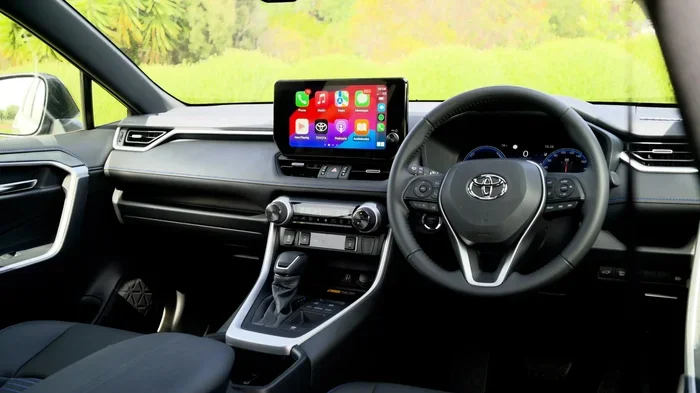
How Do I Set Up CarPlay on My RAV4 Step by Step Guide
Setting up CarPlay on my RAV4 is simple and takes just a few minutes. This guide walks you through every step from USB connection to wireless pairing. You will learn which RAV4 models support Apple CarPlay, how to fix common issues, and tips to get the most from your Toyota infotainment system.
Key Takeaways
- Easy Setup: You can connect CarPlay using a USB cable or go wireless on newer RAV4 models.
- Wide Compatibility: Most RAV4 models from 2019 onward support Apple CarPlay.
- Troubleshooting Tips: A simple restart or cable swap fixes most CarPlay connection problems.
- Maximize Features: Use Siri voice commands and keep your iPhone updated for the best experience.
- Wireless Option: RAV4 models with the JBL audio package often include wireless CarPlay.
- Quick Connection: Plug in your iPhone and follow the on-screen prompts for instant access.
📑 Table of Contents
What Is Apple CarPlay and Why Your RAV4 Needs It
Apple CarPlay is a smart feature that mirrors your iPhone onto your car’s screen. It lets you access maps, music, messages, and calls safely while driving. If you own a Toyota RAV4, you are in luck because this popular SUV supports CarPlay very well.
Think of CarPlay as a bridge between your phone and your car. When you connect your iPhone, the RAV4 touchscreen becomes a simplified version of your phone. You get big icons, easy-to-read menus, and hands-free controls. It is one of the best reasons to own a modern Toyota vehicle.
Many drivers ask, “How do I set up CarPlay on my RAV4?” The answer is simpler than you might think. Whether you have a 2019 model or a brand-new 2024 RAV4, the process is very similar. You just need a few minutes and your iPhone.
CarPlay does more than just show your phone screen. It uses the RAV4’s built-in microphone and speakers for calls. You can ask Siri to send texts or play your favorite playlist. Navigation apps like Google Maps and Waze work beautifully on the large RAV4 display. This means less looking at your phone and more focus on the road.
The feature also keeps your phone charged while you drive. When you plug in with a USB cable, your iPhone gets power at the same time. This is a small but very nice benefit for long road trips. Your RAV4 becomes a connected hub that makes every drive more enjoyable and safer.
Which RAV4 Models and Years Support CarPlay
Not every RAV4 has CarPlay, but most modern ones do. Toyota started adding Apple CarPlay as a standard feature on many trims around 2019. Let us look at what you need to know about RAV4 model compatibility.
RAV4 Model Year Requirements
If your RAV4 is from 2019 or newer, it almost certainly supports CarPlay. The 2019 RAV4 was a big year for Toyota because they upgraded the infotainment system across the board. Models from 2016 to 2018 might have CarPlay as an optional upgrade or not at all, depending on the trim level.
Here is a quick breakdown of RAV4 CarPlay support by year:
- 2019 and newer: CarPlay comes standard on most trims.
- 2016 to 2018: CarPlay may be available on higher trims or with an optional package.
- 2015 and older: CarPlay is generally not available without aftermarket upgrades.
RAV4 Trim Levels That Include CarPlay
The RAV4 comes in several trims including LE, XLE, XSE, TRD Off-Road, and Limited. On the 2019 and newer models, CarPlay is standard on all trims. This is great news because it means you do not need to pay extra for the feature. Even the base LE trim gets Apple CarPlay and Android Auto as standard.
If you have a used RAV4 and are not sure if it has CarPlay, look at the center touchscreen. If you see a smartphone icon when you press the menu button, your RAV4 is compatible. You can also check your owner’s manual or look up the VIN number on Toyota’s website.
RAV4 Hybrid and CarPlay
The RAV4 Hybrid also supports Apple CarPlay. Whether you drive the gas version or the hybrid version, the infotainment experience is the same. Toyota made sure both powertrains get equal access to smartphone integration. So if you chose the RAV4 Hybrid for fuel savings, you did not sacrifice any connectivity features.
How to Set Up CarPlay on My RAV4 Using a USB Cable
Using a USB cable is the most reliable way to connect CarPlay. It works on every RAV4 that supports the feature. The wired connection is also faster to set up and more stable than wireless. Here is exactly how to do it.
Step by Step USB Setup
First, locate the USB port in your RAV4. Most RAV4 models have at least two USB ports. One is usually in the center console between the front seats. The other is often in the rear console area. For CarPlay, use the port that is labeled with a smartphone icon if your RAV4 has one.
Next, take your Lightning or USB-C cable and plug it into your iPhone. Then connect the other end into the USB port in your RAV4. Make sure the connection is firm and secure.
Now turn on the RAV4 infotainment system. Press the home button or tap the screen to wake it up. You should see a CarPlay prompt appear on the RAV4 display. Tap “Allow” when asked if you want to trust this device.
If the prompt does not appear, try unlocking your iPhone first. Sometimes the phone needs to be unlocked for the car to recognize it. Also make sure your iPhone screen is on and not locked.
Once connected, you will see the CarPlay home screen on your RAV4 touchscreen. You can now access your favorite apps, make calls, and get directions. The setup is complete and you are ready to go.
Best USB Cables for CarPlay on the RAV4
Not all USB cables are the same. For the best CarPlay experience, use a high-quality cable that supports data transfer. Cheap cables that only charge may not work with CarPlay. Look for cables that are MFi certified, which means Apple has approved them for iPhone use.
Braided cables tend to last longer than rubber ones. They resist fraying and bending, which is important since you plug and unplug them often. A cable length of about three to six feet works well for most RAV4 setups. Too short and it is hard to reach. Too long and it can be a tangle in your center console.
Quick Tips for USB CarPlay
- Always use the USB port closest to the center console for the most stable connection.
- Clean the USB port in your RAV4 occasionally. Dust can cause loose connections.
- If CarPlay does not start automatically, open the CarPlay app on your iPhone.
- Restart both your iPhone and the RAV4 infotainment system if you run into issues.
How to Set Up Wireless CarPlay on Your RAV4
Wireless CarPlay is a game changer. It lets you connect your iPhone to the RAV4 without any cables at all. This feature is available on select RAV4 models, mostly those with the JBL premium audio package or higher trims. Here is how to get it working.
Checking if Your RAV4 Has Wireless CarPlay
Before you start, confirm your RAV4 supports wireless CarPlay. Look for the wireless CarPlay icon in the infotainment settings. If you see it, you are good to go. Newer RAV4 models from 2021 and 2024 almost always include wireless CarPlay as standard or as part of a package.
If you are not sure, you can also check the Toyota website using your VIN. Toyota’s system lets you look up every feature on your specific vehicle. This is the most accurate way to confirm wireless compatibility.
Step by Step Wireless Setup
First, make sure your iPhone and RAV4 are both connected to the same Wi-Fi network. This is important because wireless CarPlay uses Bluetooth and Wi-Fi together to stream content smoothly.
Next, go to the RAV4 infotainment settings. Look for the “Phone” or “Connections” menu. Select “Wireless CarPlay” and toggle it on. Your RAV4 will start searching for nearby devices.
Now on your iPhone, open the Control Center. Long press the CarPlay icon and select your RAV4 from the list. The RAV4 screen should display your CarPlay home screen within a few seconds.
You will only need to do this pairing once. After that, your RAV4 and iPhone will connect automatically whenever you get in the car. It is incredibly convenient and makes the whole driving experience feel seamless.
Troubleshooting Wireless CarPlay Connection Issues
Wireless CarPlay is great, but sometimes it can be finicky. If your RAV4 does not connect automatically, try turning Bluetooth off and back on. You can also try restarting your iPhone. Sometimes simply toggling wireless CarPlay off and on in the settings does the trick.
Make sure your iPhone is not in low power mode. Low power mode can disable CarPlay features. Also check that your iPhone is running the latest iOS version. Software updates often fix CarPlay bugs and improve compatibility with the Toyota system.
Wireless vs Wired CarPlay on the RAV4
Both connection methods have their strengths. Wired CarPlay is more stable and less likely to drop. Wireless CarPlay is more convenient and keeps your center console free of cables. Here is a quick comparison:
| Feature | Wired CarPlay | Wireless CarPlay |
|---|---|---|
| Connection Stability | Very stable | Good, but can occasionally drop |
| Setup Speed | Instant when plugged in | Takes a few seconds to pair |
| Convenience | Requires cable every time | Automatic connection |
| Charging | Yes, charges your iPhone | No, iPhone relies on its own battery |
| Availability | All CarPlay RAV4 models | Select RAV4 models only |
Many RAV4 owners use both methods. They use wireless CarPlay for daily driving and keep a USB cable in the car for long trips when they want their phone charged. This gives you the best of both worlds.
Troubleshooting Common CarPlay Issues on the RAV4
Even though CarPlay is a reliable feature, you might run into problems from time to time. The good news is that most issues are easy to fix. Let us walk through the most common problems and their solutions.
CarPlay Not Showing Up on the RAV4 Screen
If CarPlay does not appear when you plug in your iPhone, the first thing to check is the cable. Try a different USB cable. A damaged cable is the number one cause of CarPlay connection failures. Also try a different USB port in your RAV4.
Next, make sure CarPlay is enabled on your iPhone. Go to Settings, then General, then CarPlay. Your RAV4 should appear in the list of available cars. If it does not, restart your iPhone and try again.
Sometimes the RAV4 infotainment system needs a reboot too. Press and hold the volume knob on the center console for about 10 seconds. The screen will go dark and then restart. This clears minor software glitches that can block CarPlay from working.
CarPlay Freezing or Lagging on the RAV4
A slow or frozen CarPlay screen is frustrating but usually easy to fix. First, close all apps on your iPhone. Too many open apps can slow down the CarPlay connection. Also check that your iPhone has enough storage space. CarPlay works best when your phone has at least 5GB of free space.
If the problem continues, update your iPhone software. Apple regularly releases updates that improve CarPlay performance. You can check for updates in Settings, then General, then Software Update. Keeping your iPhone current is one of the simplest ways to prevent CarPlay issues.
Siri Not Working with CarPlay on the RAV4
Siri is one of the most useful CarPlay features. It lets you make calls, send messages, and get directions without touching your phone. If Siri stops working, check that “Hey Siri” is enabled on your iPhone. Go to Settings, then Siri and Search, and make sure all the toggles are on.
Also make sure your RAV4 microphone is not blocked. The microphone is usually located near the rearview mirror area. Dust or debris can sometimes interfere with voice recognition. A quick wipe with a soft cloth can fix this problem.
CarPlay Disconnects Frequently While Driving
If your CarPlay connection keeps dropping, Bluetooth interference is often the culprit. Other Bluetooth devices in your car, like a smartwatch or a headset, can sometimes interfere with the CarPlay signal. Try turning off Bluetooth on other devices and see if the problem stops.
For wireless CarPlay, distance matters. If your iPhone is not close enough to the RAV4’s antenna, the connection can weaken. Keep your iPhone in a consistent location, like the center console or a mount on the dashboard. This helps maintain a strong and stable wireless signal.
Tips to Get the Most Out of CarPlay on Your RAV4
Once you have CarPlay working, you can do a lot more than just make calls. Here are some practical tips to help you get the full CarPlay experience on your RAV4.
Customize Your CarPlay Home Screen
CarPlay lets you rearrange the apps on your home screen. You can choose which apps appear and in what order. Put your most used apps like Maps, Music, and Messages front and center. To rearrange, go to Settings on your iPhone, then CarPlay, and tap “Customize.”
This small customization makes a big difference. When you are driving, you want your navigation and music apps easy to find. Spending two minutes to organize your home screen saves you time and keeps your eyes on the road.
Use Siri Voice Commands Safely
Siri is your best friend when using CarPlay in the RAV4. You can say “Hey Siri, call Mom” or “Hey Siri, navigate to the nearest gas station.” Your hands stay on the wheel and your eyes stay on the road.
You can also use Siri to send text messages. Just say “Hey Siri, send a text to John saying I am on my way.” Siri will read the message aloud and you can confirm with a tap. This is incredibly useful for staying connected without any distraction.
Keep Your iPhone and RAV4 Software Updated
Software updates are important for CarPlay performance. Apple releases iOS updates that fix bugs and improve compatibility with car systems. Toyota also releases infotainment updates that can enhance CarPlay functionality.
Check for iPhone updates at least once a month. For your RAV4, visit a Toyota dealer or check the Toyota app for available software updates. Keeping both devices current ensures the smoothest CarPlay experience possible.
Use CarPlay for Navigation Instead of Your Phone
One of the biggest benefits of CarPlay is navigation. Apps like Google Maps, Apple Maps, and Waze all work on the RAV4 screen. You get turn by turn directions on the large display with better visibility than a small phone screen.
Before you start driving, set your destination while you are still parked. CarPlay lets you search for locations using voice commands or the touchscreen. Once you start driving, the directions are read aloud through the RAV4 speakers, so you do not need to look at the screen.
Explore CarPlay Apps for Music and Podcasts
CarPlay supports many music and podcast apps. Spotify, Apple Music, Podcasts, Audible, and YouTube Music all work great on the RAV4. You can switch between apps easily from the CarPlay home screen.
For a seamless audio experience, consider using Spotify or Apple Music with CarPlay. These apps integrate well with the RAV4’s audio controls. You can adjust volume from the steering wheel and switch tracks without taking your hands off the wheel.
Enable Do Not Disturb While Driving
CarPlay works great with Apple’s Do Not Disturb While Driving feature. When enabled, your iPhone silences notifications and sends auto-replies to texts. This helps you stay focused on the road. You can still receive calls through CarPlay’s hands-free system, so you do not miss emergencies.
To enable this feature, go to Settings on your iPhone, then Focus, then Do Not Disturb While Driving. You can set it to activate automatically when your iPhone connects to your RAV4 via CarPlay. This creates a safe driving environment every time you get behind the wheel.
Conclusion
Setting up CarPlay on my RAV4 is one of the easiest and most rewarding upgrades you can make. Whether you use a USB cable or go wireless, the process is straightforward and the results are fantastic. Your RAV4 becomes smarter, safer, and more connected with CarPlay.
Remember to use a quality cable, keep your software updated, and explore Siri voice commands. These small steps make a huge difference in your daily driving experience. If you run into any issues, the troubleshooting tips in this guide should help you get back on track quickly.
Now that you know how to set up CarPlay on my RAV4, you are ready to enjoy a smarter, safer driving experience. Your Toyota RAV4 and your iPhone work together beautifully. All you need to do is connect and go. Happy driving.