Can Two People Use The Toyota App at the Same Time
Yes, two people can use the Toyota App, but shared access comes with specific rules and limitations. The Toyota App supports multiple profiles and connected services, allowing family members or co-owners to manage a Toyota vehicle remotely. However, not all features work simultaneously, and each user needs their own Toyota account for full functionality.
Have you ever wondered if you and your spouse, roommate, or family member can both use the same Toyota App? Maybe you share a Toyota vehicle, or perhaps you want to let someone else manage remote start, lock commands, or navigation. The answer is more nuanced than a simple yes or no.
Can two people use the Toyota App? The short answer is yes. But the full picture involves shared profiles, individual logins, and some important limitations you should understand before you set things up. In this guide, we walk through everything you need to know about using the Toyota App with multiple people.
Whether you are a new Toyota owner or have been driving for years, this article covers setup steps, feature availability, common mistakes, and expert tips. We make it easy to follow, so you can get your shared access working right away.
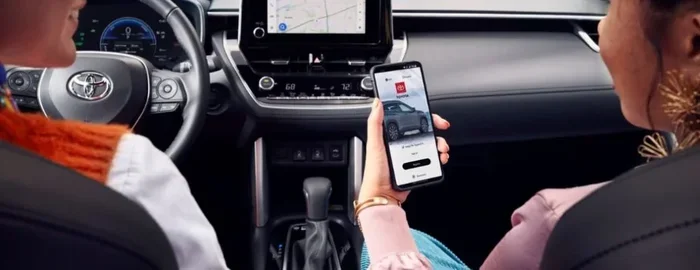
The Toyota App connects your smartphone to your vehicle. You can lock doors, start the engine, check fuel levels, and more — all from your phone. But when two people want access, things get interesting. Let us break it all down.
Key Takeaways
- Shared Access is Possible: Two people can both use the Toyota App with separate logins and linked vehicle profiles.
- Individual Accounts Required: Each user must create their own Toyota account to access connected services.
- Not All Features Work Simultaneously: Some remote functions may be limited when multiple users are active.
- Easy Setup Process: Adding a second user takes just a few minutes through the app settings or Toyota website.
- Family Sharing Options Exist: Toyota offers built-in tools for sharing vehicle access with registered family members.
- Security and Privacy Matter: Each user has their own login credentials, keeping data separate and secure.
- Know the Limitations: Certain advanced features may require the primary account holder’s authorization.
📑 Table of Contents
- Understanding the Toyota App and Its Connected Services
- Can Two People Use the Toyota App at the Same Time?
- How to Set Up Multiple Users on the Toyota App
- Features Available for Shared Toyota App Access
- Limitations and Things to Know About Shared Toyota App Access
- Common Mistakes People Make When Sharing the Toyota App
- Expert Tips for Managing Multiple Toyota App Users
- Conclusion
Understanding the Toyota App and Its Connected Services
The Toyota App is a mobile application designed to give Toyota owners remote control over their vehicles. It works with Toyota connected services, which are built into many newer Toyota models. Through the app, you can perform actions like remote start, lock and unlock doors, and locate your vehicle on a map.
Here are some of the core features the Toyota App offers:
- Remote Start: Start your engine from a distance before you get in.
- Lock and Unlock: Secure your vehicle or let someone in without a physical key.
- Vehicle Locator: Find your car in a crowded parking lot.
- Fuel Level and Range Checks: See how much fuel you have left and how far you can go.
- Maintenance Alerts: Get notifications about service needs and oil changes.
- Navigation Send: Send destinations from your phone to the car’s navigation system.
These features rely on a cellular connection and a linked Toyota account. Each account ties directly to a specific vehicle identification number (VIN). This is where the question of shared access becomes important.
How the Toyota App Links to Your Vehicle
When you first set up the Toyota App, you connect it to your vehicle through the Toyota connected services system. The app registers your VIN and links it to your personal account. This connection allows the app to send commands directly to your car’s onboard systems.
Because of this one-to-one link between accounts and vehicles, sharing access requires a deliberate setup process. The Toyota App does not simply let anyone log in and take control. There are built-in safeguards to protect your vehicle and your data.
Toyota designed the app with security in mind. Your personal information, vehicle data, and command history stay tied to your specific login. This means that even when two people share access, each person’s activity is tracked separately under their own profile.
Can Two People Use the Toyota App at the Same Time?
Can two people use the Toyota App at the same time? Yes, they can — but with some important caveats. The Toyota App supports multiple user accounts linked to the same vehicle. Each person logs in with their own credentials and can access most standard features.
However, not every feature works perfectly when two people are using the app simultaneously. Let us look at what works and what does not.
What Works When Two People Share the Toyota App
When both users have their own Toyota accounts and the vehicle is linked to both profiles, the following actions generally work well:
- Checking vehicle status: Both users can view fuel levels, tire pressure, and maintenance alerts.
- Remote lock and unlock: Either person can lock or unlock the doors through the app.
- Vehicle location: Both users can see where the car is parked on the map.
- Maintenance scheduling: Either person can book service appointments.
- Push notifications: Both users receive alerts about vehicle status and reminders.
These features are designed to be shared. Toyota understands that families and co-owners need convenient access. The app reflects this by allowing multiple linked profiles without major restrictions on basic functions.
What May Not Work Seamlessly with Two Users
While basic features work well, some advanced functions can cause conflicts when two people use the Toyota App simultaneously:
- Remote start commands: If one person sends a remote start and the other tries to send a different command at the exact same moment, the system may prioritize one over the other.
- Navigation send: Only one destination can be active in the car’s navigation system at a time, so both users sending different destinations could create confusion.
- Climate control pre-conditioning: Similar to remote start, simultaneous climate commands may not process correctly.
- Real-time tracking: The app may show slightly delayed location data if both users are refreshing the map at the same time.
The key takeaway is that the Toyota App handles two users well for everyday tasks. But for real-time, simultaneous commands, you may need to coordinate between users. Think of it like sharing a computer — it works great, but two people cannot type in the same document at the exact same time without some overlap.
How to Set Up Multiple Users on the Toyota App
Setting up a second user on the Toyota App is straightforward. Follow these steps to get both people connected to the same vehicle.
Step 1: Create Individual Toyota Accounts
Each person needs their own Toyota account. This is non-negotiable. The Toyota App does not support a single shared login for two people. Here is how each person creates their account:
- Download the Toyota App from the App Store or Google Play Store.
- Tap “Create Account” or “Sign Up.”
- Enter your email address and create a password.
- Fill in your personal details, including your name and contact information.
- Accept the terms of service and privacy policy.
- Verify your email through the confirmation link sent to your inbox.
Each person should use their own email address. Sharing a single account login goes against Toyota’s terms of service and can lead to access being revoked.
Step 2: Link the Vehicle to Each Account
Once both accounts are created, each person needs to link the shared Toyota vehicle to their profile. Here is how:
- Log into the Toyota App with your new account.
- Go to “My Vehicles” or “Add Vehicle.”
- Enter the vehicle identification number (VIN) of the shared Toyota.
- Verify ownership through the registered primary account holder if prompted.
- Wait for the system to confirm the link.
The primary account holder — the person who originally registered the vehicle — may need to approve the second user. Toyota requires this step to protect vehicle security. The approval process usually happens instantly through a notification in the app.
Step 3: Customize Preferences for Each User
After linking, each user can customize their own app experience:
- Notification preferences: Choose which alerts you want to receive.
- Home address: Set a home location for quick navigation.
- Preferred climate settings: Save your ideal temperature preferences.
- Voice assistant setup: Configure voice commands if your phone supports them.
These customizations stay separate for each user. Your preferences do not override the other person’s settings, which keeps the experience smooth for both users.
Quick Tips for a Smooth Setup
- Make sure both users have a stable internet connection during setup.
- Use the latest version of the Toyota App to avoid compatibility issues.
- If the second user encounters an error, try logging out and back in.
- Keep both users’ contact information up to date for verification purposes.
- Document the shared login process so both users know how to access the app.
Features Available for Shared Toyota App Access
When two people share the Toyota App, they get access to a wide range of connected services. Here is a closer look at what each user can do.
Remote Vehicle Controls
Both users can send remote commands to the vehicle. This includes locking doors, unlocking doors, and triggering the horn or lights to locate the car. These commands work independently for each user, so one person’s action does not block the other’s.
For example, if Person A locks the car remotely and Person B unlocks it two minutes later, the car will be unlocked. The app processes commands in real time, and the most recent command takes effect.
Vehicle Health and Status Monitoring
Both users can check the vehicle’s health at any time. The app displays:
- Current fuel level and estimated range
- Tire pressure readings for each tire
- Engine oil life percentage
- Battery voltage and condition
- Maintenance due dates
This shared visibility helps both users stay informed about the vehicle’s condition without needing to ask each other for updates.
Trip and Navigation Features
The Toyota App allows both users to send destinations to the vehicle’s built-in navigation system. However, only one destination can be active at a time. If User A sends a destination to the car and User B sends a different one, the second destination replaces the first.
Additionally, both users can view trip history, including distance traveled and routes taken. This is useful for tracking shared vehicle usage.
Emergency and Safety Features
Safety features remain accessible to both users:
- SOS Emergency Call: In a collision, either user can trigger an emergency call through the app.
- Roadside Assistance: Both users can request roadside help directly from the app.
- Stolen Vehicle Locator: If the car is stolen, either user can help track its location.
- Geofencing Alerts: Both users can set up alerts when the vehicle leaves or enters a specific area.
These safety features are designed to protect the vehicle and its occupants, regardless of which user initiates the command.
Limitations and Things to Know About Shared Toyota App Access
While sharing the Toyota App works well for most situations, there are limitations you should understand before relying on it daily.
Simultaneous Command Conflicts
The Toyota App can only process one active command at a time for certain functions. If both users try to send a remote start command within seconds of each other, the system may only register one of them. This is rare but can happen during busy moments.
To avoid this, simply communicate with the other user before sending a command. A quick text like “I am about to remote start the car” can prevent confusion.
Primary Account Holder Authority
In most cases, the person who originally registered the vehicle holds primary authority. This means they can:
- Remove a second user from the linked profile
- View all activity logs for the vehicle
- Reset shared settings and preferences
- Revoke access if needed
This authority structure protects the primary owner. It also means the second user should not expect full administrative control over the vehicle’s app settings.
Subscription and Service Requirements
Some Toyota connected services require a paid subscription. If the primary account holder has an active subscription, the second user can typically access those services too. However, if the subscription expires, all users lose access to premium features.
Common subscription-based features include:
- Remote start beyond the free trial period
- Advanced navigation with live traffic updates
- Wi-Fi hotspot connectivity
- Extended connected services packages
Keep your subscription active to ensure both users continue enjoying full access to all features.
Device Compatibility
The Toyota App works on both iOS and Android devices. However, older phone models or outdated operating systems may not support all features. Both users should check Toyota’s official compatibility list to confirm their devices work properly.
Common Mistakes People Make When Sharing the Toyota App
Avoid these common pitfalls when setting up shared access on the Toyota App:
- Using the same login credentials: Never share a single account username and password. Toyota’s system flags this as a security risk and may lock the account.
- Skipping the approval process: If the primary account holder does not approve the second user, the link will not work. Always check for pending approval notifications.
- Ignoring app updates: Outdated app versions can cause login failures and feature glitches. Keep the app updated on both devices.
- Not verifying the VIN: Entering the wrong VIN during setup links the app to the wrong vehicle. Double-check every digit before confirming.
- Assuming all features work offline: The Toyota App requires an internet connection. Without cellular data or Wi-Fi, remote commands will not go through.
These mistakes are easy to avoid with a little attention to detail. Taking a few extra minutes during setup saves hours of frustration later.
Expert Tips for Managing Multiple Toyota App Users
Here are some expert-backed tips to make shared Toyota App access work smoothly for everyone involved:
Establish Clear Communication
The most successful shared setups involve clear communication between users. Agree on who uses which features and when. For example, one person might handle morning remote starts while the other manages evening lock commands.
Use Separate Devices
Each user should install the Toyota App on their own phone or tablet. Sharing a single device creates confusion about which profile is active and can lead to accidental commands sent from the wrong account.
Regularly Review Activity Logs
The Toyota App keeps a record of all commands sent and received. Both users can review this activity log to see who locked the car, started the engine, or sent a navigation destination. This transparency builds trust between shared users.
Set Up Individual Notifications
Customize notification settings so each user only receives alerts relevant to them. For instance, one person may want maintenance reminders while the other prefers fuel price alerts. This keeps the app experience clean and personalized.
Keep Contact Information Updated
If either user changes their phone number or email address, update it in the Toyota App immediately. Outdated contact information can block verification requests and delay access to important features.
Conclusion
Can two people use the Toyota App at the same time? Absolutely. The Toyota App is designed to support multiple users with separate accounts, each linked to the same vehicle. From checking fuel levels to sending navigation destinations, shared access covers most daily needs.
That said, understanding the limitations — like simultaneous command conflicts and primary account holder authority — helps you set realistic expectations. The setup process is simple, and the benefits of shared access make it well worth the effort.
Follow the steps outlined in this guide, avoid the common mistakes, and you and your co-user will enjoy a seamless Toyota App experience. Whether you share a car with a spouse, a roommate, or a family member, the Toyota App makes connected vehicle management convenient for everyone involved.
Take a few minutes today to set up your shared access. You will wonder how you ever managed without it.
Frequently Asked Questions
Do both users need a Toyota account to share the Toyota App?
Yes, each person must have their own Toyota account. The Toyota App does not support a single shared login for multiple users. Creating separate accounts ensures security and keeps each user’s activity history private.
Can the second user remote start the Toyota vehicle?
Yes, the second user can remote start the vehicle if the Toyota connected services subscription is active. Both users can send remote start commands, but the system processes one command at a time, so avoid sending commands simultaneously.
Does Toyota charge extra for adding a second user?
No, Toyota does not charge an additional fee for adding a second user to the Toyota App. The linked vehicle services and subscription plan cover all authorized users equally, as long as the subscription remains active.
Can the primary account holder remove the second user?
Yes, the primary account holder has the authority to remove a second user from the linked vehicle profile. This can be done through the app settings under “Manage Users” or “Vehicle Access.” The removed user will lose access immediately.
What happens if both users try to send a command at the same time?
The Toyota App processes commands sequentially. If two users send commands within seconds of each other, the system handles them one at a time. The most recent command typically takes priority, but both commands will eventually be executed.
Is the Toyota App available for both iPhone and Android?
Yes, the Toyota App is available on both iOS and Android devices. Both users can download the app from the Apple App Store or Google Play Store, regardless of their phone type. Make sure both devices meet the minimum operating system requirements for full feature access.