How Do I Change My Date and Time on Windows and Mac
Changing your computer’s date and time is simple once you know where to look. Whether you use Windows 10, Windows 11, or a Mac, this guide walks you through every step. You will learn how to adjust your system clock, fix sync errors, and set the right time zone in minutes.
Have you ever looked at your computer screen and thought the clock looked completely wrong? Maybe your laptop showed the wrong time after a trip, or your desktop clock simply refused to sync with the internet. Whatever the reason, changing your date and time is a task everyone should know how to do. It takes just a few minutes, and once you learn the steps, you will never struggle with it again.
This guide covers everything you need to know about adjusting your system clock on both Windows and Mac computers. We will walk through each step together, share quick tips, and help you avoid common mistakes. By the end, you will feel confident fixing your date and time settings on any device.
Let us start with the basics. Your computer keeps track of time using its internal clock. This clock relies on a small battery on the motherboard and an internet connection to stay accurate. When something goes wrong, your computer clock can drift, show the wrong date, or display the incorrect time zone. The good news is that fixing these issues is straightforward, no matter what kind of computer you use.
Key Takeaways
- Windows Users: You can change date and time in just a few clicks through Settings or the Control Panel.
- Mac Users: System Preferences gives you full control over your clock, time zone, and date format.
- Auto-Sync Matters: Turning on automatic time sync keeps your clock accurate without manual effort.
- Time Zone Errors: Wrong time zones are the most common reason your clock shows the wrong time.
- Dual Boot Issues: If you run Windows and Mac on the same machine, you may need to fix UTC vs. local time conflicts.
- Battery Problems: A dead CMOS battery can cause your computer to lose time after shutting down.
- Daylight Saving: Both Windows and Mac handle daylight saving time automatically when set up correctly.
📑 Table of Contents
Why Your Computer’s Date and Time Matter
You might wonder why your computer’s clock is such a big deal. After all, you can just glance at your phone, right? But your system clock does more than just tell you the hour. Many programs and services depend on it to work correctly.
Think about logging into your email, booking a flight, or scheduling a meeting online. All of these actions rely on your computer reporting the correct date and time. If your clock is off, you might miss a deadline, fail to log in, or even lose access to a secure account. Some websites and apps will block you if your clock is too far off from the actual time.
For people who work with fleet management systems or automotive diagnostic tools, accurate time stamping is critical. When a technician runs a diagnostic scan on a vehicle, the report needs the exact time and date recorded correctly. Wrong timestamps can cause confusion and make it hard to track service history.
Your file timestamps also depend on your system clock. When you save, modify, or delete a file, your computer records the time. If your clock is wrong, your files will show incorrect dates. This can be a real problem when you are organizing documents or trying to find an older version of a file.
How to Change Date and Time on Windows
Windows makes it easy to adjust your date and time settings. Whether you are on Windows 10 or Windows 11, the process is very similar. Let us walk through it step by step.
Windows 10 and Windows 11 Steps
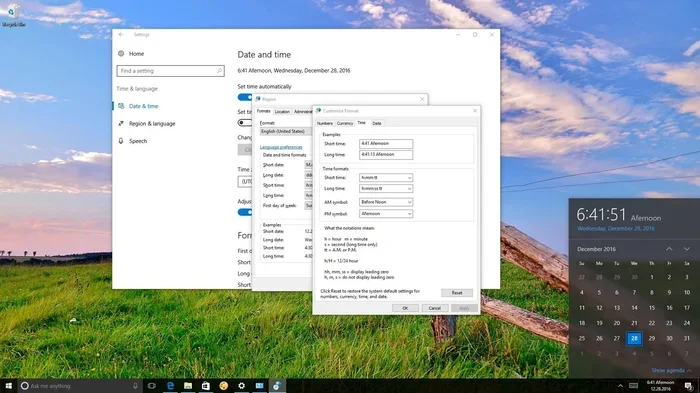
First, click the clock in the bottom-right corner of your screen. Right-click on the date and time display. A menu will pop up. Select Adjust date and time from the list. This opens the main date and time settings page.
On this page, you will see a toggle for Set time automatically. If this is turned off, you can manually change the time. Click the Change button next to the current time. A small window will appear where you can type in the new time. Click Change again to save it.
To change the date, look for the Change button under the date section. Click it, and a calendar will pop up. Pick the correct date and click Change. Your system clock will update immediately.
Here are a few quick tips for Windows 10 and Windows 11 users:
- Use the keyboard shortcut: Press Windows Key + I to open Settings fast.
- Search bar trick: Type “date and time” in the Windows search bar and click the top result.
- Admin rights: You may need administrator permission to make some changes.
- Restart after changes: If the new time does not stick, restart your computer and check again.
Adjusting the Time Zone on Windows
Sometimes the problem is not the time itself but the time zone. If you just moved to a new city or traveled across the country, your computer might still think it is in your old location.
To fix this, go back to the Adjust date and time settings page. Find the Time zone dropdown menu. Click it and scroll through the list until you find your current location. Select it, and Windows will adjust the clock automatically.
Make sure the Set time zone automatically toggle is turned on if you want Windows to handle this for you. This feature uses your location services to detect where you are and set the correct time zone without any manual work.
For automotive professionals who travel between states or regions for work, setting the correct time zone is essential. Diagnostic reports, service records, and GPS logs all depend on accurate time zone data.
Fixing Time Sync Issues on Windows
What if your computer clock keeps drifting even after you set it correctly? This is a time synchronization error, and it is more common than you might think.
Start by going to Settings > Time & Language > Date & Time. Scroll down to find Sync Now under the Synchronize your clock section. Click it, and Windows will reach out to a network time server to get the correct time.
If syncing still fails, try these steps:
- Open the Control Panel and go to Date and Time.
- Click on the Internet Time tab.
- Click Change settings.
- Make sure Synchronize with an Internet time server is checked.
- Select a server from the dropdown, like time.windows.com.
- Click Update now and then OK.
If none of this works, your Windows Time Service might be stopped. Open the Run dialog by pressing Windows Key + R. Type services.msc and press Enter. Find Windows Time in the list, right-click it, and select Start. Set the startup type to Automatic so it runs every time you boot up.
How to Change Date and Time on Mac
Mac computers handle date and time settings in a slightly different way. Apple uses System Preferences (or System Settings on newer macOS versions) to manage your clock. Let us go through the steps.
macOS System Preferences Guide
On your Mac, click the Apple menu in the top-left corner. Select System Preferences if you are on an older macOS version, or System Settings if you are on macOS Ventura or newer.
Look for the Date & Time icon and click it. You will see options for Set date and time automatically. Toggle this off if you want to make manual changes. You will then be able to click on the date and time fields to adjust them yourself.
To change the time zone, click on the Time Zone tab or section. You can search for your city in the search bar, or find it on the map. Once selected, your Mac will update the clock based on your chosen location.
Here are some helpful tips for Mac users:
- Lock the changes: Click the lock icon in the bottom-left corner and enter your password before making edits.
- Use the menu bar: Hold the Option key and click the clock in the menu bar for quick access.
- 24-hour format: You can switch between 12-hour and 24-hour time in the Clock preferences.
- Date format: Choose how your date displays (short, medium, or long) under the Formats tab.
Setting Time Zone Automatically on Mac
Just like Windows, macOS can set your time zone automatically. In the Date & Time settings, make sure Set time zone automatically using current location is turned on. This uses your Wi-Fi network and location data to determine where you are.
This feature is especially helpful for frequent travelers and people who work across multiple locations. Your computer clock will always show the correct local time without you lifting a finger.
For those working in automotive shops or fleet management, this automatic setting ensures that every diagnostic report, scan log, and service record carries the correct timestamp, no matter which shop or location you are in.
Using Terminal Commands for Advanced Mac Users
If you are comfortable with the Mac Terminal, you can also change your date and time using command-line tools. This method is helpful for advanced users or those troubleshooting persistent clock issues.
Open the Terminal app from your Applications folder. To set the date manually, type sudo systemsetup -setdate followed by the date in the format MMDDHHMMYYYY. For example, to set the date to June 15, 2024, at 2:30 PM, you would type:
sudo systemsetup -setdate 061514302024
To set the time zone, use the command sudo systemsetup -settimezone followed by the time zone name. For example:
sudo systemsetup -settimezone America/New_York
Be careful with Terminal commands. Always double-check your entries before pressing Enter. A wrong command can cause unexpected changes to your system settings.
Common Problems When Changing Date and Time
Even when you follow the steps correctly, things can go wrong. Here are the most common problems people face when trying to change date and time on their computers.
The Clock Resets After Restart
If your computer clock shows the wrong time every time you restart, the likely culprit is a dying CMOS battery. This small, coin-shaped battery sits on your computer’s motherboard and keeps the clock running when the PC is powered off.
On desktop computers, replacing a CMOS battery is usually easy. You can buy a replacement at any electronics store for just a few dollars. On laptops, it may require opening the back panel, so consider professional help if you are not comfortable with hardware.
Time Zone Keeps Changing on Its Own
This usually happens when location services are enabled and your computer thinks you are in a different place. Check your time zone settings and make sure automatic detection is turned off if you do not want it. On Windows, go to Settings > Privacy & Security > Location and adjust the settings. On Mac, go to System Preferences > Security & Privacy > Location Services.
Sync Errors with Time Servers
If your computer cannot reach the network time server, it will not be able to sync automatically. This can happen if your internet connection is unstable, if a firewall is blocking the connection, or if the time server itself is temporarily down.
Try switching to a different NTP server (Network Time Protocol server). On Windows, you can use time.nist.gov or pool.ntp.org as alternatives. On Mac, go to System Preferences > Date & Time > Time Zone and check your server settings.
Dual Boot Time Conflicts
If you run both Windows and Mac on the same computer, you might notice the clock shows different times in each operating system. This happens because Windows stores the hardware clock as local time, while macOS stores it as UTC (Coordinated Universal Time).
To fix this, you can either tell Windows to use UTC or tell macOS to use local time. The easiest fix is to run a command in macOS Terminal:
sudo systemsetup -setusingnetworktime off
Then set the time zone to match your local time. Alternatively, you can change the Windows registry to use UTC, but this requires more advanced steps and should be done carefully.
Tips for Keeping Your Computer Clock Accurate
Once you have your date and time set correctly, you want to keep it that way. Here are some simple tips to help your computer clock stay accurate over time.
- Turn on automatic sync: This is the single best thing you can do. Let your computer sync with a time server regularly.
- Keep your internet connected: Without internet, your computer cannot reach time servers to sync automatically.
- Replace the CMOS battery: If your computer is more than three to five years old, consider replacing the motherboard battery.
- Check after daylight saving: Make sure your daylight saving time settings are correct. Both Windows and Mac handle this automatically, but it is worth verifying.
- Update your operating system: Software updates often include fixes for clock sync bugs and time zone data updates.
- Use multiple time sources: Cross-check your computer clock with your phone or a trusted online source to catch any drift early.
For those working in automotive diagnostics or vehicle fleet management, keeping your work computer’s clock accurate is not just a convenience. It is part of maintaining proper records and ensuring compliance with service schedules and warranty tracking.
When to Seek Professional Help
Most date and time issues can be fixed at home following the steps in this guide. However, there are times when you should consider getting professional help.
If your CMOS battery keeps dying even after replacement, there may be a deeper hardware issue. If your system clock drifts significantly every day despite a working battery and internet connection, a technician should check for motherboard problems. And if you are running network time servers for a business or shop, setting up a dedicated NTP server might be the best long-term solution.
For automotive shops and fleet management operations, inaccurate timestamps can lead to compliance issues and service record errors. In these cases, investing in a dedicated time sync solution is well worth the effort.
Key Takeaways
- Changing date and time on Windows is done through Settings > Time & Language > Date & Time. Toggle off automatic sync to make manual changes.
- On Mac, go to System Preferences > Date & Time to adjust your clock, time zone, and date format.
- Automatic time sync is the easiest way to keep your clock accurate without any manual effort.
- Time zone settings are often the real cause of clock problems, especially after traveling.
- CMOS battery failure is the most common hardware reason for a clock that resets after restart.
- Dual boot users need to fix UTC vs. local time conflicts between Windows and Mac.
- Regular maintenance like OS updates and battery checks keeps your system clock reliable long-term.
Frequently Asked Questions
How do I change the date and time on Windows 11?
Go to Settings > Time & Language > Date & Time. Toggle off Set time automatically, then click Change next to the time or date field. Enter the correct values and click Change to save. This works the same way as on Windows 10.
Why does my Mac clock show the wrong time after I wake it from sleep?
This usually happens because your Mac cannot sync with the network time server while asleep. Make sure Set date and time automatically is turned on in System Preferences > Date & Time. Also check that your Wi-Fi connection is stable when waking up.
Can I change the date and time format on my computer?
Yes, absolutely. On Windows, go to Settings > Time & Language > Region > Date & time formatting. On Mac, go to System Preferences > Date & Time > Formats. You can choose short, medium, or long formats and pick between 12-hour and 24-hour time.
What is NTP and why does my computer use it for time sync?
NTP stands for Network Time Protocol. It is a system that allows your computer to connect to time servers on the internet and get the exact current time. Using NTP keeps your computer clock accurate to within milliseconds of the actual time, which is important for logging, security, and scheduling.
How do I fix the wrong time zone on my laptop?
On Windows, go to Settings > Time & Language > Date & Time and select the correct time zone from the dropdown. On Mac, go to System Preferences > Date & Time > Time Zone and search for your location. Turn off automatic time zone detection if it keeps changing on its own.
Is it safe to change the BIOS or hardware clock time manually?
It is generally safe, but it should be done carefully. The BIOS clock (also called the hardware clock or RTC) is the base clock your operating system uses. Changing it manually is fine, but if you are unsure, let your operating system handle it through the normal date and time settings menu. Incorrect BIOS time can cause boot errors and certificate validation failures.
=== CONCLUSION ===
Changing your date and time on either a Windows or Mac computer is a simple process once you know where to look. Whether you need to fix a clock sync error, adjust your time zone after a trip, or replace a failing CMOS battery, the steps in this guide will help you get it done quickly and correctly.
Keep your automatic time sync turned on whenever possible. This one setting will save you from most clock-related headaches. And remember, if your computer’s clock keeps drifting or resetting, it is often a sign of a deeper issue like a dead battery or a misconfigured time zone setting.
Take a few minutes right now to check your system clock and make sure everything is set correctly. Your future self will thank you when your file timestamps, service records, and online logins all work without a hitch. Accurate timekeeping is one of those small things that makes a big difference in your daily workflow.