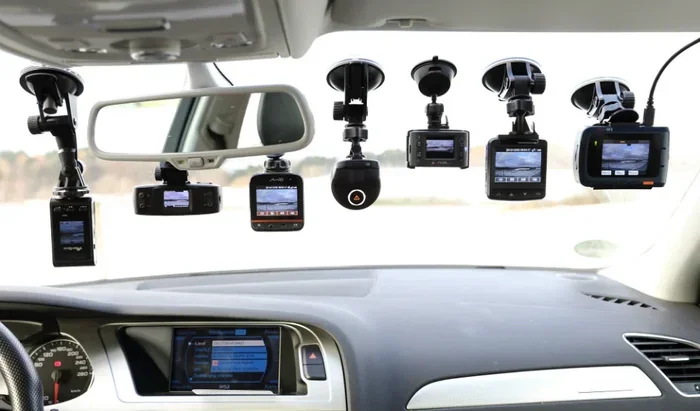
How Do I Know If My Dash Cam Is On or Off While Driving
Knowing whether your dash cam is on while driving is essential for road safety and protecting yourself in accidents. You can check the LED light, screen display, or companion app to confirm your dash cam is actively recording. This guide covers every simple method to verify your dash cam status and troubleshoot common issues.
You hop in your car, turn the key, and start driving. But have you ever wondered whether your dash cam is actually on? It is a simple question, yet it catches a lot of drivers off guard. Your dash cam is one of the most important safety tools in your vehicle. It captures everything that happens on the road. But what good is it if it is not recording?
Whether you just bought a new car dash cam or have been using one for years, this guide will help you figure out if your dash cam is on or off while driving. We will walk you through every method step by step. You will learn how to read the lights, check the screen, use the app, and troubleshoot common problems. By the end, you will never have to wonder about your dash cam status again.
A dash cam records your drive continuously. It protects you from false insurance claims. It captures hit-and-run incidents. It even documents dangerous driving by others on the road. But none of that matters if the device is not powered on. Understanding how to confirm your dash cam is working takes just a few minutes. And it could save you a lot of trouble down the road.
Key Takeaways
- LED Indicator Light: Most dash cams show a small red or blue light when powered on and recording.
- Screen Display: If your dash cam has a built-in screen, it will display live footage or recording status icons.
- Companion App: Many modern dash cams let you check dash cam status through a WiFi connection on your phone.
- Power Source Check: A dash cam won’t turn on if the power source is disconnected or the fuse is blown.
- Parking Mode Matters: Your dash cam may appear off while parked but still record in parking mode when motion is detected.
- Common Mistakes: Loose cables, full memory cards, and incorrect settings are the top reasons dash cams fail to record.
📑 Table of Contents
- Why It Matters Whether Your Dash Cam Is On
- Visual Signs Your Dash Cam Is Running
- How to Check Your Dash Cam Through the App
- Common Reasons Your Dash Cam Won’t Turn On
- Dash Cam Power Sources and How They Work
- Tips to Make Sure Your Dash Cam Stays On While Driving
- Expert Insights on Dash Cam Reliability
- Key Takeaways
- Conclusion
Why It Matters Whether Your Dash Cam Is On
Some drivers install a dash cam and forget about it. They assume it is always recording. But that is not always the case. If your dash cam is not on, you have no footage when you need it most. A car accident can happen in a split second. Without video evidence, proving what happened can be very difficult.
Here are some key reasons why keeping your dash cam on matters:
- Insurance Claims: Footage from your dash cam recording can speed up the claims process. It provides clear evidence of who was at fault.
- Hit-and-Run Protection: If someone hits your car and drives away, your dash cam captures the license plate and vehicle details.
- False Accusations: Dash cam footage can prove you were driving safely and were not at fault in an accident.
- Driver Behavior: It encourages safer driving habits when you know you are being recorded.
- Peace of Mind: Knowing your dash cam is on gives you confidence every time you hit the road.
Not all dash cams start automatically. Some models need a manual tap or button press. Others turn on with the car ignition. Understanding your specific model is the first step to making sure your dash cam is always ready to go.
Visual Signs Your Dash Cam Is Running
The easiest way to check if your dash cam is on is by looking at it directly. Most dash cams have built-in visual indicators. These signs tell you the device is powered and recording. Let us break down each one.
LED Indicator Light
Almost every dash cam has a small LED light. This is usually located on the front or back of the unit. When the dash cam is on and recording, the light will glow. Most devices show a solid red or blue light. Some models flash the light slowly to indicate active dash cam recording.
Here is what different lights typically mean:
- Solid Red Light: The dash cam is on and recording normally.
- Flashing Red Light: The device may be in setup mode, saving a file, or charging.
- Solid Blue Light: The dash cam is on and connected to WiFi.
- No Light: The dash cam is off or not receiving power.
- Blinking Green Light: Some models use green to indicate parking mode is active.
If you notice your dash cam not showing any light, there could be a few reasons. The power cable might be loose. The fuse could be blown. Or the device itself might be malfunctioning. We will cover troubleshooting later in this guide.
Screen Display
If your dash cam has a built-in screen, checking the status is even easier. Most screens show a live view from the camera. They also display icons that indicate recording status. Look for a small red dot or circle on the screen. This usually means the dash cam is actively recording.
Some dash cams also show the current time, date, and GPS data on the screen. These details confirm the device is fully operational. If the screen is black or blank, the dash cam may be off. It could also mean the screen brightness is turned all the way down. Try pressing the power button or menu button to wake it up.
Voice Prompts
Many modern dash cams have voice alerts. When you turn the device on, it may say a short phrase like “Recording started.” Some models beep once to confirm they are on. If you hear a beep or voice prompt when you start the car, that is a strong sign your dash cam is working.
You can also check your dash cam settings to enable or disable voice alerts. If you turned them off by accident, you might not realize the device is on. Go into the menu and make sure voice prompts are enabled if you rely on them.
How to Check Your Dash Cam Through the App
Most dash cams made in the last few years come with a companion app. These apps connect to your dash cam through a WiFi connection. They let you view live footage, change settings, and check the dash cam status right from your phone.
Connecting to Your Dash Cam App
First, download the official app for your dash cam brand. Popular brands like BlackVue, Vantrue, Thinkware, and Garmin all have their own apps. Once installed, open the app and go to your phone’s WiFi settings. Look for a network name that matches your dash cam model. Connect to it. The app should then detect your dash cam automatically.
Once connected, look for a status indicator on the home screen. It will usually show whether the dash cam is on, recording, or in parking mode. Some apps also show the battery level and available storage on the micro SD card. This is a great way to check everything at once.
What the App Tells You
The app gives you real-time dash cam status. You can see if the device is currently recording or if it has stopped. You can also check the last recorded file to confirm footage was captured. If the app shows no connection, your dash cam may be off or the WiFi antenna might have an issue.
Here are some common things you can check through the app:
- Recording Status: Live feed and whether dash cam recording is active.
- WiFi Connection: Confirms the dash cam is broadcasting a signal.
- Storage Space: Shows how much room is left on the memory card.
- Firmware Version: Lets you know if your device needs an update.
- Parking Mode: Displays whether the dash cam is monitoring while parked.
Using the app is one of the most reliable ways to check your dash cam. It works even if the LED light is not visible from where you are sitting.
Common Reasons Your Dash Cam Won’t Turn On
Sometimes you check and the dash cam is off. It happens more often than you might think. Before you panic, know that most of these issues have simple fixes. Let us look at the most common reasons a dash cam not working happens.
Power Cable Issues
The most common reason a dash cam will not turn on is a loose or damaged power cable. The cable connects the dash cam to your car’s power outlet or is hardwired into the electrical system. Over time, cables can wear out. They can also become unplugged from vibration while driving.
Check the cable on both ends. Make sure it is firmly plugged into the dash cam and the power source. If the cable looks frayed or damaged, replace it. A new cable is inexpensive and usually solves the problem right away.
Blown Fuse
If your dash cam is hardwired, it draws power through a fuse tap. A blown fuse will cut power to the device entirely. Check your car’s fuse box to see if the fuse connected to the dash cam is blown. Replacing a fuse is simple and costs just a few dollars.
You can also check the fuse inside the dash cam itself, if it has one. Refer to your user manual for the exact location. Always replace the fuse with one of the same amperage rating.
Full Memory Card
A full micro SD card can cause your dash cam to stop recording or even refuse to turn on properly. When the storage is full, the dash cam may overwrite old files. But some models simply stop working until you free up space. Regularly check your storage and delete old files you do not need.
Tip: Format your memory card every few months. This keeps it running smoothly and prevents errors. Use a high-speed card rated for dash cam use, such as a Class 10 or U3 rated card.
Incorrect Settings
Sometimes the dash cam is on, but it is not recording. This can happen if the recording mode is set incorrectly. For example, some dash cams have a “standby” mode that saves power. In this mode, the device is on but not capturing footage. Check your dash cam settings and make sure loop recording is enabled.
Also, check if the G-sensor is turned on. The G-sensor detects sudden movements and impacts. If it is disabled, the dash cam may still record, but it will not save emergency files automatically. These are important settings to review from time to time.
Dash Cam Power Sources and How They Work
Understanding how your dash cam gets power helps you figure out why it might not be turning on. There are two main power sources for a car dash cam. Each has its own advantages and quirks.
Cigarette Lighter Adapter
The most common way to power a dash cam is through the cigarette lighter or 12V outlet. You plug a USB cable or a dedicated adapter into the outlet. The other end connects to the dash cam. This method is simple and works for most vehicles.
The dash cam turns on when you start the car. It turns off when you turn the ignition off. This is convenient because you do not have to remember to plug or unplug the device. However, some older cars have outlets that cut power when the ignition is off. In that case, your dash cam will not record while parked.
Hardwired Installation
A hardwired dash cam connects directly to your car’s electrical system. A mechanic or DIY installer taps into the fuse box and routes the cable behind the dashboard. This setup is cleaner and more permanent than a cable dangling from the windshield.
Hardwiring also enables parking mode. In parking mode, the dash cam stays on even when the car is off. It uses a small amount of power from the battery to monitor for motion or impacts. If the dash cam detects something, it starts recording automatically.
However, hardwiring requires more technical knowledge. You also need a low-voltage monitor to prevent battery drain. If your dash cam keeps dying overnight, the hardwired connection might not have a proper voltage cutoff.
Battery-Operated Dash Cams
Some dash cams come with a built-in rechargeable battery. These are great for portability. You can move them between cars easily. However, battery life is limited. Most battery-powered dash cams only record for a few hours on a single charge. They are not ideal for long road trips without frequent recharging.
If you have a battery-powered dash cam, always make sure it is charged before a long drive. A low battery could mean the dash cam turns off mid-trip, leaving you without coverage for part of your journey.
Tips to Make Sure Your Dash Cam Stays On While Driving
Now that you know how to check if your dash cam is on, let us talk about keeping it that way. A few simple habits can make sure your dash cam is always ready to capture the road.
Regular Power Checks
Make it a habit to glance at your dash cam every time you get in the car. Look for the LED light or check the screen. This takes only a few seconds. Over time, it becomes second nature. If you notice the light is off, check the cable connection immediately.
Keep the Cable Secure
Use cable ties or clips to secure the power cable along the windshield pillar. This prevents the cable from getting pulled loose during driving. It also keeps the cable out of your line of sight, which reduces distraction inside the cabin.
Update Firmware Regularly
Dash cam manufacturers release firmware updates to fix bugs and improve performance. Check the companion app regularly for updates. An outdated firmware version can cause the dash cam to malfunction or fail to turn on properly.
Clean the Lens and Device
Dust and dirt can block the lens, but they can also affect the internal sensors. Wipe the dash cam gently with a microfiber cloth every week or two. This keeps the image quality sharp and helps the device run cooler, which extends its lifespan.
Use a Quality Memory Card
Not all memory cards are created equal. Use a high-endurance micro SD card designed for surveillance or dash cam use. Cheap cards can fail quickly, leading to corrupted files or a dash cam that stops recording unexpectedly.
Test Before Long Trips
Before a long road trip, do a quick test. Start the car and confirm the dash cam is on. Check the app to verify the live feed and recording status. This small step can save you from discovering a problem miles down the road with no footage to back you up.
Expert Insights on Dash Cam Reliability
Automotive experts agree that a dash cam is only useful if it works consistently. According to road safety organizations, dash cam footage is accepted as evidence in many insurance claims and legal proceedings worldwide. But the footage is only valuable if the dash cam was on and recording at the time of the incident.
Experts recommend doing a quick pre-drive check every single time. Just like you check your mirrors and seat position, check your dash cam. It takes less than five seconds. And it could make all the difference in a critical moment.
Another expert tip is to use the parking mode feature wisely. If you live in an area with a lot of foot traffic or potential vandalism, parking mode is a lifesaver. Just make sure your power source can support it without draining your car battery. A low-voltage monitor is a worthwhile investment for hardwired setups.
Key Takeaways
- LED Indicator Light: Most dash cams show a small red or blue light when powered on and recording.
- Screen Display: If your dash cam has a built-in screen, it will display live footage or recording status icons.
- Companion App: Many modern dash cams let you check dash cam status through a WiFi connection on your phone.
- Power Source Check: A dash cam won’t turn on if the power source is disconnected or the fuse is blown.
- Parking Mode Matters: Your dash cam may appear off while parked but still record in parking mode when motion is detected.
- Common Mistakes: Loose cables, full memory cards, and incorrect settings are the top reasons dash cams fail to record.
Conclusion
So, how do you know if your dash cam is on? The answer is simpler than you think. Check the LED light, look at the screen, open the app, and listen for voice prompts. These four steps take less than a minute and give you complete confidence in your dash cam status.
Your dash cam is one of the most valuable tools you have in your vehicle. It protects you financially, legally, and emotionally after an accident. But only if it is on and recording. Make it a habit to verify your dash cam every time you drive. A few seconds of effort can save you hours of trouble later.
Take a few minutes today to review your dash cam setup. Check the cables. Update the firmware. Confirm the memory card has space. These small actions add up to big protection on the road. Stay safe, stay prepared, and let your dash cam do its job every time you turn the key.
Frequently Asked Questions
How do I know if my dash cam is recording while driving?
Look for the LED indicator light on the device. Most dash cams show a solid red or blue light when actively recording. You can also check the built-in screen for a recording icon or open the companion app to see the live feed and status.
Why is my dash cam on but not recording?
This usually happens when the micro SD card is full or improperly inserted. It can also be caused by incorrect settings, such as loop recording being turned off. Try reformatting the memory card and checking your dash cam settings to resolve the issue.
Does my dash cam turn on automatically when I start the car?
Most dash cams do turn on automatically when you start the car, especially if they are hardwired or connected to the cigarette lighter outlet. However, some models require a manual button press or have a standby mode that needs a trigger to begin recording.
Can I check my dash cam status from my phone?
Yes, most modern dash cams come with a companion app that connects via WiFi. The app lets you check if the dash cam is on, view the live feed, and confirm recording status right from your phone.
What does it mean if my dash cam has no lights at all?
If your dash cam has no lights, it is likely not receiving power. Check the power cable connections, the car’s 12V outlet, and the fuse box. A blown fuse or loose cable is the most common cause of a dash cam with no indicator lights.
How can I make sure my dash cam stays on in parking mode?
If your dash cam is hardwired, it can stay on in parking mode by drawing power directly from the car battery. Make sure you have a low-voltage monitor installed to prevent battery drain. You can also check the app to confirm parking mode is active and the device is monitoring for motion or impacts.