How to Activate Audi Navigation System in 5 Easy Steps
Activating your Audi navigation system is easier than you think. This guide walks you through the exact steps to get your Audi GPS up and running in minutes. You will learn how to access the MMI menu, enter your activation code, and start using live traffic and route planning features right away.
So you just bought or leased a new Audi, and you are excited about the navigation system. But when you turn the key, the screen shows a message asking you to activate the system. That can feel confusing. You might wonder if you need a dealer visit or a costly service call. The good news is that you can activate the Audi navigation system yourself at home.
This guide gives you a clear, step-by-step path to get your Audi GPS working. We will cover everything from finding your activation code to updating your maps and fixing common issues. By the end, you will feel confident navigating with your Audi infotainment system like a pro.
Whether you drive an Audi A4, Q5, A6, or any other model, the activation process follows a similar path. The steps are simple, and you do not need any special technical skills. Just follow along, and your navigation will be ready in no time.
Key Takeaways
- Simple 5-step process: You can activate your Audi navigation system quickly with the right tools and a few minutes of your time.
- MMI menu is your gateway: The Audi MMI infotainment system controls all navigation functions and settings.
- Keep maps updated: Regular map updates ensure accurate directions and avoid routing errors.
- Troubleshooting is straightforward: Most common issues like a frozen screen or GPS signal loss have easy fixes.
- Activation codes matter: You will need your vehicle-specific activation code to unlock full navigation features.
- Bonus features add value: Live traffic updates, route planning, and voice commands make your drives smarter.
📑 Table of Contents
- Before You Start: What You Need to Activate Audi Navigation
- Step 1: Turn On Your Audi MMI Infotainment System
- Step 2: Navigate to the Navigation Settings Menu
- Step 3: Enter Your Audi Navigation Activation Code
- Step 4: Download Maps and Update Your Audi GPS Data
- Step 5: Test Your Navigation and Customize Your Settings
- Common Problems When Activating Audi Navigation and How to Fix Them
- Expert Tips for Getting the Most From Your Audi Navigation System
- Conclusion
Before You Start: What You Need to Activate Audi Navigation
Before you jump into the activation steps, let us gather what you need. Having everything ready saves time and prevents frustration. Here is a quick checklist of items and information you should have on hand.
- Your Audi vehicle key or ignition access: You need the car running or in accessory mode to access the MMI system.
- Your activation code: This code comes with your vehicle paperwork or is found on the Audi card in the glove box.
- A stable Wi-Fi connection: Some activation steps require an internet connection to download map data.
- A USB drive (for map updates): If your Audi uses a USB-based map update, a formatted FAT32 USB stick is helpful.
- Your Audi model and year: Different models may have slightly different MMI interfaces, so knowing your exact setup helps.
Now that you have everything ready, let us move into the actual activation process. The following five steps will walk you through activating your Audi navigation system from start to finish.
Step 1: Turn On Your Audi MMI Infotainment System
The first step is to power up your Audi MMI screen. This is the central hub for all navigation and infotainment functions in your vehicle. Without accessing this screen, you cannot proceed with activation.
How to Access the MMI Home Screen
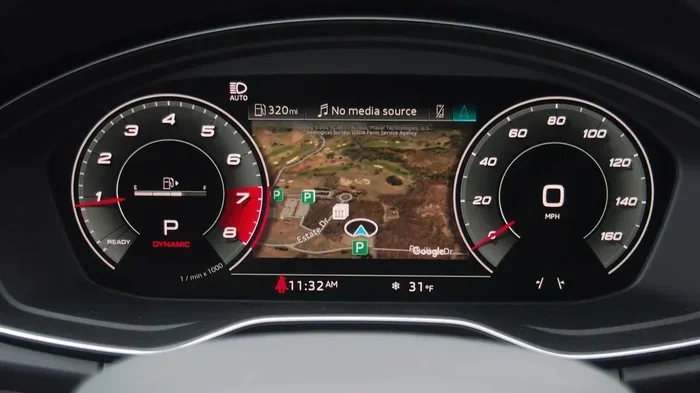
Press the power button on the MMI controller or touch the screen if your model supports MMI touch. On newer Audi models with the virtual cockpit, the navigation display appears on the driver’s side screen. Wait for the home screen to fully load. You should see the Audi logo followed by the main menu options.
If the screen stays black or freezes, try holding the power button for about 10 seconds to force a restart. This soft reset clears most temporary glitches. Once the home screen appears, you are ready for the next step.
Quick Tip
Make sure your vehicle is parked safely before turning on the MMI system. While the system works when the car is in park, it is always best to be stationary during setup.
Step 2: Navigate to the Navigation Settings Menu
Once the MMI home screen is active, you need to find the navigation settings. This is where you will start the activation process and enter your activation code.
Finding the Navigation Option
On the MMI home screen, look for the “Navigation” icon. It usually looks like a small map or compass symbol. Tap or click on it to open the navigation menu. If you do not see it on the home screen, swipe or scroll through the menu options to find it under “Settings” or “Car Functions.”
Once inside the navigation menu, look for an option labeled “System Setup” or “Navigation Settings.” This is where you will find the activation prompt. The exact wording may vary slightly depending on your Audi model and MMI version.
Here is what to look for in the menu:
- Navigation — the main entry point for all GPS features
- System Setup — contains activation and registration options
- Activation or Registration — where you enter your code
- About or Status — shows your current system version and GPS signal
Step 3: Enter Your Audi Navigation Activation Code
This is the most important step. The activation code unlocks the full navigation features on your Audi GPS system. Without it, the system will remain in demo or limited mode.
Where to Find Your Activation Code
Your activation code is typically found in one of these places:
- The Audi vehicle documentation: Check the owner’s manual or the quick-start guide that came with your car.
- The Audi card in the glove box: Many Audi vehicles include a card with the activation code printed on it.
- Your online Audi account: If you registered your vehicle on the Audi website, the code may be available in your account dashboard.
- The dealer who sold you the car: Call your Audi dealer and provide your VIN. They can look up the code for you.
Once you have the code, enter it carefully into the activation field on the MMI screen. Make sure there are no extra spaces or missing characters. The code is usually a combination of letters and numbers, and it is case-sensitive.
After entering the code, press “Confirm” or “Activate.” The system will verify the code and begin unlocking the navigation features. This process usually takes 30 seconds to a minute.
What If the Code Does Not Work?
Do not panic if you see an error message. Double-check the code for typos. If you are sure the code is correct, try restarting the MMI system and entering it again. If the problem persists, contact your Audi dealer for assistance. They can verify the code and help resolve the issue.
Step 4: Download Maps and Update Your Audi GPS Data
Activation is just the beginning. To get the most out of your Audi navigation system, you need up-to-date maps. Outdated maps can lead to wrong turns, missing roads, and incorrect addresses.
How to Update Maps on Your Audi
Most modern Audi models support online map updates through the MMI system. Here is how to do it:
- Go to the Navigation Settings menu on your MMI screen.
- Select “Map Update” or “Data Management.”
- Choose “Update Maps” and connect to your Wi-Fi network.
- Wait for the download to complete. This can take 10 to 30 minutes depending on your internet speed.
- Once downloaded, install the update and restart the MMI system.
If your Audi model does not support online updates, you can use a USB drive. Visit the Audi website or your dealer to download the latest map data onto a FAT32-formatted USB stick. Insert the USB drive into the MMI system and follow the on-screen prompts to install the update.
Quick Tip
Set a calendar reminder to update your Audi maps every six months. Road changes happen frequently, and keeping your maps current ensures your Audi GPS gives you accurate directions every time.
Step 5: Test Your Navigation and Customize Your Settings
Now that your Audi navigation system is activated and your maps are updated, it is time to test everything. This final step ensures that all features are working correctly and that the system is set up the way you like it.
Run a Test Route
Enter a destination you know well. Use the search function to type in an address or select a point of interest from the map. Watch how the system calculates the route. It should display the estimated drive time, distance, and any traffic delays.
Start the route guidance and follow the turn-by-turn directions. Make sure the voice prompts are clear and the screen updates smoothly as you drive. If everything works as expected, your Audi navigation system is fully activated and ready to go.
Customize Your Navigation Preferences
Take a few minutes to personalize your settings. Here are some options you should explore:
- Route preferences: Choose between fastest route, shortest route, or avoid highways and tolls.
- Voice guidance volume: Adjust the volume so prompts are clear but not distracting.
- Map display style: Choose between day mode, night mode, or satellite view.
- Traffic information: Enable live traffic updates if your Audi model supports this feature.
- Language settings: Set your preferred language for voice prompts and on-screen text.
These customizations make your driving experience smoother and more enjoyable. Once you set them up, you will not need to change them again.
Common Problems When Activating Audi Navigation and How to Fix Them
Even with the best instructions, you might run into a hiccup or two. This section covers the most common problems people face when activating their Audi navigation system and gives you simple fixes for each one.
Audi GPS Signal Loss
If your Audi navigation system shows no GPS signal, the first thing to check is your location. GPS signals struggle in tunnels, underground parking garages, and dense urban areas with tall buildings. Drive to an open area and wait a minute or two for the signal to reconnect.
If the signal does not return, try resetting the MMI system. Hold the power button for 10 seconds, wait 30 seconds, and turn it back on. This usually resolves signal-related issues.
Activation Code Rejected
A rejected activation code is frustrating but common. The most frequent cause is a simple typo. Carefully re-enter the code, paying attention to uppercase letters and numbers that look similar, like the letter “O” and the number “0.”
If the code still does not work, contact your Audi dealer. They can verify the code against your vehicle identification number and provide a corrected code if needed.
MMI Screen Freezing During Activation
A frozen MMI screen can happen during the activation process. This is usually caused by a temporary software glitch. Perform a soft reset by holding the power button for 10 seconds. The system will restart and return to the home screen.
If the screen continues to freeze, you may need to disconnect the car battery for a few minutes and reconnect it. This performs a deeper reset of the MMI system. If the problem persists, visit your Audi dealer for professional diagnosis.
Maps Not Displaying After Activation
If the navigation activates but maps do not display, your map data may be outdated or corrupted. Run a map update following the steps in Section 4 above. If the problem continues, try resetting the MMI to factory settings and then re-activating the navigation system.
Expert Tips for Getting the Most From Your Audi Navigation System
Now that your Audi navigation system is fully activated, here are some expert tips that will help you use it more effectively and get the best experience every time you drive.
Use Voice Commands for Hands-Free Navigation
Most Audi models with the MMI system support voice commands. Press and hold the voice button on the steering wheel and say “Navigate to” followed by your destination. This keeps your eyes on the road and hands on the wheel, making your drive safer.
Set Up Favorite Destinations
Save your most frequent destinations in the Audi navigation system. Whether it your office, the gym, or your favorite restaurant, having them saved means you can start navigation with just one tap. This small trick saves you a lot of time over the long run.
Use the Split-Screen Feature
On Audi models with a split-screen MMI display, you can view navigation and media at the same time. This is especially useful when you want to see your route while listening to music or a podcast. Explore the split-screen options in the MMI settings to make the most of this feature.
Keep Your System Updated
Audi regularly releases software updates for the MMI system. These updates improve performance, fix bugs, and add new features. Check for system updates through the MMI settings or visit your Audi dealer for a software refresh during routine service visits.
Understand the Difference Between Audi Navigation and Google Earth Integration
Some Audi models offer Google Earth integration for a more detailed map view. This feature provides satellite imagery and 3D landmarks that make navigation more intuitive. If your Audi supports it, enable this feature in the navigation settings to enhance your map experience.
Conclusion
Activating your Audi navigation system does not have to be complicated. With the five steps outlined in this guide, you can get your Audi GPS up and running in under 15 minutes. From entering your activation code to updating maps and customizing preferences, each step is designed to be simple and straightforward.
Remember to keep your maps updated regularly, explore the voice command features, and take advantage of the customization options available in your MMI system. A properly activated Audi navigation system makes every drive more convenient, safer, and more enjoyable. Now that you know how to activate Audi navigation system features, you are ready to hit the road with confidence.
Take a few minutes today to follow these steps. Your future self will thank you every time you get accurate directions and real-time traffic updates right from your Audi dashboard. Safe travels and happy navigating.
Frequently Asked Questions
How do I find my Audi navigation activation code?
Check your Audi vehicle documentation, the card in the glove box, or your online Audi account. If you cannot find it, contact your Audi dealer with your VIN and they can provide the code.
Can I activate the Audi navigation system without visiting a dealer?
Yes, you can activate it yourself at home using the MMI infotainment system. You just need your activation code and a few minutes to follow the on-screen prompts.
How often should I update the maps on my Audi navigation system?
It is recommended to update your Audi maps every six months. Road changes happen frequently, and current maps ensure accurate navigation and route planning.
What should I do if my Audi GPS signal keeps dropping?
First, drive to an open area away from tall buildings. If the signal does not return, perform a soft reset by holding the MMI power button for 10 seconds. Persistent issues may need a dealer visit.
Does the Audi navigation system work without an internet connection?
Yes, the core navigation features work offline once maps are downloaded. However, live traffic updates and online map downloads require a Wi-Fi or mobile data connection.
Can I use a USB drive to update maps on my Audi?
Yes, if your Audi model does not support online updates, you can download map data onto a FAT32-formatted USB drive and install it through the MMI system.