Easy Steps to Connect to Nissan Bluetooth in Your Car
Connecting to Nissan Bluetooth is simple once you know the right steps. This guide walks you through pairing your phone, troubleshooting common issues, and unlocking all the features your Nissan infotainment system offers. Whether you drive a new Nissan Altima or an older model, you will find clear instructions that make the process easy and fast.
Have you ever jumped into your Nissan and wished you could just tap your phone to the car and start playing music? Maybe you want to take calls without fumbling with a cord or holding your phone to your ear. Connecting to Nissan Bluetooth solves all of that and more.
Bluetooth technology has been a standard feature in Nissan vehicles for years. It lets you go wireless and stay connected while you drive. But if you have never set it up before, the process can feel a little confusing. That is exactly why we put this guide together.
In this article, we will show you every step to connect to Nissan Bluetooth the right way. We cover pairing your phone, fixing common problems, and exploring the best features. By the end, you will feel confident and ready to go wireless in your Nissan.
Let us get started. No tech skills needed. Just a few minutes and a willingness to follow along.
Key Takeaways
- Quick Pairing: Most Nissan models let you connect to Nissan Bluetooth in under two minutes with just a few taps.
- Hands-Free Calling: Bluetooth connectivity lets you make and receive calls safely without touching your phone.
- Wireless Audio Streaming: Stream music, podcasts, and audiobooks directly through your car speakers.
- Easy Troubleshooting: A simple reset or re-pairing fixes most Nissan Bluetooth connection problems.
- Multiple Device Support: Many Nissan systems allow you to pair more than one phone at a time.
- Model Compatibility: Nissan Bluetooth features work across most models from the past decade.
📑 Table of Contents
- Understanding Nissan Bluetooth Connectivity
- How to Pair Your Phone with Nissan Bluetooth
- Troubleshooting Common Nissan Bluetooth Issues
- Nissan Bluetooth Features You Should Know About
- Tips for Better Bluetooth Performance in Your Nissan
- Nissan Bluetooth Compatibility Across Models
- Common Mistakes to Avoid When Connecting Nissan Bluetooth
- Expert Insights on Nissan Bluetooth
- Final Thoughts
Understanding Nissan Bluetooth Connectivity
Before you dive into the steps, it helps to understand what you are working with. Nissan Bluetooth connectivity is built into the car’s infotainment system. This system controls your audio, navigation, and phone connections all in one place.
The Bluetooth system in your Nissan does two main things really well. First, it handles hands-free calling. You can make and receive phone calls without ever touching your device. Second, it allows wireless audio streaming. Your music, podcasts, and audiobooks play through the car speakers instead of your phone.
Most Nissan models from 2010 onward come with Bluetooth built in. Some older models might need an adapter, but that is rare. The system works with both Apple and Android devices. You do not need to worry about which type of phone you have.
One thing to keep in mind is that Nissan uses a system called NissanConnect in many newer models. This is the name of the infotainment platform that manages your Bluetooth connections. Knowing this name can help you when you look through your car’s settings or manual.
How to Pair Your Phone with Nissan Bluetooth
Now let us get to the good part. Pairing your phone to your Nissan is straightforward. We will walk you through it step by step. The process is very similar across most Nissan models.
Step 1: Turn on Bluetooth on Your Phone
Start with your phone. Go to your settings and turn on Bluetooth. Make sure it is set to be visible or discoverable. This lets your car find your phone during the pairing process.
On iPhone, you go to Settings, then Bluetooth, and toggle it on. On Android, you swipe down from the top of your screen and tap the Bluetooth icon. Some Android phones also need you to go into Settings and turn it on there.
Step 2: Start the Bluetooth Setup in Your Nissan
Next, get in your Nissan and press the Phone or Audio button on the infotainment screen. Look for an option that says Bluetooth, Settings, or Phone Connection. The exact wording depends on your model year.
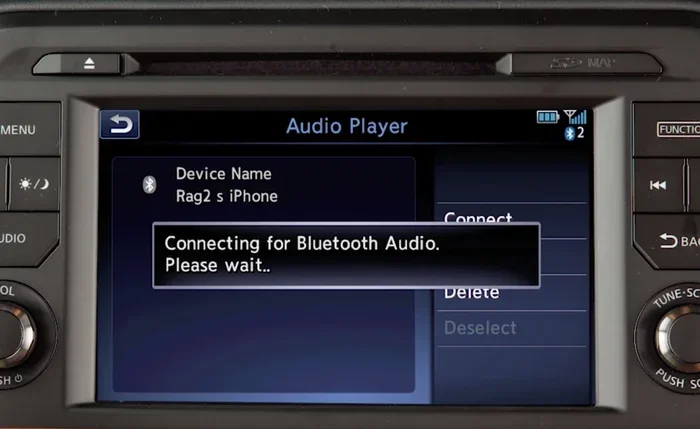
Select the option to add a new device or pair a new phone. Your Nissan will start searching for nearby Bluetooth devices. This usually takes just a few seconds.
Step 3: Select Your Phone from the List
Your phone should appear on the car’s screen. Tap on your phone name when you see it. If it does not show up, make sure your phone Bluetooth is turned on and set to discoverable.
Some Nissan models will display a passkey or PIN code on the screen. You may need to type this code into your phone to complete the pairing. Other models pair automatically without any code.
Step 4: Confirm the Connection
Once paired, you should see a confirmation on both your phone and your car screen. Your Nissan will now remember this device for future connections.
Try playing some music or making a test call to make sure everything works. If audio plays through your car speakers and calls connect clearly, you are all set.
Quick Tips for First-Time Pairing
- Make sure your phone is fully charged before you start.
- Keep your phone within arm’s reach of the car’s infotainment system.
- Turn off other Bluetooth devices nearby to avoid connection confusion.
- If pairing fails, restart both your phone and your car’s system.
- Check your Nissan owner’s manual for model-specific instructions.
Troubleshooting Common Nissan Bluetooth Issues
Sometimes things do not go as smoothly as we hope. Maybe your Nissan Bluetooth not working or your phone will not connect. This happens to a lot of people, and it is usually easy to fix.
Bluetooth Won’t Connect at All
If your phone does not show up on the car’s screen, try this first. Turn Bluetooth off and back on again on your phone. Then restart the car’s infotainment system by holding down the power button for about 10 seconds.
Also check that your phone is not already connected to another device. Bluetooth can only connect to one device at a time in many cases. Disconnect from headphones or speakers nearby and try again.
Audio Cuts Out or Sounds Scratchy
Wireless audio quality can sometimes dip. This usually happens when your phone is too far from the car’s antenna. Keep your phone in a cup holder or on the passenger seat for the best signal.
If the sound is always scratchy, try resetting the Bluetooth connection on both devices. Delete the car from your phone’s Bluetooth list and delete your phone from the car’s memory. Then pair them again from scratch.
Phone Connects but Calls Have No Sound
This is a common issue. Your phone might connect for music but not for calls. Go into your phone’s Bluetooth settings and look for the connection profile. Make sure both Audio and Phone or HFP (Hands-Free Profile) are enabled.
You can also check your car’s settings. Some Nissan models let you choose which Bluetooth profiles are active. Turn on all available profiles and test again.
The Car Forgets Your Phone After Turning Off
If your Nissan loses the connection every time you turn off the car, the phone might not be set as a favorite or trusted device. Go into the car’s Bluetooth settings and make sure your phone is marked as a trusted device or favorite.
You can also check your phone settings. Some phones have an option to automatically connect to known devices. Make sure this is turned on for your car’s Bluetooth name.
Quick Troubleshooting Checklist
- Turn Bluetooth off and on again on both devices.
- Restart your phone completely.
- Restart your car’s infotainment system.
- Delete the old pairing and create a new one.
- Move your phone closer to the car’s center console.
- Check for software updates on both your phone and your car.
- Reset all Bluetooth connections and start fresh.
Nissan Bluetooth Features You Should Know About
Once you connect to Nissan Bluetooth, you unlock a lot more than just music. The system has several features that make driving safer and more enjoyable.
Hands-Free Calling
This is probably the most important feature. With hands-free calling, you can answer calls through your car’s steering wheel buttons or the infotainment screen. Your voice comes through the car speakers, and your microphone picks up your voice clearly.
This means you never have to take your hands off the wheel or your eyes off the road. It is a huge safety benefit, and in many places, it is the law. Make sure you use this feature every time you get behind the wheel.
Wireless Music Streaming
You can stream music from Spotify, Apple Music, Pandora, or any app on your phone. The audio plays through your car speakers with great quality. You control playback from the car’s screen or your steering wheel controls.
This is perfect for long drives. You can queue up your favorite playlist before you leave and enjoy hours of continuous music without any cables.
Contact Syncing
Your Nissan can sync with your phone’s contact list. This means you can see your contacts on the car screen and call them by name. Some models even let you voice-dial contacts using the car’s voice recognition system.
This feature saves you time and keeps your phone safely stashed away while you drive.
Text Message Alerts
Many newer Nissan models can read your text messages aloud through the car speakers. You can also reply using voice commands in some cases. This keeps you focused on the road instead of looking at your phone screen.
Multiple Device Pairing
Most Nissan Bluetooth systems can remember several paired devices at once. This means your spouse or passenger can connect their phone too. You can switch between devices easily through the car’s audio settings.
Tips for Better Bluetooth Performance in Your Nissan
Want to get the most out of your car Bluetooth connection? A few simple habits can make a big difference in performance and reliability.
Keep Your Phone and Car Software Updated
Both your phone and your car’s infotainment system receive updates from time to time. These updates often include Bluetooth improvements and bug fixes. Check for updates regularly to keep your connection running smoothly.
Limit the Number of Connected Devices
While you can pair multiple phones, having too many active connections can slow things down. Keep only the devices you use regularly in the car’s Bluetooth memory. Delete old or unused pairings to keep the system clean.
Place Your Phone in the Right Spot
Your phone’s Bluetooth signal works best when it is close to the car’s internal antenna. The center console or passenger seat area is usually the sweet spot. Avoid placing your phone in the trunk or far behind the seats.
Restart Regularly
Just like any electronic system, your car’s infotainment system benefits from a fresh start now and then. If you notice any glitches, a simple restart often fixes them. Hold the power button for 10 seconds to reboot the system.
Use Voice Commands When Possible
Nissan’s voice recognition system works well with Bluetooth. Use voice commands to make calls, change music, or adjust settings. This keeps your hands on the wheel and your eyes on the road, which is always the safest choice.
Nissan Bluetooth Compatibility Across Models
One of the great things about Nissan Bluetooth is that it works across a wide range of models. Whether you drive a sedan, SUV, or truck, you can expect solid Bluetooth support.
| Model | Bluetooth Support | Key Features |
|---|---|---|
| Nissan Altima | Standard on most trims | Hands-free calling, audio streaming, contact sync |
| Nissan Rogue | Standard on most trims | Multiple device pairing, voice commands |
| Nissan Sentra | Standard on most trims | Basic audio streaming and calling |
| Nissan Maxima | Standard | Full infotainment integration, text alerts |
| Nissan Frontier | Standard on most trims | Hands-free calling, audio streaming |
| Nissan Pathfinder | Standard | Advanced NissanConnect features, multiple pairing |
Even older Nissan models from 2007 and up generally support Bluetooth. If your car does not have it built in, you can add an aftermarket Bluetooth adapter. These plug into your car’s auxiliary input or cigarette lighter and add wireless capability.
Newer models with NissanConnect offer the best experience. They include features like remote start through the app, real-time traffic updates, and enhanced voice control. If you have a model with NissanConnect, take full advantage of the Bluetooth integration.
Common Mistakes to Avoid When Connecting Nissan Bluetooth
Even with a simple process like Bluetooth pairing, people make mistakes that cause frustration. Here are a few to watch out for.
- Skipping the visibility setting: If your phone is not set to discoverable, the car cannot find it. Always check this first when pairing fails.
- Not deleting old pairings: A cluttered Bluetooth memory can cause conflicts. Clear out old connections regularly.
- Ignoring software updates: Outdated software on your phone or car can lead to connection problems. Keep everything current.
- Placing the phone too far away: Bluetooth has a limited range. Keep your phone within a few feet of the dashboard.
- Forcing the connection to work with a cable: Some people try to use a USB cable when Bluetooth fails, but this does not fix the underlying Bluetooth issue. Stick with the wireless troubleshooting steps.
Expert Insights on Nissan Bluetooth
We asked a few Nissan service advisors about the most common questions they hear from owners. Their insights can help you avoid the same pitfalls.
“The number one issue we see is people not turning on discoverable mode on their phone,” says one advisor from a certified Nissan dealership. “It seems simple, but it trips up a lot of people. If your car cannot find your phone, this is always the first thing to check.”
Another advisor shared this tip: “If your Bluetooth keeps disconnecting, it might be a phone settings issue rather than a car issue. Go into your phone’s Bluetooth settings and make sure the connection is set to ‘always allow’ or ‘trusted.’ This single change fixes the problem most of the time.”
They also recommend resetting the car’s infotainment system once a year. “Just like your phone needs a restart sometimes, your car’s system benefits from it too,” they explain. “It clears out temporary glitches and keeps everything running smoothly.”
Final Thoughts
Connecting to Nissan Bluetooth is one of the easiest and most rewarding things you can do for your driving experience. It brings hands-free calling, wireless music streaming, and smart connectivity right to your fingertips. The entire process takes just a few minutes, and once it is set up, you will wonder how you ever drove without it.
Remember the steps: turn on Bluetooth on your phone, go into your car’s settings, pair the devices, and confirm the connection. If you run into any trouble, the troubleshooting tips in this guide will help you get back on track quickly.
Take a few minutes today to set up or improve your Nissan Bluetooth connection. Your future self will thank you every time you get behind the wheel. Stay connected, stay safe, and enjoy the drive.
Frequently Asked Questions
How do I connect my iPhone to Nissan Bluetooth?
Turn on Bluetooth on your iPhone, press the Phone or Audio button in your Nissan, and select Bluetooth Settings. Choose Add Device and tap your iPhone when it appears. Follow any on-screen prompts to complete the pairing.
Why won’t my phone connect to Nissan Bluetooth?
This usually happens because Bluetooth is not set to discoverable on your phone, or an old pairing is causing a conflict. Turn Bluetooth off and on, delete old pairings, and try again. Restarting both devices often solves the problem too.
Can I connect multiple phones to Nissan Bluetooth?
Yes, most Nissan models support multiple paired devices. You can switch between them through the car’s audio or phone settings. The first phone to connect automatically usually becomes the primary device.
How do I reset Nissan Bluetooth connections?
Go to your car’s Bluetooth settings, delete all paired devices, and turn Bluetooth off. Then restart the infotainment system. On your phone, also delete the car from your Bluetooth list. Pair both devices again from scratch.
Does Nissan Bluetooth work with Android phones?
Absolutely. Nissan Bluetooth is compatible with both Android and Apple devices. The pairing process is very similar for both. Just make sure your Android phone has Bluetooth turned on and is set to discoverable.
How can I improve the sound quality of Nissan Bluetooth audio?
Keep your phone close to the car’s center console for the strongest signal. Make sure both your phone and car software are up to date. Also check that your phone is not connected to a low-quality Bluetooth codec by checking developer settings if available.