Why Is My Car Not Picking Up My Phone With Bluetooth
Your car won’t connect to your phone via Bluetooth? This guide reveals the top reasons why your car is not picking up your phone and provides actionable fixes to restore seamless hands-free calling and audio streaming. From simple resets to software updates, you’ll learn how to troubleshoot Bluetooth pairing issues fast and get back on the road with confidence.
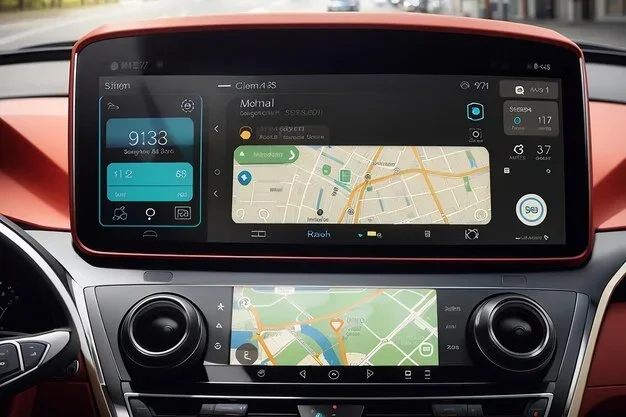
You turn the key, press the voice command button, and wait for your phone to appear on the infotainment screen. Nothing. Your car is not picking up your phone, and the silence is deafening. Whether you need hands-free calling for safety or want to stream music through the car audio system, a failed Bluetooth connection can derail your day.
The good news? Most connection problems are simple to fix. You don’t need a mechanic or a new phone. Often, it’s just a setting, a software glitch, or a small interference issue. This guide walks you through every possible cause, from the most obvious to the hidden ones. By the end, you’ll know exactly what to check and how to get your devices talking again.
We’ll cover the top reasons why your car won’t pick up your phone, step-by-step troubleshooting, and expert tips to prevent future issues. Let’s get you back on the road with a solid Bluetooth connection.
Key Takeaways
- Check the basics first: Ensure Bluetooth is on, your phone is discoverable, and the car is in the right mode.
- Software updates matter: Outdated phone OS, car firmware, or Bluetooth versions cause most pairing failures.
- Interference kills signals: Wi-Fi, USB cables, and physical barriers can block the Bluetooth connection.
- Resetting solves 80% of issues: Deleting old pairings and restarting devices clears hidden glitches.
- Hardware faults exist: A damaged phone antenna or car Bluetooth module needs professional repair.
- Prevention is simple: Keep devices charged, clear the Bluetooth cache, and avoid signal-heavy areas.
- Use USB as a fallback: When wireless charging and Bluetooth fail, a direct cable keeps you connected.
📑 Table of Contents
Common Reasons Your Car Won’t Connect via Bluetooth
Before you panic, know that Bluetooth pairing issues are extremely common. The problem usually lies in one of a few simple areas. Let’s break them down.
Bluetooth Not Enabled on Your Phone
This sounds too simple, but it happens all the time. You might have turned off Bluetooth to save battery or accidentally toggled it off. Go to your phone’s quick settings and make sure the Bluetooth icon is lit. On iPhones, swipe down from the top right. On Androids, swipe down from the top. If it’s grayed out, tap it to turn it on.
Car Infotainment System Is Off or in the Wrong Mode
Your car’s infotainment system must be awake and set to the right input. Many cars have a dedicated Bluetooth or Phone mode. If the system is in USB or Aux mode, it won’t look for your phone. Check the source or input button on your steering wheel or center stack. Select Bluetooth Audio or Phone mode. Some systems require you to press the Phone button on the dash first.
Phone Already Paired to Another Device
Your phone can only connect to one Bluetooth device at a time for audio streaming. If your phone is still connected to your headphones, smartwatch, or a previous car, it won’t pair with the new one. Turn off Bluetooth on other devices temporarily. Also, check if your phone is connected to a car audio system in a different vehicle you recently visited.
Bluetooth Not Discoverable
For a Bluetooth connection to form, your phone must be visible. Most phones hide themselves after the initial pairing. Go to your phone’s Bluetooth settings and look for an option like “Visible to all nearby Bluetooth devices” or “Discoverable.” On iPhones, this is under Settings > Bluetooth and tapping the “i” icon next to your car. On Androids, it’s often in the Bluetooth menu under “Pair new device.”
Software and Compatibility Issues
Even when settings look right, software mismatches can block the connection. These issues are the most common reason why your car is not picking up your phone.
Outdated Bluetooth Versions
Bluetooth has evolved through several versions. Older Bluetooth versions (like 2.0 or 3.0) may not support the audio codecs used by newer phones. Your car’s infotainment system might only support Bluetooth 4.0 or lower, while your phone uses Bluetooth 5.0 or higher. This doesn’t always prevent connection, but it can cause dropouts or no audio. Check your car’s manual for its Bluetooth version. If it’s very old, the phone compatibility might be limited.
Phone Operating System Updates
Major OS updates can reset Bluetooth settings or change how your phone handles Bluetooth pairing. After updating your iPhone or Android, the phone might forget previous car settings. It may also require you to re-grant permissions for hands-free calling and audio streaming. Always check your phone’s Bluetooth settings after a system update. Re-pair the device if needed.
Car Firmware Needs an Update
Car manufacturers release software updates for their infotainment systems. These updates fix Bluetooth bugs and improve device discovery. If your car is a few years old, it might be running outdated firmware. Visit your dealer or check the manufacturer’s app for available updates. Some brands let you update via a USB drive. Keeping your car’s firmware current is one of the best ways to maintain a stable Bluetooth connection.
Incompatible Device Settings
Some phones have aggressive power-saving modes that disable Bluetooth when the screen is off. This breaks the Bluetooth connection to your car. On iPhones, check Low Power Mode. On Androids, look for Battery Saver or Adaptive Battery. Also, check if your phone has a setting to “Optimize Bluetooth scanning.” Disabling this can sometimes help with device discovery mode issues.
Signal Interference and Range Problems
Bluetooth operates on the 2.4 GHz frequency band, which is crowded. Physical and electronic obstacles can weaken or block the signal. This is a major cause of car not picking up phone issues.
Physical Obstacles and Distance
Bluetooth range is typically about 30 feet (10 meters) in open space. Your phone in a back pocket or a bag in the trunk may be too far. Metal car roofs and bodies block signals. Try placing your phone on the center console or in a cup holder close to the infotainment system. Avoid putting your phone in the glove box or under a seat. Even a thick phone case can reduce signal strength.
Wi-Fi and Other Wireless Interference
Your car’s Wi-Fi hotspot, if active, uses the same 2.4 GHz band as Bluetooth. This creates signal interference. Turn off the car’s Wi-Fi when trying to pair. Similarly, USB 3.0 ports and cables can emit electromagnetic noise that disrupts Bluetooth. If you have a USB cable plugged in for wireless charging or data, try unplugging it temporarily. Other devices like dash cams or OBD2 scanners can also cause interference.
Low Battery and Power Saving Modes
A phone with a very low battery may disable Bluetooth to conserve power. Keep your phone above 20% when trying to connect. Also, some cars have a low battery mode for the key fob or internal systems that can affect the Bluetooth module. Ensure your car’s 12V battery is healthy. A weak car battery can cause the infotainment system to behave erratically.
Quick Fixes That Actually Work
When your car is not picking up your phone, try these steps in order. Most people solve the problem within minutes.
Delete Old Pairings and Re-Pair
Over time, your phone and car can build up a list of stale paired devices. This confuses the Bluetooth cache. On your phone, go to Bluetooth settings, find your car, and select “Forget This Device” or “Unpair.” Do the same on the car’s infotainment system if it has a paired devices list. Then turn Bluetooth off and back on. Put both devices in discovery mode and re-pair from scratch. This clears any corrupted pairing data.
Toggle Bluetooth and Restart Devices
The oldest trick in the book still works. Turn Bluetooth off on your phone, wait 10 seconds, and turn it back on. Restart your phone completely. For the car, turn the ignition off, wait 30 seconds, and turn it back on. This resets the car audio system and clears temporary glitches. A full restart of both devices forces them to renegotiate the Bluetooth connection properly.
Check Phone Permissions and Settings
Your phone might be blocking the car from accessing certain features. On iPhones, go to Settings > Privacy > Bluetooth and ensure your car has permission. On Androids, check Settings > Apps > Your Car’s App > Permissions. Also, make sure “Access Bluetooth Devices” is enabled. Some phones have a setting called “Bluetooth Share” or “Nearby Device Discovery” that must be on for Bluetooth pairing to work.
Reset Network Settings (Quick Tip)
If all else fails, reset your phone’s network settings. This clears all saved Wi-Fi passwords, Bluetooth pairings, and cellular settings. On iPhones, go to Settings > General > Transfer or Reset iPhone > Reset > Reset Network Settings. On Androids, go to Settings > System > Reset Options > Reset Wi-Fi, Mobile & Bluetooth. You’ll need to reconnect to your Wi-Fi after this, but it often fixes stubborn Bluetooth connection problems.
When the Problem Is Hardware
Software fixes solve most issues, but sometimes the problem is physical. Knowing the difference saves you time and frustration.
Faulty Bluetooth Module in the Car
The Bluetooth module inside your car’s infotainment system can fail. Signs include the car never showing up as a discoverable device, or the Bluetooth icon appearing but no audio streaming. If you’ve tried every software fix and the car still won’t pair with any phone, the module might be dead. This requires professional repair or replacement of the head unit. Some shops can install an external Bluetooth adapter that plugs into the audio system.
Damaged Phone Antenna or Port
If your phone works perfectly with other Bluetooth devices but not your car, the phone’s antenna might be damaged. Drops and water exposure can harm the internal antenna. A phone that constantly drops Bluetooth connections or shows “Bluetooth not available” may have a hardware fault. In this case, you might need to use a USB cable for audio streaming until the phone is repaired. A USB connection bypasses Bluetooth entirely and provides a stable link.
USB Connection as a Backup
When wireless charging and Bluetooth fail, a simple USB cable can save the day. Plug your phone into the car’s USB port. Most cars will switch to USB audio mode automatically. You’ll get music streaming and sometimes even control your phone’s media library. While it’s not hands-free for calls, you can use the phone’s speaker or a wired headset. A USB cable is the most reliable backup for car not picking up phone situations.
Expert Tips to Keep Your Connection Stable
Prevention is better than cure. Follow these habits to avoid Bluetooth pairing problems in the future.
Keep Devices Charged
A low battery on either your phone or the car’s system can cause the Bluetooth connection to drop. Make it a habit to keep your phone above 30% before driving. If you use wireless charging, ensure the charging pad is working properly. A phone that shuts down Bluetooth to save power will not connect to your car.
Use a Bluetooth Signal Booster
If you have a long car or frequently place your phone in the trunk, a Bluetooth signal booster can help. These small adapters plug into the car’s USB port or cigarette lighter and amplify the Bluetooth signal. They extend the Bluetooth range and improve reliability. This is especially useful for older cars with weak internal antennas.
Regular Maintenance Routine
Make it a monthly habit to clear your Bluetooth cache and delete unused pairings. Restart your phone and car infotainment system occasionally. Check for software updates on both devices. A simple 5-minute routine can prevent most Bluetooth connection issues. Think of it like changing your oil—it keeps everything running smoothly.
Common Mistakes to Avoid
- Leaving Bluetooth on for unknown devices: This can cause your phone to auto-connect to random systems in parking lots or dealerships.
- Ignoring error messages: If your car says “Pairing failed” or “Connection denied,” don’t just retry. Check the specific error on both screens.
- Using the wrong input mode: Remember that Bluetooth Audio and Bluetooth Phone are often separate inputs on the car. Make sure you’ve selected the correct one.
- Overloading the Bluetooth memory: Some car systems only remember a limited number of devices. Clear old pairings to make room for new ones.
- Placing your phone near the rear seats: The Bluetooth antenna is usually near the front. Keep the phone up front for the strongest signal.
Conclusion
A car not picking up your phone is almost always fixable. Start with the simple checks: Bluetooth on, discoverable mode, and the right input. Move to software updates and resets. If those fail, consider interference and hardware faults. By following the steps in this guide, you can restore your hands-free calling and audio streaming in minutes. Keep your devices updated, maintain a clean pairing list, and your Bluetooth connection will stay strong. Now get back on the road and enjoy the drive.
Frequently Asked Questions
Why won’t my car find my phone even though Bluetooth is on?
Your phone might not be in discoverable mode, or the car’s infotainment system is set to the wrong input. Try turning Bluetooth off and back on, then re-pair the devices. Also check if your phone is connected to another device nearby.
Can a low phone battery stop Bluetooth from connecting?
Yes. When your phone battery drops below 20%, it may disable Bluetooth to save power. Keep your phone charged above 30% before driving. A weak car battery can also cause the infotainment system to malfunction.
Does Wi-Fi in the car interfere with Bluetooth?
Yes. Both Wi-Fi and Bluetooth use the 2.4 GHz frequency band. If your car’s Wi-Fi hotspot is on, it can create signal interference. Turn off the car’s Wi-Fi when trying to pair your phone.
What should I do if my car shows the phone but there’s no audio?
This usually means the phone is connected for calls but not for music streaming. Check the car’s input mode and select Bluetooth Audio. Also ensure the phone has granted audio access permissions in its Bluetooth settings.
Is it possible the car’s Bluetooth module is broken?
Yes. If the car never shows up as a discoverable device and you’ve tried all software fixes, the Bluetooth module may be faulty. A dealer or auto electrician can test the module and replace it if needed.
Can I use a USB cable instead of Bluetooth for music?
Absolutely. A USB cable provides a direct wired connection for audio streaming. It bypasses Bluetooth entirely and is very stable. While you lose hands-free calling convenience, it’s a reliable backup when Bluetooth fails.