How Do I Set Up Auto Text When Driving on the Road Today
Setting up auto text while driving keeps your eyes on the road and your hands on the wheel. Whether you use an iPhone or Android, enabling hands-free messaging features like Do Not Disturb While Driving and Bluetooth texting can make your commute safer and more convenient. This guide walks you through every step to configure auto reply settings on your phone today.
This is a comprehensive guide about How Do I Set Up Auto Text When Driving.
Key Takeaways
- Auto text features keep you safe: Hands-free messaging reduces distractions and lowers accident risk.
- Both iPhone and Android support auto reply: Each platform has built-in tools for driving mode text automation.
- Bluetooth connectivity is essential: Pairing your phone to your car enables seamless hands-free communication.
- Third-party apps add extra control: Apps like Auto Reply and DriveMode offer custom driving safety features.
- Setup takes only minutes: You can configure everything in a few simple steps before hitting the road.
- Customize your auto responses: Tailor messages to let people know you are driving and will reply later.
- Know the legal landscape: Many states have laws against manual texting while driving, making auto text a smart choice.
[FEATURED_IMAGE_PLACEHOLDER]
Every day, millions of drivers hit the road with their phones buzzing in their pockets. The urge to check a message is real, and it can wait. That is exactly why auto text when driving has become such a game-changer for everyday commuters and road trippers alike.
Setting up auto reply settings on your phone means you never have to take your eyes off the highway to respond to a text. It is one of the simplest driving safety features available today, yet so many people have never tried it. If you have been wondering how do I set up auto text when driving, you are in the right place.
This guide covers everything from built-in iPhone and Android tools to third-party apps and Bluetooth pairing tips. By the end, you will know exactly how to stay connected without compromising safety. Let us get started.
Why Auto Text While Driving Matters
Distracted driving is one of the leading causes of accidents on the road today. The National Highway Traffic Safety Administration reports that sending a text takes your eyes off the road for about five seconds. At highway speeds, that is like driving blindfolded across a football field.
Using hands-free messaging through auto text features removes that danger entirely. You stay aware of your surroundings, your hands stay on the wheel, and your passengers stay safe. It is a small change that makes a big difference.
Beyond safety, auto text also reduces stress. You do not have to worry about missing an important message or feeling pressured to reply instantly. Your smartphone integration handles it for you. Here are the main benefits:
- Improved road focus: Your attention stays on driving, not on your screen.
- Reduced accident risk: Hands-free communication keeps you within safe driving limits.
- Peace of mind: Contacts know you are driving and will respond when you arrive.
- Legal compliance: Many states now ban manual texting while driving.
- Better habit building: Auto text encourages safer long-term driving behavior.
Understanding Distracted Driving
Distracted driving covers any activity that takes your attention away from the road. Texting is the most dangerous form because it involves visual, manual, and cognitive distraction all at once. Even a quick glance at a notification can lead to a serious collision.
Mobile phone settings like driving mode and auto reply were designed specifically to combat this problem. When you enable these features, your phone automatically detects when you are in motion and activates protective measures. This is where text message automation becomes your best friend on the road.
How to Set Up Auto Text on iPhone
If you drive an iPhone, you have a powerful built-in tool called Do Not Disturb While Driving. This feature automatically silences notifications and can send pre-written replies to incoming messages. Here is how to get it running.
Step 1: Enable Do Not Disturb While Driving
Open your Settings app and scroll down to Do Not Disturb. Tap on Do Not Disturb While Driving. You will see several activation options:
- Automatic: Your phone uses motion sensors and Bluetooth to detect when you are driving.
- Connected to Car Bluetooth: The feature activates only when your phone connects to your car system.
- Manual: You turn it on from your Control Center every time you start driving.
Select the option that works best for your routine. Most people prefer the automatic setting because it requires zero effort once configured.
Step 2: Set Up Auto Reply Message
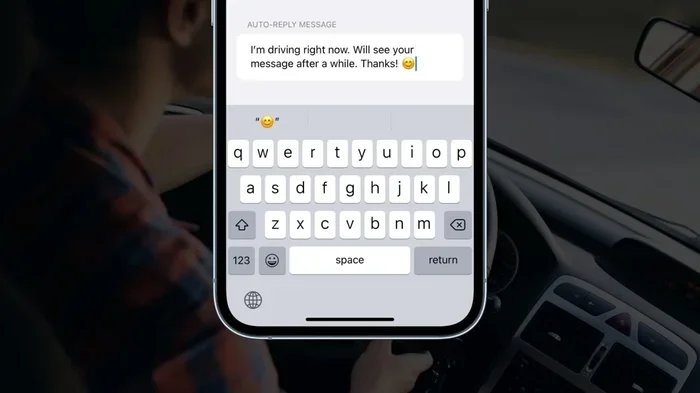
Still in the Do Not Disturb While Driving menu, tap on Auto-Reply. Here you can write a custom message that people will receive when they text you while you are driving. A good example is:
“Thanks for your message! I am currently driving and will reply when I arrive. Stay safe!”
You can also choose to send auto replies only to your Favorites contacts or to everyone. This is a great way to manage expectations without ignoring important people in your life.
Step 3: Allow Repeat Callers
One smart feature in this menu is the ability to allow repeat callers. If someone calls you twice within three minutes, the call goes through. This is helpful in emergencies without letting every notification pull your attention away from the road.
How to Set Up Auto Text on Android
Android phones offer similar driving mode settings through a combination of built-in features and Google integration. The setup process varies slightly depending on your phone brand, but the core steps remain the same.
Using Android Auto
Android Auto is Google’s dedicated driving app that puts a simplified interface on your phone screen. To set up auto text through Android Auto:
- Download Android Auto from the Google Play Store if you have not already.
- Open the app and follow the on-screen setup instructions.
- Go to Settings within Android Auto and look for Driving Mode or Auto-Reply options.
- Customize your auto reply message to suit your preferences.
Android Auto also supports voice-to-text while driving, so you can dictate replies using Google Assistant without ever touching your screen. This is one of the most convenient hands-free communication tools available.
Using Samsung Driving Mode
If you drive a Samsung phone, you have access to Samsung Driving Mode. This feature is found under Settings >> Modes and Routines >> Driving Mode. It lets you:
- Automatically reply to texts with a custom message.
- Block notifications while the car is in motion.
- Enable Bluetooth texting through your car’s infotainment system.
- Set up routines that adjust phone behavior based on location and speed.
Using Google Assistant for Driving Replies
Google Assistant can also handle text message automation on any Android device. Simply say “Hey Google, reply to [contact name]” and it will send a hands-free response. You can also set up custom routines that trigger auto replies when your phone detects driving activity.
Bluetooth Pairing for Hands-Free Texting
Bluetooth connectivity is the backbone of any auto text setup. When your phone connects to your car’s infotainment system, it enables seamless hands-free messaging without needing to pick up your device.
How to Pair Your Phone to Your Car
Follow these steps to establish a car phone connectivity connection:
- Turn on your car’s Bluetooth system.
- Go to Settings >> Bluetooth on your phone.
- Make sure Bluetooth is turned on and your phone is set to visible.
- Select your car from the list of available devices.
- Confirm the pairing code on both screens if prompted.
Once paired, your car’s steering wheel controls can handle incoming and outgoing messages. You can hear texts read aloud and reply using voice commands. This is the most natural way to stay connected without breaking your focus on the road.
Quick Tips for Bluetooth Pairing
- Keep your car’s firmware updated: Manufacturers often release updates that improve smartphone integration.
- Delete old pairings: If your phone struggles to connect, removing old device profiles can help.
- Test before you drive: Always pair and test your connection in a parked car first.
- Use a strong signal: Bluetooth works best when your phone is within a few feet of the car’s receiver.
Third-Party Apps for Auto Text While Driving
Built-in features are great, but sometimes you need more control. Several third-party apps offer advanced text blocking apps and custom auto response settings for drivers who want a tailored experience.
Top Apps to Consider
Here are some popular options that enhance your driving safety features:
- Auto Reply: A simple app that sends custom replies when you are driving. It works in the background without interfering with navigation apps.
- DriveMode: Developed by AT&T, this app silences notifications, sends auto replies, and blocks text entry while your car is moving.
- LifeSaver: A more comprehensive solution that locks your phone entirely while driving and tracks your route for fleet managers.
- Canary: This app monitors your driving behavior and sends reports to parents or fleet managers about phone usage behind the wheel.
Comparison Table
Here is a quick comparison of popular auto text apps to help you choose:
| App Name | Platform | Key Feature | Price |
|---|---|---|---|
| Auto Reply | iOS, Android | Custom driving auto replies | Free |
| DriveMode | iOS, Android | Notification blocking + auto reply | Free |
| LifeSaver | iOS, Android | Full phone lock + route tracking | Paid |
| Canary | iOS, Android | Driving behavior monitoring | Freemium |
Most of these apps offer free versions that cover the basics. If you want deeper analytics or fleet management features, the paid versions provide more value for frequent drivers and business owners.
Common Mistakes to Avoid
Even with the best driving mode settings, mistakes can happen. Here are the most common pitfalls drivers face when setting up auto text when driving and how to avoid them.
Mistake 1: Forgetting to Test Your Setup
Do not wait until you are on the highway to discover your auto reply is not working. Test your setup in a parked car first. Send yourself a test message and verify that the auto reply comes through correctly. This simple step saves frustration later.
Mistake 2: Ignoring Bluetooth Connection Issues
If your Bluetooth texting stops working mid-drive, it is usually because the connection dropped. Restart your phone’s Bluetooth, check for interference from other devices, and make sure your car’s infotainment system is up to date. A quick reboot often fixes the problem.
Mistake 3: Not Customizing Your Auto Reply
The default auto reply message is often generic. Take a moment to write something personal and clear. Let your contacts know when you expect to be back. This small effort goes a long way in managing expectations and reducing follow-up messages.
Mistake 4: Overlooking Emergency Exceptions
Make sure your driving safety features allow emergency calls through. The repeat caller setting on iPhone is one way to handle this. On Android, check that your Google Assistant can still place emergency calls even when driving mode is active.
Mistake 5: Relying Solely on Auto Text
Auto text is a helpful tool, but it is not a replacement for safe driving habits. Keep your phone out of reach, use a mount if needed, and always prioritize the road ahead. Technology supports safety, but it does not replace attention.
Expert Insights on Driving Safety and Auto Text
Driving safety experts consistently emphasize that any interaction with a phone while driving increases risk. The Insurance Institute for Highway Safety found that drivers who use hands-free messaging are still cognitively distracted, even if their eyes remain on the road.
However, auto text when driving significantly reduces that cognitive load compared to manually reading and typing messages. The goal is to minimize interaction as much as possible. Let your phone handle the communication while you handle the steering wheel.
Transportation safety advocates also recommend combining auto reply settings with other protective measures:
- Use a phone mount to keep your screen at eye level for navigation only.
- Enable driving mode settings on all family members’ phones.
- Set a good example for young or new drivers in your household.
- Review your mobile phone settings every few months to ensure they still work correctly.
Legal Considerations for Texting While Driving
Laws around distracted driving vary by state and country. As of now, most U.S. states have some form of ban on manual texting while driving. Several states also restrict handheld phone use entirely.
Using auto text features and hands-free communication generally keeps you on the right side of the law. However, it is always wise to check your local regulations. Some jurisdictions are expanding their definitions of distracted driving to include even voice-activated texting in certain situations.
For business drivers, fleet managers should also consider implementing company-wide driving safety features policies. This protects employees and reduces liability for the organization.
Key Takeaways
- Auto text keeps you safe: Hands-free messaging reduces distractions and lowers accident risk.
- Both iPhone and Android support auto reply: Each platform has built-in tools for driving mode text automation.
- Bluetooth connectivity is essential: Pairing your phone to your car enables seamless hands-free communication.
- Third-party apps add extra control: Apps like Auto Reply and DriveMode offer custom driving safety features.
- Setup takes only minutes: You can configure everything in a few simple steps before hitting the road.
- Customize your auto responses: Tailor messages to let people know you are driving and will reply later.
- Know the legal landscape: Many states have laws against manual texting while driving, making auto text a smart choice.
Frequently Asked Questions
Can I set up auto text on both iPhone and Android at the same time?
Yes, you can set up auto text on both platforms using their respective built-in features. iPhone uses Do Not Disturb While Driving while Android relies on Android Auto or manufacturer-specific driving modes. You can also use third-party apps that work across both systems for consistent auto reply settings no matter which phone you carry.
Does auto text work when I am a passenger?
This depends on how your driving mode settings are configured. The automatic activation on iPhone uses motion sensors, which can sometimes trigger when you are a passenger. To avoid this, you can manually disable driving mode or connect to your car’s Bluetooth only when you are the driver. Android Auto also lets you disable driving mode manually when needed.
Will auto text drain my phone battery?
Auto text features use minimal battery because they run in the background and rely on Bluetooth connectivity and motion sensors. However, if you also use GPS navigation and screen mirroring simultaneously, you may notice slightly higher battery usage. Keeping your phone charged with a car charger is a good practice for long drives.
Can I use auto text with steering wheel controls?
Yes, most modern cars support steering wheel controls that integrate with Bluetooth texting. You can hear incoming messages through your car’s audio system and reply using voice commands or steering wheel buttons. Check your car’s manual for specific smartphone integration instructions.
Is it legal to use auto text features in all states?
Auto text and hands-free messaging are generally legal across all U.S. states because they do not require manual interaction. However, some states have broader restrictions on any phone use while driving. Always check your local distracted driving laws to ensure full compliance, especially if you travel across state lines frequently.
What should I include in my auto reply message?
A good auto reply message should be clear, polite, and informative. Let the sender know you are driving and will respond when you arrive. Include a timeframe if possible, such as “I will reply within the hour.” Keep it short and friendly. This approach manages expectations and shows respect for the people trying to reach you while you stay focused on the road.
Conclusion
How do I set up auto text when driving is a question with a simple answer: start with your phone’s built-in driving mode and customize it to fit your needs. Whether you use an iPhone with Do Not Disturb While Driving or an Android with Android Auto, the process is straightforward and takes only a few minutes.
Pair your phone with your car’s Bluetooth connectivity, write a thoughtful auto reply message, and let your smartphone integration handle the rest. Add third-party apps if you want more control, and always remember that auto text is a tool to support safe driving, not a replacement for it.
Your safety and the safety of others on the road should always come first. By setting up auto text when driving today, you are taking a meaningful step toward becoming a more focused, responsible driver. Make the change now, and enjoy the peace of mind that comes with knowing you can stay connected without compromising your attention on the road ahead.
Frequently Asked Questions
What is How Do I Set Up Auto Text When Driving?
How Do I Set Up Auto Text When Driving is an important topic with many practical applications.