How Do I Sync My iPhone to My New Car Quick Setup Guide
Syncing your iPhone to your new car is easier than you think. Whether you use Bluetooth or Apple CarPlay, this quick setup guide walks you through every step. You will learn how to connect wirelessly, stream music, make hands-free calls, and fix common sync issues in minutes.
You just drove your new car home, and the first thing you want to do is connect your iPhone. Maybe you want to stream your favorite playlist. Maybe you need directions to a new restaurant. Or maybe you just want to take hands-free calls without fumbling with a cord. How do I sync my iPhone to my new car is one of the most common questions new car owners ask today. The good news is that the process is simpler than most people think, and this guide will walk you through it step by step.
Whether your car supports Apple CarPlay, basic Bluetooth pairing, or both, you will find everything you need right here. We will cover wired and wireless connections, troubleshooting tips, and expert advice to make your iPhone car connection work flawlessly every time. By the end of this article, you will feel confident connecting your phone to your vehicle like a pro.
Let us start with the basics. Syncing your iPhone to your new car means linking your phone to the car’s infotainment system. This allows you to make calls, play music, use navigation, and access messages without taking your hands off the wheel. It is all about smartphone integration that keeps you safe and connected on the road. Most modern cars from brands like Toyota, Honda, Ford, BMW, and Tesla support some form of iPhone connection. Older vehicles may only offer basic Bluetooth audio streaming, while newer models often include full CarPlay compatibility.
Key Takeaways
- Bluetooth pairing is the most universal method for syncing your iPhone to almost any new car.
- Apple CarPlay offers the best iPhone integration with maps, music, and Siri hands-free control.
- Wireless sync is faster and cleaner than using a USB cable in most modern vehicles.
- Common sync problems like connection drops can usually be fixed with simple resets.
- Always update your iPhone and car software before attempting your first sync for the smoothest experience.
- Contact syncing and message notifications work automatically once your iPhone is paired correctly.
📑 Table of Contents
- Why Syncing Your iPhone to Your New Car Matters
- How to Sync iPhone to Your New Car via Bluetooth
- Using Apple CarPlay for a Seamless iPhone Experience
- Wireless vs. Wired iPhone Connection: Which Is Better?
- Troubleshooting Common iPhone-to-Car Sync Problems
- Expert Tips to Get the Most From iPhone Car Sync
- How to Sync iPhone to Your New Car: A Quick Comparison
Why Syncing Your iPhone to Your New Car Matters
You might wonder why syncing your phone to your car is such a big deal. The answer is simple: convenience and safety. When your iPhone is synced, your car becomes an extension of your digital life. You get access to your contacts, your music library, your calendar, and your favorite apps right on the dashboard screen.
Here are the main reasons iPhone car integration matters so much:
- Hands-free calling: You can make and receive calls without touching your phone. This keeps your eyes on the road and your hands on the wheel.
- Music and podcast streaming: Stream Spotify, Apple Music, or Audible directly through your car speakers.
- GPS navigation: Use Apple Maps, Google Maps, or Waze on your car’s display for turn-by-turn directions.
- Message notifications: Read and respond to texts using Siri or your car’s built-in controls.
- Battery management: A wired connection charges your iPhone while you drive, so you never arrive with a dead battery.
Beyond convenience, Bluetooth sync and CarPlay reduce distractions. Studies show that distracted driving is a leading cause of accidents. By keeping your interactions voice-controlled and dashboard-based, you stay safer behind the wheel. This is why every new car owner should learn how to sync their iPhone properly.
How to Sync iPhone to Your New Car via Bluetooth
Bluetooth pairing is the most common way to connect an iPhone to a car. Almost every vehicle made in the last decade supports Bluetooth. The process is straightforward, but the exact steps can vary slightly depending on your car’s make and model. Let us walk through the general process that works for most vehicles.
Step 1: Prepare Your iPhone and Car
Before you begin, make sure both your iPhone and your car are ready. On your iPhone, go to Settings and turn on Bluetooth. Your car should be parked and turned on with the infotainment system active. Some cars require you to press the Bluetooth or Phone button on the steering wheel or dashboard to enter pairing mode.
Here is what to check before you start:
- Make sure your iPhone is charged or connected to a power source.
- Restart your iPhone if you have had connection issues in the past.
- Delete any old phone pairings from your car’s Bluetooth memory.
- Ensure your car’s infotainment system is updated to the latest firmware.
Step 2: Put Your Car in Pairing Mode
Every car handles this differently. In most vehicles, you will go to the Settings menu on the infotainment screen and select Bluetooth. Then choose the option to add a new device or pair a new phone. Your car will now search for nearby Bluetooth devices.
On your iPhone, you should see your car’s name appear in the list of available devices under Other Devices. Tap on it to begin pairing. You may be asked to confirm a six-digit code on both screens. This is a security step to ensure nobody else can connect to your car.
Step 3: Allow Permissions and Test the Connection
Once paired, your iPhone will ask for permission to share contacts, calls, and messages with your car. Allow all of these permissions for the full experience. You should now see your phone’s name appear under My Devices in both your iPhone Bluetooth settings and your car’s infotainment system.
Test the connection by playing a song from Apple Music or making a test call. If audio streams through your car speakers and calls connect clearly, you are all set. Bluetooth audio streaming and hands-free calling should work immediately after pairing.
Quick Bluetooth Setup Tips
- If your car does not find your iPhone, toggle Bluetooth off and on again on both devices.
- Keep your iPhone within three feet of the car’s infotainment system during initial pairing.
- Some cars require you to turn off and restart the infotainment system before a new pairing will work.
- Name your device something recognizable in your iPhone Bluetooth settings for easier identification.
Using Apple CarPlay for a Seamless iPhone Experience
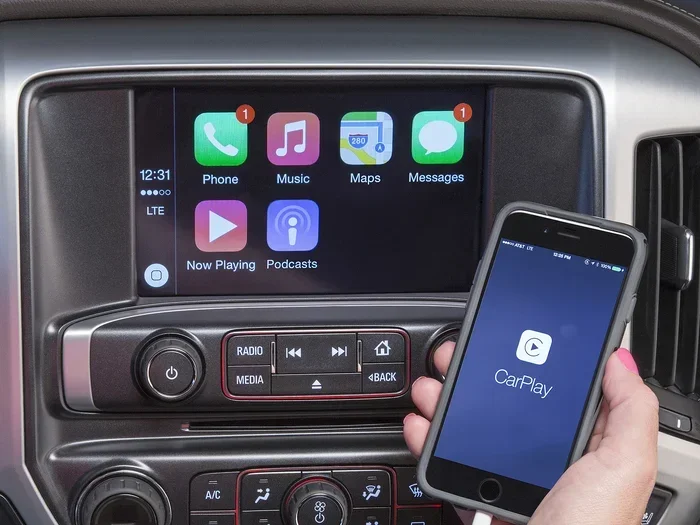
Apple CarPlay is the gold standard for iPhone mirroring in vehicles. It projects a simplified version of your iPhone interface directly onto your car’s display. You get access to Maps, Music, Messages, Phone, and thousands of third-party apps including Spotify, WhatsApp, and Google Maps.
Not every car supports CarPlay natively, but most vehicles made after 2016 offer it either as standard or as an optional upgrade. If your new car has a CarPlay icon on the infotainment screen, you are in luck. The setup process is very similar to Bluetooth pairing.
How to Set Up Apple CarPlay
Start by connecting your iPhone to your car using a Lightning or USB-C cable. Some newer cars and iPhones support wireless CarPlay, which eliminates the need for a cable entirely. Once connected, your car’s screen should display the CarPlay interface automatically.
If it does not appear, go to your car’s infotainment settings and select CarPlay. Choose your iPhone from the list of available devices. On your iPhone, you may need to tap Trust This Computer if prompted. After that, CarPlay should launch automatically every time you start your car.
Here are the key features you get with CarPlay integration:
- Siri voice control: Say “Hey Siri” to make calls, send messages, or get directions without touching your phone.
- Maps and navigation: Get real-time traffic updates and rerouting on your car’s big display.
- Audio apps: Stream music, podcasts, and audiobooks through your car’s sound system.
- Messaging: Use Siri to read and respond to texts while keeping your eyes on the road.
- Contact syncing: Your entire address book is available for dialing through the car’s interface.
Wireless CarPlay vs. Wired CarPlay
Wireless CarPlay connects through Wi-Fi and Bluetooth, so there is no cable needed. It is more convenient but can sometimes be slightly slower to connect. Wired CarPlay uses a USB cable and tends to be more stable. If your car supports both, wireless is usually the preferred option for daily use.
To enable wireless CarPlay, go to your iPhone Settings, then General, then CarPlay. Select your car and choose Wireless as the connection type. Your iPhone and car will remember this preference going forward.
Wireless vs. Wired iPhone Connection: Which Is Better?
One of the first decisions you will face when setting up your iPhone connection is whether to go wireless or wired. Both options have pros and cons, and the best choice depends on your car model and personal preference.
Benefits of Wireless Sync
- No cables to manage: Your iPhone connects automatically when you get in the car.
- Cleaner dashboard: No cable clutter across your center console.
- Convenience: You can remove your phone from the mount or pocket and it stays connected.
- Charging via USB hub: Many wireless CarPlay setups still allow you to charge your phone through a separate USB port.
Benefits of Wired Sync
- More stable connection: A physical cable is less prone to interference or dropped connections.
- Simultaneous charging: Your phone charges while synced, which is great for long drives.
- Broader compatibility: Every car with a USB port supports wired connections, even older models.
- Faster data transfer: Some features like high-quality audio streaming work better over a wired connection.
For most people, wireless sync is the way to go if your car supports it. It is fast, clean, and just works. However, if you frequently travel long distances or experience connection drops, a wired connection provides reliability that wireless sometimes cannot match.
Troubleshooting Common iPhone-to-Car Sync Problems
Even with the simplest setup, things can go wrong. Maybe your iPhone will not find your car. Maybe the audio keeps cutting out. Maybe CarPlay refuses to launch. Do not worry. Most iPhone car connection troubleshooting issues have simple fixes.
iPhone Will Not Pair with the Car
This is the most common problem, and it is usually easy to fix. Start by turning Bluetooth off on your iPhone, waiting ten seconds, and turning it back on. On the car side, go to the Bluetooth settings and remove your iPhone from the list of saved devices, then try pairing again from scratch.
Also check that your iPhone is not connected to a different device. If your iPhone was recently paired to someone else’s car or headphones, it might try to connect to those instead. Go to your iPhone Bluetooth settings and disconnect from any other devices before attempting a new pairing.
Audio Keeps Cutting Out or Sounds Scratchy
Interference is the usual culprit here. Bluetooth operates on the 2.4 GHz frequency, which is shared with Wi-Fi routers, microwaves, and other devices. If you are in a crowded parking lot or near a strong Wi-Fi signal, your audio might stutter.
Try moving your iPhone closer to the car’s center console. If you are using a wired connection, try a different USB cable or a different USB port. Cables wear out over time, and a damaged cable is one of the top causes of poor audio quality.
CarPlay Won’t Launch or Keeps Disconnecting
First, make sure your iPhone and car software are up to date. On your iPhone, go to Settings, then General, then Software Update. For your car, consult your owner’s manual or visit the manufacturer’s website for firmware updates. Outdated software is the number one cause of CarPlay instability.
Also try restarting both devices. Turn off your car, remove the key or press the start button to power down the infotainment system, and restart your iPhone. Then start the car again and let it reconnect. This simple reset fixes the majority of CarPlay issues.
Contacts and Messages Are Not Syncing
If your contacts show up on your car’s display but messages do not, check your iPhone notification settings. Go to Settings, then Notifications, then Messages, and make sure Allow Notifications is turned on. Also check that your car has permission to access notifications in the iPhone’s Bluetooth settings under your car’s device entry.
Expert Tips to Get the Most From iPhone Car Sync
Once your iPhone is synced and working, there are several things you can do to improve the experience. These tips come from years of helping car owners get the most out of their smartphone integration.
Use a Quality Mount and Cable
If you use a wired connection, invest in a good mounting solution and a certified Lightning or USB-C cable. A sturdy mount keeps your iPhone visible and secure while driving. A MFi-certified (Made for iPhone) cable ensures reliable data transfer and charging without damage to your phone or car.
Enable Siri for Hands-Free Control
Siri is your best friend when it comes to iPhone car connection. You can say “Hey Siri, call Mom,” “Hey Siri, play my road trip playlist,” or “Hey Siri, navigate home.” This keeps your hands on the wheel and your eyes on the road at all times.
Manage Background App Refresh
CarPlay works best when your apps are up to date and ready to launch. Go to Settings, then General, then Background App Refresh, and make sure your music, navigation, and messaging apps are allowed to refresh. This ensures they load quickly when you connect to your car.
Set Up Your Favorites and Recent Contacts
Most car infotainment systems let you access recent calls and favorites directly from the dashboard. Set up your most-called contacts in your iPhone before you sync. This makes it easy to dial with just a few taps on the car screen.
Keep Your iPhone Clean and Connected
Dust and debris can collect in your iPhone’s charging port and cause intermittent connection issues. Use a soft brush or compressed air to keep the port clean. Also, if you use a wireless connection, make sure your iPhone case is not too thick, as some cases can interfere with wireless CarPlay signals.
Update Everything Regularly
Software updates fix bugs and improve compatibility between your iPhone and your car. Make it a habit to check for iPhone updates weekly and car infotainment updates monthly. A few minutes of maintenance can save hours of frustration down the road.
How to Sync iPhone to Your New Car: A Quick Comparison
Here is a side-by-side look at the two main methods for connecting your iPhone to your new car. This table helps you understand which method fits your needs best.
| Feature | Bluetooth | Apple CarPlay |
|---|---|---|
| Connection Type | Wireless (Bluetooth) | Wired or Wireless |
| Audio Streaming | Yes | Yes |
| Hands-Free Calls | Yes | Yes |
| Navigation Apps | No | Yes (Maps, Waze, Google Maps) |
| Message Access | Limited | Full Siri integration |
| App Support | None | Spotify, Podcasts, WhatsApp, and more |
| Setup Difficulty | Easy | Easy to Moderate |
| Car Compatibility | Almost all cars | Most cars from 2016+ |
| Charging While Connected | No | Yes (wired connection) |
As you can see, Apple CarPlay offers a much richer experience than basic Bluetooth. If your car supports it, CarPlay should be your go-to connection method. However, Bluetooth remains essential as a fallback and for basic audio streaming in older vehicles.
Now that you know how to sync your iPhone to your new car, you are ready to hit the road with confidence. Whether you use Bluetooth, CarPlay, or both, the key is to set up your connection properly and keep your software updated. A well-synced iPhone makes every drive more enjoyable, safer, and more connected.
Take a few minutes today to go through the steps in this guide. Test your connection, explore your car’s settings, and get comfortable with Siri and CarPlay. Once you experience the convenience of a fully synced iPhone in your car, you will wonder how you ever drove without it. Syncing your iPhone to your new car is not just a technical task, it is the first step to making your vehicle truly yours.
Remember, if you run into any issues, most problems are quick to fix with a simple reset or software update. You do not need to be a tech expert to get your iPhone car connection working perfectly. Just follow the steps in this guide, and you will be streaming music, getting directions, and making hands-free calls in no time. Enjoy your new car and your connected driving experience.
Frequently Asked Questions
Can I sync my iPhone to any car?
Most cars made after 2012 support Bluetooth, which is the most basic form of iPhone syncing. For Apple CarPlay, your car needs to be from around 2016 or newer, or have a CarPlay-compatible infotainment system installed. Check your car’s manual or the manufacturer’s website to confirm compatibility.
Why does my iPhone keep disconnecting from my car?
Frequent disconnections are usually caused by outdated software, interference from other Bluetooth devices, or a full Bluetooth memory on your car. Try updating both your iPhone and car firmware, removing old pairings, and resetting Bluetooth on both devices. This resolves the issue in most cases.
Do I need a special cable to sync my iPhone to my car?
For wired connections, you need a Lightning or USB-C cable depending on your iPhone model. For the best experience, use an Apple-certified or MFi-certified cable. Most cars with CarPlay will also work with standard USB cables, but certified cables are more reliable for data transfer and charging.
Can I use Apple CarPlay wirelessly in my new car?
Yes, if your car supports wireless CarPlay. Look for the wireless CarPlay option in your car’s infotainment settings. On your iPhone, go to Settings, then General, then CarPlay, and select your car. Choose Wireless as the connection type, and your iPhone will connect automatically in the future.
How do I make hands-free calls when my iPhone is synced?
Once your iPhone is paired via Bluetooth or CarPlay, you can use your car’s steering wheel call button or the infotainment screen to make calls. You can also use Siri by saying “Hey Siri, call [contact name].” Your calls route through the car’s speakers and microphone automatically.
What should I do if CarPlay does not appear on my car screen?
First, make sure your iPhone is locked and the screen is off while connected. CarPlay usually activates in this state. If it still does not appear, check that both your iPhone and car software are updated. Try a different cable or USB port, and restart both your iPhone and your car’s infotainment system.
=== CONCLUSION ===
How do I sync my iPhone to my new car is a question with a straightforward answer once you know the steps. Whether you choose Bluetooth for a simple audio connection or Apple CarPlay for a full-featured experience, the process is quick and user-friendly. Start with pairing your devices, explore the settings to enable all the features you want, and troubleshoot any issues using the tips in this guide.
Your new car and your iPhone are designed to work together. With the right setup, you get a safer, more enjoyable driving experience every time you turn the key. Take the time to sync properly, keep your software updated, and enjoy the seamless connection between your phone and your vehicle. Happy driving.