How Long Does a Kia Software Update Take to Complete
A Kia software update typically takes between 15 minutes and 2 hours, depending on your model and the size of the update. Kia firmware downloads are usually fast, but the full installation process — including system checks and reboots — adds extra time. Knowing what to expect helps you plan your day and avoid frustration.
If you own a Kia, you’ve probably seen that little notification pop up on your infotainment screen — Kia software update available. It’s tempting to tap “Remind Me Later,” but understanding how long this process actually takes can make all the difference. A Kia software update isn’t just a quick download. It involves downloading files, verifying them, installing them, and restarting your system. The whole thing can range from a speedy 15 minutes to a more involved two hours.
In this guide, we’ll walk through everything you need to know about Kia firmware updates. We’ll cover average update times, what affects the duration, how to prepare, and what to do if things go wrong. Whether you drive a Kia Telluride, a Kia Sorento, or a Kia EV6, this article has you covered.
Key Takeaways
- Standard updates take 15–45 minutes: Most Kia software updates complete within this window for minor patches and bug fixes.
- Major updates can take up to 2 hours: Larger firmware downloads and installations require more time and a stable connection.
- Internet speed matters: A fast Wi-Fi connection significantly reduces the download phase of your Kia software update.
- Preparation is key: Charging your battery, closing apps, and ensuring a stable connection prevents interruptions.
- Don’t skip updates: Kia software updates fix bugs, improve performance, and add new features to your vehicle.
- OTA updates save time: Over-the-air Kia updates let you update from home without visiting a dealer.
- Know the warning signs: If your update stalls or errors out, a simple restart often resolves the issue.
📑 Table of Contents
- What Is a Kia Software Update?
- How Long Does a Kia Software Update Take?
- Factors That Affect Kia Software Update Duration
- How to Prepare for a Kia Software Update
- Kia Software Update: Step-by-Step Process
- What Happens If You Skip a Kia Software Update?
- Common Issues During Kia Software Updates
- Expert Tips to Speed Up Your Kia Software Update
- How Often Should You Update Your Kia Software?
- Final Thoughts
What Is a Kia Software Update?
A Kia software update is a package of improved code sent to your vehicle’s computer systems. Think of it like updating the apps on your phone. Just like your phone needs updates to work smoothly and securely, your Kia needs them too. These updates can address software bugs, improve infotainment system performance, add new features, and even enhance safety systems.
Kia connected services rely on these updates to keep your car linked to the cloud. Your Kia UVO system — Kia’s telematics platform — also benefits from regular updates. These patches ensure your navigation, voice commands, and remote start features all work as they should.
There are two main types of updates your Kia may receive. The first is an over-the-air update, also called an OTA update. This happens wirelessly through your car’s internet connection. The second type requires a visit to a Kia dealer, where a technician connects your vehicle to their diagnostic equipment. Both types serve the same purpose, but the OTA method is far more convenient.
Why Do Kia Software Updates Matter?
Skipping updates might seem harmless, but it isn’t. Kia firmware updates often include critical security patches. They also improve how your car communicates with sensors, cameras, and other components. A vehicle running outdated software may experience slower response times or missing features. Keeping your Kia car software current ensures the best possible driving experience.
How Long Does a Kia Software Update Take?
The honest answer is: it depends. But here’s a general breakdown to set your expectations.
Minor Updates (15–30 Minutes)
Small Kia firmware patches are the most common type of update. These typically fix minor bugs or make small improvements to your infotainment system. The download phase usually takes 5 to 10 minutes with a good Wi-Fi connection. Installation and verification add another 10 to 20 minutes. So you’re looking at roughly 15 to 30 minutes total.
Medium Updates (30–60 Minutes)
Medium-sized updates include new features or significant bug fixes. These might update your Kia UVO maps, add new voice commands, or improve driver-assist features. The download can take 10 to 20 minutes. Installation usually adds another 20 to 40 minutes. Total time falls in the 30 to 60 minute range.
Major Updates (1–2 Hours)
Major Kia software updates are rare but impactful. These can overhaul your entire infotainment system or introduce significant new capabilities. For Kia EV owners, a major update might improve battery management or range estimates. These updates require large file downloads, often exceeding 1 GB. The full process — download, install, verify, and reboot — can take anywhere from 1 to 2 hours.
| Update Type | Download Time | Installation Time | Total Time |
|---|---|---|---|
| Minor Patch | 5–10 min | 10–20 min | 15–30 min |
| Medium Update | 10–20 min | 20–40 min | 30–60 min |
| Major Update | 15–30 min | 45–90 min | 1–2 hours |
Factors That Affect Kia Software Update Duration
Several things can speed up or slow down your Kia software update. Understanding these factors helps you plan better and avoid surprises.
Internet Connection Speed
This is the biggest factor. A fast Wi-Fi connection makes a huge difference. If you’re connected to a slow network, your Kia firmware download will crawl. Most Kia models work best with a connection speed of at least 10 Mbps. If your home Wi-Fi is weak, consider moving closer to your router or using a mesh network extender.
Update File Size
Not all updates are created equal. A small bug fix might only be a few megabytes. A major infotainment system overhaul could be several gigabytes. The larger the file, the longer the download and installation take. Check your Kia connected services app to see the update size before you start.
Vehicle Model and Year
Different Kia models have different hardware capabilities. Newer models with faster processors handle updates more efficiently. Older models may take longer during the installation phase simply because their hardware isn’t as powerful. For example, a Kia EV6 from 2023 may process updates faster than a 2019 Kia Optima.
Battery Level
Your Kia needs sufficient battery power to complete an update. If your battery drops too low during the process, the update may pause or fail. Most Kia models require at least a 30% charge before starting a Kia software update. For plug-in hybrids and EVs, keeping the car plugged in during the update is highly recommended.
Background Processes
If your infotainment system is running multiple apps or processes in the background, the update may take longer. Closing unnecessary apps before starting the update frees up system resources and can speed things along.
How to Prepare for a Kia Software Update
Preparation is the easiest way to ensure your Kia software update goes smoothly. A few simple steps save you from headaches later.
Step 1: Check Your Wi-Fi Connection
Make sure your car is connected to a stable Wi-Fi network. A strong signal ensures the download phase completes without interruptions. If your home network is crowded, try updating during off-peak hours when fewer devices are using bandwidth.
Step 2: Charge Your Battery
Ensure your battery is at least 50% charged. For Kia EV models, plug your car into a charger before starting the update. This prevents the battery from dipping too low and interrupting the process.
Step 3: Close All Apps
Before the update begins, close any open apps on your infotainment system. This includes navigation apps, music players, and Bluetooth connections. Fewer background processes mean faster installation.
Step 4: Don’t Turn Off the Car
This might sound obvious, but it’s worth repeating. Never turn off your engine or disconnect the battery during a Kia firmware update. Doing so can corrupt the software and cause serious problems. Let the process run its full course.
Step 5: Park in a Safe Location
Your car will be stationary during the entire update. The infotainment system will restart at least once, and your car may be temporarily unavailable. Park in your driveway or a garage where you won’t need to move the vehicle for an hour or more.
Kia Software Update: Step-by-Step Process
Understanding the step-by-step process demystifies the experience. Here’s exactly what happens when you install a Kia software update.
Step 1: Notification Appears
Your infotainment system displays a notification that a Kia software update is available. You may also receive a push notification through the Kia connected services app on your phone. The notification includes the update size and a brief description of what it covers.
Step 2: You Accept the Update
Tap “Install Now” or “Schedule” on your screen. If you choose to schedule, pick a time when you won’t need the vehicle. The system will then begin downloading the update files in the background.
Step 3: Download Phase
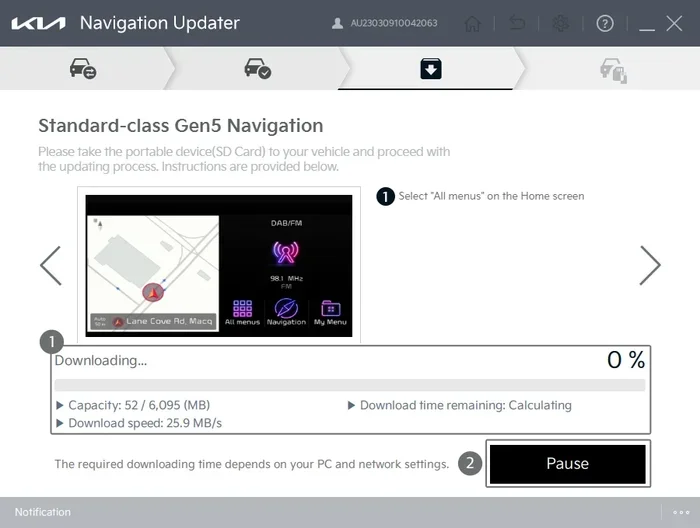
The Kia firmware files download from Kia’s servers. This phase is usually the fastest part of the process. A stable Wi-Fi connection keeps the download speed consistent. You can monitor progress on your screen.
Step 4: Verification
Once the download completes, the system verifies the files. This ensures the data isn’t corrupted and matches what Kia released. Verification typically takes 2 to 5 minutes.
Step 5: Installation
The installation phase is where the actual work happens. The system replaces old files with new ones and updates your infotainment system software. Your screen may go dark or display a progress bar during this time. Do not interrupt this phase.
Step 6: Reboot and Final Check
After installation, your Kia car software reboots. The system runs a final check to confirm everything is working properly. Once the reboot is complete, your vehicle is back to normal — but with updated software.
What Happens If You Skip a Kia Software Update?
It’s tempting to ignore the notification, especially if you’re busy. But skipping updates comes with real downsides.
First, your vehicle misses out on bug fixes and performance improvements. Over time, small issues can compound and affect your driving experience. Second, outdated Kia firmware may leave your connected services vulnerable to security risks. Third, new features that Kia rolls out through updates won’t be available to your vehicle.
In some cases, skipping too many updates can make future updates take longer. The system may need to download multiple patches at once, increasing the total Kia software update time. Staying current keeps things running smoothly and efficiently.
Common Issues During Kia Software Updates
Even with preparation, sometimes things don’t go as planned. Here are common issues and how to handle them.
Update Stalls During Download
If your download stops, check your Wi-Fi connection first. A weak signal is usually the culprit. Restart your router, move closer to it, and try again. If the problem persists, delete the partial download and start fresh.
Installation Fails Midway
Power loss during installation is the most common cause of failed Kia firmware updates. If this happens, don’t panic. Turn the car back on and let the system attempt to resume or reinstall. If the error persists, contact your Kia dealer for assistance.
System Reboots Repeatedly
Sometimes the infotainment system reboots multiple times during a major update. This is normal. The system is applying different components and testing each one. Wait it out — the process should complete within 10 to 15 minutes of the final reboot.
Update Not Showing Up
If your Kia software update doesn’t appear on your screen, try manually checking for updates in your settings. Go to Settings > System > Software Update. If there’s still nothing, your vehicle may not be eligible for the latest patch yet. Check back in a day or two.
Slow Update on Older Models
Older Kia models may have slower processors and less memory. This means Kia firmware updates take longer on these vehicles. Be patient and let the process finish. Rushing it by turning off the car can cause permanent software issues.
Expert Tips to Speed Up Your Kia Software Update
Want to minimize your wait time? These quick tips help your Kia software update finish faster.
- Use a 5 GHz Wi-Fi band: It’s faster than 2.4 GHz and handles large downloads better.
- Update overnight: Schedule your Kia firmware update while you sleep so you don’t need the car during the process.
- Keep your car plugged in: This ensures the battery never dips low enough to interrupt the update.
- Clear cached data: Go to your infotainment settings and clear temporary files before starting the update.
- Check for updates regularly: Don’t wait for the notification. Manually checking every week keeps you current and prevents large update backlogs.
- Use a Wi-Fi hotspot as backup: If your home network is slow, a mobile hotspot with a strong data signal can speed up the download.
How Often Should You Update Your Kia Software?
Kia releases updates on a rolling basis. Most Kia models receive updates every 1 to 3 months. Major updates are less frequent but more impactful. Your Kia connected services app will notify you when updates are available. Checking for updates once a week is a good habit. It keeps your vehicle running at its best and prevents long update sessions from piling up.
Final Thoughts
A Kia software update doesn’t have to be a hassle. Most updates take between 15 minutes and an hour. Major updates might stretch to two hours, but the results are worth it. You get a smoother infotainment system, improved safety features, better connected services, and the latest bug fixes.
The key is preparation. Check your Wi-Fi, charge your battery, close your apps, and let the process run uninterrupted. Following these simple steps ensures your Kia firmware update goes off without a hitch every time.
Stay proactive about your Kia car software. Don’t wait for problems to appear before you update. A few minutes of patience today saves you hours of trouble tomorrow. Your Kia is a sophisticated machine — treat its software with the same care you give its engine.
Frequently Asked Questions
Can I drive my Kia while a software update is installing?
No. Your vehicle needs to be completely stationary during a Kia software update. The system may lock the car temporarily while the infotainment system reboots. Wait until the update fully completes and the screen returns to normal before driving.
What should I do if my Kia software update gets stuck?
First, check your Wi-Fi connection and battery level. If both are fine, try restarting the system by holding the power button for 10 seconds. If the update is still stuck, contact your Kia dealer. They can remotely check your status and guide you through the next steps.
Are Kia software updates free?
Yes. Most Kia firmware updates are free for the life of your vehicle. However, some dealer-installed updates may carry a labor fee. OTA updates through your Kia connected services are always free. Check your owner’s manual or contact your dealer for specific details.
How do I know if my Kia has the latest software?
Go to Settings > System > Software Update on your infotainment system. The screen will show your current firmware version and whether any updates are available. You can also check the Kia connected services app on your phone for the latest information.
Can a Kia software update improve fuel efficiency?
Yes, in some cases. Kia software updates can optimize engine management, improve hybrid battery usage, and enhance regenerative braking efficiency. While the improvement is usually modest, it adds up over time. EV models like the Kia EV6 may see notable range improvements from certain updates.
What happens if I turn off my car during a Kia software update?
Turning off your car mid-update can corrupt your Kia firmware and cause serious system issues. Your infotainment system may fail to start properly, or certain features may stop working. If this happens, contact your Kia dealer immediately. They can often restore the software, but it’s best to avoid the risk by letting the update complete.
=== CONCLUSION ===
So, how long does a Kia software update take? The answer ranges from 15 minutes for minor patches to 2 hours for major firmware upgrades. The exact duration depends on your Kia model, internet speed, battery level, and the size of the update. But one thing is clear — keeping your Kia car software up to date is one of the simplest things you can do to protect your investment.
Follow the preparation steps outlined in this guide. Use a strong Wi-Fi connection, keep your battery charged, and never interrupt the process. Your patience pays off with a faster, safer, and more feature-rich driving experience. Take a few minutes today to check for your next Kia software update. Your car — and your future self — will thank you.