How to Connect Bluetooth to an Alfa Romeo Giulietta
How to Connect Bluetooth to an Alfa Romeo Giulietta is simpler than most drivers think. This guide walks you through pairing your phone, fixing common connection issues, and unlocking the best hands-free calling and music streaming features your car offers. Whether you own a newer model or an older Giulietta, you will find clear, actionable steps to get your wireless connection running smoothly in minutes.
If you own an Alfa Romeo Giulietta, you already know this car blends Italian style with solid engineering. One of the most useful features modern drivers rely on is Bluetooth connectivity. Whether you want to stream music, take calls, or use voice commands while driving, connecting your phone wirelessly makes the experience so much better.
But let us be honest. The first time you try to connect Bluetooth to an Alfa Romeo Giulietta, it can feel a little confusing. Menus are buried. Settings are not always obvious. And when something goes wrong, it is tempting to just give up and use a cable instead. That is exactly why we put together this complete guide.
In this article, you will learn exactly how to pair your phone, what to do when things go wrong, and how to get the most out of your car’s car audio system. We cover every model year and every situation. By the end, you will feel confident using Bluetooth settings in your Giulietta like a pro. Let us get started.
Key Takeaways
- Simple Pairing Process: Connecting Bluetooth to your Alfa Romeo Giulietta takes just a few minutes with the right steps.
- Works Across Model Years: Most Giulietta models from 2010 onward support full Bluetooth connectivity and smartphone integration.
- Hands-Free Calling Made Easy: Once paired, you can make and receive calls safely without touching your phone.
- Troubleshooting Is Straightforward: Most Bluetooth troubleshooting steps involve simple restarts or settings checks.
- Multiple Devices Supported: You can pair more than one phone with your Giulietta’s multimedia system at a time.
- Keep Software Updated: Regular firmware and phone updates improve Bluetooth pairing performance and stability.
📑 Table of Contents
- Understanding Your Alfa Romeo Giulietta Bluetooth System
- Step-by-Step Guide to Connect Bluetooth to an Alfa Romeo Giulietta
- Troubleshooting Common Bluetooth Connection Issues
- Bluetooth Features and Settings Worth Exploring
- Tips to Get the Best Bluetooth Performance
- When to Seek Professional Help for Bluetooth Issues
- Final Thoughts on Connecting Bluetooth to an Alfa Romeo Giulietta
Understanding Your Alfa Romeo Giulietta Bluetooth System
Before you dive into the pairing process, it helps to understand what you are working with. The Alfa Romeo infotainment system in the Giulietta has evolved over the years. Different model years come with different multimedia system capabilities. Knowing your specific setup makes the whole process much smoother.
Most Giulietta models from 2010 onward come with built-in Bluetooth connectivity. This means you do not need any extra hardware to get wireless connection between your phone and your car. The system handles audio streaming, hands-free calling, and even basic phone connectivity through the car’s display and controls.
What Bluetooth Version Does Your Giulietta Use?
The Bluetooth version in your Giulietta depends on the model year and trim level. Newer models typically use Bluetooth 3.0 or higher, which offers faster data transfer and more stable connections. Older models may use Bluetooth 2.1, which still works well for calls and music but may have a slightly shorter Bluetooth range.
You can usually find the Bluetooth version in your owner’s manual or by checking the Uconnect system settings. The Uconnect platform is Alfa Romeo’s dedicated infotainment system, and it manages all wireless connections in the car. Understanding which version you have helps when troubleshooting connection issues later on.
Which Giulietta Models Support Bluetooth?
Here is a quick look at Bluetooth support across different Giulietta generations:
| Model Year | Bluetooth Version | Key Features |
|---|---|---|
| 2010 – 2014 | Bluetooth 2.1 | Basic hands-free calling, audio streaming |
| 2014 – 2017 | Bluetooth 3.0+ | Improved Bluetooth pairing, better range, voice commands |
| 2017 – 2020 | Bluetooth 4.0+ | Faster connection, lower power use, smartphone integration |
| 2020+ | Bluetooth 5.0 | Best stability, longest Bluetooth range, multi-device support |
Even if your model uses an older Bluetooth version, the core pairing process remains the same. The steps below apply to all car stereo Bluetooth setups in the Giulietta lineup.
Step-by-Step Guide to Connect Bluetooth to an Alfa Romeo Giulietta
Now let us get into the actual process. Following these steps will help you connect Bluetooth to an Alfa Romeo Giulietta quickly and without frustration. The process is very similar across model years, so do not worry if your dashboard looks slightly different from the descriptions below.
Step 1: Prepare Your Phone for Pairing
Start with your phone. Before you touch anything in the car, make sure your phone is ready. Here is what to do:
- Turn on Bluetooth in your phone settings
- Make sure your phone is fully charged or at least above 20 percent
- Close any apps that might interfere with device pairing
- If you paired this phone with another car recently, forget that device first
Taking these small steps upfront saves a lot of time. A phone with a low battery or one that is still connected to a previous device can cause Bluetooth troubleshooting headaches later.
Step 2: Turn on Bluetooth in Your Giulietta
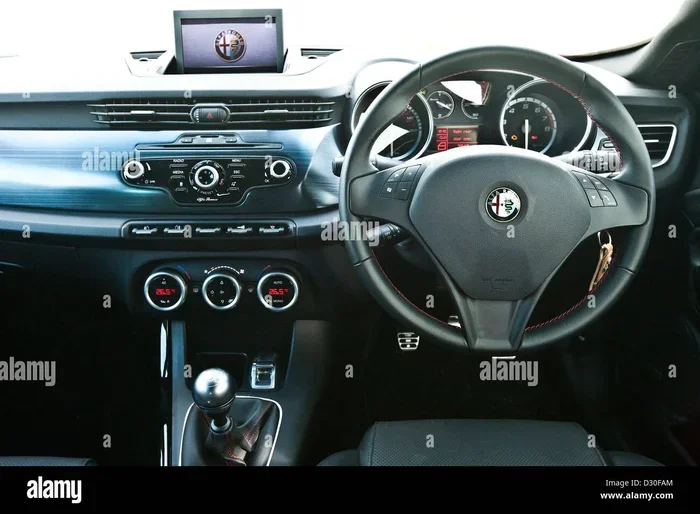
Next, go to your car’s infotainment system. The exact path depends on your model, but here is the general process:
- Press the Settings button on the dashboard or infotainment screen
- Look for the Bluetooth or Phone menu
- Select Bluetooth Settings
- Toggle Bluetooth to On
- Choose the option to Search for Devices or Pair New Device
Your car will now start scanning for nearby phones. Make sure your phone’s Bluetooth is visible and discoverable. On most phones, this means Bluetooth must be turned on and the phone must be within a few feet of the car’s antenna, which is usually near the rearview mirror.
Step 3: Pair Your Phone with the Car
Once your car finds your phone, you will see its name appear on the infotainment screen. Select it to begin device pairing. You will then be asked to confirm a pairing code on both your phone and the car screen. Make sure the codes match, then tap Pair or Connect on both devices.
This Bluetooth pairing process usually takes less than 30 seconds. Once complete, your car will remember this phone for future wireless connection sessions. You will not need to repeat the full process every time you get in the car.
Step 4: Test Your Connection
After pairing, it is important to test everything. Here is a simple checklist:
- Make a test call to confirm hands-free calling works
- Play a song from your phone to test audio streaming
- Adjust the Bluetooth volume control using the car’s audio knobs
- Try using voice commands if your system supports them
If all of these work, you are all set. If something is off, do not worry. The next section covers the most common issues and how to fix them.
Troubleshooting Common Bluetooth Connection Issues
Even with the best setup, Bluetooth troubleshooting from time to time becomes necessary. The good news is that most problems have simple fixes. Let us walk through the issues drivers face most often and how to solve them.
Bluetooth Won’t Turn On in Your Car
If the Bluetooth option is grayed out or will not toggle on, try these steps:
- Restart the infotainment system by holding the power button for 10 seconds
- Check that your car is in accessory or running mode (Bluetooth needs power)
- Disconnect any USB devices that might be interfering
- Reset the Uconnect system by removing the fuse for the infotainment unit for 30 seconds, then reinserting it
A system restart fixes the issue in most cases. If it does not, there may be a deeper hardware problem that requires a mechanic’s attention.
Your Phone Cannot Find the Car
This is one of the most common Bluetooth pairing problems. When your phone searches but does not find the car, try the following:
- Make sure your phone is within 10 feet of the car’s antenna
- Turn Bluetooth off and back on on your phone
- Delete any old pairings for this car on your phone
- On the car side, delete old pairings and start a fresh search
- Make sure your phone is set to visible or discoverable mode
Sometimes old pairing data causes conflicts. Clearing everything and starting fresh almost always resolves this issue.
Paired but No Sound Comes Through
You see the connection is active, but you cannot hear music or the person on the other end of a call. This usually happens because the audio output is set to the wrong source:
- On your phone, check that audio streaming is enabled in Bluetooth settings
- On the car, make sure the audio source is set to Bluetooth Audio or Media, not just Phone
- Check the Bluetooth volume control on both the car and the phone
- Lower the car volume first, then raise it gradually after connecting
The car and phone each have their own volume controls for Bluetooth connectivity. If either one is muted or too low, you will hear nothing.
The Connection Keeps Dropping
An unstable wireless connection that keeps disconnecting is frustrating. Here are the most common causes:
- Bluetooth range exceeded – stay within 10 meters of the car
- Another device is interfering with the signal
- Your phone’s Bluetooth is trying to connect to a different device nearby
- The car’s Bluetooth settings need to be refreshed
- Firmware on the infotainment system is outdated
If you live in a busy urban area with lots of wireless signals, interference can be a real problem. Switching your phone’s Bluetooth band or moving closer to the car often helps.
Bluetooth Features and Settings Worth Exploring
Once your Bluetooth connectivity is working, there is a lot more you can do than just make calls. The Giulietta’s multimedia system offers several features that enhance your driving experience. Let us explore the ones you should definitely try.
Hands-Free Calling Made Easy
Hands-free calling is one of the biggest benefits of Bluetooth connectivity in your Giulietta. Once paired, you can answer calls using the steering wheel buttons or the infotainment screen. The car’s built-in microphone picks up your voice clearly, even at highway speeds.
Here are a few tips to get the most out of hands-free calling:
- Position your phone within Bluetooth range for the strongest signal
- Use the car’s volume controls to set a comfortable call volume
- Enable voice commands if your system supports them for dialing
- Use the Uconnect contact sync feature to access your phonebook through the car screen
Remember, hands-free calling is not just convenient. It is also safer than holding your phone while driving. Keeping your hands on the wheel and eyes on the road should always be the priority.
Streaming Music and Podcasts
Music streaming through your car’s car audio system is a game changer. Whether you use Spotify, Apple Music, YouTube Music, or any other app, audio streaming over Bluetooth connectivity delivers great sound quality. You do not need to plug in any cables or fiddle with aux cords.
To get the best music streaming experience:
- Set the car’s audio source to Bluetooth Media or Aux
- Use the car’s volume knob or touchscreen to control playback volume
- Explore the Uconnect app on your phone for additional controls
- Download playlists offline to reduce data usage while streaming
If you find the sound quality is not quite what you expect, a Bluetooth adapter with aptX or LDAC codec support can significantly improve audio quality. These adapters plug into your car’s auxiliary input and provide a higher-quality wireless connection than standard Bluetooth pairing.
Using Voice Commands
The Giulietta’s Alfa Romeo infotainment system supports voice commands when paired via Bluetooth. You can make calls, play music, and navigate without taking your hands off the wheel. Just press the voice command button on the steering wheel and speak clearly.
Some useful voice commands include:
- “Call [contact name]” – to dial someone from your phonebook
- “Play [artist or song name]” – to start music streaming
- “Navigate to [address]” – to set a destination
Voice commands work best when your phone has a strong wireless connection to the car. If commands are not responding, check that Bluetooth settings on both devices are up to date.
Tips to Get the Best Bluetooth Performance
Getting your Bluetooth connectivity working is one thing. Keeping it working well over time is another. Here are some practical tips that will help you get the best performance from your Giulietta’s car stereo Bluetooth system.
Keep Your Software and Firmware Updated
Both your phone and your car’s infotainment system benefit from regular updates. Manufacturers release firmware updates for the Uconnect system that fix bugs, improve Bluetooth pairing stability, and add new features. Check for updates through Alfa Romeo’s official website or by visiting a dealer.
On the phone side, always keep your operating system up to date. Android and iOS both improve Bluetooth settings and device pairing with every update. Ignoring updates is one of the most common reasons for Bluetooth troubleshooting issues.
Manage Multiple Paired Devices
If you share your Giulietta with a partner or family member, you probably have more than one phone paired. This is totally fine, but it helps to manage the list:
- Remove phones that are no longer used regularly
- Set your primary phone as the favorite or priority device
- Understand that the car will auto-connect to the last device used
- If multiple phones are in the car, the first one to connect usually takes priority
Managing your paired devices list keeps Bluetooth pairing fast and prevents connection conflicts.
Optimize Your Bluetooth Range
Bluetooth range in the Giulietta is typically around 10 meters (about 33 feet) in open conditions. Walls, metal, and other electronic devices can reduce this range significantly. Here is how to optimize it:
- Keep your phone in a pocket or mount near the center of the car
- Avoid placing your phone in the trunk or far from the dashboard
- Remove thick phone cases that might block the signal
- Turn off unused Bluetooth devices nearby that could cause interference
Small adjustments to where you keep your phone can make a big difference in Bluetooth connectivity stability.
When to Seek Professional Help for Bluetooth Issues
Most Bluetooth troubleshooting can be handled at home with the steps we have covered. But there are times when professional help is the right call. If you have tried everything and your Bluetooth connectivity still does not work, it may be a hardware issue.
Here are signs that you should visit a mechanic or Alfa Romeo dealer:
- The Bluetooth option is completely missing from your infotainment menu
- The car’s multimedia system crashes every time you try to pair a device
- You hear static or distortion even after Bluetooth troubleshooting steps
- The car will not turn on the Bluetooth feature even after a full system reset
- Your Uconnect system needs a firmware update that you cannot perform yourself
A trained technician can diagnose whether the issue is with the car’s Bluetooth antenna, the infotainment unit, or the wiring. In most cases, a simple repair or module replacement solves the problem quickly and affordably.
Before visiting a dealer, make sure to bring your owner’s manual and note down the exact symptoms. The more information you can provide, the faster the technician can identify the problem. This saves you time and potentially money on diagnostic fees.
Final Thoughts on Connecting Bluetooth to an Alfa Romeo Giulietta
Connecting Bluetooth to an Alfa Romeo Giulietta is one of those small things that makes a big difference in your daily driving experience. Once you have hands-free calling, music streaming, and wireless connection working, going back to cables and cords feels like a step backward.
The process is straightforward once you know the steps. Prepare your phone, turn on Bluetooth in the car, pair the devices, and test the connection. If something goes wrong, the troubleshooting steps in this guide will help you fix most issues quickly.
Take care of your Bluetooth connectivity by keeping software updated, managing paired devices, and optimizing your Bluetooth range. These small habits keep everything running smoothly for years.
Your Giulietta is a great car, and its car audio system and smartphone integration are designed to work seamlessly. With the knowledge you have gained from this guide, you are now ready to make the most of it. Get in your car, follow the steps, and enjoy the freedom of a fully connected drive.
Frequently Asked Questions
How do I connect Bluetooth to my Alfa Romeo Giulietta for the first time?
Turn on Bluetooth on your phone, then go to the Settings menu on your car’s infotainment screen. Select Bluetooth Settings, choose Search for Devices, and select your phone when it appears. Confirm the pairing code on both devices, and your wireless connection will be established in under a minute.
Why is my Bluetooth not showing up on the Alfa Romeo Giulietta screen?
This usually happens because the car is not in the right mode or your phone is not set to discoverable. Make sure the car is running or in accessory mode, then go to Bluetooth Settings and select Search for New Devices. On your phone, ensure Bluetooth is on and set to visible. Restarting both devices often fixes this issue.
Can I connect more than one phone to my Alfa Romeo Giulietta via Bluetooth?
Yes, most Giulietta models support multiple device pairing. You can pair up to five phones, though only one can be actively connected at a time. The car will auto-connect to the last phone used. To switch phones, simply disconnect the current device and pair the new one through Bluetooth Settings.
How do I improve Bluetooth audio quality in my Giulietta?
For better audio streaming quality, make sure both your phone and car are using the latest software. Keep your phone close to the car’s antenna for a stronger Bluetooth connection. If sound quality is still not satisfactory, consider a Bluetooth adapter with advanced codecs like aptX, which plugs into your car’s auxiliary input for higher-quality wireless audio.
What should I do if my Bluetooth keeps disconnecting while driving?
Intermittent disconnections are often caused by Bluetooth range issues or interference. Keep your phone in a front pocket or mounted near the dashboard. Avoid placing it near other wireless devices. Also, clear old pairings and re-pair the device. If the problem persists, check for Uconnect firmware updates or visit a service center.
Is it safe to use Bluetooth while driving my Alfa Romeo Giulietta?
Yes, hands-free calling via Bluetooth connectivity is designed to be safe and legal in most regions. The Giulietta’s system lets you make and receive calls without taking your hands off the wheel. However, it is still important to stay focused on the road. Use voice commands whenever possible to minimize distractions.