How Do I Get Android Auto to Show on My Car Screen
Getting Android Auto to display on your car screen is easier than you think. Whether you use a wired USB connection or go wireless, this guide walks you through every step. You will learn how to check car compatibility, install the app, and troubleshoot common problems. By the end, you will know exactly how to get Android Auto working on your car screen quickly and confidently.
You get into your car, turn the key, and look at the infotainment screen. You want to see your phone right there on the dashboard. But Android Auto is nowhere to be found. It is frustrating, right? You are not alone. Many drivers face this exact problem every day.
The good news is that getting Android Auto to show on your car screen does not require a computer science degree. Most of the time, it is a simple fix. Maybe your cable is loose. Maybe the app needs an update. Or perhaps your car just needs a quick settings change. Whatever the reason, we have got you covered. In this guide, we will walk you through everything step by step. You will learn how to set it up, fix problems, and get the most out of this amazing technology.
Key Takeaways
- Check Compatibility First: Not all cars support Android Auto natively, so verify your car model before starting.
- Wired and Wireless Options: You can connect via USB cable or use wireless Android Auto if your car supports it.
- Simple Setup Process: Download the app, connect your phone, and follow a few prompts to get started.
- Troubleshooting Is Key: Common issues like cable problems or outdated apps can be fixed easily with the right steps.
- Keep Everything Updated: Regular updates to your phone, app, and car software ensure smooth performance.
- Optimize Your Experience: Adjust settings like display size, voice commands, and app preferences for the best results.
📑 Table of Contents
- What Is Android Auto and How Does It Work?
- Check If Your Car Supports Android Auto
- Step-by-Step Guide to Get Android Auto on Your Car Screen
- Troubleshooting: Android Auto Not Showing on Car Screen
- Wireless Android Auto vs Wired Connection
- Tips for the Best Android Auto Experience
- Common Mistakes to Avoid
- Expert Insights on Android Auto and Car Integration
- Final Thoughts on Getting Android Auto to Show on Your Car Screen
What Is Android Auto and How Does It Work?
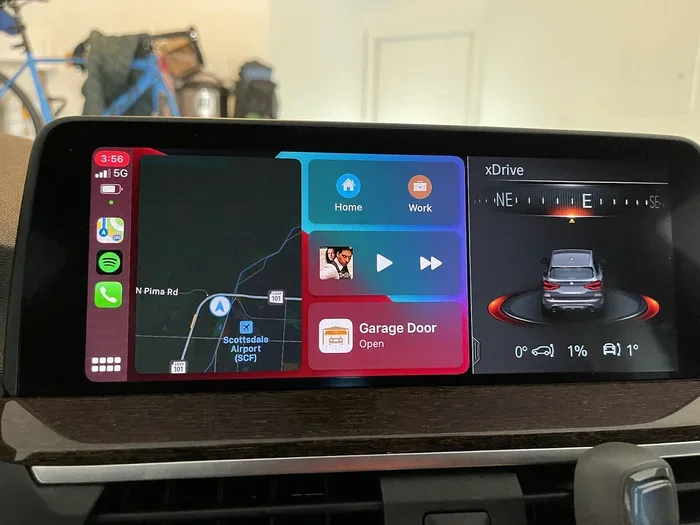
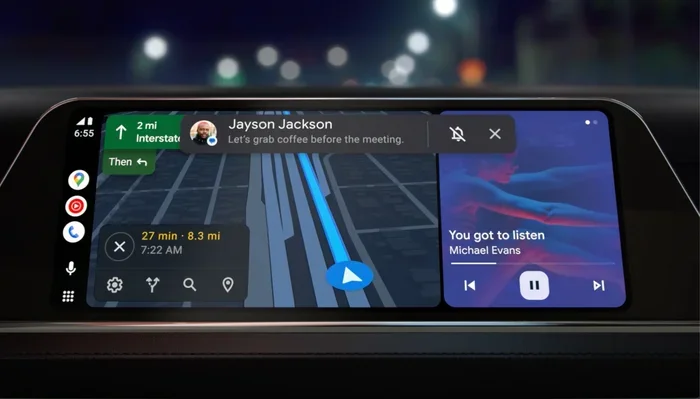
Before diving into the setup, let us understand what Android Auto actually is. It is a project by Google that mirrors your phone onto your car screen. Once connected, you see your apps, navigation, music, and messages right on the dashboard. The whole idea is to keep your eyes on the road and your hands on the wheel.
When you activate Android Auto, your phone essentially becomes a brain for your car. The car screen becomes the display. You can use Google Maps for directions, play Spotify or YouTube Music, send texts through voice commands, and make calls. Everything runs through a simplified interface designed for safety and ease of use.
How the Connection Works
Android Auto connects your phone to your car in two main ways. The first is a wired connection using a USB cable. You plug one end into your phone and the other into your car USB port. The second method is wireless Android Auto, which uses Bluetooth and Wi-Fi to connect without any cables. Newer cars and newer phones support the wireless option, which is incredibly convenient.
The car infotainment system acts as a bridge. It takes what your phone is running and displays it in a driver-friendly format. This means big buttons, simple menus, and voice control. The whole experience is designed to be intuitive, so even if you are not tech-savvy, you will find it easy to use.
Check If Your Car Supports Android Auto
Not every car on the road supports Android Auto. Before you try anything else, you need to confirm that your vehicle is compatible. This saves you a lot of time and frustration. Here is how you can check.
First, look at your car manual. Most manufacturers list Android Auto compatibility in the tech specs section. You can also visit the car manufacturer website and search for your specific model and year. Another quick method is to look at the car screen itself. If you see an Android Auto icon or a smartphone projection option in the settings menu, your car likely supports it.
Cars That Support Android Auto
Most modern cars from popular brands support Android Auto. Brands like Toyota, Honda, Ford, Hyundai, Kia, and Volkswagen offer it in many of their models. Even some older cars can support Android Auto with an aftermarket head unit. These are replacement screens you can install yourself or have a shop install for you.
If your car does not support Android Auto natively, do not worry. You still have options. You can buy an Android Auto compatible head unit and replace your existing car screen. These units range from budget-friendly to premium, and they open up a whole new world of features for your vehicle.
Phone Compatibility Matters Too
It is not just about your car. Your phone also needs to be compatible. Android Auto works with most Android phones running Android 6.0 or higher. iPhones can use Apple CarPlay instead, which is Apple’s version of the same concept. Make sure your phone is up to date with the latest operating system for the best experience.
Step-by-Step Guide to Get Android Auto on Your Car Screen
Now that you know your car and phone are compatible, let us get Android Auto running. Follow these steps carefully, and you should be up and running in just a few minutes.
Step 1: Download the Android Auto App
Open the Google Play Store on your phone. Search for Android Auto and download the app. Make sure it is the official app from Google. Once downloaded, open the app and grant it the permissions it requests. These permissions allow the app to access your contacts, messages, and media, which are all essential for a smooth experience.
Step 2: Connect Your Phone to the Car
Take a high-quality USB cable and plug it into your phone. Then plug the other end into your car USB port. Some cars have USB ports in the center console, while others have them in the glove box or armrest. Try different ports if one does not work. Once connected, your car screen should detect the phone and prompt you to open Android Auto.
If you are using wireless Android Auto, go to your phone settings and enable wireless Android Auto. Then look for your car in the available devices list and pair them. The first time you do this, you may need to confirm a pairing code on both your phone and car screen.
Step 3: Accept the Permissions and Terms
When Android Auto first launches, it will ask you to agree to the terms of service. Read through them and accept. Then you will be asked to grant various permissions. Allow access to your contacts, phone, messages, and media. These permissions are what make Android Auto work properly.
Step 4: Set Android Auto as the Default Display
Some car screens show multiple input options. You might see Radio, Bluetooth, USB, and Android Auto as choices. Select Android Auto to make it your default display. On some cars, Android Auto will automatically launch when you connect your phone. If it does not, you may need to go into your car settings and set Android Auto as the default app for the USB connection.
Step 5: Customize Your Settings
Once Android Auto is running, take a moment to customize it. Go into the Android Auto app settings on your phone. You can choose which apps appear on the car screen. You can adjust the display theme, set your home address for navigation, and configure voice assistant settings. These small tweaks make a big difference in your daily driving experience.
Troubleshooting: Android Auto Not Showing on Car Screen
Even after following all the steps, sometimes Android Auto just will not appear. This is more common than you might think. The good news is that most issues have simple fixes. Let us go through the most common problems and their solutions.
Problem 1: The Cable Is Not Working
A faulty USB cable is the number one reason Android Auto fails to connect. Not all cables are created equal. Some cables are designed only for charging and do not transfer data. You need a cable that supports data transfer. Try using a different cable, preferably one that came with your phone or a high-quality certified cable.
Also, try a different USB port in your car. Some ports only provide power and will not support Android Auto. Look for a port labeled data or sync. If you are unsure, consult your car manual.
Problem 2: The Android Auto App Is Outdated
Apps need regular updates to work properly. Open the Google Play Store and check if there is an update available for Android Auto. If there is, install it and try again. Similarly, make sure your phone operating system is up to date. Sometimes an outdated phone OS causes compatibility issues with Android Auto.
Problem 3: Bluetooth or Wi-Fi Interference
If you are using wireless Android Auto, interference from other Bluetooth devices can cause problems. Turn off Bluetooth on other devices nearby and try again. Restart your phone and your car infotainment system. Sometimes a simple reboot fixes the connection issue completely.
Problem 4: Cache and Data Issues
Over time, the Android Auto app accumulates cached data that can cause glitches. Go to your phone settings, find the Android Auto app, and clear the cache. If that does not work, you can also clear the app data. This will reset the app to its default state. You will need to set it up again, but it often fixes stubborn connection problems.
Problem 5: Car Software Needs an Update
Your car infotainment system runs on software, just like your phone. Check for car software updates through your car manufacturer app or by visiting a dealership. Updated car software often includes fixes for Android Auto compatibility issues.
Quick Troubleshooting Checklist
- Try a different USB cable that supports data transfer
- Use a different USB port in your car
- Restart both your phone and car infotainment system
- Update the Android Auto app and your phone operating system
- Clear the Android Auto app cache and data
- Check for car software updates
- Disable and re-enable wireless Android Auto
- Unpair and re-pair your phone with the car
Wireless Android Auto vs Wired Connection
One of the biggest decisions you will face is whether to use wireless Android Auto or stick with a wired USB connection. Both methods have their pros and cons. Let us break them down so you can decide what works best for you.
| Feature | Wired USB Connection | Wireless Android Auto |
|---|---|---|
| Setup | Plug in a cable | Connect via Bluetooth and Wi-Fi |
| Reliability | Very stable connection | Can be affected by signal interference |
| Convenience | Requires plugging in every time | Connects automatically when you get in |
| Phone Battery | Charges your phone while driving | May drain your phone battery faster |
| Car Compatibility | Works with most Android Auto cars | Requires newer car and phone models |
| Connection Speed | Fast and consistent | Slightly slower to start up |
Most drivers find that wired connections are more reliable for daily use. The connection is stable, your phone charges, and there are no dropouts. However, wireless Android Auto is incredibly convenient. You do not have to fumble with cables every time you get in the car. If your car and phone both support wireless Android Auto, it is definitely worth trying.
If you find wireless Android Auto unreliable in your area, switch to a wired connection. It is always good to have both options available. Some drivers keep a quality USB cable in their glove box just in case the wireless connection fails.
Tips for the Best Android Auto Experience
Once you have Android Auto working on your car screen, you want to get the most out of it. Here are some expert tips to enhance your experience.
Use Voice Commands While Driving
One of the biggest benefits of Android Auto is voice control. You can say Hey Google followed by a command to navigate, make calls, or send messages without touching your phone. This keeps your hands on the wheel and your eyes on the road, which is the whole point of the technology.
Organize Your Apps
Android Auto lets you choose which apps appear on the car screen. Pick the ones you actually use while driving. Navigation, music, and messaging are the essentials. Remove apps you do not need to keep the interface clean and uncluttered.
Set Up Your Home Address
Go into the Android Auto settings and set your home address. This lets you quickly navigate home with one tap every time you get in the car. It is a small setting that makes a big difference in your daily routine.
Keep Your Phone Charged
If you use wireless Android Auto, your phone battery may drain faster than usual. Consider getting a wireless charging pad for your dashboard. This keeps your phone charged while you use Android Auto without any extra cables.
Update Regularly
Google frequently adds new features and improvements to Android Auto. Keep the app updated through the Play Store. Also, check for car infotainment updates from your manufacturer. These updates often improve performance and add new features.
Common Mistakes to Avoid
Even experienced Android Auto users make mistakes that cause frustration. Here are some common errors to watch out for.
- Using a low-quality USB cable: This is the most common mistake. Cheap cables often do not support data transfer, which means Android Auto will not connect.
- Ignoring app updates: An outdated Android Auto app can cause all sorts of problems. Always keep it updated.
- Not checking car settings: Sometimes Android Auto is connected but set to a secondary display. Check your car settings to make sure it is set as the primary input.
- Overloading the phone: If your phone is running too many apps in the background, Android Auto may lag or crash. Close unnecessary apps before connecting.
- Skipping permissions: Android Auto needs access to your contacts, messages, and media. Skipping these permissions limits what the app can do.
Expert Insights on Android Auto and Car Integration
Automotive technology experts agree that Android Auto has transformed the driving experience for millions of people. According to industry reports, Android Auto is now available in most new cars sold worldwide. The technology continues to evolve with each update, adding features like customizable wallpapers, dark mode, and improved voice recognition.
Experts also recommend taking a few minutes after each car software update to check that Android Auto still works properly. Sometimes updates change settings or compatibility. A quick check saves you from surprises down the road. Additionally, if you buy a used car, always test Android Auto before purchasing. It is one of the features that adds the most value to a vehicle.
Many drivers also appreciate the integration between Android Auto and Google Assistant. You can control your smart home devices, check the weather, and get real-time traffic updates, all without picking up your phone. This level of integration makes driving safer and more enjoyable for everyone on the road.
Final Thoughts on Getting Android Auto to Show on Your Car Screen
Getting Android Auto to show on your car screen is a straightforward process once you know the steps. Start by checking your car compatibility, download the app, connect your phone, and customize your settings. If you run into issues, the troubleshooting tips in this guide will help you resolve most problems quickly.
The key is to be patient and methodical. Try each solution one at a time. More often than not, it is a simple fix like a bad cable or an app update that solves the problem. Once Android Auto is running, you will wonder how you ever drove without it.
Take the time to explore all the features Android Auto offers. Set up your favorite apps, configure voice commands, and make the interface work for you. The more you use it, the more you will appreciate how seamlessly it integrates your phone with your car. Safe driving, and enjoy the ride.
Frequently Asked Questions
Why is Android Auto not showing on my car screen?
There are several reasons Android Auto might not appear. The most common causes are a faulty USB cable, outdated app version, or incorrect car settings. Try using a different cable, updating the Android Auto app, and checking your car infotainment settings. A simple restart of both your phone and car system often fixes the issue too.
Can I use Android Auto without a USB cable?
Yes, if your car and phone support wireless Android Auto. You can connect through Bluetooth and Wi-Fi without any cables. Just make sure both your phone and car are compatible with the wireless feature. If wireless is not available, a good quality USB cable is your best option.
Which cars are compatible with Android Auto?
Most modern cars from major manufacturers support Android Auto. Brands like Toyota, Honda, Ford, Hyundai, and Kia offer it in many models. Even older cars can support Android Auto with an aftermarket head unit. Check your car manual or manufacturer website to confirm compatibility.
How do I update the Android Auto app?
Open the Google Play Store on your phone and search for Android Auto. If an update is available, you will see an Update button. Tap it to install the latest version. Keeping the app updated ensures the best performance and access to new features.
Can I use Android Auto with an iPhone?
No, Android Auto is designed for Android phones only. iPhone users should use Apple CarPlay, which is Apple’s equivalent technology. Both systems offer similar features like navigation, music, and messaging on your car screen.
What should I do if Android Auto keeps disconnecting?
Frequent disconnections are usually caused by cable issues or Bluetooth interference. Try a different USB cable or port first. If using wireless, move away from other Bluetooth devices and restart both your phone and car system. Clearing the Android Auto app cache can also resolve this problem.
=== CONCLUSION ===
Getting Android Auto to show on your car screen is one of the best upgrades you can make to your daily drive. It brings your favorite apps, navigation, and music right to your dashboard in a safe, driver-friendly format. Whether you connect with a USB cable or go wireless, the setup process is simple and the results are fantastic.
Remember to check compatibility first, follow the setup steps carefully, and use the troubleshooting tips when needed. Keep your apps and car software updated for the smoothest experience. With Android Auto, your car becomes smarter, safer, and more connected than ever before.
Now that you know exactly how to get everything working, go ahead and try it out. You will be glad you did. Happy driving!