How to Enable Siri for CarPlay and Enjoy Hands Free Driving
Enabling Siri for CarPlay transforms your driving experience by letting you control your phone using only your voice. This guide walks you through the entire setup process in simple, easy to follow steps. You will learn how to activate Siri, configure CarPlay settings, and use essential voice commands safely. Hands free driving is not just convenient, it is also safer. By the end, you will know exactly how to get Siri working with CarPlay in minutes.
Driving should be about the road ahead, not about fumbling with your phone screen. How to Enable Siri for CarPlay is a question many drivers ask because it opens up a whole new level of convenience and safety. With Siri CarPlay, you can make calls, send texts, get directions, and control music all without taking your hands off the wheel. This guide gives you everything you need to know to set it up and start using it right away.
Apple CarPlay has become one of the most popular smart driving features available today. It mirrors key apps from your iPhone onto your car’s display, making them easy to use while on the road. Adding Siri into the mix turns CarPlay into a truly hands free experience. Whether you drive a new car with built in CarPlay or use an aftermarket head unit, the process is straightforward. Let us walk through it together.
Key Takeaways
- Easy Setup: Enabling Siri for CarPlay is quick and requires just a few simple steps on your iPhone.
- Hands Free Safety: Siri CarPlay lets you make calls, send messages, and navigate without touching your phone while driving.
- Voice Commands Are Powerful: You can control music, navigation, and phone calls using natural Siri commands.
- Works with Most Cars: Apple CarPlay is compatible with a wide range of vehicles and aftermarket head units.
- Troubleshooting Is Simple: Most Siri CarPlay issues can be fixed with basic steps like restarting or reconnecting.
- Customization Options: You can personalize Siri shortcuts and CarPlay settings to match your driving habits.
📑 Table of Contents
What Is Siri for CarPlay and Why It Matters
Siri CarPlay combines Apple’s voice assistant with the CarPlay interface to give drivers a fully hands free experience. Instead of tapping on your screen while driving, you simply talk to Siri and she handles the rest. This is a game changer for anyone who wants to stay focused on the road.
Hands free driving is more than just a nice feature, it is a safety essential. Studies show that taking your eyes off the road for even two seconds greatly increases crash risk. Siri voice commands let you keep your eyes where they belong, on the highway. You can ask Siri to call someone, read your messages aloud, or set a destination in Apple Maps without ever touching your phone.
The beauty of iPhone CarPlay integration is that it works seamlessly. Once you set it up, Siri automatically activates when you start your car. You can use Siri Eyes Free mode, which turns off the CarPlay screen and only responds to your voice. This minimizes distractions and keeps you safe. It is one of the best reasons to learn how to enable Siri for CarPlay today.
Who Benefits Most from Siri CarPlay
Almost every driver benefits from Siri CarPlay. Commuters who spend long hours on the road find it incredibly helpful. Parents with young children can keep their eyes on the road while managing calls or music. Business professionals who take calls on the go appreciate the hands free calling feature. Even casual weekend drivers enjoy the convenience of voice controlled navigation and audio.
How to Enable Siri for CarPlay on iPhone
Setting up Siri for CarPlay starts on your iPhone. The process is simple and should only take a few minutes. Follow these steps carefully to make sure everything works the first time.
First, make sure your iPhone is running the latest version of iOS. Open the Settings app and go to General, then Software Update. If an update is available, install it before proceeding. This ensures compatibility with the latest CarPlay features and Siri voice commands.
Next, open Settings and tap General, then CarPlay. Your iPhone will search for available CarPlay compatible vehicles or devices. Select your car from the list. If your car does not appear, make sure your vehicle supports CarPlay and that your cable or wireless connection is working properly.
Now, go to Settings, then Siri and Search. Toggle on “Listen for Hey Siri” and “Press Side Button for Siri.” This allows you to activate Siri using your voice or by pressing the side button on your iPhone. Siri activation is essential for hands free operation while driving.
Under Siri and Search, also make sure that “Allow Siri When Locked” is turned on. This lets Siri work even when your phone is locked, which is important while driving. You can also enable “Siri Eyes Free” if your car supports it. This mode keeps the screen dark and only listens to your voice commands.
Setting Up Siri Voice Feedback
You can choose how Siri gives you feedback. Go to Settings, then Siri and Search, and tap Siri Responses. You can set it to speak responses out loud or only show them on screen. While driving, it is best to have Siri speak responses aloud so you do not need to look at the screen.
Enabling CarPlay on Your Lock Screen
To make CarPlay start automatically when you get in your car, go to Settings, then Face ID and Passcode (or Touch ID and Passcode). Scroll down to CarPlay and select “Automatically.” This way, Siri CarPlay activates every time you connect your iPhone to your car.
Setting Up CarPlay in Your Vehicle
Once Siri is enabled on your iPhone, you need to set up CarPlay in your vehicle. The steps vary slightly depending on your car model, but the basic process is similar across most vehicles.
If your car has a CarPlay compatible infotainment system, look for the CarPlay icon on the home screen. Press it and connect your iPhone using a USB cable. For wireless CarPlay, simply follow the on screen prompts to pair your phone via Bluetooth and Wi-Fi.
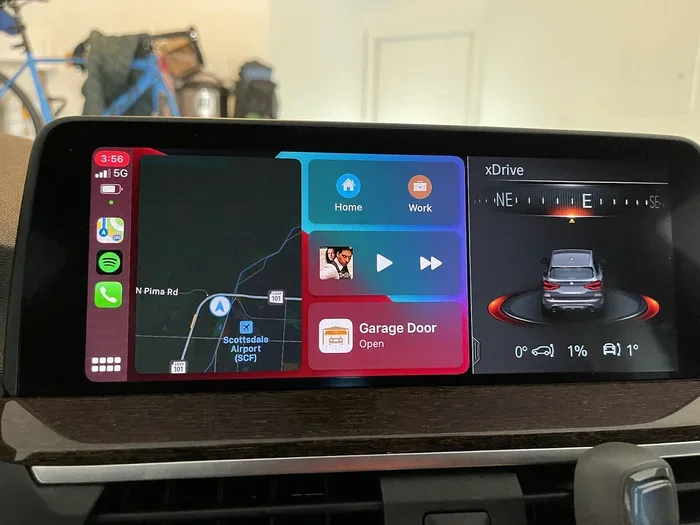
After the connection is made, your CarPlay home screen will appear on your car display. You will see your favorite apps like Phone, Messages, Music, and Maps. Siri shortcuts CarPlay will also appear if you have set them up previously.
Wired vs Wireless CarPlay Connections
Wired CarPlay uses a Lightning or USB C cable to connect your iPhone to the car. It is reliable and charges your phone at the same time. Wireless CarPlay connects over Wi-Fi and Bluetooth, which means no cables are needed. However, wireless CarPlay may drain your battery faster, and not all cars support it.
| Feature | Wired CarPlay | Wireless CarPlay |
|---|---|---|
| Connection Method | USB Cable | Wi-Fi and Bluetooth |
| Charging | Yes | No |
| Setup Speed | Fast | Slightly Slower |
| Reliability | Very High | High |
| Battery Drain | None | Moderate |
| Supported Vehicles | Most Cars | Newer Models |
Using Siri Voice Commands While Driving
Now that Siri and CarPlay are set up, it is time to learn the voice commands that make hands free driving so powerful. Siri commands while driving cover a wide range of functions, from making calls to changing the music.
To activate Siri while driving, you have several options. You can say “Hey Siri” if that feature is enabled. You can also press and hold the voice command button on your steering wheel. Some cars have a dedicated CarPlay button on the dashboard that activates Siri directly.
Once Siri is listening, you can give her simple commands. Here are some of the most useful ones:
- “Call [Contact Name]” – Makes a hands free phone call instantly.
- “Send a message to [Contact Name]” – Dictates and sends a text message.
- “Navigate to [Address or Location]” – Opens Apple Maps and starts turn by turn directions.
- “Play [Song or Artist Name]” – Starts playing music from Apple Music or Spotify.
- “What is the weather today?” – Gets a weather update without looking at your phone.
- “Read my new messages” – Siri reads incoming messages aloud so you can stay informed.
- “Set a timer for 10 minutes” – Useful for cooking reminders or quick breaks.
Customizing Siri Shortcuts for Driving
You can create custom Siri shortcuts CarPlay that match your daily routine. Open the Shortcuts app on your iPhone and create new commands. For example, you could set a shortcut called “Commute” that opens Apple Maps to your work address and starts playing your favorite playlist. This makes your drive smoother and more personalized.
Controlling Music with Siri
Music control is one of the most used features of Siri CarPlay. You can ask Siri to play specific playlists, skip songs, or adjust the volume. Just say “Hey Siri, skip this song” or “Hey Siri, turn up the volume.” These simple commands keep your music flowing without you ever touching the screen.
Using Siri for Navigation
Apple Maps works beautifully with Siri on CarPlay. You can ask Siri for directions to restaurants, gas stations, or any address. Siri can also find nearby places using natural language. Try saying “Hey Siri, find a coffee shop near me” and she will show you options on the map. This makes exploring new areas easy and safe.
Troubleshooting Common Siri CarPlay Issues
Sometimes things do not work as expected. Siri CarPlay troubleshooting is usually straightforward, and most problems have simple fixes. Here are the most common issues and how to solve them.
Siri Does Not Respond to Voice Commands
If Siri does not respond, first check that “Hey Siri” is enabled. Go to Settings, then Siri and Search, and make sure “Listen for Hey Siri” is turned on. Also check that your iPhone is not on silent mode. If the problem persists, try restarting Siri by turning it off and back on in the settings.
CarPlay Disconnects Frequently
Frequent disconnections can be frustrating. This often happens with wireless CarPlay due to Wi-Fi interference. Try forgetting the CarPlay connection on your car display and reconnecting. If you use a wired connection, try a different USB cable or port. A loose cable is one of the most common causes of connection problems.
Siri Commands Are Not Recognized
If Siri misunderstands your commands, make sure your iPhone microphone is not blocked. Check that the language settings on your iPhone match your spoken language. Go to Settings, then Siri and Search, and verify the language. Also, try speaking more clearly and at a normal pace.
CarPlay Screen Shows But Siri Does Not Work
This issue sometimes occurs when Siri is disabled for CarPlay. Go to Settings, then General, then CarPlay, and select your car. Tap “Customize” and make sure Siri is enabled for the relevant apps. You can also try restarting your iPhone to refresh the connection.
Quick Fixes for Common Problems
- Restart your iPhone – This clears temporary glitches that may affect Siri CarPlay.
- Reconnect the cable – A loose or damaged cable often causes connection issues.
- Update iOS – Software updates often fix bugs and improve CarPlay compatibility.
- Reset CarPlay settings – Go to Settings, General, CarPlay, and remove your car, then reconnect.
- Check for app updates – Make sure your navigation and music apps are up to date.
Tips to Get the Most Out of Siri CarPlay
Once you have Siri CarPlay working, you can enhance the experience with a few smart tips and tricks. These small adjustments make a big difference in your daily driving routine.
Organize Your CarPlay Home Screen
You can customize which apps appear on your CarPlay home screen. When connected, go to Settings, then General, then CarPlay, and tap “Customize.” Rearrange apps so your most used ones like Phone, Maps, and Music are easy to find. This saves time and reduces distractions while driving.
Use Siri With Your Steering Wheel Controls
Most cars with CarPlay have a steering wheel button that activates Siri. Get in the habit of using it instead of reaching for your phone. Press the button, give your command, and keep your eyes on the road. It becomes second nature after just a few days of use.
Enable Do Not Disturb While Driving
Combine Siri CarPlay with the Do Not Disturb While Driving feature for an even safer experience. Go to Settings, then Do Not Disturb, and set it to activate automatically when you drive. This silences notifications and sends auto replies to texts, so you can focus on the road. Siri can still read important messages aloud if you ask her to.
Keep Your iPhone Charged
Using Siri CarPlay for extended periods can drain your battery, especially with wireless connections. Use a high quality car charger to keep your iPhone powered. This ensures Siri and CarPlay work reliably throughout your drive, and your phone stays ready for emergencies.
Update Your Apps Regularly
App updates often include improvements for CarPlay compatibility and Siri voice commands. Make it a habit to check for updates in the App Store regularly. Updated apps also tend to be more stable and responsive when used through CarPlay.
Explore Third Party App Support
Beyond Apple’s native apps, many third party apps work great with CarPlay. Spotify, Google Maps, WhatsApp, and Waze all support CarPlay integration. You can use Siri to control these apps too. Just say “Hey Siri, open Spotify” or “Hey Siri, get directions with Google Maps.” This expands your options and makes the experience more personalized.
Practice Makes Perfect
The more you use Siri CarPlay, the more natural it becomes. Start with simple commands and gradually explore more advanced features. Soon, you will wonder how you ever drove without it. Practice in safe, low traffic areas first until you feel comfortable with the voice commands.
Why Hands Free Driving With Siri CarPlay Is Worth It
Hands free driving is about more than convenience, it is about safety. Every year, distracted driving causes thousands of accidents. Using Siri for CarPlay significantly reduces the temptation to look at your phone while driving. You stay connected to the people and information you need without compromising your attention on the road.
The combination of Apple CarPlay and Siri creates a powerful ecosystem. You get navigation, communication, and entertainment all controlled by voice. The setup process is simple, the features are intuitive, and the benefits are immediate. Once you experience the difference, you will not want to go back to manual controls.
Whether you are commuting to work, running errands, or taking a long road trip, Siri CarPlay makes every drive better. It keeps your hands on the wheel, your eyes on the road, and your mind focused on driving. That is exactly what technology should do, make your life easier and safer.
Now that you know how to enable Siri for CarPlay, there is nothing stopping you from upgrading your driving experience. Follow the steps in this guide, set everything up in just a few minutes, and start enjoying hands free driving today. Your future self, and everyone else on the road, will thank you.