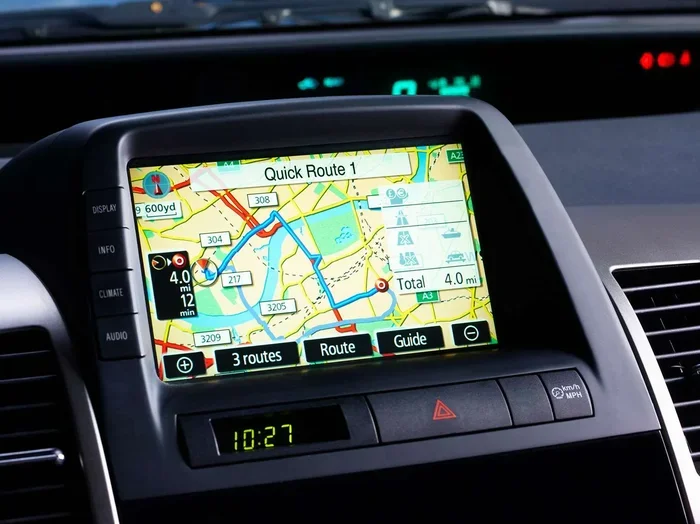
How Do I Download Maps to My Car Navigation System
Downloading maps to your car navigation system keeps you on track even without a signal. Whether you drive a vehicle with a built-in GPS or use a phone mount, this guide shows you exactly how to get maps on your car screen. You will learn the fastest methods, top map providers, and common pitfalls to avoid.
Have you ever been on a road trip and suddenly lost your GPS signal? That moment of panic when the screen goes blank is something no driver wants to experience. The good news is that downloading maps to your car navigation system solves this problem completely. With offline maps saved directly to your device, you can drive through mountains, tunnels, and remote highways without losing your route.
This guide walks you through every method you can use to get maps onto your car screen. Whether your vehicle has a built-in navigation unit or you rely on a phone mounted on the dashboard, the steps are simple and straightforward. Let us get you fully prepared for your next drive.
Key Takeaways
- Offline maps keep you navigating: Downloading maps ensures you never lose directions in dead zones or rural areas.
- Multiple methods work: You can use your car’s built-in system, a smartphone with CarPlay or Android Auto, or a portable GPS device.
- Top providers offer free options: Google Maps, HERE WeGo, and Sygic all provide reliable offline map downloads.
- Keep maps updated: Stale map data leads to wrong turns and missed exits, so regular updates matter.
- Storage space is key: Full map packs can take up several gigabytes, so check your SD card or USB storage first.
- Avoid common mistakes: Skipping Wi-Fi downloads before a trip and ignoring update prompts are the top errors drivers make.
📑 Table of Contents
- Why Downloading Maps to Your Car Navigation System Matters
- How to Download Maps Using Your Car’s Built-In Navigation System
- How to Download Maps Using a Smartphone and Car Adapter
- Popular Map Providers for Car Navigation
- Common Mistakes When Downloading Maps for Car Navigation
- Tips to Keep Your Car Navigation Maps Up to Date
- Quick Tips for Downloading Maps to Car Navigation
- Final Thoughts on Downloading Maps to Your Car Navigation System
Why Downloading Maps to Your Car Navigation System Matters
Many drivers assume their GPS will always work. But cell towers have limits. Rural roads, national parks, and underground parking garages often lack the signal needed for real-time map loading. When your car navigation system has pre-downloaded map data stored locally, you do not need to worry about any of that.
Here is why offline map downloads are so important:
- No signal? No problem. Offline maps work anywhere, even in the most remote areas.
- Faster route calculations. Your car screen does not need to fetch data from the internet, so directions load almost instantly.
- Lower data usage. Streaming maps uses a lot of mobile data. Downloading them once saves you from burning through your data plan.
- Better battery life. Without constantly searching for a signal, your phone or GPS device uses less power.
- Turn-by-turn directions stay reliable. You get consistent driving directions even when you are off the grid.
Think of it this way. You would not start a long drive without a full tank of gas. Downloading maps is the same idea. It is basic car care for the digital age.
How to Download Maps Using Your Car’s Built-In Navigation System
Most modern vehicles come with a built-in GPS navigation unit. These systems are built into the car’s infotainment screen and often store map data on an internal hard drive or SD card. The process to download maps varies slightly by brand, but the general steps are similar across manufacturers.
Step-by-Step: Built-In Car Navigation Map Downloads
Follow these steps to get map data onto your factory-installed car navigation system:
- Connect your car to Wi-Fi. Many newer vehicles have built-in Wi-Fi or hotspot capabilities. Go to your car’s settings menu and connect to a network.
- Open the navigation app on your car screen. This could be a brand-specific system like Ford SYNC, BMW iDrive, or Audi MMI.
- Look for a “Map Update” or “Download Maps” option. This is usually found in the settings or tools section of the navigation menu.
- Select the regions you need. You can often choose specific states, countries, or provinces instead of downloading the entire world map.
- Start the download. The map data will save directly to your car’s storage. This can take anywhere from a few minutes to over an hour depending on the size.
- Verify the download. Once complete, search for a familiar address to make sure the map loads properly.
Some car brands require you to use a USB stick. In that case, you would visit the manufacturer’s website on a home computer, download the map file to a USB drive, plug the drive into your car’s USB port, and follow the on-screen prompts. Always check your owner’s manual for brand-specific instructions.
Popular Brands and Their Map Download Methods
Different car manufacturers handle GPS map downloads differently. Here is a quick look at how some of the most popular brands approach it:
- Toyota / Lexus: Uses a USB stick or SD card for map updates through their Toyota Entune or Lexus Enform system.
- Ford: Offers map downloads through Ford SYNC with FordPass Connect, often via Wi-Fi or a USB device.
- Chevrolet / GMC: Uses MyChevrolet or the Infotainment system to pull down map updates over Wi-Fi or via USB.
- BMW: Map updates are available through BMW ConnectedDrive and can be done over the air or with a USB stick.
- Honda: Honda Link or the built-in navigation system allows map updates via USB or SD card.
No matter which brand you drive, the core idea is the same. You need access to the map data, a storage method (internal memory, SD card, or USB), and a way to transfer the files. Once the download finishes, your car GPS navigation system will have all the roads, highways, and points of interest saved locally.
How to Download Maps Using a Smartphone and Car Adapter
Not every car has a built-in navigation system. That is perfectly fine. You can still get maps on your car screen by using your smartphone with Apple CarPlay, Android Auto, or a simple phone mount. This method is incredibly popular because it gives you access to the latest map data without needing to visit a dealership.
Using Apple CarPlay for Offline Maps
Apple CarPlay mirrors your iPhone onto your car screen. To download offline maps through CarPlay, you use the Apple Maps app or a compatible third-party navigation app. Open Apple Maps on your phone, go to Settings, then Offline Maps, and choose the region you want to save. Once downloaded, you can access those maps through CarPlay even if your phone loses its signal.
Using Android Auto for Offline Maps
Android Auto works similarly. Google Maps on Android Auto supports offline map downloads. Open the Google Maps app on your phone, tap your profile picture, go to Offline Maps, and select “Custom Map.” Draw the area you need and hit download. When you connect your phone to your car via USB or Bluetooth, the offline map will appear on your car display.
Best Navigation Apps for Offline Use
Not all navigation apps support offline mode. Here are the top options that do:
- Google Maps: The most widely used GPS map app. Free offline downloads for any area you choose.
- Waze: Great for real-time traffic updates, though offline features are more limited.
- Sygic GPS Navigation: A dedicated offline navigation app with turn-by-turn voice guidance.
- HERE WeGo: Offers free full offline maps for entire countries or regions.
- MapFactor Navigator: Uses OpenStreetMap data and works fully offline.
Each of these apps has its own strengths. Google Maps is excellent for general driving directions. HERE WeGo is great for full-country downloads. Sygic offers a more traditional GPS navigation experience with lane guidance and speed limit alerts.
Popular Map Providers for Car Navigation
Not all map data is created equal. The provider behind your GPS map data affects how accurate the roads are, how often updates come, and what extra features you get. Here are the top map providers you should know about.
Google Maps
Google Maps is the go-to choice for most drivers. It covers almost every road in the world and updates frequently. The free version gives you solid driving directions, while the offline feature lets you save specific areas. Google Maps also provides live traffic data, speed trap alerts, and business listings.
HERE Technologies (HERE WeGo)
HERE maps power navigation in many factory car systems. Their standalone app, HERE WeGo, lets you download full country maps for free. The data is highly detailed and includes speed limits, fuel station locations, and public transit info. Many drivers prefer HERE for its clean interface and reliable GPS map accuracy.
TomTom
TomTom is a veteran in the GPS navigation space. Many car manufacturers license TomTom map data for their built-in systems. TomTom offers detailed map updates and excellent route planning. Their maps are especially strong in Europe and North America.
OpenStreetMap
OpenStreetMap is a community-driven map project. It is free to use and often has very detailed local data. Apps like OsmAnd and MapFactor use OpenStreetMap to provide offline navigation. The coverage is excellent in many countries, though it can be less consistent in very remote areas.
Common Mistakes When Downloading Maps for Car Navigation
Even when you follow the steps carefully, small mistakes can cause big headaches. Here are the most common errors drivers make when downloading maps to their car navigation system.
Skipping the Wi-Fi Download
One of the biggest mistakes is trying to download map data over a cellular connection. Map files are large. They can easily exceed one or two gigabytes. Downloading them over mobile data is slow, expensive, and can cause the download to fail midway. Always connect to Wi-Fi before starting any map download.
Ignoring Storage Space
Full map packs take up significant storage. A single country can require several gigabytes. If your SD card or USB drive is nearly full, the download may fail or the maps may not load properly. Check your available storage before you begin and clear out old files if needed.
Forgetting to Update Maps
Roads change. New highways get built. Street names change. If you downloaded your maps months ago, they may already be outdated. Make it a habit to check for map updates at least once a month. Most navigation systems will alert you when a new update is available.
Downloading the Wrong Region
It sounds simple, but downloading the wrong region happens more often than you would think. Double-check that you are downloading the correct country, state, or province. If you are planning a road trip across borders, make sure you download maps for every country you will pass through.
Not Testing Before the Trip
Never wait until you are on the highway to test your downloaded maps. Always load a route at home and confirm that the navigation works properly. This simple step saves a lot of stress on the road.
Tips to Keep Your Car Navigation Maps Up to Date
Once you have downloaded your maps, keeping them current is just as important. Stale map data leads to wrong turns, missed exits, and frustration. Here are practical tips to keep your car navigation system running smoothly.
- Set a monthly reminder. Pick one day each month to check for map updates. This keeps you from forgetting.
- Use Wi-Fi whenever possible. Wi-Fi downloads are faster, free, and more reliable than cellular data.
- Keep your SD card or USB drive organized. Delete old map files you no longer need to free up space.
- Enable automatic updates if your system supports it. Many modern car navigation units can download updates automatically when connected to Wi-Fi.
- Carry a backup USB drive. If your primary storage fails, having a second drive with saved maps can save your trip.
- Check for app updates. If you use a smartphone-based navigation app, keep the app itself updated for the best performance.
Taking a few minutes each month to maintain your GPS map data pays off big time. You will always have accurate driving directions, and you will never get lost because of outdated information.
Quick Tips for Downloading Maps to Car Navigation
- Always download maps while connected to Wi-Fi to save data and ensure a stable connection.
- Download maps for your entire route, including border crossings if you are traveling internationally.
- Use a high-quality SD card or USB drive with at least 16GB of storage for large map packs.
- Test your downloaded maps in your driveway before heading out on a long trip.
- Save a screenshot of your route as a backup in case the navigation system glitches.
- Keep your car navigation system firmware updated along with your map data.
Final Thoughts on Downloading Maps to Your Car Navigation System
Downloading maps to your car navigation system is one of the simplest and most useful things you can do as a driver. It takes just a few minutes, costs nothing in most cases, and gives you peace of mind on every trip. Whether you use a built-in car GPS system, Apple CarPlay, Android Auto, or a dedicated navigation app, the process is straightforward and well worth the effort.
Remember to choose a reliable map provider, download the regions you need, keep your storage organized, and update your maps regularly. These small habits will make a huge difference in how smoothly your drives go. The next time you hit the road, you will have full confidence that your car navigation system will guide you every step of the way.
Start today. Pick your map provider, connect to Wi-Fi, and download the maps for your next adventure. You will wonder how you ever drove without them.
Frequently Asked Questions
Can I download maps for free on my car navigation system?
Yes, many navigation apps like Google Maps, HERE WeGo, and MapFactor offer free offline map downloads. Factory car systems may require a map update subscription, but basic map data is often included at no extra cost when you purchase the vehicle.
How much storage do I need to download car navigation maps?
It depends on the region. A single state might need 500MB to 1GB, while a full country can require 3GB or more. Always check the size of the map pack before downloading and make sure your SD card or USB drive has enough free space.
Do I need an internet connection to use downloaded maps?
No. That is the whole point of downloading maps. Once the map data is saved to your car navigation system or phone, you can use it without any internet connection. This makes offline maps perfect for rural areas, tunnels, and international travel.
How often should I update my car navigation maps?
You should update your maps at least once a month. Roads change frequently, and outdated map data can lead to wrong directions. Most systems will notify you when an update is available.
Can I download maps for multiple countries on one device?
Yes. Most navigation apps and car systems let you download maps for multiple regions. Just make sure you have enough storage space on your SD card or USB drive to hold all the map packs you need.
What is the best offline navigation app for car navigation?
Google Maps, HERE WeGo, and Sygic are among the best offline navigation apps. Google Maps is great for general use, HERE WeGo excels at full-country downloads, and Sygic offers a traditional GPS navigation experience with voice guidance and lane assistance.