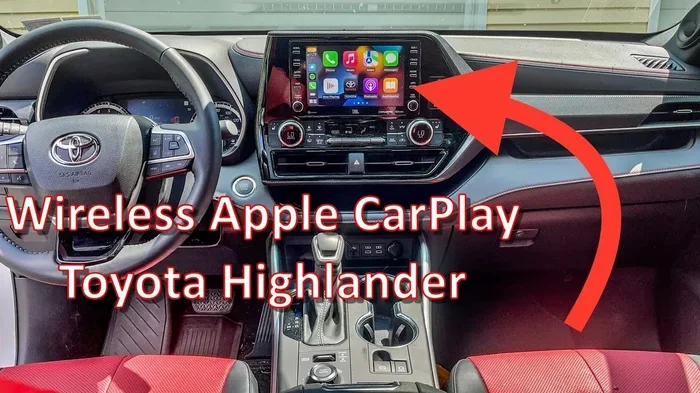
Does the Toyota Highlander Have Wireless Apple CarPlay
Yes, the Toyota Highlander does offer wireless Apple CarPlay, but it depends on the trim level and model year. Higher trims come with native wireless CarPlay built right into the Toyota infotainment system, while older or lower trims may need a wireless CarPlay adapter or a USB connection. This guide covers everything you need to know about wireless Apple CarPlay in the Highlander, from setup to troubleshooting.
You just got behind the wheel of a Toyota Highlander. The seats are comfortable. The ride is smooth. But then you reach for your iPhone and think, “Wait, does the Toyota Highlander have wireless Apple CarPlay?”
It is a fair question. Almost every new car buyer wants seamless smartphone integration these days. You do not want to fumble with cables every time you start the engine. You want everything to just work. And the good news is, the Highlander can deliver that experience.
But the answer is not a simple yes or no. It depends on your model year, your trim level, and sometimes even the specific options you chose when you bought the vehicle. Let us break it all down so you know exactly what to expect.
In this guide, we will cover everything from which Highlander trims support wireless Apple CarPlay to how you can add it if your model does not have it built in. We will also walk through the setup process, share some practical tips, and answer the most common questions drivers have. By the end, you will be an expert on Highlander CarPlay connectivity.
Key Takeaways
- Wireless Apple CarPlay is available: Newer Toyota Highlander models, especially higher trims, offer native wireless Apple CarPlay integration.
- Trim level matters: Not every Highlander trim comes with wireless CarPlay out of the box. You may need to check your specific configuration.
- Older models can get wireless too: If your Highlander has wired CarPlay, a wireless adapter can add wireless functionality easily.
- Setup is simple: Connecting your iPhone to wireless CarPlay takes just a few taps and seconds.
- Benefits are real: Wireless CarPlay means no cluttered cables, faster connections, and a cleaner dashboard.
- Check your model year: Toyota updated the infotainment system across Highlander generations, so compatibility varies.
- Alternative options exist: If wireless CarPlay is not available, wired CarPlay and Android Auto are still solid choices.
📑 Table of Contents
- What Is Apple CarPlay and Why Does It Matter?
- Does the Toyota Highlander Have Wireless Apple CarPlay?
- How to Set Up Wireless Apple CarPlay in Your Highlander
- What If Your Highlander Does Not Have Wireless CarPlay?
- Wireless CarPlay vs Wired CarPlay: Which Is Better for the Highlander?
- Other Smartphone Integration Features in the Toyota Highlander
- Common Mistakes to Avoid with CarPlay in the Highlander
- Expert Tips for Getting the Most Out of Wireless CarPlay
- Where to Buy a Toyota Highlander With Wireless Apple CarPlay
- Conclusion
What Is Apple CarPlay and Why Does It Matter?
Before we dive into the Highlander specifics, let us quickly talk about what Apple CarPlay actually is. Apple CarPlay is a system that mirrors key features of your iPhone onto your car’s touchscreen display. Once connected, you can access maps, music, messages, and phone calls without touching your phone directly.
Think of it as a safer way to use your phone while driving. Instead of holding your iPhone, you interact with a larger screen on the dashboard. Voice commands through Siri add another layer of convenience. You can ask for directions, send texts, or change songs without ever looking away from the road.
There are two types of Apple CarPlay connections. The first is wired CarPlay, which uses a USB cable to link your phone to the car. The second is wireless Apple CarPlay, which connects through Bluetooth and Wi-Fi. Wireless is clearly the more convenient option. No cables. No clutter. Just instant pairing every time you get in the car.
For Toyota Highlander owners and shoppers, the big question is always whether wireless CarPlay comes standard or if it requires an upgrade. The answer, as we will see, depends on a few key factors.
Does the Toyota Highlander Have Wireless Apple CarPlay?
The short answer is yes, but with some important details. The Toyota Highlander has offered wireless Apple CarPlay in recent model years, but availability changes depending on the trim level and the specific model year you are looking at.
Wireless CarPlay Availability by Trim Level
Toyota packages its infotainment features differently across the Highlander lineup. Here is a general breakdown of how wireless Apple CarPlay fits into each trim:
- L and LE trims: These base and mid-level trims often come with wired Apple CarPlay as standard. Wireless CarPlay may not be included unless you add specific technology packages.
- XLE trim: The XLE often includes wireless CarPlay as part of the technology package or as a standard feature in newer model years. Always confirm with the specific vehicle configuration.
- XSE trim: The sport-oriented XSE typically includes wireless Apple CarPlay as a standard or readily available feature.
- Limited and Platinum trims: These top-tier trims almost always come with wireless CarPlay, along with other premium tech features like wireless charging and a larger touchscreen display.
Toyota has been gradually making wireless CarPlay more accessible across the lineup. If you are shopping for a new Highlander, the XLE and above trims are your safest bet for wireless connectivity without adding expensive optional packages.
Model Year Differences
Toyota updated the Highlander’s infotainment system significantly across its generations. The third-generation Highlander, which ran from 2020 to 2023, brought major improvements to the touchscreen and smartphone integration. The 2024 and newer models continue this trend with even better wireless support.
If you are buying a used Highlander, the model year matters a lot. A 2021 or newer model is much more likely to have wireless Apple CarPlay than a 2019 or earlier version. Always check the specific vehicle’s features before purchasing. You can also ask the dealer for a CarPlay compatibility confirmation.
How to Set Up Wireless Apple CarPlay in Your Highlander
Setting up wireless Apple CarPlay in a Toyota Highlander is straightforward. If your vehicle supports it, you should be able to connect your iPhone in just a few simple steps. Here is how it works:
- Make sure your iPhone is updated: You need iOS 12 or later for wireless CarPlay support. Update your iPhone to the latest version before trying to connect.
- Turn on your Highlander’s infotainment system: Press the menu or settings button on the touchscreen.
- Go to the CarPlay settings: Navigate to Settings, then look for the CarPlay or Smartphone Connection option.
- Select Wireless CarPlay: Choose the wireless option if it is available. Your car will start searching for nearby iPhones.
- Connect your iPhone: On your iPhone, you will see a prompt asking if you want to connect to your car. Tap “Allow” and confirm.
- Done! Your iPhone screen should now mirror onto the Highlander’s display. You can access Maps, Music, Messages, and more.
Once connected, the system remembers your iPhone. The next time you get in the car and unlock your phone, CarPlay should connect automatically. No cables. No hassle. That is the beauty of wireless connectivity.
Tips for a Smooth Wireless CarPlay Experience
- Keep your iPhone charged: Wireless CarPlay does not charge your phone. If you are on a long road trip, consider adding a wireless charging pad to your Highlander’s center console.
- Stay within range: Wireless CarPlay works best when your phone is in close proximity to the car’s antenna, usually near the center console.
- Restart if needed: If CarPlay does not connect, try restarting both your iPhone and the car’s infotainment system. This fixes most connection issues.
- Check for software updates: Both your iPhone and your Highlander’s infotainment system may need updates for the best compatibility.
What If Your Highlander Does Not Have Wireless CarPlay?
Not every Toyota Highlander comes with wireless Apple CarPlay from the factory. If your vehicle has wired CarPlay or no CarPlay at all, do not worry. You still have options to get wireless connectivity.
Wireless CarPlay Adapters
A wireless Apple CarPlay adapter is a small device that plugs into your car’s USB port and creates a wireless CarPlay connection. Popular brands like Carlinkit and AAWireless make reliable adapters that work well with Toyota vehicles.
These adapters typically cost between $50 and $150. They are easy to install. You plug the adapter into a USB port, pair it with your iPhone through Bluetooth, and you have wireless CarPlay. It is one of the best upgrades you can make if your Highlander only has wired connectivity.
Here are some things to keep in mind when choosing an adapter:
- Check compatibility: Make sure the adapter supports your specific infotainment system and iPhone model.
- Look for quick connect: Some adapters offer faster pairing than others. Read reviews before buying.
- Consider the power draw: Some adapters may drain your car’s battery if left plugged in when the engine is off.
Wired CarPlay as a Backup
Even if your Highlander only supports wired Apple CarPlay, it is still a great feature. You get all the same apps and functionality. The only difference is the cable. A good quality USB-C or Lightning cable keeps things connected reliably. Just keep a spare cable in your car so you are never stuck without access to CarPlay.
Wireless CarPlay vs Wired CarPlay: Which Is Better for the Highlander?
Both wireless and wired Apple CarPlay offer the same core features. You get access to Maps, Music, Messages, Phone, and third-party apps. The difference comes down to convenience and connection quality.
| Feature | Wireless CarPlay | Wired CarPlay |
|---|---|---|
| Connection Method | Bluetooth and Wi-Fi | USB Cable |
| Setup Speed | Automatic when you enter the car | Requires plugging in the cable |
| Cable Clutter | None | Cable visible on the dashboard |
| Phone Charging | No (unless separate charger) | Yes (charges through USB) |
| Connection Stability | Very good in most cases | Extremely stable |
| Availability in Highlander | Higher trims and newer models | Available across most trims |
| Cost | Included in higher trims | Included in most trims |
For most Highlander owners, wireless CarPlay is the better choice. It is more convenient, keeps your dashboard clean, and connects automatically every time you start the car. Wired CarPlay remains a reliable fallback and is perfectly fine if you do not mind the cable.
Other Smartphone Integration Features in the Toyota Highlander
Apple CarPlay is not the only way the Highlander connects to your smartphone. Toyota has built in several other features that make the driving experience more connected and convenient.
Android Auto Compatibility
If you or a passenger uses an Android phone, the Highlander also supports Android Auto. Wireless Android Auto is available on some trims as well. This means both iPhone and Android users can enjoy seamless smartphone integration in the same vehicle.
Siri Voice Control
When using Apple CarPlay, Siri is always ready to help. You can press and hold the voice command button on the steering wheel to make calls, send messages, or get directions. Siri voice control is one of the safest features of wireless CarPlay because it keeps your hands on the wheel and eyes on the road.
Toyota’s Built-In Navigation
For those who prefer not to rely on their phone for navigation, the Highlander offers Toyota’s built-in navigation system on higher trims. It includes features like real-time traffic updates, points of interest, and route guidance. However, many drivers still prefer Apple Maps or Google Maps through CarPlay because of their more frequent updates and familiar interface.
Hands-Free Calling and Audio Streaming
Even without CarPlay, the Highlander supports Bluetooth hands-free calling and audio streaming. You can make phone calls and listen to music through the car’s speakers without any wires. CarPlay simply takes this experience to the next level with richer app support and a better interface.
Common Mistakes to Avoid with CarPlay in the Highlander
Even though wireless CarPlay is designed to be simple, there are a few common mistakes that can cause frustration. Here is what to watch out for:
- Not updating your iPhone: Outdated iOS versions can cause CarPlay to fail or behave unpredictably. Always keep your iPhone updated.
- Ignoring infotainment updates: Toyota releases software updates for the infotainment system. These updates often improve CarPlay compatibility and fix bugs.
- Leaving Bluetooth devices connected: If your phone is connected to multiple Bluetooth devices, it can sometimes interfere with CarPlay. Disconnect unused devices if you experience issues.
- Overloading the screen with apps: Too many open apps on your iPhone can slow down CarPlay performance. Close apps you are not using.
- Forgetting to enable wireless CarPlay in settings: Some users assume CarPlay connects automatically but forget to enable the wireless option in their iPhone settings the first time.
Expert Tips for Getting the Most Out of Wireless CarPlay
Here are some practical tips from experienced Highlander owners and automotive experts to help you get the best wireless CarPlay experience:
- Use a dedicated USB port for wired backup: Even with wireless CarPlay, keep a cable in the car. Wireless connections can occasionally drop, and a wired backup saves the day.
- Set your home and work locations in Apple Maps: Wireless CarPlay will suggest your frequent destinations on the home screen. This saves time when planning your daily commute.
- Customize your CarPlay apps: You can rearrange the apps that appear on your car’s screen. Put the ones you use most, like Music or Maps, front and center.
- Enable Siri Suggestions: Siri learns your habits and suggests relevant apps and contacts on the CarPlay screen. This makes the experience even more personalized.
- Pair with a quality Bluetooth speaker or headset: For crystal-clear call quality, use a good Bluetooth headset alongside wireless CarPlay’s hands-free calling feature.
Where to Buy a Toyota Highlander With Wireless Apple CarPlay
If you are shopping for a new Highlander and wireless Apple CarPlay is a must-have feature, here are some tips to ensure you get the right vehicle:
- Check the trim level: Focus on the XLE, XSE, Limited, or Platinum trims for the best chance of wireless CarPlay inclusion.
- Use the Toyota Build & Price tool: Toyota’s official website lets you configure a Highlander and see exactly which features are included. Look for the “Wireless Apple CarPlay” option.
- Visit your local Toyota dealer: A dealer can show you the infotainment system in action and confirm wireless CarPlay availability for the specific vehicle you are considering.
- Ask about the technology package: Some Highlander trims require the Technology Package to unlock wireless CarPlay. Ask the dealer about package details and pricing.
- Consider certified pre-owned models: If you are buying used, a certified pre-owned Highlander from 2021 or newer will likely have wireless CarPlay and come with a warranty for peace of mind.
Conclusion
So, does the Toyota Highlander have wireless Apple CarPlay? The answer is yes, for most modern trims and model years. The Toyota Highlander offers wireless Apple CarPlay as a standard or available feature depending on the trim level and options you choose. Whether you are driving the base LE or the top-tier Platinum, you have good options for staying connected on the road.
If your current Highlander does not have wireless CarPlay, a wireless adapter is an affordable and easy fix that transforms your daily driving experience. And if you are shopping for a new one, prioritize the XLE trim or above to get wireless connectivity without any extra hassle.
Wireless Apple CarPlay makes the Highlander an even better vehicle. It keeps you connected, entertained, and safe. It is one of those features that you use every single day and quickly cannot live without. So check your specific model, set up your connection, and enjoy the ride.
Frequently Asked Questions
Can I add wireless Apple CarPlay to an older Toyota Highlander?
Yes, you can add wireless Apple CarPlay to an older Highlander that only has wired connectivity. A wireless CarPlay adapter plugs into the USB port and creates a wireless connection with your iPhone. These adapters are affordable and easy to install, making them a great upgrade for older models.
Which Toyota Highlander trims come with wireless Apple CarPlay?
Higher trims like the XLE, XSE, Limited, and Platinum are most likely to include wireless Apple CarPlay, especially in model years 2021 and newer. The base L and LE trims may only offer wired CarPlay unless you add a technology package. Always confirm the specific features for the vehicle you are considering.
Is wireless Apple CarPlay available on all model years of the Toyota Highlander?
No, wireless CarPlay availability depends on the model year. The 2020 Highlander and newer are much more likely to support wireless Apple CarPlay. Older models from 2019 and earlier typically only offer wired CarPlay or may not have CarPlay at all. Check the specific vehicle’s features before purchasing.
Does wireless Apple CarPlay charge my iPhone while driving?
No, wireless Apple CarPlay does not charge your iPhone through the car’s system. You will need a separate wireless charging pad or keep your phone plugged in via a wireless charger if you want to charge while using CarPlay. This is an important consideration for long road trips.
Can I use wireless Apple CarPlay and Android Auto at the same time in the Highlander?
Most Toyota Highlanders allow you to switch between Apple CarPlay and Android Auto, but you cannot use both simultaneously. When you connect an iPhone, CarPlay activates. When you connect an Android phone, Android Auto takes over. The system automatically detects which phone is connected.
What should I do if wireless CarPlay keeps disconnecting in my Highlander?
If wireless CarPlay keeps disconnecting, try restarting both your iPhone and the car’s infotainment system. Make sure your iPhone is updated to the latest iOS version. Also check that your car’s software is up to date. If the issue persists, forget the Bluetooth pairing and reconnect from scratch. A factory reset of the infotainment system can also help resolve persistent connection issues.