How Do I Delete a Device From My Toyota Tacoma Truck
Deleting a device from your Toyota Tacoma truck is easier than you think. Whether you want to remove a paired phone, clear a USB connection, or reset your Bluetooth settings, this guide walks you through every step. We cover the Toyota Tacoma infotainment system, Bluetooth device removal, and common troubleshooting tips so you can manage your vehicle connections with confidence.
Have you ever parked your Toyota Tacoma truck and realized you need to remove a device but have no idea where to start? You are not alone. Many Tacoma owners face this exact situation when they want to delete a device from their Toyota Tacoma. Whether it is an old phone you no longer use, a USB device that keeps glitching, or a Bluetooth connection that just will not behave, the process can feel confusing at first.
The good news is that removing a device from your Toyota Tacoma is straightforward once you know where to look. This guide gives you every step you need. We walk you through the Toyota Tacoma infotainment system, explain how to manage your Bluetooth settings, and share tips for fixing common problems. By the end, you will feel confident handling any device removal task on your truck.
Key Takeaways
- Easy Access: You can delete devices directly from the Toyota Tacoma touchscreen or settings menu in just a few taps.
- Multiple Methods: There are several ways to remove a device, including Bluetooth settings, phone book deletion, and factory reset options.
- Common Issues: Some devices may not delete easily due to software glitches, but a simple reset usually fixes the problem.
- Prevention Tips: Managing your paired devices regularly helps keep your Toyota Tacoma connected services running smoothly.
- Safety First: Always consult your owner manual before performing a factory reset to avoid losing important data.
📑 Table of Contents
- Understanding Your Toyota Tacoma Device Management System
- Step-by-Step Guide to Delete a Device From Your Toyota Tacoma
- Common Issues When Deleting a Device From Your Toyota Tacoma
- Tips for Managing Multiple Devices on Your Toyota Tacoma
- When Should You Factory Reset Your Toyota Tacoma?
- Expert Tips for a Smooth Device Deletion Experience
- Key Takeaways
- Frequently Asked Questions
- Conclusion
Understanding Your Toyota Tacoma Device Management System
Before you start deleting anything, it helps to understand how your Toyota Tacoma manages connected devices. The Tacoma uses a multimedia system that handles Bluetooth pairing, USB connections, and even Wi-Fi hotspots. All of these connections live inside the vehicle settings menu.
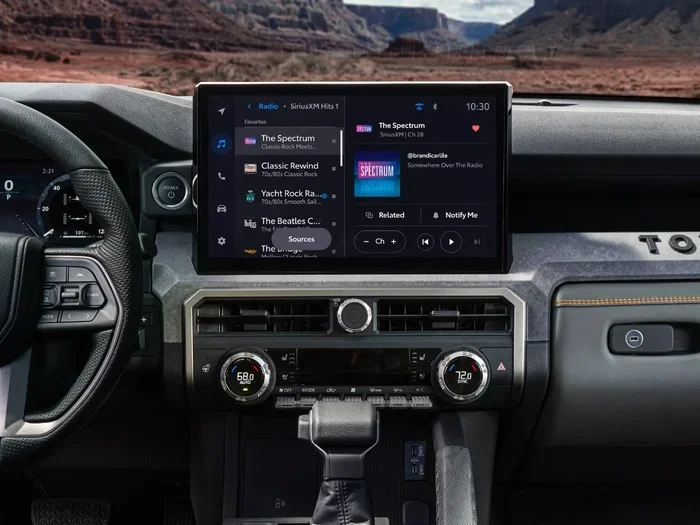
The Toyota Tacoma touchscreen is the main hub for device management. When you tap the screen, you see different icons for audio, phone, navigation, and settings. The phone icon is where most device connections live. But the exact layout can vary depending on your Tacoma model year and the infotainment version you have.
How Toyota Tacoma Bluetooth Works
Bluetooth is the most common way devices connect to your Tacoma. When you pair a phone, the system stores its name, contact list, and call history. This makes it easy to make hands-free calls or stream music. But sometimes you need to remove that connection. Maybe you sold the phone, or you just want to start fresh with a new device.
The Toyota Tacoma Bluetooth system supports multiple paired devices. You can usually store up to five or more phones at once. Each device takes up a slot in the system memory. When you delete one, that slot opens back up for a new connection. This is important to know if you are managing several devices regularly.
Other Connected Devices in Your Tacoma
Bluetooth is not the only connection type. Your Toyota Tacoma also handles USB devices, AUX inputs, and even wireless charging pads on some models. USB devices can include phones, flash drives, and external hard drives. Each of these connects through the multimedia system and can be managed from the same settings area.
Toyota Tacoma connected services also play a role. These are features like remote start, vehicle tracking, and emergency assistance that link your truck to a mobile app. Sometimes deleting a device from the truck also affects these services. Keep that in mind as you work through the deletion process.
Step-by-Step Guide to Delete a Device From Your Toyota Tacoma
Now that you understand the system, let us get into the actual steps. Below we break down the most common methods for deleting a device from your Toyota Tacoma truck. Each method works for different types of connections and different Tacoma model years.
Method 1: Delete a Bluetooth Device Through Settings
This is the most common way to remove a paired phone from your Toyota Tacoma. Follow these steps carefully:
- Start your Toyota Tacoma and press the home button on the touchscreen.
- Tap the phone icon or the settings gear icon.
- Look for the Bluetooth menu. It may be labeled Bluetooth Settings or Device List.
- Find the device you want to remove from the list of paired devices.
- Tap on the device name to open its options.
- Select Delete Device or Unpair. Confirm when prompted.
- The device is now removed from your Toyota Tacoma.
That is it. The phone will no longer auto-connect when you get in the truck. If you try to pair it again later, you will need to go through the full pairing process from scratch.
Method 2: Remove a Device from the Phone Book
Some Toyota Tacoma models store device information in the phone book section. If you do not see the Bluetooth option right away, try this path:
- Go to the home screen on your Tacoma touchscreen.
- Tap the Phone or Contacts icon.
- Look for a list of stored devices or recent connections.
- Select the device you want to remove.
- Choose Delete or Remove from the menu.
This method works well when the Bluetooth settings menu does not show the device you are looking for. The phone book approach is especially helpful on older Tacoma models with simpler infotainment systems.
Method 3: Delete a USB Device
If you are trying to remove a USB device like a flash drive or a phone connected via cable, the process is slightly different:
- Navigate to the Media or Audio section on your Tacoma screen.
- Look for the USB or Device tab.
- You should see the connected USB device listed.
- Tap on it and select Eject or Disconnect.
- Physically remove the USB device from the port once the screen confirms it is safe.
Always eject the device properly before pulling it out. Removing a USB device while data is transferring can cause file corruption or system errors on your Toyota Tacoma.
Method 4: Reset All Paired Devices (Factory Reset)
If you are having trouble removing a specific device, or if you want to clear everything and start over, a factory reset is your best option. This wipes all paired devices, settings, and preferences back to their original state.
- Go to the Settings menu on your Tacoma touchscreen.
- Look for System or System Setup.
- Find the Reset or Factory Reset option.
- Read the warning carefully. This will delete all paired devices and custom settings.
- Confirm the reset and wait for the system to reboot.
- After the reboot, you will need to re-pair your devices from scratch.
Use this method as a last resort. It is effective but time-consuming since you have to set everything up again. Make sure you have your phone passcodes and Bluetooth PINs handy before you start.
Common Issues When Deleting a Device From Your Toyota Tacoma
Even with clear instructions, things do not always go smoothly. Here are the most common problems Tacoma owners run into when trying to delete a device from their Toyota Tacoma and how to fix them.
The Device Will Not Show Up in the List
Sometimes the device you want to remove does not appear in the Bluetooth or phone list. This can happen if the device was connected through a different method, like a USB cable or an aftermarket adapter. Try checking all connection types. Also, restart your Tacoma infotainment system by holding the power button for 10 seconds. This refreshes the connection list and often makes hidden devices visible again.
The Delete Option Is Grayed Out
If you tap the device but the Delete button is not clickable, the system may be preventing removal. This happens when the device is currently active or in use. Disconnect the device first by turning off Bluetooth on the phone itself. Then go back to the Tacoma settings and try deleting it again. This simple step resolves the grayed-out problem more often than you might think.
Device Reappears After Deletion
One of the most frustrating issues is when a deleted device keeps coming back. This usually happens because the phone still has the Tacoma saved in its Bluetooth memory. To fix this, go to your phone Bluetooth settings, find the Toyota Tacoma entry, and delete it from the phone as well. Then restart both devices. When you turn the truck back on, the old connection should not reappear.
Bluetooth Keeps Crashing After Deletion
After removing a device, some Tacoma owners report that the Bluetooth system crashes or freezes. This is usually a temporary software glitch. Try restarting the infotainment system or performing a soft reset by disconnecting the negative battery terminal for 30 seconds. If the problem persists, check for software updates from Toyota. New updates often fix Bluetooth bugs and improve overall system stability.
Tips for Managing Multiple Devices on Your Toyota Tacoma
If you regularly connect multiple devices to your Toyota Tacoma, keeping things organized saves a lot of headaches. Here are some practical tips to make device management easier.
Keep Your Device List Clean
Go into your Bluetooth settings once a month and review the list of paired devices. Remove any devices you no longer use. A cluttered device list slows down the system and makes it harder to find the device you actually want to connect. Think of it like cleaning out your garage. A little regular maintenance goes a long way.
Name Your Devices Clearly
When you pair a new device, give it a clear name. Instead of letting the phone show its default name, rename it in the Bluetooth settings. Use names like John iPhone or Mom Samsung. This makes it much easier to identify devices when you are looking at the list on your Tacoma screen.
Use the Prioritize Feature
Many Toyota Tacoma models let you prioritize which device connects first. If you have a work phone and a personal phone, set the one you use more often as the primary device. This way, it auto-connects when you start the truck without you having to select it manually every time.
Update Your Tacoma Software Regularly
Toyota releases software updates that improve device management and fix bugs. Check for updates at your dealer or through the Toyota app. Keeping your system up to date ensures smooth device additions and deletions. It also improves overall truck performance and adds new features over time.
When Should You Factory Reset Your Toyota Tacoma?
A factory reset is a powerful tool. It clears everything and gives your Toyota Tacoma a fresh start. But it should not be your first move. Here are the situations where a factory reset makes sense.
First, try all the other deletion methods before resorting to a factory reset. If a stubborn device refuses to delete after multiple attempts, a reset can break the connection and clear the slate. Second, consider a reset if your Tacoma infotainment system is running slowly or freezing frequently. Sometimes old device data builds up and slows things down. A reset clears that clutter.
Third, a factory reset is helpful before selling or trading in your truck. You want to remove all personal data, paired devices, and saved preferences. This protects your privacy and gives the next owner a clean system. Just remember to back up any important data like navigation favorites or saved radio stations before you reset.
Finally, if you are experiencing persistent Bluetooth or USB issues that no other fix resolves, a factory reset can often solve the problem. It is like restarting your computer when nothing else works. Sometimes a full reset is exactly what the system needs to function properly again.
Expert Tips for a Smooth Device Deletion Experience
Here are some insider tips from experienced Tacoma owners and Toyota technicians that make the process even easier.
Always turn off Bluetooth on your phone before trying to delete it from the Tacoma. This prevents the system from re-detecting the device during the deletion process. It sounds simple, but it solves more problems than you would expect.
If you are deleting a device because you bought a new phone, do the deletion before you set up the new phone. This way, you avoid confusion between old and new connections. Set up the new phone on the Tacoma first, then remove the old one from the system.
Keep your Tacoma owner manual nearby. Different model years have slightly different menu layouts. The manual gives you the exact path for your specific Tacoma trim and year. It is a small step that saves a lot of frustration.
When in doubt, visit your Toyota dealer. They can walk you through the process and even do it for you. Many dealers offer free tech support for basic tasks like device deletion. It is always worth a quick phone call or visit.
Key Takeaways
- Multiple Deletion Methods: You can delete devices through Bluetooth settings, the phone book, USB management, or a factory reset depending on your Tacoma model.
- Restart When Stuck: A simple system restart often fixes grayed-out menus, missing devices, and Bluetooth crashes during the deletion process.
- Delete from Both Devices: Always remove the Tacoma from the phone Bluetooth list too. This prevents the device from reappearing after deletion.
- Regular Maintenance: Cleaning up paired devices monthly keeps your Toyota Tacoma infotainment system running fast and smoothly.
- Factory Reset as a Last Resort: Use a factory reset only when other methods fail. It clears everything and requires you to set up all connections again.
- Consult Your Manual: Different Tacoma years and trims have slightly different menus. Your owner manual has the exact steps for your specific model.
Frequently Asked Questions
Can I delete a device from my Toyota Tacoma without a touchscreen?
Yes, you can. Some older Tacoma models use physical buttons and a display screen instead of a full touchscreen. Navigate to the Bluetooth or Phone menu using the steering wheel controls or the knob on the center console. Look for a Device List option and follow the on-screen prompts to delete the device you want to remove.
Will deleting a device from my Toyota Tacoma also delete data from my phone?
No, deleting a device from your Tacoma does not erase any data from your phone. It only removes the vehicle connection from the truck system. Your contacts, photos, and apps on the phone remain completely safe. However, if you delete the Tacoma from your phone Bluetooth list, you will lose saved call history and contacts for that specific vehicle connection.
How many devices can my Toyota Tacoma Bluetooth system store?
Most Toyota Tacoma models can store between five and ten paired Bluetooth devices at once. The exact number depends on your model year and infotainment system version. If you reach the limit, you will need to delete an old device before you can pair a new one. Keeping your device list clean helps avoid this issue.
What should I do if the delete button does not work on my Toyota Tacoma?
First, make sure the device you want to delete is not currently connected. Disconnect it from Bluetooth on the phone itself, then try deleting it again from the Tacoma screen. If that does not work, restart the infotainment system by holding the power button for 10 seconds. If the problem continues, a soft reset by disconnecting the battery for 30 seconds often resolves the issue.
Do I need to visit a dealer to delete a device from my Toyota Tacoma?
No, you do not need to visit a dealer. You can delete any device directly from your Tacoma infotainment system using the steps in this guide. However, if you are uncomfortable doing it yourself or if you run into persistent issues, your local Toyota dealer will be happy to help. Many dealers offer this service for free.
Can I delete a device remotely using the Toyota app?
The Toyota app does not currently allow you to delete paired devices remotely from the infotainment system. You must be inside the truck and access the Bluetooth or device settings directly. The app is useful for remote start, vehicle tracking, and service reminders, but device management still happens through the truck’s touchscreen or control panel.
Conclusion
Knowing how to delete a device from your Toyota Tacoma truck is a simple but valuable skill. Whether you are clearing out an old phone, fixing a glitchy Bluetooth connection, or preparing your truck for a new owner, the steps in this guide cover every scenario. From the straightforward Bluetooth deletion method to the factory reset option for stubborn problems, you now have all the tools you need.
Remember to manage your paired devices regularly. A clean device list keeps your Toyota Tacoma infotainment system running fast and prevents connection issues before they start. If you ever get stuck, refer back to this guide or reach out to your Toyota dealer for help.
Your Toyota Tacoma is a reliable, capable truck. Taking a few minutes to keep its connected devices organized ensures it stays that way for years to come. Apply what you learned here today, and you will never struggle with device management again.