How Do I Get My iPhone to Connect to My Car Step by Step
Connecting your iPhone to your car is easier than you think. Whether you use Bluetooth or a USB cable, this guide shows you the exact steps to get your iPhone paired and streaming. You will learn how to set up wireless CarPlay, fix common connection problems, and enjoy hands-free calling and music on every drive.
Have you ever gotten into your car and wished your iPhone would just work already? You are not alone. Millions of people want to know how to connect iPhone to car and enjoy music, maps, and hands-free calling on the road. The good news is that it is usually a very simple process. In this guide, we walk you through every step so you can get connected fast.
Whether your car supports Bluetooth, a USB cable, or Apple CarPlay, we have you covered. We will also share tips to fix common problems and make your iPhone car connection even better. By the end of this article, you will feel confident connecting your phone to any vehicle. Let us get started.
Key Takeaways
- Bluetooth pairing is the most common way to connect iPhone to car without any cables.
- Apple CarPlay offers a smarter experience with a dedicated screen interface for navigation and music.
- A USB cable provides the most stable connection and charges your iPhone at the same time.
- Restart both devices first when you run into connection problems.
- Check your car’s infotainment system to make sure it supports iPhone connectivity before you start.
- Keep your iPhone and car software updated to avoid compatibility issues.
📑 Table of Contents
- Why Connecting Your iPhone to Your Car Makes Driving Better
- How to Check If Your Car Supports iPhone Connection
- How to Connect iPhone to Car Using Bluetooth
- How to Connect iPhone to Car Using a USB Cable or CarPlay
- Apple CarPlay Setup: Get the Best iPhone Car Experience
- Fix Common Problems When iPhone Won’t Connect to Car
- Quick Tips for a Better iPhone Car Connection
- Frequently Asked Questions
- Conclusion
Why Connecting Your iPhone to Your Car Makes Driving Better
There are many reasons to connect iPhone to car. The biggest one is safety. When your phone is linked to your car, you can take calls and use maps without touching your screen. This keeps your eyes on the road and your hands on the wheel.
Music streaming is another huge benefit. You can play your favorite playlists, podcasts, and audiobooks through your car speakers. No more fumbling with your phone while driving. Plus, Siri voice commands let you change songs or set a destination just by speaking.
Here are some key benefits of connecting your iPhone to your car:
- Hands-free calling keeps you safe and legal in many states.
- GPS navigation through your car screen is easier to follow.
- Music and podcast streaming sounds better through car speakers.
- Siri integration lets you control your phone by voice.
- Wireless charging is possible with some car models and wireless CarPlay setups.
- Seamless syncing means your contacts and playlists are always ready.
Once you make the connection, it becomes second nature. You will wonder how you ever drove without it.
How to Check If Your Car Supports iPhone Connection
Before you start, it helps to know what your car can do. Not all vehicles support the same connection methods. Here is how to check what your car has.
Look at Your Car’s Infotainment System
Your car’s infotainment system is the screen and controls in the center of your dashboard. Most cars made after 2015 have some form of iPhone connectivity. Look for a Bluetooth icon, a USB port, or a CarPlay symbol on the screen or in the manual.
Check Your Car’s Year and Model
If you are not sure, look up your car’s year and model online. Most car manufacturers list iPhone compatibility on their websites. You can also check your owner’s manual for details about Bluetooth and USB support.
Test Bluetooth on Your Car
The easiest way to check is to go to your car’s Bluetooth settings. Turn on the car’s Bluetooth and see if your iPhone finds it. If it does, you are good to go for wireless pairing. If not, you can still use a USB cable in most cases.
How to Connect iPhone to Car Using Bluetooth
Bluetooth pairing is the most popular way to connect iPhone to car. It is wireless, easy, and works with almost every modern vehicle. Here is how to do it step by step.
Step 1: Turn on Bluetooth on Your iPhone
Open the Settings app on your iPhone. Tap Bluetooth and make sure it is turned on. Your iPhone will start looking for nearby devices. You should see a list of available devices appear on your screen.
Step 2: Turn on Bluetooth in Your Car
Go to your car’s settings menu on the infotainment screen. Look for Bluetooth or Phone settings. Turn on Bluetooth and set the car to discoverable mode. This lets your iPhone find the car.
Step 3: Pair the Devices
On your iPhone, look for your car’s name in the list of available devices. Tap on it. You may see a code on your car screen. Type that code into your iPhone to confirm the pairing. Once paired, your iPhone and car will remember each other.
Step 4: Test the Connection
Play some music on your iPhone. It should now come through your car speakers. Try making a call to test hands-free calling. If everything works, you are all set. If not, try the troubleshooting tips in the next section.
Quick Tip: Always make sure your car is parked and in park before you start Bluetooth pairing. Safety first.
How to Connect iPhone to Car Using a USB Cable or CarPlay
A USB cable connection is another great way to connect iPhone to car. It gives you a stable link and charges your phone at the same time. Some cars also support Apple CarPlay, which is a special interface just for iPhone users.
What You Need for a USB Connection
You will need a Lightning cable or USB-C cable, depending on your iPhone model. Plug one end into your iPhone and the other into the car’s USB port. Most cars have at least one USB port in the center console or armrest area.
Setting Up Apple CarPlay
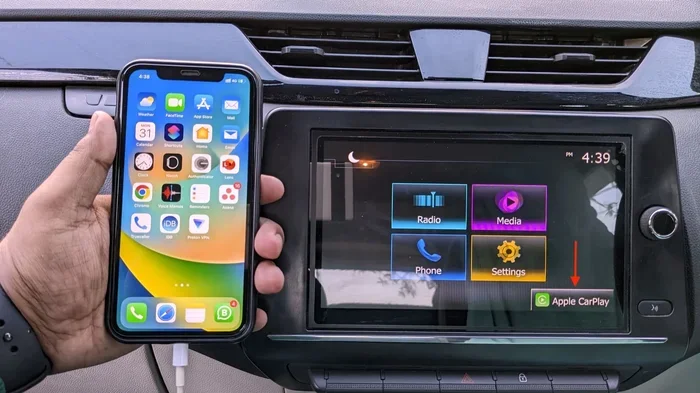
If your car supports Apple CarPlay, the screen will change once you plug in your iPhone. You will see a simplified interface with apps for maps, music, phone calls, and messages. CarPlay makes it very easy to use your iPhone while driving.
Here is how to set up CarPlay:
- Plug your iPhone into the car’s USB port.
- Wait a few seconds for the CarPlay screen to appear.
- If it does not appear, go to your car’s source or media menu and select CarPlay.
- On your iPhone, you may need to tap Trust This Computer. Tap Allow to continue.
- Your CarPlay interface is now ready to use.
Wireless CarPlay vs. USB CarPlay
Some newer cars support wireless CarPlay. This means you do not need a cable at all. Your iPhone connects to the car over Wi-Fi. Wireless CarPlay is very convenient, but a USB cable connection is often more stable and reliable.
Quick Tip: If your car does not natively support CarPlay, you can buy an aftermarket CarPlay adapter. These plug into your car’s USB port and add CarPlay support to older vehicles.
Apple CarPlay Setup: Get the Best iPhone Car Experience
Apple CarPlay is one of the best ways to use your iPhone in the car. It gives you a car-friendly version of your iPhone right on your dashboard screen. Here is how to get the most out of it.
Make Sure Your iPhone Is Compatible
Apple CarPlay works with iPhone 5 and later models. However, newer features like wireless CarPlay require iPhone 8 or newer. Check your iPhone model to make sure you can use all the features.
Customize Your CarPlay Apps
You can choose which apps show up on CarPlay. Go to Settings on your iPhone, then General, then CarPlay. Select your car and tap Customize. You can drag and drop apps to rearrange them. This way, your most-used apps are always easy to find.
Use Siri for Hands-Free Control
Siri is a big part of the CarPlay experience. You can ask Siri to make calls, send messages, play music, or set a navigation route. Just hold down the voice command button on your steering wheel and speak. Siri will handle the rest.
Expert Insight: Many drivers do not realize they can use Siri for almost everything. Try saying Hey Siri, play my workout playlist or Hey Siri, navigate home. It works great while driving.
Fix Common Problems When iPhone Won’t Connect to Car
Sometimes things do not work the first time. That is normal. Here are the most common issues and how to fix them.
iPhone and Car Bluetooth Won’t Pair
If your iPhone and car will not pair over Bluetooth, try these steps. First, turn Bluetooth off on both devices and then back on again. Next, restart your iPhone and your car’s infotainment system. This clears out old connection data and often fixes the problem.
CarPlay Not Working After Plugging In
If CarPlay does not appear when you plug in your iPhone, try a different USB cable or port. Some cables are charge-only and do not support data transfer. Use the cable that came with your iPhone for the best results. Also, make sure your iPhone screen is unlocked when you plug it in.
iPhone Connects But No Sound Comes Through
If your iPhone connects to the car but you hear no sound, check the audio source on your car. Make sure the car is set to Bluetooth audio or CarPlay mode, not radio or aux. You can also check the volume on both your iPhone and your car.
Connection Drops Frequently
A dropping connection can be annoying. This often happens when the iPhone is too far from the car’s antenna or when there are many wireless signals nearby. Try moving your iPhone closer to the center console. Also, make sure both your iPhone and car software are up to date.
Common Mistake: Many people forget to delete old paired devices from their car’s Bluetooth memory. Over time, this can cause connection conflicts. Go into your car’s Bluetooth settings and remove devices you no longer use.
When to Reset Network Settings
If nothing else works, you can reset your iPhone’s network settings. Go to Settings, then General, then Transfer or Reset iPhone, then Reset, then Reset Network Settings. This will clear all Wi-Fi and Bluetooth pairings, so you will need to reconnect your devices. It is a powerful fix for stubborn connection issues.
Quick Tips for a Better iPhone Car Connection
Once you have your iPhone connected to your car, a few small habits can keep things running smoothly. Here are some tips that make a big difference.
- Keep your iPhone software updated. Apple releases updates that fix Bluetooth and CarPlay bugs regularly.
- Update your car’s infotainment system. Many car makers release firmware updates that improve iPhone compatibility.
- Use a high-quality USB cable. Cheap cables often fail to transfer data properly and can cause connection issues.
- Restart both devices before a long trip. A fresh start helps both your iPhone and car stay stable.
- Remove your iPhone case if connections are weak. Some thick cases can interfere with wireless signals.
- Keep your car’s USB ports clean. Dust and debris can block the connection. A quick wipe with a dry cloth helps.
- Turn off other Bluetooth devices in the car. Multiple connected devices can slow things down and cause conflicts.
These simple steps will keep your iPhone car connection strong and reliable for years to come.
Frequently Asked Questions
Why won’t my iPhone connect to my car via Bluetooth?
There are a few common reasons. First, make sure Bluetooth is turned on in both your iPhone and your car. Next, try turning Bluetooth off and back on for both devices. If that does not work, restart your iPhone and your car’s infotainment system. You can also try forgetting the car in your iPhone Bluetooth settings and pairing again from scratch.
Do I need a special cable to use Apple CarPlay?
You need a Lightning cable or USB-C cable that supports data transfer. Not all USB cables carry data. The cable that came with your iPhone is the best choice. If your car supports wireless CarPlay, you do not need a cable at all.
Can I connect iPhone to car if my car is older?
Yes, you can. Even older cars with an auxiliary input or USB port can connect to your iPhone. For cars without any modern connection options, you can use a Bluetooth FM transmitter or an aftermarket CarPlay adapter to add iPhone support.
Is it safe to use CarPlay while driving?
Apple CarPlay is designed to be safe. It shows a simplified interface and works well with Siri voice commands. You can make calls, send messages, and use navigation without taking your eyes off the road for long. However, always pull over if you need to do something that requires more attention.
Why does my iPhone keep disconnecting from my car?
Frequent disconnections are often caused by software issues or weak signals. Make sure both your iPhone and car software are up to date. Also, check that your iPhone is not in Low Power Mode, as this can affect Bluetooth performance. Resetting network settings on your iPhone often fixes this problem.
Can I connect my iPhone to multiple cars?
Yes, you can. Your iPhone remembers paired devices and will automatically connect to a car you have paired with before. When you get into a different car, you may need to manually select it from your iPhone’s Bluetooth settings. The process is quick and easy each time.
Conclusion
Connecting your iPhone to your car is one of the best upgrades you can make. It gives you hands-free calling, great music, and easy navigation every time you drive. Now that you know how to connect iPhone to car using Bluetooth, USB, or CarPlay, you can pick the method that works best for you.
Start with the basic Bluetooth pairing if you want a quick wireless connection. Choose a USB cable or CarPlay for a more stable and feature-rich experience. And remember, if something goes wrong, the troubleshooting tips in this guide will help you fix most issues fast.
Take a few minutes today to set up your iPhone car connection. You will wonder how you ever drove without it. Happy driving and happy connecting.