How Do I Get Text Messages on My Toyota RAV4 Today
Getting text messages on your Toyota RAV4 is easier than you think, and it works through the built-in infotainment system with just a few simple steps. You can pair your smartphone, enable notifications, and read incoming SMS alerts right on the touchscreen while staying focused on the road. This guide covers setup, troubleshooting, safety features, and pro tips so you can stay connected without taking your eyes off the highway.
You are driving your Toyota RAV4 down the highway. Your phone buzzes with a new text, and you wonder how to see it without pulling over. The good news is that the Toyota RAV4 makes it surprisingly easy to get text messages on your screen while you keep your hands on the wheel and your eyes on the road.
Whether you have a 2019 model or the latest 2024 RAV4, the process involves connecting your phone through Bluetooth and adjusting a few settings in the infotainment system. This article walks you through every step in plain language. You will learn how to set up text notifications, fix common problems, and use safety features that make driving with messages less stressful.
By the end of this guide, you will feel confident using the RAV4’s messaging capabilities. No tech degree required. Just clear, practical steps that work every time.
Key Takeaways
- Toyota RAV4 supports text message display through its infotainment system when your phone is properly paired.
- Bluetooth connectivity is the foundation for receiving and reading messages on your RAV4’s touchscreen.
- Toyota Entune and connected services play a key role in enabling messaging features on newer model years.
- Setting up notifications is simple and can be done directly from the RAV4’s multimedia settings menu.
- Hands-free reading keeps you safe by reducing distractions while driving.
- Common issues like connection drops can usually be fixed with a quick reset or software update.
- New RAV4 models offer advanced features like voice-controlled message replies and app integration.
📑 Table of Contents
- Understanding the Toyota RAV4 Infotainment System
- How to Set Up Text Message Notifications on Your Toyota RAV4
- Connecting Your Smartphone for Seamless Messaging
- Troubleshooting Common Text Message Issues
- Safety Features That Enhance Messaging While Driving
- Tips for Maximizing Text Messaging on Your Toyota RAV4
- Comparing Text Messaging Features Across RAV4 Model Years
- When to Visit a Toyota Dealer for Help
- Conclusion
Understanding the Toyota RAV4 Infotainment System
The Toyota RAV4 comes equipped with a multimedia infotainment system that handles more than just music and navigation. It also manages phone calls, text messages, and app notifications. Understanding how this system works is the first step to getting the most out of your vehicle’s connectivity features.
What Is the Toyota Infotainment Display?
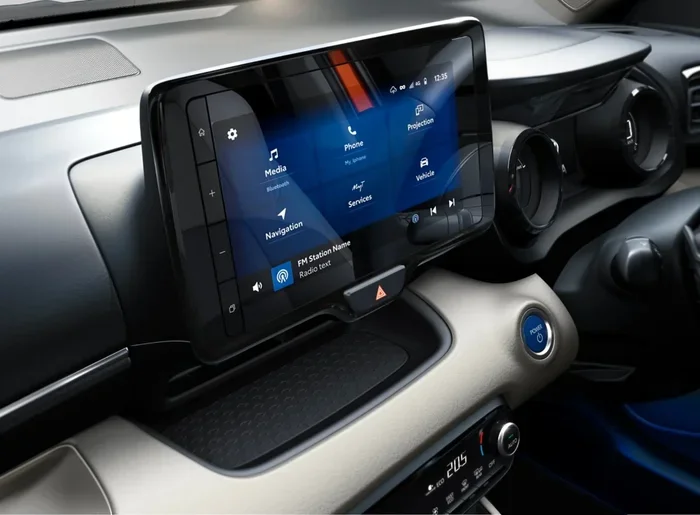
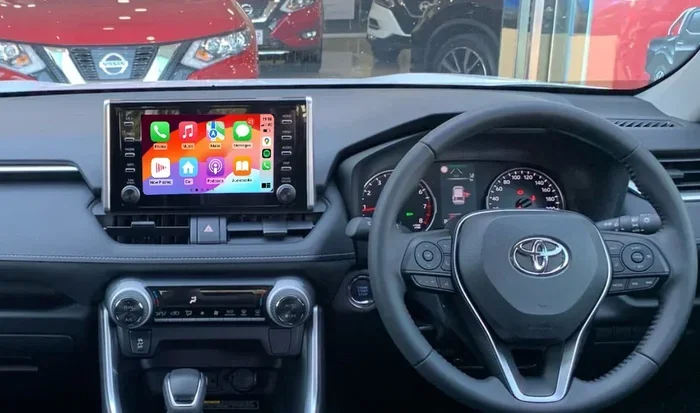
The RAV4’s infotainment display sits in the center of the dashboard. It is a touchscreen that lets you control audio, climate, navigation, and phone functions. On newer models, the screen can be as large as 12.3 inches, giving you plenty of space to read messages and notifications clearly.
The system supports both Apple CarPlay and Android Auto on many model years. These features mirror your phone’s interface on the RAV4 screen, making it easy to access messages without digging through menus. Older models that do not support these protocols still handle text notifications through native Bluetooth pairing.
Toyota Entune and Connected Services
Toyota Entune is the connected services platform built into many Toyota vehicles. It allows your RAV4 to communicate with your smartphone and access cloud-based features. Through Entune, you can receive text message alerts, make calls, and even send replies using voice commands.
Newer RAV4 models come with Toyota Connected Services, which is an upgraded version of Entune. This platform offers deeper integration with your phone and provides a smoother messaging experience. You may need to activate a subscription for some features, but basic text message notifications usually work right out of the box.
How to Set Up Text Message Notifications on Your Toyota RAV4
Setting up text message notifications on your RAV4 is a straightforward process. Once your phone is connected, the car can read incoming messages aloud and display them on the screen. Here is how to get it done.
Step 1: Pair Your Smartphone
The first thing you need to do is pair your phone with the RAV4’s Bluetooth system. Go to the Settings menu on the touchscreen and select Bluetooth. Put your phone in pairing mode and look for it on the RAV4’s display. Tap to connect, and follow any prompts that appear.
Make sure your phone’s Bluetooth is turned on and that it is discoverable. If you have paired your phone before, it should connect automatically when you get in the car. You can check the Bluetooth settings to confirm the connection is active.
Step 2: Enable Message Notifications
Once your phone is paired, you need to enable message notifications. On the RAV4’s touchscreen, go to Settings and then look for the Phone or Audio section. Find the option for message notifications and turn it on.
On your phone, you may also need to grant permission for the RAV4 to access messages. This is especially important for iPhones and Android devices that have strict privacy settings. Go to your phone’s Bluetooth settings and make sure the RAV4 has access to messages and calls.
Step 3: Adjust Display and Audio Settings
After enabling notifications, you can fine-tune how messages appear and sound. You can choose whether messages show on the screen, play through the speakers, or both. You can also set the display duration so messages stay visible long enough for you to read them.
Some RAV4 models let you customize the alert tone for text messages separately from phone call alerts. This is a small detail, but it makes a big difference in knowing whether a message just came in or if you are receiving an actual call.
Step 4: Test the Setup
Have a friend or family member send you a test message while you are parked. Check if the notification appears on the RAV4 screen and if the message is read aloud through the speakers. If everything works, you are all set. If not, move on to the troubleshooting section below.
Connecting Your Smartphone for Seamless Messaging
The way your phone connects to the RAV4 affects how well text messages work. Different phones and different RAV4 model years may require slightly different steps. Here is what you need to know for both iPhone and Android users.
iPhone Users and Apple CarPlay
If you have an iPhone, you can use Apple CarPlay to mirror your messages on the RAV4 screen. Simply plug in your iPhone with a USB cable or connect wirelessly if your RAV4 supports it. CarPlay will launch automatically, and your messages will appear in the messaging app on the touchscreen.
Make sure Siri is enabled on your iPhone. This lets you use voice commands to read and reply to messages while driving. You can say “Hey Siri, read my messages” and Siri will pull up any new texts through the RAV4’s audio system.
Android Users and Android Auto
Android users benefit from Android Auto, which works similarly to CarPlay. Plug in your Android phone or connect wirelessly, and the RAV4 will display Android Auto on the screen. You can access messages through the Google Messages app or any default messaging app on your phone.
Google Assistant integration is a standout feature here. You can say “Hey Google, read my text messages” and the assistant will read them aloud through the RAV4 speakers. You can also dictate replies hands-free, which is incredibly convenient when you are on the go.
Bluetooth-Only Connection (No CarPlay or Android Auto)
Not every RAV4 has CarPlay or Android Auto. If your model does not support these, you can still receive text messages through a standard Bluetooth connection. The phone will sync contacts and messages to the RAV4’s system, and notifications will appear on the display.
The experience may be a bit more limited compared to CarPlay or Android Auto. You might not get full message threading or the ability to reply easily. But for basic reading and notification alerts, Bluetooth-only works well enough for most drivers.
Troubleshooting Common Text Message Issues
Sometimes things do not work as expected. Text messages might not show up, the screen might freeze, or notifications might be delayed. Here are the most common problems and how to fix them.
Text Messages Not Showing on the Screen
If your messages are not appearing on the RAV4 display, the first thing to check is the Bluetooth connection. Make sure your phone is still connected and that the RAV4 recognizes it. Go to the Bluetooth settings on both devices and try reconnecting.
Next, check the notification permissions on your phone. On iPhones, go to Settings, then Notifications, and make sure the messaging app is allowed to send notifications. On Android, go to Settings, then Apps, find your messaging app, and check notification permissions.
Messages Not Read Aloud
If the RAV4 is not reading messages out loud, the text-to-speech setting might be turned off. Go to the RAV4’s Settings menu and look for Text-to-Speech or Audio Feedback. Make sure it is enabled.
On the phone side, check if Do Not Disturb mode is active. This can block notifications from reaching the car’s system. Turn it off, and messages should start reading aloud again.
Delayed or Missing Notifications
Delayed notifications are frustrating but usually easy to fix. Start by restarting both your phone and the RAV4’s infotainment system. On the RAV4, you can usually restart the system by holding the power button for about 10 seconds.
Also, make sure your phone has a stable data or Wi-Fi connection. Some messaging apps rely on internet data to deliver messages, and a weak connection can cause delays. If you are in a dead zone, messages will queue up and arrive once you regain signal.
Bluetooth Connection Keeps Dropping
A dropping Bluetooth connection can interrupt message notifications. This is often caused by distance or interference. Make sure your phone is within range of the RAV4’s Bluetooth antenna, which is usually located near the rearview mirror.
You can also try forgetting the device on both the phone and the RAV4, then pairing them fresh. This clears out any corrupted connection data and often resolves persistent Bluetooth issues. If the problem continues, check for software updates on both your phone and the RAV4’s infotainment system.
Safety Features That Enhance Messaging While Driving
Safety should always come first when using any digital feature while driving. The Toyota RAV4 includes several built-in safety features that make handling text messages much safer than using your phone directly.
Driving Mode and Distraction-Free Settings
The RAV4 offers a driving mode that limits distractions while you are on the road. When driving mode is active, the system can automatically read incoming messages aloud and suppress visual pop-ups that might tempt you to look at the screen.
You can customize driving mode settings to suit your preferences. Some drivers prefer to have messages read silently without any screen display, while others want a quick glance at the sender’s name. Experiment with the settings while parked to find what works best for you.
Voice Command Messaging
Voice commands are one of the safest ways to interact with text messages in the RAV4. You can use steering wheel controls or the touchscreen to activate voice commands. Say something like “Read my messages” or “Reply to John” and the system will handle the rest.
This hands-free approach keeps your eyes on the road and your hands on the wheel. It is far safer than typing on a touchscreen or holding your phone while driving. Toyota designed these features specifically to reduce the temptation of manual phone use behind the wheel.
Do Not Disturb While Driving
If you prefer not to receive any message alerts while driving, you can activate Do Not Disturb While Driving. This feature silences all notifications and can send an automatic reply to texters letting them know you are driving and will respond later.
This is especially useful in heavy traffic or bad weather when you need maximum focus. You can set Do Not Disturb to activate automatically based on your phone’s motion sensors, or you can turn it on manually whenever you need it.
Tips for Maximizing Text Messaging on Your Toyota RAV4
Once you have text messaging set up, a few smart tips can help you get even more out of the feature. These small adjustments make a big difference in day-to-day use.
- Keep your phone charged so Bluetooth stays connected and messages flow without interruption.
- Update your RAV4’s infotainment software regularly. Toyota releases updates that improve connectivity and fix bugs.
- Use a high-quality USB cable if you prefer wired connections over Bluetooth for CarPlay or Android Auto.
- Organize your contacts so you can quickly identify who is texting you without reading every name on the screen.
- Practice voice commands while parked so you feel comfortable using them when driving.
- Set up favorite contacts for quick access to the people you text most often.
- Visit your Toyota dealer if you run into persistent issues that you cannot fix on your own.
Quick Tips for New RAV4 Owners
If you just bought a new RAV4, here are a few quick tips to get started with text messaging right away. First, spend five minutes pairing your phone in a parking lot before you drive anywhere. Second, test the system with a friend by sending a few messages and checking how they appear on the screen. Third, explore the Settings menu to familiarize yourself with all the available options.
These small steps save a lot of frustration later. You will walk into your daily commute already knowing how the system works and what to expect.
Expert Insight: Why Text Messaging in Your Car Matters
According to traffic safety research, hands-free communication reduces cognitive distraction significantly compared to holding your phone. The Toyota RAV4’s text messaging features are designed with this in mind. By reading messages aloud and enabling voice replies, the system helps you stay informed without compromising your attention on the road.
Experts also point out that being able to see who is texting you can reduce the urge to check your phone manually. When you know it is a message from a friend and not an urgent work email, you are less likely to feel anxious and more likely to wait until you are safely parked to respond. This mental shift is one of the biggest benefits of having text messaging built into your car.
Comparing Text Messaging Features Across RAV4 Model Years
Not all Toyota RAV4 models are created equal when it comes to text messaging. Here is a quick comparison of what you can expect across different model years.
| Feature | 2019 and Older | 2020-2022 | 2023 and Newer |
|---|---|---|---|
| Bluetooth Text Notifications | Yes | Yes | Yes |
| Apple CarPlay Support | Limited | Yes | Yes |
| Android Auto Support | Limited | Yes | Yes |
| Voice-Controlled Replies | No | Yes | Yes |
| Do Not Disturb While Driving | No | Limited | Yes |
| Wireless Connectivity | No | Some Models | Yes |
| Toyota Connected Services | No | Basic | Full |
As you can see, newer RAV4 models offer a much richer text messaging experience. If you drive an older model, you can still get the basics working with Bluetooth pairing. But if you are shopping for a used RAV4 or planning an upgrade, the messaging features alone are worth considering.
When to Visit a Toyota Dealer for Help
Most text messaging issues can be resolved at home with the steps outlined in this guide. But sometimes, the problem is deeper than a simple reset or reconnection. If you have tried everything and still cannot get text messages to work on your RAV4, it might be time to visit a Toyota dealer.
Dealers have access to specialized diagnostic tools and software updates that can fix deeper system issues. They can also check if your RAV4’s multimedia system needs a hardware upgrade or if there is a known compatibility issue with your specific phone model.
Before you visit, write down the steps you have already tried and any error messages you have seen. This saves time and helps the dealer pinpoint the problem faster. Many dealers also offer free software updates for Toyota Connected Services, which can improve messaging functionality at no cost to you.
Conclusion
Getting text messages on your Toyota RAV4 is a simple process that starts with pairing your phone and enabling notifications. From there, you can customize settings, use voice commands, and take advantage of safety features that keep you focused on driving. Whether you have a 2019 model or the latest 2024 RAV4, the system is designed to make staying connected easy and safe.
Remember to keep your phone and RAV4 software updated, use hands-free features whenever possible, and do not hesitate to visit a Toyota dealer if you run into issues you cannot resolve on your own. With the right setup, you will wonder how you ever drove without it.
The Toyota RAV4 is more than a vehicle. It is a connected experience that keeps you informed, safe, and in control. Take a few minutes today to set up text messaging, and you will see the difference on your next drive.
Frequently Asked Questions
Can I reply to text messages while driving my Toyota RAV4?
Yes, you can reply to text messages using voice commands if your RAV4 supports Toyota Connected Services or Apple CarPlay and Android Auto. Simply say “Reply” followed by your message, and the system will send it for you. This keeps your hands on the wheel and your eyes on the road.
Why are my text messages not showing on the RAV4 screen?
This is usually caused by a Bluetooth connection issue or incorrect notification settings. Make sure your phone is paired, Bluetooth is active, and message notifications are enabled in both your phone and the RAV4 settings. Restarting both devices often fixes the problem.
Do I need a subscription for Toyota Connected Services to get text messages?
No, basic text message notifications work with a standard Bluetooth connection and do not require a subscription. However, advanced features like voice-controlled replies and full app integration may require an active Toyota Connected Services subscription.
Can I use text messaging features on a Toyota RAV4 without a smartphone?
No, the RAV4’s text messaging features rely on a paired smartphone. Without a connected phone, the system cannot receive or display text messages. The phone handles message delivery while the RAV4 provides the display and audio interface.
Is it safe to read text messages on the RAV4 while driving?
The RAV4 is designed to make reading messages safer by using voice commands and audio readouts. However, any screen interaction while driving can be distracting. It is best to let the system read messages aloud and use voice replies so you can keep your full attention on the road.
What should I do if Bluetooth keeps disconnecting and messages stop coming through?
Start by deleting the RAV4 from your phone’s Bluetooth list and your phone from the RAV4’s Bluetooth settings, then pair them again. Also check for software updates on both devices. If the problem persists, visit a Toyota dealer for a diagnostic check on the Bluetooth module.