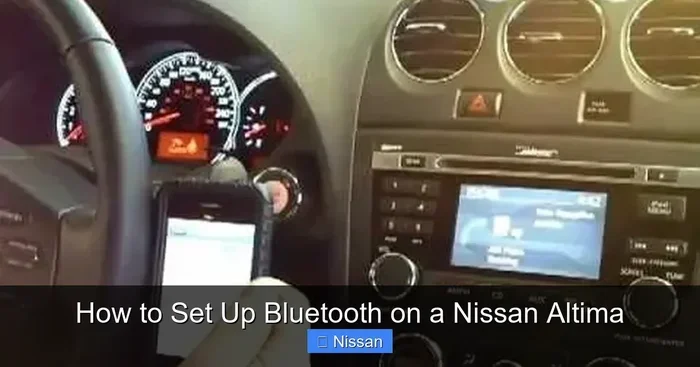
How to Connect Bluetooth on Your 2013 Nissan Altima
Connecting Bluetooth on your 2013 Nissan Altima is easier than you think. This guide walks you through every step, from enabling Bluetooth on your phone to pairing it with the car’s infotainment system. You’ll learn how to stream music, make hands-free calls, and troubleshoot common problems. Whether you are a tech beginner or just need a quick refresher, this article covers everything you need to know. Follow our tips to enjoy a seamless wireless connection every time you get behind the wheel.
Have you just bought a used 2013 Nissan Altima and want to set up Bluetooth? Or maybe your current Bluetooth setup stopped working and you need a fresh start. Either way, you are in the right place. Connecting Bluetooth on a 2013 Nissan Altima is a straightforward process that anyone can do. In this guide, we break it down into simple, easy-to-follow steps. You will learn how to pair your phone, stream music, make hands-free calls, and fix common problems. By the end, you will be fully connected and ready to hit the road.
The 2013 Nissan Altima comes with a built-in Bluetooth system that supports both hands-free calling and wireless audio streaming. This means you can make phone calls and listen to music without plugging in any cables. The car’s infotainment system makes the process simple. Even if you are not very tech-savvy, you will find this guide helpful. Bluetooth pairing on the Altima is designed to be user-friendly. Let us get started.
Key Takeaways
- Easy Pairing Process: Connecting Bluetooth on a 2013 Nissan Altima takes just a few minutes with our step-by-step instructions.
- Hands-Free Calling: Bluetooth lets you make and receive calls safely without taking your hands off the wheel.
- Wireless Music Streaming: Stream your favorite playlists and podcasts directly through your car’s audio system.
- Multiple Device Support: The 2013 Altima can store several Bluetooth paired devices for easy switching.
- Quick Troubleshooting: We cover the most common Bluetooth connection issues and how to fix them fast.
- Better Driving Experience: Bluetooth integration makes every drive safer, more convenient, and more enjoyable.
📑 Table of Contents
- Why Bluetooth Matters in the 2013 Nissan Altima
- How to Connect Bluetooth on Your 2013 Nissan Altima
- How to Stream Music via Bluetooth on the 2013 Altima
- Using Hands-Free Calling with Bluetooth
- Bluetooth Troubleshooting: Common Issues and Fixes
- Comparison: Bluetooth vs. USB Connection on the 2013 Altima
- Tips for Getting the Most Out of Bluetooth on Your 2013 Altima
- Common Mistakes to Avoid When Connecting Bluetooth
- Frequently Asked Questions
- Final Thoughts
Why Bluetooth Matters in the 2013 Nissan Altima
Bluetooth technology has become a standard feature in most modern vehicles. The 2013 Nissan Altima is no exception. It offers a reliable car Bluetooth setup that enhances your daily driving experience. But why exactly is Bluetooth so important in this car?
First, safety is a big deal. When you use hands-free calling, you keep your eyes on the road and your hands on the wheel. Studies show that distracted driving causes thousands of accidents every year. Bluetooth helps you stay connected without the distraction. Second, wireless audio streaming lets you enjoy your favorite music through your car speakers. No more fumbling with CDs or FM radio presets. Third, phone book sync allows your car to access your contacts. This makes it even easier to call people while driving.
The 2013 Altima’s NissanConnect system supports up to five paired Bluetooth devices. This means you and your passengers can each have a device connected. Switching between devices is simple and fast. Overall, Bluetooth transforms how you interact with your car. It adds convenience, safety, and entertainment all at once.
Key Features of the 2013 Altima Bluetooth System
- Hands-Free Calling: Make and receive calls using your car’s built-in microphone and speakers.
- Wireless Audio Streaming: Stream music and podcasts from your phone through your car audio system.
- Phone Book Sync: Access your phone contacts directly from the car’s display screen.
- Multiple Device Pairing: Store and switch between up to five Bluetooth paired devices.
- Steering Wheel Controls: Use steering wheel buttons to answer calls and change tracks.
- Bluetooth Volume Control: Adjust audio volume directly from the car’s audio controls.
How to Connect Bluetooth on Your 2013 Nissan Altima
Now let us get into the main process. Connecting Bluetooth on a 2013 Nissan Altima involves a few simple steps on both your car and your phone. Follow along carefully, and you will be paired in no time. The process works whether you are using an iPhone or an Android device. The car’s Bluetooth settings are easy to navigate. Let us walk through it together.
Step 1: Turn on Bluetooth on Your Phone
Before you do anything in the car, you need to enable Bluetooth on your phone. This is the first step in the Bluetooth pairing process. On most phones, you can do this quickly.
For iPhone users, open the Settings app. Tap on Bluetooth and toggle the switch to ON. You should see the Bluetooth icon appear at the top of your screen. For Android users, swipe down from the top of your screen to open the quick settings panel. Tap the Bluetooth icon to turn it on. You can also go to Settings and then Bluetooth to enable it. Once Bluetooth is on, your phone will start searching for nearby devices.
Quick Tip: Make sure your phone is fully charged or plugged in before you start the pairing process. A low battery can sometimes cause connection problems during setup.
Step 2: Put Your 2013 Altima into Bluetooth Discovery Mode
Now you need to tell your car to look for new devices. On the 2013 Nissan Altima, this is done through the audio system controls. Start by pressing the “Phone” button on the audio control panel. This button is usually located on the center console or the steering wheel. If you do not see a dedicated Phone button, press the “Setup” or “Menu” button and navigate to the Bluetooth section.
Once you are in the Bluetooth menu, select “Add Device” or “Search for Devices.” The car’s display screen will now show a list of available Bluetooth devices. This is called Bluetooth discovery mode. Your car is now actively searching for phones and other devices nearby. Make sure your phone’s Bluetooth is turned on during this step.
Quick Tip: If your car does not find your phone, move your phone closer to the car’s audio system. Bluetooth has a limited range, and being too far can cause detection issues.
Step 3: Pair Your Phone with the Altima
Your phone should now appear in the list of available devices on the car’s screen. Select your phone’s name from the list. The car will now generate a Bluetooth pairing code. This is a series of numbers that you need to confirm on both devices.
Check the display screen in your Altima. It will show a pairing code. Now look at your phone. You should see the same code pop up. Confirm that the numbers match. Then tap “Pair” or “Connect” on your phone. Some phones may ask you to confirm the pairing request. Accept it to complete the connection.
Once paired, the car’s screen will display a confirmation message. Your phone is now connected to the 2013 Nissan Altima via Bluetooth. You can now make calls and stream audio wirelessly. Bluetooth connection is active and ready to use.
Step 4: Set Up Audio and Call Settings
After pairing, you have a few options to customize your experience. The car will ask if you want to enable audio Bluetooth streaming. Choose “Yes” to allow music and podcasts to play through your car speakers. You can also choose to enable or disable hands-free calling. We recommend keeping both options turned on for the full Bluetooth experience.
Next, go to your phone’s Bluetooth settings. Find the 2013 Altima in your list of paired devices. Tap on it to access the device settings. Here, you can choose what your phone shares with the car. You can allow access to your phone book for easy contact calling. You can also set the audio profile to “Media Audio” for streaming music. Make sure all the right boxes are checked.
Quick Tip: If you plan to use the steering wheel controls for audio, make sure the Bluetooth audio profile is set to “Media Audio.” This allows volume and track controls to work from the wheel.
How to Stream Music via Bluetooth on the 2013 Altima
One of the best things about Bluetooth in the 2013 Nissan Altima is the ability to stream music wirelessly. You can play Spotify, Apple Music, Pandora, or any other music app directly through your car speakers. The wireless audio streaming quality on the Altima is very good. You will notice clear sound and minimal delay.
To start streaming, simply open your music app on your phone after the Bluetooth connection is active. The audio will automatically route to the car’s audio system. You can use the car’s volume knob to adjust the sound level. You can also use the steering wheel audio controls to skip tracks or pause playback.
If you want to switch between different music sources, press the “Media” or “Audio” button on the car’s control panel. You will see options like “Bluetooth Audio,” “Radio,” and “USB.” Select “Bluetooth Audio” to play music from your phone. This makes it easy to switch back and forth between different audio sources while driving.
Tips for Better Bluetooth Audio Quality
- Keep your phone within 10 feet of the car’s audio system for the best signal strength.
- Avoid placing your phone in a metal box or far inside a bag. This can weaken the Bluetooth signal.
- If you notice static or interruptions, move your phone closer to the center console.
- Keep your phone’s software and the car’s audio system firmware up to date.
- Use high-quality music apps that stream at a higher bitrate for better sound.
Using Hands-Free Calling with Bluetooth
Hands-free calling is one of the most useful features of Bluetooth in the 2013 Altima. It keeps you safe by letting you answer calls without picking up your phone. The car’s built-in microphone picks up your voice clearly. The car’s speakers play the caller’s voice at a comfortable volume.
When you receive a call, the car’s display screen will show the caller’s name if your phone book is synced. You can press the “Phone” button on the steering wheel to answer the call. To end the call, press the same button again. The process is simple and keeps your focus on the road.
To make a call, you have a few options. You can use voice commands if your car supports it. You can also use the car’s display screen to dial a number from your synced phone book. Or you can use your phone’s dial pad while it remains connected via Bluetooth. All of these methods work seamlessly with the 2013 Altima’s Bluetooth system.
Managing Your Phone Book on the Altima
The 2013 Altima allows you to sync your phone contacts with the car’s system. This is called phone book sync. Once synced, you can search for contacts directly on the car’s display screen. This is very helpful when you need to call someone quickly while driving.
To sync your phone book, go to the Bluetooth settings on the car’s audio system. Look for the “Phone Book” or “Contacts” option. Enable phone book access on both the car and your phone. The car will then download your contacts. This process may take a few moments depending on how many contacts you have.
Expert Insight: Keeping your phone book synced makes calling much safer and more convenient. You do not need to scroll through your phone while driving. The car’s interface makes finding contacts quick and easy.
Bluetooth Troubleshooting: Common Issues and Fixes
Even though Bluetooth technology is reliable, you may run into issues from time to time. Bluetooth troubleshooting on the 2013 Nissan Altima is usually simple. Here are the most common problems and how to fix them.
Bluetooth Not Connecting
If your phone will not connect to the car, the first thing to do is turn Bluetooth off and then back on again. On both your phone and the car’s audio system. This simple reset often fixes connection issues. If that does not work, try deleting the existing pairing from both devices and then pairing them again from scratch.
Another common cause is that the car’s Bluetooth system has reached its device limit. The 2013 Altima can store up to five paired devices. If you have already paired five devices, you may need to delete an old one to make room for a new connection. Go to the Bluetooth settings on the car’s screen and remove any unused devices.
Poor Audio Quality or Static
If you notice static or poor sound quality during Bluetooth streaming, there are a few things you can try. First, check the distance between your phone and the car. Bluetooth works best when devices are within 10 feet of each other. Moving your phone closer to the center console can improve the signal.
Second, check for interference from other electronic devices. USB devices, chargers, or even other Bluetooth devices can sometimes interfere with the connection. Try disconnecting unnecessary USB devices and see if the audio quality improves. Third, restart both your phone and the car’s audio system. A fresh start often resolves temporary glitches.
Bluetooth Keeps Disconnecting
If your Bluetooth connection keeps dropping, it could be a battery issue. A phone with a low battery may struggle to maintain a stable Bluetooth connection. Keep your phone charged while driving. Also, check the car’s Bluetooth settings to make sure “Auto Connect” is turned on. This feature automatically reconnects your phone when you start the car.
Quick Tip: If the problem persists, reset the car’s audio system by turning it off, waiting 30 seconds, and turning it back on. This clears any temporary software glitches that may be causing the disconnection.
Comparison: Bluetooth vs. USB Connection on the 2013 Altima
While Bluetooth is very convenient, the 2013 Nissan Altima also supports USB connections. Both options have their pros and cons. Here is a quick comparison to help you decide which method works best for you.
| Feature | Bluetooth | USB |
|---|---|---|
| Wireless Convenience | Yes – no cables needed | No – requires a cable |
| Hands-Free Calling | Yes | Limited |
| Music Streaming | Yes | Yes |
| Phone Charging | No | Yes |
| Setup Time | Quick – one-time pairing | Quick – plug and play |
| Audio Quality | Good | Very Good |
| Multiple Devices | Yes – up to 5 paired | One at a time |
As you can see, Bluetooth offers more convenience for daily use. USB is better when you need to charge your phone or want the highest audio quality. Many Altima owners use both methods depending on their needs. Bluetooth connection is great for hands-free calling and casual music streaming. USB is ideal for long drives when you want premium sound and a charged phone.
Tips for Getting the Most Out of Bluetooth on Your 2013 Altima
To get the best experience from your car’s Bluetooth system, follow these practical tips. They will help you stay connected and avoid common frustrations.
- Keep Your Devices Updated: Regularly update your phone’s software. Updates often include improvements to Bluetooth performance and compatibility.
- Name Your Devices Clearly: When you pair your phone, give it a recognizable name. This makes it easier to identify which phone is connected on the car’s screen.
- Delete Old Pairings: If you have paired devices you no longer use, delete them. This frees up space and prevents accidental connections.
- Use Steering Wheel Controls: Learn the steering wheel buttons for Bluetooth calls and audio controls. This makes it safer and more convenient to use Bluetooth while driving.
- Turn on Auto Connect: Enable the auto-connect feature so your phone pairs automatically when you start the car. This saves you time every time you get in the vehicle.
- Restart When Needed: If Bluetooth acts up, a simple restart of both devices usually fixes the problem. Do not panic. Just restart and try again.
These Bluetooth tips will help you maintain a strong, reliable connection. They also make the whole experience smoother and more enjoyable. Once you get used to the system, you will wonder how you ever drove without it.
Common Mistakes to Avoid When Connecting Bluetooth
Even with a simple process like Bluetooth pairing, people sometimes make mistakes. Here are the most common errors and how to avoid them.
- Forgetting to Turn on Bluetooth on Your Phone: This sounds obvious, but it happens more often than you would think. Always double-check that Bluetooth is enabled on your phone before searching for devices.
- Not Putting the Car in Discovery Mode: If the car is not actively searching for devices, it will not find your phone. Always go through the proper steps to enable discovery mode.
- Ignoring the Pairing Code: Some people rush through the pairing code confirmation. Always verify that the codes match on both devices before connecting.
- Overloading the Device List: Pausing too many devices without deleting old ones can cause connection issues. Keep your paired device list clean and organized.
- Placing the Phone Too Far Away: Bluetooth has a limited range. Keeping your phone in a pocket close to the car’s center console ensures a stronger signal.
Avoiding these common Bluetooth mistakes will save you time and frustration. It keeps the connection process smooth and hassle-free every time you get in your car.
Frequently Asked Questions
Can I connect more than one phone to my 2013 Nissan Altima via Bluetooth?
Yes, the 2013 Nissan Altima supports up to five paired Bluetooth devices. You can connect multiple phones and switch between them easily. This is great for families or households where more than one person drives the same car. Just make sure each phone is properly paired following the steps in this guide.
Why is my Bluetooth not showing up on the car’s display screen?
This usually happens when the car is not in discovery mode. Make sure you pressed the Phone button and selected “Add Device” or “Search for Devices.” Also check that Bluetooth is turned on and your phone is within range of the car’s audio system. Restarting both devices often resolves this issue quickly.
Can I use Bluetooth for navigation apps while driving the 2013 Altima?
Yes, you can use navigation apps like Google Maps or Apple Maps while connected via Bluetooth. The audio directions will play through your car speakers. However, the visual map will still display on your phone screen. Always remember to mount your phone safely and avoid looking at it while driving.
How do I delete a paired Bluetooth device from my 2013 Altima?
Go to the Bluetooth settings on the car’s audio system. Find the device you want to remove in the list of paired devices. Select it and choose the “Delete” or “Remove” option. This clears the pairing and frees up a slot for a new device. You will need to pair the device again if you want to connect it later.
Does Bluetooth in the 2013 Altima charge my phone?
No, the Bluetooth connection does not charge your phone. Bluetooth is for data and audio transfer only. If you want to charge your phone while driving, use the USB port in the car. The USB connection provides both data transfer and charging. You can use Bluetooth for audio and USB for charging at the same time if needed.
What should I do if the Bluetooth audio keeps cutting out while driving?
Audio cutouts are usually caused by distance or interference. Move your phone closer to the car’s center console. Check for other Bluetooth or wireless devices that might be causing interference. Restart both the car’s audio system and your phone. If the problem continues, delete the pairing and reconnect. This often fixes temporary software glitches that cause audio dropouts.
Final Thoughts
Connecting Bluetooth on your 2013 Nissan Altima is one of the best upgrades you can make to your daily driving routine. It brings hands-free calling, wireless music streaming, and convenient phone book access right to your car’s audio system. The process is simple, fast, and works with virtually any smartphone. Whether you are commuting to work or taking a long road trip, Bluetooth makes every drive more enjoyable and safer.
We have covered everything from the initial pairing process to troubleshooting common issues. You now know how to stream music, make hands-free calls, manage your phone book, and keep your connection strong. Bluetooth setup on a 2013 Nissan Altima does not have to be complicated. With the right guidance, it is a quick and rewarding process.
We encourage you to follow the steps in this guide and try them out in your own car. If you run into any issues, refer back to the troubleshooting section. Most problems have simple fixes. Once your Bluetooth is connected, you will wonder how you ever drove without it. Enjoy the convenience, stay safe on the road, and make every drive in your 2013 Altima a better experience.