How to Reset iPhone Bluetooth and Fix Connection Issues
Struggling with Bluetooth that won’t connect? This guide shows you exactly how to reset iPhone Bluetooth and solve common connection problems fast. You will learn simple troubleshooting steps, how to forget and reconnect devices, and when to dig deeper with network settings resets. Whether your AirPods, speakers, or car system won’t pair, these fixes work.
There is nothing more frustrating than trying to connect your iPhone to a Bluetooth device and watching it fail. You tap the button. You wait. Nothing happens. Maybe your Bluetooth headphones keep dropping. Maybe your car system refuses to pair. Or maybe your iPhone just will not find any devices at all.
Here is the good news. Most Bluetooth problems on iPhone are easy to fix. You do not need to visit a store or call Apple Support. A simple how to reset iPhone Bluetooth process can get everything working again in just a few minutes.
In this guide, we walk you through every step. From basic toggles to deeper resets, you will find the fix that works for your situation. We also share tips to prevent Bluetooth problems in the future. Let us get your connections back on track.
Key Takeaways
- Simple reset steps work: Toggling Bluetooth off and on, restarting your iPhone, and forgetting devices solves most problems quickly.
- Know when to go deeper: Resetting network settings or updating iOS can fix persistent Bluetooth issues that basic steps won’t touch.
- Prevention is powerful: Keeping your iPhone updated, avoiding signal interference, and managing paired devices stops future Bluetooth headaches.
- AirPods need special care: Resetting AirPods follows a different process than other Bluetooth devices, and we cover it in detail.
- Check your environment: Physical obstacles, Wi-Fi interference, and distance can all cause Bluetooth problems before you even touch a setting.
- Most fixes take under 5 minutes: You do not need to be a tech expert to get your Bluetooth working again.
📑 Table of Contents
- Why Does iPhone Bluetooth Stop Working?
- How to Reset iPhone Bluetooth: Step-by-Step Guide
- Quick Fixes Before You Reset
- How to Forget and Reconnect Bluetooth Devices
- When to Reset Network Settings Instead
- Special Tips for AirPods and Apple Devices
- Expert Tips to Prevent Bluetooth Issues
- Key Takeaways
- Conclusion
Why Does iPhone Bluetooth Stop Working?
Before you jump into fixes, it helps to understand what might be causing the problem. Bluetooth is a wireless technology that sends short-range signals between devices. When something interrupts that signal, your connection drops or fails to start.
Common Reasons Bluetooth Fails
Several things can cause Bluetooth not connecting iPhone issues. Here are the most common culprits:
- Software glitches: Sometimes iOS needs a refresh. A simple bug can freeze the Bluetooth module and stop it from working.
- Outdated software: Older iOS versions may have bugs that affect Bluetooth connectivity issues. Apple releases fixes regularly.
- Too many paired devices: Your iPhone remembers every device you have ever paired with. Over time, this list can confuse the system.
- Signal interference: Wi-Fi routers, microwaves, and even USB 3.0 ports can interfere with Bluetooth signals.
- Distance and obstacles: Bluetooth works best within about 30 feet. Walls and furniture can weaken the signal.
- Device-specific problems: Sometimes the issue is not your iPhone. The other device might need its own reset.
Understanding the root cause helps you pick the right fix. If your iPhone Bluetooth troubleshooting starts with the simplest solution, you save time and effort.
How to Reset iPhone Bluetooth: Step-by-Step Guide
Now let us get into the actual how to reset iPhone Bluetooth process. We start with the easiest methods and work our way up. Try each step in order and stop when your Bluetooth starts working again.
Step 1: Toggle Bluetooth Off and On
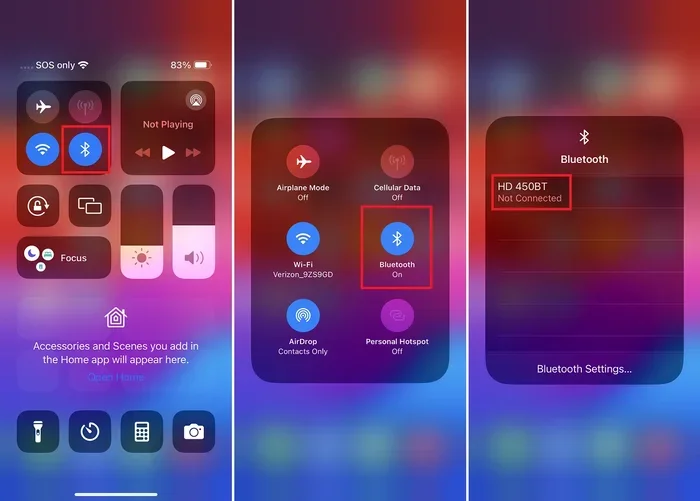
This is the simplest fix and it works surprisingly often. Here is what to do:
- Open the Settings app on your iPhone.
- Tap Bluetooth.
- Turn the switch off. Wait about 10 seconds.
- Turn the switch back on.
That is it. This basic iPhone Bluetooth reset clears temporary glitches and forces your phone to re-scan for available devices. Many people skip this step because it seems too simple, but it resolves the issue more often than you would think.
Step 2: Restart Your iPhone
If toggling Bluetooth did not work, the next step is to restart your entire device. A restart clears the Bluetooth module and refreshes all wireless connections.
Here is how to restart most iPhones:
- Press and hold the side button and either volume button until the power slider appears.
- Slide to power off.
- Wait 30 seconds.
- Press and hold the side button again until you see the Apple logo.
After your iPhone turns back on, go to Settings and check Bluetooth. This reset Bluetooth iPhone method clears deeper software hiccups that a simple toggle cannot reach.
Step 3: Forget the Problem Device and Re-Pair
Sometimes the issue lives in the pairing data between your iPhone and a specific device. Forgetting the device and pairing it fresh often solves this.
- Go to Settings > Bluetooth.
- Find the device giving you trouble.
- Tap the small (i) icon next to the device name.
- Tap Forget This Device.
- Confirm your choice.
- Put your Bluetooth device in pairing mode.
- Tap the device name on your iPhone to pair it again.
This method works great for Bluetooth headphones iPhone issues, speakers, keyboards, and car audio systems. The old pairing data gets wiped clean, and you start fresh.
Step 4: Reset All Settings
If the above steps did not fix it, you can try resetting all settings on your iPhone. This does not delete your photos, apps, or data. It only resets system settings like Bluetooth, Wi-Fi, and notifications to their defaults.
- Open Settings > General > Transfer or Reset iPhone.
- Tap Reset.
- Choose Reset All Settings.
- Enter your passcode if prompted.
- Confirm the reset.
Your iPhone will restart. After it boots back up, you will need to re-enter Wi-Fi passwords and adjust a few preferences. But your Bluetooth settings will be completely fresh. This is a powerful iPhone Bluetooth settings fix for stubborn problems.
Step 5: Update Your iOS
Apple regularly releases updates that fix bugs, including Bluetooth error iPhone issues. An outdated operating system can cause all kinds of wireless problems.
- Go to Settings > General > Software Update.
- If an update is available, tap Download and Install.
- Wait for the update to complete.
After updating, check your Bluetooth connection. Many users report that a simple iOS update fixed their Bluetooth pairing problems immediately.
Quick Fixes Before You Reset
Before you dive into a full reset, try these quick checks. They take less than a minute and often solve the problem on the spot.
Check Your Distance
Make sure your Bluetooth device is within 10 to 15 feet of your iPhone. Walls, furniture, and even your own body can weaken the signal. Move closer and see if the connection improves.
Check for Interference
Other wireless devices can cause Bluetooth interference iPhone problems. If you are near a Wi-Fi router, a microwave, or a USB 3.0 hub, move away and try again. These devices operate on similar frequencies and can clash with Bluetooth signals.
Check Battery Levels
Low battery on either your iPhone or the Bluetooth device can cause connection drops. Charge both devices and try connecting again. Some devices enter a power-saving mode that disables Bluetooth until they are charged.
Check Airplane Mode
Make sure Airplane Mode is off. When Airplane Mode is on, it disables all wireless connections including Bluetooth. Swipe down from the top-right corner of your screen and make sure the airplane icon is not highlighted.
Quick Tip: If your Bluetooth device was working fine yesterday but not today, the most likely cause is a minor software glitch. Start with the toggle and restart methods before trying anything more complex.
How to Forget and Reconnect Bluetooth Devices
Knowing how to manage your paired devices is an essential part of Bluetooth troubleshooting iPhone. Your iPhone stores a list of every device you have ever connected to. Over time, this list can become cluttered and cause confusion.
How to View All Paired Devices
Go to Settings > Bluetooth. You will see a list of devices under My Devices and Other Devices. Devices under My Devices are already paired. Devices under Other Devices are available for new pairings.
When to Forget a Device
You should forget a Bluetooth device when:
- It keeps disconnecting randomly.
- It will not pair even though it is close to your iPhone.
- You no longer use the device and want to clean up your list.
- You are selling or giving away the other device.
- The device shows up but audio or data does not flow properly.
How to Clean Up Your Bluetooth List
Go through your paired devices and forget any you no longer use. This keeps your Bluetooth list lean and reduces the chance of connection conflicts. A clean Bluetooth list means fewer Bluetooth not showing up iPhone problems.
When to Reset Network Settings Instead
Sometimes the problem goes deeper than Bluetooth alone. Your iPhone’s network settings control Wi-Fi, cellular, VPN, and Bluetooth all at once. When all these connections are acting up together, a network settings reset is the right move.
What Happens When You Reset Network Settings?
This reset clears all saved Wi-Fi passwords, VPN configurations, and Bluetooth pairings. You will need to reconnect to Wi-Fi and pair your Bluetooth devices again. But it fixes deep system-level issues that a regular Bluetooth reset cannot touch.
How to Reset Network Settings
- Open Settings > General > Transfer or Reset iPhone.
- Tap Reset.
- Choose Reset Network Settings.
- Enter your passcode.
- Confirm the reset.
Your iPhone will restart. After it boots, reconnect to Wi-Fi and re-pair your Bluetooth devices. This is one of the most effective iOS Bluetooth fix methods for persistent problems.
Expert Insight: Many Apple support technicians recommend resetting network settings as the go-to fix before escalating to more advanced troubleshooting. It resolves about 70% of stubborn Bluetooth issues without any data loss.
Special Tips for AirPods and Apple Devices
AirPods and other Apple devices have their own reset process. If you are wondering how to reset iPhone Bluetooth specifically for AirPods, here is what you need to know.
How to Reset AirPods
Resetting AirPods is different from resetting Bluetooth on the iPhone itself:
- Place both AirPods in the charging case.
- Close the lid and wait 30 seconds.
- Open the lid.
- Press and hold the setup button on the back of the case for about 15 seconds.
- The status light will flash amber, then white.
- Your AirPods are now reset and ready to pair.
How to Reset Beats and Other Apple Accessories
Beats headphones and other Apple accessories also have their own reset buttons. Check the manufacturer’s instructions for the specific model. In most cases, holding down a power or pairing button for 10 seconds does the trick.
Expert Tips to Prevent Bluetooth Issues
Prevention is always better than cure. Here are simple habits that keep your Bluetooth connection iPhone running smoothly.
Keep Your iPhone Updated
Apple releases iOS updates that fix bugs and improve performance. Keeping your phone on the latest version prevents many Bluetooth problems before they start. Turn on automatic updates in Settings > General > Software Update.
Manage Your Paired Devices
Do not let your Bluetooth list grow endlessly. Periodically go through your paired devices and remove ones you no longer use. A shorter list means fewer potential conflicts and faster pairing.
Avoid Extreme Temperatures
Both your iPhone and Bluetooth devices perform poorly in extreme heat or cold. If your phone is overheating, Bluetooth may disconnect or refuse to turn on. Keep your devices at room temperature for best results.
Watch for Interference in Crowded Spaces
In places like airports, malls, and offices, dozens of Bluetooth devices compete for the same signal. This Bluetooth low energy congestion can cause drops and delays. If you notice problems in crowded areas, move to a quieter spot.
Restart Bluetooth Devices Regularly
Just like your iPhone, Bluetooth headphones and speakers benefit from occasional restarts. Power them off completely, wait a few seconds, and turn them back on. This clears their memory and refreshes the connection.
Key Takeaways
- Toggle and restart first: The simplest how to reset iPhone Bluetooth steps solve most problems. Always try these before anything else.
- Forget and re-pair for device-specific issues: If one device gives you trouble, clearing its pairing data and starting fresh works wonders.
- Reset all settings for deeper fixes: This clears Bluetooth settings without touching your personal data.
- Reset network settings for stubborn problems: This is the most powerful reset option and fixes deep system-level Bluetooth issues.
- Keep iOS updated: Software updates patch bugs that cause Bluetooth connectivity issues.
- Manage your paired device list: A clean Bluetooth list prevents conflicts and speeds up pairing.
- Prevention beats troubleshooting: Simple habits like restarting devices and avoiding interference keep Bluetooth working reliably.
Conclusion
Dealing with Bluetooth problems on your iPhone does not have to be stressful. Now that you know exactly how to reset iPhone Bluetooth using multiple methods, you can tackle almost any connection issue on your own. Start with the simple toggles and restarts. Move to forgetting and re-pairing devices. And if needed, dig deeper with network settings resets.
Remember that most Bluetooth problems are temporary and easy to fix. The steps in this guide cover everything from basic to advanced troubleshooting. Whether it is your AirPods, car stereo, wireless speaker, or keyboard, the same principles apply.
Keep your iPhone updated, manage your paired devices, and stay aware of signal interference. These small habits go a long way in keeping your Bluetooth connections strong and reliable. Try these fixes the next time your Bluetooth acts up and you will be back to streaming, calling, and connecting in no time.
The best part? You do not need any special tools or technical knowledge. Just your iPhone and a few minutes of your time. Now get out there and fix that Bluetooth connection.
Frequently Asked Questions
Why won’t my iPhone find any Bluetooth devices?
This usually happens when Bluetooth is turned off, your iPhone is too far from the device, or there is signal interference. Start by toggling Bluetooth off and on, then restart your iPhone. If the problem persists, try forgetting all paired devices and scanning for new ones.
How do I reset Bluetooth on iPhone without losing data?
You can reset Bluetooth settings without losing any personal data. Go to Settings > General > Transfer or Reset iPhone > Reset > Reset All Settings. This resets system preferences including Bluetooth but keeps your photos, apps, and files safe.
Why does my Bluetooth keep disconnecting from my iPhone?
Frequent disconnections are often caused by distance, interference from other wireless devices, or outdated software. Make sure both devices are within range, move away from Wi-Fi routers, and check for iOS updates. If the issue continues, forget the device and re-pair it.
Can I reset Bluetooth on my iPhone without resetting network settings?
Yes. Toggling Bluetooth off and on, restarting your iPhone, and forgetting specific devices all reset Bluetooth without touching your network settings. Only use the network settings reset if these basic steps do not solve your problem.
How long does it take to reset iPhone Bluetooth?
Most Bluetooth resets take less than 5 minutes. A simple toggle takes seconds. Forgetting and re-pairing a device takes about 2 minutes. A full network settings reset may take up to 10 minutes because your phone needs to restart and you need to reconnect to Wi-Fi.
Do I need to reset my Bluetooth device separately?
Sometimes yes. If your iPhone finds the device but it will not connect properly, the other device may need its own reset. Check the manufacturer’s instructions for resetting Bluetooth headphones, speakers, keyboards, or car audio systems.