Where Do I Change the Date and Time on All Devices
Changing the date and time on all devices is simple once you know where to look. Whether you need to adjust the clock in your car’s infotainment system, smartphone, or computer, this guide walks you through every step. We focus heavily on automotive settings since your vehicle’s clock affects navigation, scheduling, and safety features. You will learn how to set automatic time zones, manually adjust clocks, and sync your devices effortlessly.
Have you ever glanced at your car dashboard and noticed the clock is completely wrong? Maybe you just moved to a new time zone, or perhaps your vehicle lost power and the clock reset to a default date. Whatever the reason, knowing where to change the date and time on all your devices saves you frustration. This guide covers everything from your car’s infotainment screen to your phone and computer. We will walk you through each device step by step so you never have to wonder again.
The date and time on your car matter more than you might think. Your navigation system uses the clock to calculate arrival times accurately. Your vehicle’s maintenance reminders depend on correct dates to schedule oil changes and inspections. Even your insurance and connected services log data based on your car’s internal clock. When the time is off, all of these systems lose accuracy. That is why learning how to adjust your car clock and sync it with other devices is so important.
Key Takeaways
- Car Infotainment Systems: Most modern vehicles let you change date and time through the settings or display menu on the dashboard screen.
- Automatic Time Zone Updates: Many cars and devices can sync with GPS or network signals to adjust the clock automatically.
- Manual Adjustment Is Always Available: If auto-sync fails, you can always set the time and date by hand in your vehicle or device settings.
- Multiple Devices Need Syncing: Keeping your phone, car, and computer clocks aligned improves accuracy for appointments and navigation.
- Common Mistakes Cause Errors: Avoid skipping time zone selection and forgetting to save changes after adjusting the clock.
- Automotive Clocks Affect More Than Time: Your car’s clock impacts trip logging, maintenance reminders, and connected service features.
📑 Table of Contents
- Where to Change Date and Time in Your Car
- Automatic vs Manual Time Adjustment in Vehicles
- Changing Date and Time on Your Phone
- Adjusting Date and Time on Computers and Tablets
- Why Your Car Clock Might Be Wrong
- Quick Tips for Keeping All Your Clocks Synced
- Common Mistakes When Changing Date and Time
- Expert Insights on Vehicle Clock Accuracy
- Key Takeaways
- Conclusion
Where to Change Date and Time in Your Car
Most people do not think about their car clock until it is wrong. The good news is that adjusting the date and time in your vehicle is usually straightforward. Every car brand places the setting in a slightly different location, but the general process is similar across most models.
Step-by-Step: Adjusting the Clock in Your Vehicle
Start by pressing the menu or settings button on your infotainment screen. Look for an option labeled “Settings,” “System,” or “Vehicle Settings.” Once inside settings, find the “Clock,” “Date and Time,” or “Display” section. Here you can toggle between automatic and manual mode. If automatic mode is on, your car pulls the time from GPS satellites or your phone connection. If it is off, you can enter the correct date and time by hand using the on-screen keyboard or steering wheel controls.
After entering the correct information, press “Save” or “Apply.” Some vehicles ask you to confirm the time zone as well. Always double-check that your time zone matches your current location. This small step prevents your clock from drifting again after a restart.
Common Car Brands and Their Clock Settings Paths
Different car manufacturers organize their settings menus differently. Here are the most common paths you will find:
- Toyota and Lexus: Press the “Settings” icon, then select “System Settings,” and choose “Clock.”
- Honda and Acura: Go to “Settings,” tap “Display,” and find the “Clock” option.
- Ford and Lincoln: Select “Settings,” then “System,” and choose “Date and Time.”
- Chevrolet and GMC: Tap the “Settings” gear icon, then scroll to “Vehicle” and select “Clock.”
- BMW and Mercedes-Benz: Access “Settings,” then “System,” and look for “Time/Date Settings.”
If you cannot find the clock setting, try searching for “clock” or “time” in your car’s search bar. Most modern infotainment systems include a built-in search feature that makes this easy.
Automatic vs Manual Time Adjustment in Vehicles
Understanding the difference between automatic and manual time zone and clock settings helps you decide which method works best for your lifestyle.
Automatic Time Sync
Automatic sync uses GPS or a connected phone to keep your car clock accurate at all times. This feature is incredibly convenient, especially if you travel across time zones frequently. When you drive from one state to another, your car updates the clock without you lifting a finger. Most new vehicles come with this feature enabled by default. You can find the auto-sync toggle in your car’s clock settings menu. If the option is grayed out, check that your GPS signal is active or that your phone is properly connected through Bluetooth or Apple CarPlay and Android Auto.
Manual Time Adjustment
Manual adjustment gives you full control over your car clock. You enter the date, time, and time zone yourself. This method works well if your vehicle is older or if you prefer a hands-on approach. Manual settings also come in handy when GPS signals are weak, such as in tunnels or remote areas. To set the clock manually, follow the same steps to reach the clock menu, turn off auto-sync, and use the on-screen controls to input the correct values. Always save your changes before exiting the menu.
Changing Date and Time on Your Phone
Your phone is one of the most important devices for staying connected while driving. Keeping its clock synced with your car ensures that navigation apps, calendar reminders, and hands-free calling features work seamlessly. Here is how to adjust the date and time on both major phone platforms.
iPhone Date and Time Settings
On your iPhone, open the “Settings” app and tap “General.” Scroll down and select “Date & Time.” Here you will see a toggle for “Set Automatically.” When this is on, your iPhone uses network-based time zone data to keep the clock accurate. If you turn it off, you can manually set the date, time, and time zone. Many drivers prefer keeping this on so their phone always matches their car clock without any extra effort.
Android Date and Time Settings
On Android phones, open “Settings” and tap “System,” then “Date and Time.” You will find a similar “Automatic Date and Time” toggle. When enabled, your phone connects to network servers to sync the clock. You can also set a specific time zone manually by tapping “Time Zone” and searching for your current location. Android devices offer more customization, letting you choose between 12-hour and 24-hour formats as well.
Adjusting Date and Time on Computers and Tablets
Whether you use a laptop, desktop, or tablet, keeping the correct date and time ensures your appointments, emails, and software updates run smoothly. Computers also rely on accurate clocks for security certificates and online logins.
Windows PC Clock Settings
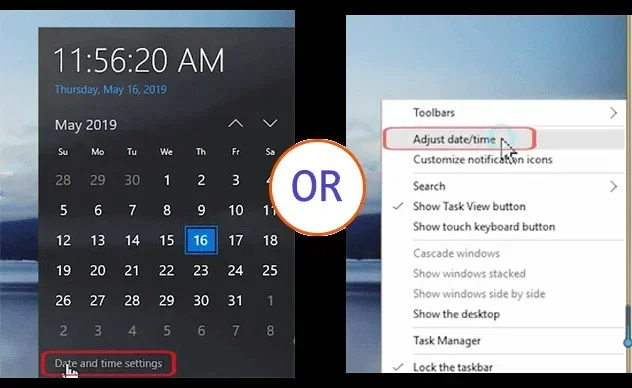
On a Windows computer, right-click the clock in the bottom-right corner of your screen and select “Adjust date/time.” Toggle on “Set time automatically” and “Set time zone automatically.” If you need to adjust the time manually, turn off the automatic options and use the up and down arrows to set the correct values. Windows also lets you sync with an internet time server for extra accuracy.
Mac Clock Settings
On a Mac, click the Apple menu in the top-left corner and select “System Preferences” or “System Settings.” Click “General,” then “Date & Time.” Enable “Set date and time automatically” to sync with Apple’s time servers. You can also lock the settings by clicking the padlock icon and entering your password, which prevents accidental changes.
Why Your Car Clock Might Be Wrong
A car clock that loses or gains time is more common than you think. Several factors can cause this issue, and understanding them helps you fix the problem faster.
Battery or Power Issues
If your car battery is weak or has been disconnected, the internal clock will reset. This is because the clock relies on a small backup battery or the main battery to retain its settings. After a jump start or battery replacement, you may need to reset the date and time manually. Some vehicles also lose clock settings after a complete power loss, such as when the lights were left on overnight.
Time Zone Changes After Travel
Traveling across time zones can throw off your car clock if auto-sync is disabled. Your vehicle may not realize you have crossed into a new time zone unless it has GPS-based automatic updating. If you frequently travel, make sure your car’s auto-sync feature is turned on. This simple setting prevents the clock from being wrong every time you return from a trip.
Software Glitches and Updates
Sometimes a software update or glitch causes the car clock to malfunction. Infotainment systems occasionally need a restart after a software update to apply new time settings correctly. If your clock is acting strangely, try turning your car off and back on. If the problem persists, check with your dealer for any available system updates for your vehicle model.
Quick Tips for Keeping All Your Clocks Synced
Keeping your car, phone, and computer clocks in sync is easier than it sounds. Here are some quick tips that make a big difference:
- Enable automatic time sync on every device you use regularly. This single setting keeps most clocks accurate without any effort.
- Check your time zone after traveling or moving to a new area. A wrong time zone throws off all your clocks even if the actual time is correct.
- Restart your infotainment system once a month. This clears minor glitches that can cause clock drift over time.
- Use the same time format across devices. Choosing either 12-hour or 24-hour format consistently reduces confusion when checking the time on different screens.
- Pair your phone with your car using Bluetooth or a wired connection. This allows your phone’s accurate clock to feed into your car’s infotainment system automatically.
- Replace your car battery when it shows signs of weakness. A failing battery often causes the clock to reset, which leads to incorrect date and time settings.
Common Mistakes When Changing Date and Time
Even when you know where to find the clock settings, small mistakes can cause problems. Here are the most common errors people make and how to avoid them.
Forgetting to Select the Correct Time Zone
Setting the right time but the wrong time zone means your clock will still be inaccurate. Always confirm that your time zone matches your current location. If you travel, update the time zone before you start driving so your navigation and arrival estimates stay correct.
Not Saving Changes
It sounds simple, but many people adjust the clock and forget to press “Save” or “Apply.” Always look for a confirmation button before exiting the settings menu. If your car turns off or the screen resets, unsaved changes will be lost.
Ignoring Daylight Saving Time
Daylight saving time changes catch people off guard every year. Make sure your auto-sync feature handles daylight saving updates automatically. If you use manual settings, remember to adjust your clock forward or back by one hour when daylight saving time begins or ends.
Assuming All Devices Will Sync Automatically
Not every device connects to the same network or GPS signal. Your car might auto-sync perfectly, but your phone or tablet might need a separate setting adjustment. Check each device individually to ensure all clocks display the same time.
Expert Insights on Vehicle Clock Accuracy
Automotive technicians and infotainment specialists agree that a car clock affects more than just what time it shows. Service intervals, warranty tracking, and even insurance claim timestamps rely on your vehicle’s internal clock being accurate. Many drivers do not realize that a clock set just a few minutes off can create confusion when coordinating service appointments or reviewing driving data from their vehicle’s black box recorder.
Modern vehicles with connected services sync their clocks through cloud-based servers. This means that if your car has an active data connection, the clock should stay accurate within a few seconds of the actual time. However, older vehicles or models without connectivity depend entirely on manual input or GPS signals alone. Understanding your vehicle’s capabilities helps you choose the best method for keeping the clock correct.
If you own a newer car with over-the-air updates, your manufacturer may push clock corrections automatically. These updates fix known time sync issues and improve the accuracy of your vehicle’s internal systems. Keeping your car software up to date is one of the easiest ways to maintain a reliable clock without any extra effort on your part.
Key Takeaways
- Car Infotainment Systems: Most modern vehicles let you change date and time through the settings or display menu on the dashboard screen.
- Automatic Time Zone Updates: Many cars and devices can sync with GPS or network signals to adjust the clock automatically.
- Manual Adjustment Is Always Available: If auto-sync fails, you can always set the time and date by hand in your vehicle or device settings.
- Multiple Devices Need Syncing: Keeping your phone, car, and computer clocks aligned improves accuracy for appointments and navigation.
- Common Mistakes Cause Errors: Avoid skipping time zone selection and forgetting to save changes after adjusting the clock.
- Automotive Clocks Affect More Than Time: Your car’s clock impacts trip logging, maintenance reminders, and connected service features.
Conclusion
Knowing where to change the date and time on all your devices is a simple skill that makes everyday life smoother. Your car clock affects navigation, maintenance schedules, and connected services, so keeping it accurate matters more than most people realize. Whether you prefer automatic sync through GPS and network connections or manual adjustment using your dashboard controls, the process is quick and easy once you know the right steps. Start by checking your car’s infotainment settings, then sync your phone and computer for complete accuracy across every device you use.
Take a few minutes today to check the clocks on your car, phone, and computer. A small adjustment now prevents confusion and errors later. With automatic sync enabled and the right time zone selected, you will never have to worry about a wrong clock again. Share this guide with friends and family who might be struggling with the same issue, and help everyone stay on time.
Frequently Asked Questions
How do I change the date and time in my car?
Go to your car’s infotainment settings menu, look for “Clock” or “Date and Time,” and either toggle auto-sync on or enter the values manually. The exact path varies by car brand, so check your owner’s manual if you cannot find the option.
Why does my car clock keep resetting?
A car clock often resets after a battery disconnect or when the car battery is weak. It can also happen if the auto-sync feature is turned off and the clock loses power during a restart. Check your battery health and ensure auto-sync is enabled to prevent this.
Can I sync my phone clock with my car clock?
Yes, many cars sync their clock with your phone through Bluetooth, Apple CarPlay, or Android Auto. When your phone has automatic time enabled, it usually shares the correct time with your car’s infotainment system automatically.
What should I do if my car clock is off by hours after traveling?
Check your time zone setting in the car clock menu. If auto-sync is off, manually update the time zone to match your current location. If auto-sync is on but the clock is still wrong, restart your infotainment system and let it reconnect to GPS satellites.
Does daylight saving time affect my car clock?
If your car has automatic time sync enabled, it will adjust for daylight saving time on its own. If you use manual settings, you will need to change the clock forward or back by one hour when daylight saving time starts or ends.
How accurate are car clocks compared to phone clocks?
Modern car clocks synced through GPS or phone connections are very accurate, usually within a few seconds of the correct time. Older cars or those without connectivity may drift slightly over time, which is why periodic manual checks are helpful.