How Can I Pair My iPhone to My Car Bluetooth Setup
Pairing your iPhone to your car Bluetooth is easier than you think. This guide walks you through every step of the iPhone car Bluetooth setup process. You will learn how to connect wirelessly, fix common problems, and get the best sound quality. Whether you have a new or older vehicle, these tips will help you stay connected on the road.
Have you ever jumped into your car and wished your iPhone would just connect already? You are not alone. Millions of people ask themselves this question every day. The good news is that how can I pair my iPhone to my car has a straightforward answer. Once you know the steps, the whole process becomes second nature.
Bluetooth technology has made driving more connected and safer. You can stream music, take calls, and use navigation without touching your phone. But the first time you try to set it up, it can feel confusing. This guide breaks it all down into simple, easy-to-follow steps. Whether you drive a sedan, SUV, or truck, this guide works for you.
We will cover everything from the basics to advanced tips. You will learn about compatibility, the pairing process, and how to fix common problems. By the end, you will be confident in your iPhone connectivity skills. Let us get started.
Key Takeaways
- Quick Pairing: Most modern cars support Bluetooth, and the pairing process takes less than two minutes.
- Apple CarPlay Matters: Using Apple CarPlay gives you a smoother experience than standard Bluetooth alone.
- Troubleshooting Is Simple: Most connection issues can be fixed by resetting Bluetooth or updating your iPhone.
- Keep Devices Updated: Always check for the latest iOS and car firmware updates before pairing.
- Multiple Devices Work: You can pair more than one phone to your car, but only one can be active at a time.
- Sound Quality Improves: Adjusting settings on both your phone and car stereo boosts audio performance.
📑 Table of Contents
Understanding iPhone and Car Bluetooth Compatibility
Before you dive into pairing, it helps to understand what makes the connection work. Not all cars and iPhones are the same, but most modern ones play nicely together. Knowing the basics saves you time and frustration later.
What Bluetooth Versions Matter for Your Car
Bluetooth comes in different versions, and the version your car supports affects performance. Most cars made after 2015 use Bluetooth 4.0 or newer. This version handles audio streaming and phone calls with ease. If your car is older, it might still work, but with fewer features.
Your iPhone also plays a role here. iPhones from the iPhone 5 onward support Bluetooth 4.0 and above. The latest iPhones use Bluetooth 5.0 and newer. This means better range, faster connections, and improved sound quality. When both devices support recent Bluetooth versions, the wireless connection feels seamless.
Does Every Car Support iPhone Pairing?
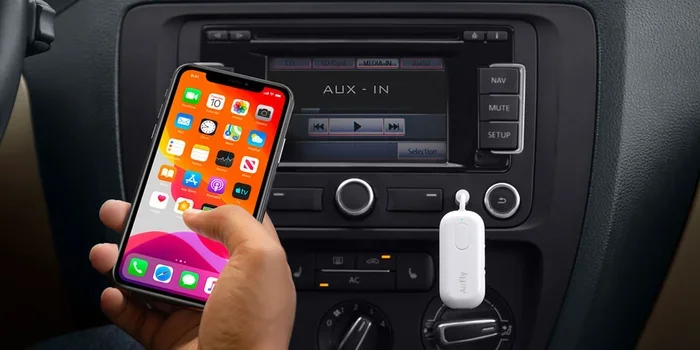
Most cars sold today include Bluetooth as a standard feature. Even budget-friendly models often come with wireless connectivity. However, very old vehicles or basic models might lack this capability. If your car does not have Bluetooth, you can use an aftermarket Bluetooth adapter.
These adapters plug into your car stereo or cigarette lighter. They add wireless functionality to almost any vehicle. You can find them online or at auto parts stores for under fifty dollars. They are a great option if you want iPhone connectivity in an older car.
Check Your Car Infotainment System
The car infotainment system is the brain behind your stereo and display screen. Before pairing, locate the Bluetooth settings on your car. Most systems have a “Phone” or “Settings” menu on the display. Look for a Bluetooth icon or a “Pair New Device” option.
If you are unsure where to find it, check your car manual. The manual will guide you to the right menu. Some cars also have a physical Bluetooth button on the steering wheel. Pressing it can jump-start the pairing process right away.
Step-by-Step Bluetooth Pairing Process
Now that you understand compatibility, let us walk through the actual pairing process. Follow these steps carefully, and you will be connected in no time.
Step One: Prepare Your iPhone
Start by making sure your iPhone is ready. Open the Settings app on your home screen. Tap on Bluetooth and toggle it on. Your iPhone will immediately start searching for nearby devices.
Next, make sure your iPhone is not connected to another device. If it is already paired with headphones or a speaker, disconnect them temporarily. This prevents confusion during the pairing process. Keep your iPhone within a few feet of your car stereo for the best results.
Step Two: Put Your Car in Pairing Mode
Now turn your attention to the car. Go to the infotainment system and find the Bluetooth menu. Select the option to pair a new device. Your car will start broadcasting its availability.
Some cars require you to hold down a button for a few seconds to enter pairing mode. Check your car manual if you are unsure. You should see a message on the screen saying “Searching for devices” or something similar.
Step Three: Find and Select Your Car on iPhone
Go back to your iPhone. Under the Other Devices section, you should see your car name appear. Tap on it to start the connection. Your iPhone and car will exchange information and create a pairing bond.
You might see a confirmation code on both screens. Make sure the codes match, then tap “Pair” on both devices. This step ensures no unauthorized device connects to your car. Once paired, your iPhone car Bluetooth connection is established.
Step Four: Test the Connection
After pairing, test everything. Play some music from your iPhone and see if it comes through your car speakers. Try making a call to confirm the microphone works. Check if Siri can read your messages aloud.
If everything works, you are all set. If something is off, do not worry. We will cover troubleshooting in the next section. A successful first test means your wireless connection is stable and ready for daily use.
Apple CarPlay vs. Standard Bluetooth Connection
Many people confuse Apple CarPlay with regular Bluetooth. They are related but serve different purposes. Understanding the difference helps you get the most out of your car and iPhone.
What Is Apple CarPlay?
Apple CarPlay is Apple’s system that mirrors your iPhone on your car screen. It gives you access to maps, music, messages, and calls through a simplified interface. CarPlay works over both USB and wireless Bluetooth connections.
With CarPlay, you get a larger display and better controls. You can use Siri for voice commands, which keeps your eyes on the road. CarPlay also supports third-party apps like Spotify, Google Maps, and WhatsApp. It makes the driving experience much more intuitive.
Standard Bluetooth Without CarPlay
Standard Bluetooth handles calls and basic audio streaming. It does not display your phone screen on the car display. You cannot use navigation apps directly through the car interface. It works fine for music and calls but lacks the smart features of CarPlay.
Most people prefer CarPlay because it feels like an extension of their iPhone. If your car supports wireless CarPlay, you get the best of both worlds. You get hands-free calling, music streaming, and smart navigation all at once.
Which One Should You Use?
If your car supports Apple CarPlay, always use it. It provides a richer experience than standard Bluetooth alone. If your car does not support CarPlay, standard Bluetooth still works great for calls and music. Consider upgrading your stereo to one that supports CarPlay if you want more functionality.
Troubleshooting Common Pairing Issues
Even with the best setup, things can go wrong. Bluetooth pairing issues are common, but they are usually easy to fix. Here are the most frequent problems and how to solve them.
iPhone Does Not Find the Car
If your iPhone does not see your car, the first thing to check is distance. Move your iPhone closer to the car stereo. Bluetooth has a limited range, usually around thirty feet. Being too far away can prevent detection.
Next, make sure Bluetooth is turned on and your car is in pairing mode. Sometimes restarting both devices helps. Turn off your car, restart your iPhone, and try again. This simple step resolves many Bluetooth pairing problems.
Connection Keeps Dropping
A dropping connection can be frustrating. This often happens when your phone is too far from the car or when there is interference. Other Bluetooth devices nearby can cause signal conflicts. Try turning off other wireless devices temporarily to see if that helps.
Another common cause is outdated software. Make sure your iPhone is running the latest version of iOS. Similarly, check if your car has a firmware update available. Updated software often fixes connection stability issues and improves iPhone connectivity.
Audio Sounds Distorted or Low Quality
If your music sounds crackly or quiet, the audio settings might need adjusting. First, check the volume on both your iPhone and car stereo. Sometimes the car volume is too low, even when the phone volume is high.
Also, check if your car is using the right audio profile. Some cars offer “Hands-Free” and “Music” profiles. Make sure your car is set to the music profile for better audio quality. If you use CarPlay, the audio quality is usually much better than standard Bluetooth.
Siri Does Not Work Through the Car
Siri needs specific permissions to work during driving. Go to your iPhone Settings and tap on “Siri & Search.” Make sure “Listen for Hey Siri” is turned on. Also check that Siri is enabled in the car Bluetooth settings.
If Siri still does not respond, try resetting the Bluetooth connection. Delete the car from your paired devices and pair it again. This refreshes the connection and often fixes Siri issues quickly.
Tips to Improve Your Bluetooth Connection
Once your iPhone is paired, you can take steps to make the experience even better. These tips help with sound quality, reliability, and convenience.
Keep Your Devices Close
Bluetooth works best when devices are within range. Keep your iPhone in a mount or holder on the dashboard or console. Avoid stuffing it deep in a bag or under a seat. The closer your phone is to the car antenna, the stronger the signal.
Disable Unnecessary Bluetooth Devices
If you have multiple Bluetooth devices in your car, they can interfere with each other. Turn off Bluetooth on devices you are not using. This includes smartwatches, tablets, or headphones. Reducing the number of active devices gives your car connection more bandwidth.
Use a USB Cable for CarPlay When Possible
While wireless CarPlay is convenient, a USB cable connection is often more stable. If you experience dropouts with wireless, try plugging in with a Lightning or USB-C cable. The wired connection gives you a consistent, high-quality audio stream every time.
Restart Bluetooth Weekly
A quick restart can keep things running smoothly. Turn off Bluetooth on your iPhone and turn it back on once a week. This clears out any minor glitches and refreshes the connection. It takes just a few seconds but keeps your iPhone car Bluetooth running at its best.
Update Your iPhone and Car Software
Software updates bring bug fixes and new features. Check for iOS updates in your Settings under “General” and “Software Update.” For your car, visit the manufacturer website or consult your dealer about firmware updates.
Keeping both devices updated ensures the best compatibility. New updates often improve Bluetooth performance and add support for newer features like CarPlay. This small habit goes a long way in maintaining a strong connection.
Common Mistakes to Avoid When Pairing
Even experienced users make mistakes when setting up Bluetooth. Avoiding these common errors saves you time and headache.
Skipping the car manual. Every car system is slightly different. The manual tells you exactly how to enter pairing mode and manage connections. Skipping this step can lead to confusion and failed attempts.
Not deleting old pairings. If your car remembers an old phone, it might try connecting to that instead of your new one. Go into your car Bluetooth settings and remove old devices before pairing a new phone.
Ignoring software updates. Outdated software is one of the top causes of Bluetooth problems. Always update both your iPhone and car firmware before troubleshooting.
Pairing in a crowded area. Busy parking lots or garages have many Bluetooth signals competing for attention. Pair your car at home or in a quiet area for the smoothest experience.
Forgetting to grant permissions. When you pair your iPhone, the car will ask for access to contacts and calls. Denying these permissions limits what the car can do. Allow them so you can make calls and use Siri without issues.
Key Takeaways
- Quick Pairing: Most modern cars support Bluetooth, and the pairing process takes less than two minutes.
- Apple CarPlay Matters: Using Apple CarPlay gives you a smoother experience than standard Bluetooth alone.
- Troubleshooting Is Simple: Most connection issues can be fixed by resetting Bluetooth or updating your iPhone.
- Keep Devices Updated: Always check for the latest iOS and car firmware updates before pairing.
- Multiple Devices Work: You can pair more than one phone to your car, but only one can be active at a time.
- Sound Quality Improves: Adjusting settings on both your phone and car stereo boosts audio performance.
Conclusion
So, how can I pair my iPhone to my car? The answer is simpler than you might think. With just a few steps, you can connect your iPhone to car Bluetooth and enjoy hands-free calling, music streaming, and navigation on every drive. The process works for almost any car made in the last decade or so.
Remember to check compatibility first, follow the pairing steps carefully, and use Apple CarPlay when possible. If problems arise, the troubleshooting tips in this guide will help you fix them fast. Keeping your devices updated and your Bluetooth settings clean ensures a reliable connection every time.
Driving should be convenient and enjoyable. A strong Bluetooth connection makes that possible. Take a few minutes today to pair your devices, and you will wonder how you ever drove without it. Happy connecting, and safe travels.
Frequently Asked Questions
How long does it take to pair my iPhone to my car?
The pairing process usually takes less than two minutes. Once both devices are in pairing mode, they connect quickly. After the first time, your iPhone should reconnect automatically every time you start the car.
Can I pair more than one iPhone to my car Bluetooth?
Yes, most car infotainment systems can store multiple paired devices. However, only one device can be active at a time. When you enter the car, the most recently connected phone will take over the connection automatically.
Why does my iPhone keep disconnecting from my car Bluetooth?
Disconnections often happen due to distance, interference, or outdated software. Make sure both devices are updated and within range. Restarting Bluetooth on both devices usually fixes the issue quickly.
Do I need Apple CarPlay to connect my iPhone to my car?
No, Apple CarPlay is optional. Standard Bluetooth handles calls and music without CarPlay. CarPlay simply adds a better interface, Siri integration, and app support. If your car supports it, you should definitely use it.
Can I stream music through Bluetooth while charging my iPhone?
Yes, you can stream music and charge your iPhone at the same time. Use a USB cable connected to the car stereo or a USB adapter. This keeps your phone powered and your music flowing without interruption.
Is Bluetooth safe to use while driving?
Yes, Bluetooth is designed to be safe for driving. It allows hands-free calling and voice commands, which keeps your hands on the wheel and eyes on the road. Always use Siri or your car controls to manage calls and messages while driving.