How Do I Navigate With Apple CarPlay While Driving
Navigating with Apple CarPlay while driving is simple, safe, and surprisingly easy. This guide walks you through every step of setting up Apple CarPlay navigation, choosing the best apps, and using hands-free GPS on the road. You will learn how to get turn-by-turn directions, use Siri voice commands, and avoid common mistakes that trip up new users. Whether you drive a new car or an older model, this guide helps you make the most of CarPlay maps and stay focused on the road ahead.
Getting behind the wheel should feel simple and stress-free. One of the best ways to make your drives smoother is by using Apple CarPlay navigation. It turns your car’s screen into a powerful GPS tool that keeps your eyes on the road and your hands on the wheel.
But how do you actually get it working? And which app should you pick? This guide answers every question you have about navigating with Apple CarPlay. You will learn the setup steps, discover the best apps, pick up safety tips, and solve common problems. By the end, you will feel confident using CarPlay GPS every time you drive.
Let us start with the basics. Apple CarPlay is a feature that mirrors the most useful parts of your iPhone onto your car’s display. It works with navigation, music, calls, and messages. The navigation part is what most people care about the most. It gives you turn-by-turn directions just like a regular GPS device, but with the smarts of your iPhone.
Key Takeaways
- Easy Setup: Connecting your iPhone to Apple CarPlay takes only a few minutes and works with both wired and wireless options.
- Multiple Apps: You can use Apple Maps, Google Maps, Waze, and other top CarPlay navigation apps for the best experience.
- Hands-Free Safety: Siri voice commands let you control navigation without taking your hands off the wheel.
- Real-Time Traffic: Most CarPlay GPS apps provide live traffic updates and automatic rerouting.
- Quick Tips Help: Small adjustments like changing the display size and setting preferred routes make a big difference.
- Common Mistakes Are Avoidable: Knowing what to watch for saves time and frustration on every drive.
📑 Table of Contents
What Is Apple CarPlay Navigation?
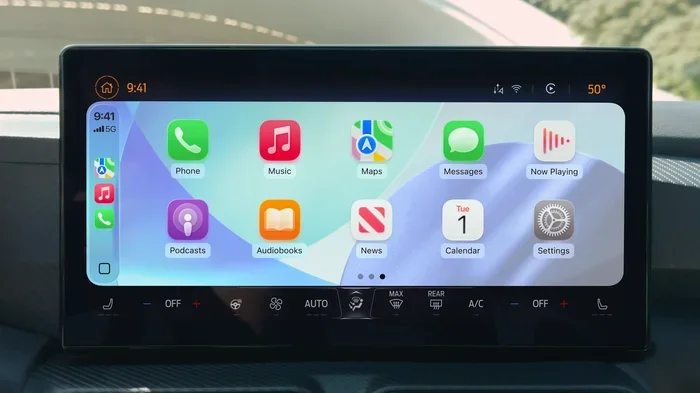
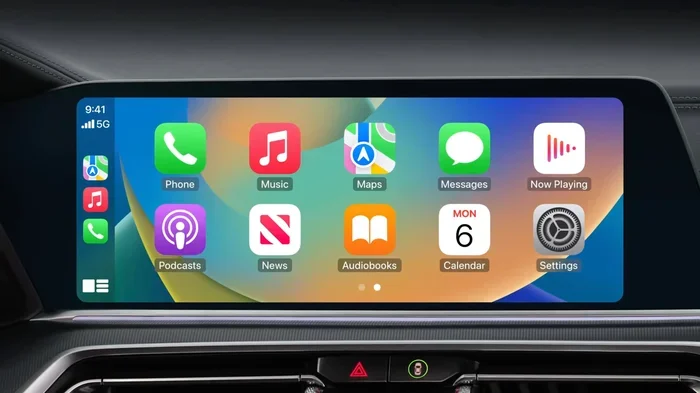
Apple CarPlay navigation brings your phone’s mapping power to your car’s dashboard. When you connect your iPhone, the car screen shows a clean, driver-friendly interface. You see a map, your route, and turn instructions right in front of you.
The main idea is simple. You type in a destination or say it out loud. The system plans a route. Then it guides you step by step. All of this happens through your car’s screen and speakers. You do not need to hold your phone at all.
How CarPlay Navigation Differs from Phone Navigation
Using maps on your phone while driving is dangerous. You have to look down, tap small buttons, and read tiny text. CarPlay navigation solves this problem. The interface is built for the road. Here is how it differs:
- Larger buttons: Tap targets are bigger and easier to use.
- Voice-first design: Siri voice commands do most of the work for you.
- Driver-friendly layout: The map takes up most of the screen. Directions are shown in large, clear text.
- Minimal distractions: Notifications and apps are simplified. Only driving-related features stay active.
- Integration with car controls: You can use your steering wheel buttons to control the map.
These differences make navigating with Apple CarPlay much safer than using your phone alone. The system is designed to keep your attention where it belongs: on the road.
What You Need to Get Started
Before you dive in, make sure you have the right setup. Here is a quick checklist:
- An iPhone that supports Apple CarPlay (iPhone 5 or newer).
- A car that is CarPlay compatible or a CarPlay adapter.
- A Lightning or USB-C cable for wired connections.
- A Wi-Fi connection if you want to use wireless CarPlay.
- The latest version of iOS installed on your iPhone.
Once you have these things, you are ready to go. The setup process is fast and straightforward.
How to Set Up Apple CarPlay for Navigation
Setting up Apple CarPlay navigation is one of the easiest tech tasks you will do. Most people connect their first CarPlay device in under five minutes. Here is exactly how it works.
Step-by-Step Setup for Wired Connection
A wired connection is the most common way to use CarPlay GPS. Follow these steps:
- Park your car and turn on the ignition.
- Locate the USB port in your car. Some cars have a port labeled “CarPlay” or “USB.”
- Plug one end of your Lightning or USB-C cable into your iPhone.
- Plug the other end into the car’s USB port.
- Your car screen should show the Apple CarPlay icon. Tap it.
- Your iPhone will ask for permission. Tap “Allow” to connect.
- The CarPlay home screen will appear. Look for the navigation icon.
That is it. You are now connected. The navigation app you used most recently will open automatically. If you want to change it, tap the grid icon on the home screen to see all your CarPlay apps.
Setting Up Wireless CarPlay
Wireless CarPlay removes the cable entirely. It connects through Bluetooth and Wi-Fi. Here is how to set it up:
- Go to Settings on your iPhone.
- Tap General, then CarPlay.
- Select your car from the list of available vehicles.
- Choose “Enable Wireless CarPlay.”
- Next time you get in your car, CarPlay will connect automatically.
Wireless Apple CarPlay navigation is incredibly convenient. You never have to fumble with cables again. However, not all cars support it natively. Check your car’s manual or visit the manufacturer’s website to confirm.
Setting Your Default Navigation App
When you tap the navigation icon in CarPlay, it opens your default app. You can change which app opens by default. Here is how:
- Go to Settings on your iPhone.
- Scroll down and tap CarPlay.
- Tap Customise next to your car.
- Tap the navigation app you want to set as default.
- Drag it to the top of the list.
Now every time you start navigating with Apple CarPlay, your preferred app opens first. This small change saves you time and keeps your workflow smooth.
Best Navigation Apps for Apple CarPlay
One of the best things about Apple CarPlay navigation is the choice of apps. You are not stuck with just one option. Here are the top apps you should consider.
Apple Maps
Apple Maps comes built into every iPhone. It is the default CarPlay GPS app for most users. Over the years, Apple has made it much better. Here is what you get:
- Free to use: No subscriptions or extra fees.
- Seamless integration: It works perfectly with Siri and your iPhone.
- Real-time traffic: It reroutes you around jams automatically.
- Look Around: You can preview streets in 3D before you leave.
- Clean interface: The CarPlay version is simple and easy to read.
Apple Maps is a solid choice for most drivers. It covers most cities well and gets better with every iOS update.
Google Maps
Google Maps is one of the most popular navigation apps in the world. It works great with Apple CarPlay and offers some powerful features:
- Extensive coverage: It works in almost every country on Earth.
- Detailed satellite view: You can see the actual road and buildings.
- Business hours and reviews: You can check if a restaurant or store is open.
- Offline maps: You can download maps for areas with poor signal.
- Accurate ETAs: Google Maps estimates arrival times very well.
If you already rely on Google Maps on your phone, it makes sense to use it with CarPlay too. The experience is nearly identical.
Waze
Waze is a community-driven navigation app. It is all about getting you to your destination as fast as possible. Here is what makes it stand out:
- Live traffic reports: Other drivers report accidents, road closures, and speed traps in real time.
- Dynamic rerouting: Waze constantly adjusts your route based on current conditions.
- Community alerts: You see warnings about hazards, police, and potholes.
- Fun and social: You can see other Waze users on the map.
Waze is a great pick if you want the fastest route and love getting live updates from other drivers. It is one of the best CarPlay navigation apps for avoiding delays.
Other Notable Apps
Beyond the big three, several other apps work well with Apple CarPlay navigation:
- Sygic: Offers offline maps and premium features.
- HERE WeGo: Great for international travel and offline use.
- Citymapper: Excellent for urban public transit and walking directions.
- MapQuest: A classic with a clean CarPlay interface.
Each app has its strengths. Try a few and see which one fits your driving style best.
Tips for Safe Navigation While Driving
Navigating with Apple CarPlay is designed to be safe. But you still need to use it the right way. These tips will help you stay focused and avoid distractions.
Use Siri for Everything
The single best thing you can do for safe driving is to use Siri voice commands. Instead of tapping the screen, just talk to Siri. Here are some examples you can try:
- “Hey Siri, navigate to the nearest gas station.”
- “Hey Siri, take me home.”
- “Hey Siri, route me to the airport.”
- “Hey Siri, find a coffee shop nearby.”
- “Hey Siri, where is the next exit?”
Siri handles everything from setting the destination to changing your route. You never need to look at or touch the screen. This is what makes hands-free navigation with Apple CarPlay so powerful.
Set Your Route Before You Drive
One of the golden rules of safe driving is to set your route before you put the car in gear. Here is why it matters. When you type in a destination while parked, the system has time to plan the best route. When you do it while driving, it splits your attention. Even with CarPlay, any screen interaction takes your eyes off the road for a second. Those seconds matter.
Make it a habit. Before every trip, set your destination while the car is still parked. If you need to change the route mid-drive, use Siri voice commands instead of tapping.
Adjust Display Settings for Comfort
A bright screen at night can be blinding. A dim screen in daylight can be hard to read. CarPlay lets you adjust the display to match your conditions. Here are some settings to tweak:
- Brightness: Lower it at night and raise it during the day.
- Text size: Make directions larger if you have trouble reading small text.
- Day/Night mode: CarPlay often switches automatically, but you can force it in settings.
- Map style: Choose between standard, satellite, or terrain views based on your preference.
These small changes make a big difference in how comfortable and safe your navigation experience is.
Keep Your iPhone Charged
Apple CarPlay navigation uses your iPhone’s GPS, data connection, and processing power. That means your battery drains faster than normal. To avoid your phone dying mid-trip, follow these tips:
- Use a high-quality charging cable.
- Plug your phone into the car’s USB port as soon as you sit down.
- Consider a car charger with a higher amperage for faster charging.
- Turn off background apps you do not need.
A fully charged phone means uninterrupted CarPlay GPS for the entire drive. It is a small step that makes a huge difference.
Use the Split-Screen View
Many CarPlay systems offer a split-screen view. The top half shows your route and directions. The bottom half shows the map. This layout is great because you can see both the next turn and the bigger picture at the same time. Check your car’s display settings to see if this option is available.
Common Mistakes to Avoid
Even with a great system like Apple CarPlay navigation, people make mistakes. Here are the most common ones and how to avoid them.
Forgetting to Update Your Apps
Outdated map data leads to wrong directions and missed exits. Apple Maps, Google Maps, and Waze all update regularly. Make sure your apps are set to update automatically. Go to the App Store, tap your profile, and check for pending updates. Keeping your CarPlay apps current ensures you get the best driving directions every time.
Ignoring Traffic Alerts
CarPlay GPS apps provide live traffic updates. Some drivers ignore them and stick to their original route even when the app suggests a change. This is a mistake. Traffic conditions change fast. Allowing your app to reroute you can save you 10, 20, or even 30 minutes on a long drive. Trust the data and let the app guide you.
Using Multiple Navigation Apps at Once
It might be tempting to have Google Maps open while Apple Maps runs in the background. This causes conflicts and confusion. Stick to one CarPlay navigation app at a time. Close any other mapping apps before you start your drive.
Not Knowing Your Car’s CarPlay Limitations
Not all CarPlay systems are the same. Some older car models support only certain features. Some do not support wireless CarPlay. Some have smaller screens that make the map hard to read. Know what your car can and cannot do. This knowledge helps you set realistic expectations and use Apple CarPlay more effectively.
Relying Too Heavily on GPS
CarPlay navigation is a tool, not a replacement for common sense. Sometimes the GPS will send you down a road that is under construction or flooded. Use your judgment. If something does not look right, trust your instincts and find an alternate route.
Wireless vs Wired CarPlay Navigation
When it comes to navigating with Apple CarPlay, you have two connection options: wired and wireless. Both work well, but they have different strengths.
Wired CarPlay Navigation
Wired CarPlay uses a physical cable to connect your iPhone to the car. Here are the pros and cons:
- Pros: Most reliable connection, works with almost all CarPlay-enabled cars, no compatibility issues.
- Cons: You need to plug in a cable every time, cables can wear out over time, some cables do not support data transfer.
If your car only has a USB port for CarPlay, wired is your only option. And honestly, it works great. The connection is stable and you never have to worry about signal drops.
Wireless CarPlay Navigation
Wireless CarPlay connects through Bluetooth and Wi-Fi. Here is how it compares:
- Pros: No cables needed, connects automatically when you get in the car, cleaner dashboard.
- Cons: Not all cars support it, can be slightly slower to connect, may use more battery.
Wireless Apple CarPlay navigation is the more convenient option. It is especially nice if you use CarPlay every day. Once you go wireless, going back to cables feels like a step backward.
Which Is Better for Navigation?
For pure navigation performance, both options are nearly identical. The map loads just as fast, directions are just as accurate, and voice commands work the same way. The difference is mostly about convenience. If your car supports wireless CarPlay, go for it. If not, wired works perfectly fine.
Quick Tips for the Best Navigation Experience
Here are some quick tips that will improve your CarPlay GPS experience right away:
- Pin your favorite locations in Apple Maps for quick access.
- Use Siri to set destinations by name, not by address.
- Turn on “Avoid Highways” or “Avoid Tolls” in your app settings if those matter to you.
- Check your route preview before you start driving.
- Keep your iPhone’s location services turned on.
- Use the volume controls on your steering wheel for voice directions.
- Update your maps regularly for the most accurate data.
These small habits add up. They make your navigating with Apple CarPlay experience smoother, faster, and safer every single time you drive.
Conclusion
Navigating with Apple CarPlay while driving is one of the simplest and most useful features available to modern drivers. It brings powerful GPS navigation to your dashboard, keeps your hands on the wheel, and your eyes on the road. Whether you choose Apple Maps, Google Maps, Waze, or another app, the experience is intuitive and reliable.
Set up your CarPlay navigation once, and it works every time you get in the car. Use Siri voice commands to stay hands-free. Pick the app that fits your style. Follow the safety tips in this guide. And remember, technology is there to help you, not replace your good judgment.
Now that you know how to navigate with Apple CarPlay, you are ready to hit the road with confidence. Connect your phone, set your destination, and enjoy the drive.
Frequently Asked Questions
Can I use Apple CarPlay for navigation if my car is older?
Yes, you can. If your car does not natively support CarPlay, you can buy an aftermarket CarPlay adapter. These devices plug into your car’s stereo system and add CarPlay functionality. Just make sure the adapter supports your car’s model and your iPhone version.
Does Apple CarPlay navigation work without internet?
It depends on the app. Apple Maps can download offline maps for select areas. Google Maps also offers offline map downloads. However, real-time traffic updates and live rerouting require an internet connection. For the best experience, use Wi-Fi or your cellular data plan while navigating.
How do I switch between navigation apps on CarPlay?
Tap the grid icon on the CarPlay home screen to see all your installed apps. Find the navigation app you want to use and tap it. You can also set a default app so it opens automatically every time you tap the navigation icon.
Is it safe to use Apple CarPlay navigation while driving?
Yes, it is designed to be safe. The interface is driver-friendly, and Siri voice commands let you control everything without touching the screen. However, you should always set your route before you start driving and only interact with the screen when safely parked.
Can I use CarPlay navigation in rental cars?
Yes, as long as the rental car supports Apple CarPlay. Many modern rental vehicles come with CarPlay built in. Simply plug in your iPhone or connect wirelessly, and you are ready to go. Check the car’s manual or ask the rental agent to confirm.
What should I do if CarPlay navigation is not working?
Start with the basics. Try a different cable, restart your iPhone, and check that CarPlay is enabled in your settings. If the issue persists, forget the car in CarPlay settings and reconnect. You can also update iOS and your navigation apps to the latest versions. Most problems are solved with these simple steps.