Why Is My Car Not Playing Apple CarPlay Anymore
Why is my car not playing Apple CarPlay anymore? This frustrating issue usually stems from a loose USB cable, outdated software, or a settings glitch. Apple CarPlay not working can disrupt your daily commute and make driving less convenient. In this guide, we walk you through every possible cause and fix step by step. You will learn simple troubleshooting tips that restore your CarPlay connection fast.
Key Takeaways
- Loose or Damaged USB Cable: A faulty cable is the #1 reason Apple CarPlay stops working.
- Software Updates Matter: Outdated iPhone or car infotainment software often causes connection failures.
- Wireless CarPlay Has Its Own Issues: Wi-Fi and Bluetooth problems can break wireless CarPlay even when USB works fine.
- Simple Restarts Fix Most Problems: Restarting your iPhone and car infotainment system solves the majority of issues.
- Compatibility Matters: Older car models may not support the latest CarPlay features or updates.
- Resetting Network Settings Helps: This quick fix resolves many wireless and pairing problems.
- Professional Help Is Always an Option: When DIY fixes fail, a mechanic or dealership can diagnose deeper hardware issues.
📑 Table of Contents
Why Is My Car Not Playing Apple CarPlay Anymore?
You hop into your car. You plug in your iPhone. You expect Apple CarPlay to light up the screen. But nothing happens. Your CarPlay connection just refuses to work. This is a more common problem than you might think.
Millions of drivers rely on Apple CarPlay every single day. It lets you access maps, music, messages, and calls safely. When it suddenly stops working, it feels like your whole driving routine falls apart. The good news is that most causes are simple and fixable at home.
In this article, we will explore every reason your Apple CarPlay not working issue might be happening. We will cover USB problems, software glitches, wireless issues, and more. By the end, you will know exactly what to do. You will get your CarPlay back up and running in no time.
Let us dive right in. No jargon. No complicated tech talk. Just clear, practical steps you can follow right now.
Common Reasons Your Car Stopped Playing Apple CarPlay
Before you start troubleshooting, it helps to understand what might be causing the problem. Several factors can lead to your car not playing Apple CarPlay. Some are tiny and easy to fix. Others need a bit more attention. Let us look at the most common culprits.
Loose or Damaged USB Cable
This is the number one cause of Apple CarPlay not working. A loose cable means your iPhone cannot communicate with the car’s infotainment system. Even a slightly bent USB connector can break the connection.
Over time, USB cables wear out. The wires inside fray. The connector tips become loose. If you have been using the same cable for a year or more, it might be time for a replacement. Try a different cable first. This simple step solves the problem for many drivers.
Dirty or Damaged USB Port
Dust, lint, and debris love to collect inside USB ports. A tiny bit of dirt can block the connection completely. If your CarPlay black screen or no display issue started suddenly, check the port. Use a toothpick or compressed air to clean it gently.
Damaged ports are a different story. If the port is bent or broken, you may need a professional to repair it. This is especially true for older vehicles where the port has been used thousands of times.
iPhone Software Is Outdated
Apple releases iOS updates regularly. These updates include bug fixes and improvements for CarPlay compatibility. If you have been putting off an update, it could be the reason your CarPlay stopped working.
Go to Settings, then General, then Software Update. Install any pending updates. Restart your iPhone after the update. This alone fixes the issue for a surprising number of people.
Car Infotainment System Needs a Restart
Your car’s infotainment system is basically a small computer. Like all computers, it can freeze or glitch. A frozen infotainment system will not recognize your iPhone, even if everything else is fine.
Restarting the system is easy. Turn off your car. Wait 30 seconds. Turn it back on. For some vehicles, you may need to hold the power button for 10 seconds. This hard reset clears temporary glitches and often restores your CarPlay connection instantly.
USB Connection Problems and How to Fix Them
USB connection issues are the backbone of most Apple CarPlay troubleshooting cases. Your iPhone talks to the car through a USB cable. If anything interrupts that conversation, CarPlay will not work. Let us break down the most common USB problems and their solutions.
Try a Different USB Cable
Not all USB cables are created equal. Apple CarPlay requires a cable that supports data transfer. Some cheap cables only charge your phone. They do not transmit data. This means CarPlay will never activate.
Use the cable that came with your iPhone. If you lost it, buy a certified Lightning or USB-C cable from Apple or a trusted brand. Avoid random cables from gas stations or discount stores. They are often the hidden cause of CarPlay not showing on screen problems.
Try a Different USB Port
Many cars have multiple USB ports. Some ports are designed only for charging. Others support data transfer and CarPlay functionality. If one port is not working, try another one.
Check your car manual to see which port supports CarPlay. In newer vehicles, the port labeled with a CarPlay or smartphone icon is the correct one. Plugging into the wrong port is a mistake more people make than you would think.
Check for Cable Damage
Inspect your cable closely. Look for fraying, kinks, or bent connectors. Even a tiny break in the wire can stop data transfer. If the cable looks damaged, replace it. Do not try to tape it up and hope for the best.
A good quality cable costs between 10 and 25 dollars. It is a small price to pay for a reliable CarPlay connection every time you drive.
Clean the USB Port on Your iPhone
Do not forget about the iPhone side. Dust and pocket lint can clog the Lightning or USB-C port on your phone. Use a soft brush or compressed air to clean it out. A clean connection on both ends makes a big difference.
Wireless CarPlay Connection Issues
More and more cars now offer wireless CarPlay. It is incredibly convenient. You do not have to fumble with cables every time you get in the car. But wireless CarPlay comes with its own set of challenges.
Wi-Fi and Bluetooth Must Both Be On
Wireless CarPlay uses both Wi-Fi and Bluetooth. If either one is turned off, the connection will fail. Go to your iPhone settings and make sure both Wi-Fi and Bluetooth are enabled.
Some people accidentally turn off Wi-Fi to save battery. But CarPlay needs Wi-Fi to work wirelessly. Keep both settings on while driving. Your CarPlay audio not working problem might simply be a disabled Wi-Fi setting.
CarPlay Not Showing Up on the Screen
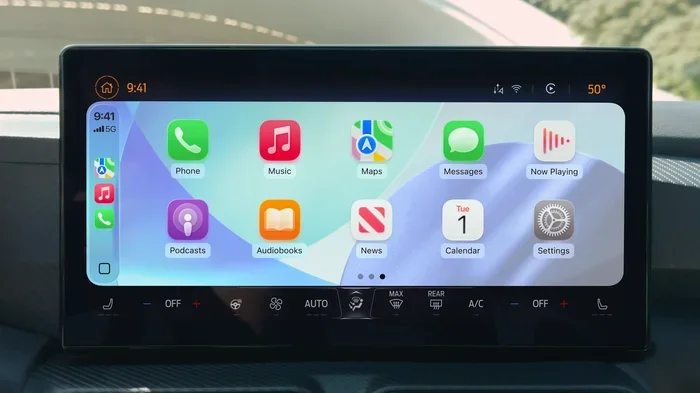
If your iPhone is connected but CarPlay does not appear, try this. Go to Settings on your iPhone. Tap General. Tap CarPlay. Your car should appear in the list. Tap it and select your vehicle.
This re-pairs the connection. It forces your iPhone to recognize the car again. Many drivers are surprised how often this simple step fixes the problem. It is one of the most effective CarPlay troubleshooting methods available.
Forget the Device and Reconnect
Sometimes the pairing data gets corrupted. Your iPhone and car may be holding onto old, broken connection data. Deleting and re-adding the connection can fix this.
On your iPhone, go to Settings, then General, then CarPlay. Tap your car and choose “Forget This Car.” Then reconnect. Your car should appear again as a new pairing option. This resets the entire CarPlay pairing process and often solves stubborn connection issues.
Reset Network Settings
If wireless CarPlay still will not connect, try resetting your network settings. Go to Settings, then General, then Transfer or Reset iPhone, then Reset, then Reset Network Settings.
This clears all saved Wi-Fi networks, Bluetooth pairings, and VPN settings. It will not delete your photos or apps. After the reset, reconnect to your Wi-Fi and try CarPlay again. This is a powerful fix for persistent wireless CarPlay problems.
Software and Settings Fixes
Software issues are sneaky. They can cause Apple CarPlay not working even when your cables and ports are perfectly fine. A few simple software checks can save you a lot of frustration.
Update Your iPhone
As mentioned earlier, iOS updates matter. Apple regularly patches bugs that affect CarPlay. If you are running an older version of iOS, update immediately. Go to Settings, General, Software Update, and install the latest version.
After updating, restart your iPhone. Then plug it in or connect wirelessly. Check if CarPlay works now. This fix resolves the issue for many drivers who have been putting off updates.
Update Your Car Infotainment System
Your car’s software needs updates too. Many modern vehicles support over-the-air updates. Check your car’s settings menu for a software update option. Some brands require a visit to the dealership for updates.
An outdated infotainment system may not support the latest CarPlay features. It might even refuse to connect with newer iPhones. Keeping your car software current is an easy way to prevent CarPlay connection issues down the road.
Disable and Re-enable CarPlay on Your iPhone
Sometimes a simple toggle fix works wonders. Go to Settings, then General, then CarPlay. Turn CarPlay off. Wait a few seconds. Turn it back on.
This refreshes the CarPlay service on your iPhone. It is a quick and easy step that takes less than 30 seconds. Many people overlook this simple trick when dealing with CarPlay frozen screen or connection problems.
Check CarPlay Settings in Your Vehicle
Your car may have its own CarPlay settings. Check the infotainment menu for a CarPlay or Smartphone option. Make sure it is turned on. Some cars let you choose between USB and wireless CarPlay. Make sure the correct mode is selected.
If your car has a dedicated CarPlay button, press it. Sometimes the system just needs a manual prompt to start looking for your iPhone. This is one of those simple CarPlay fixes that works more often than you would expect.
Hardware and Compatibility Issues
Not every problem is software-related. Sometimes the issue is physical. Hardware and compatibility problems require a different approach to diagnose and fix.
Is Your Car Compatible with Apple CarPlay?
Not every vehicle supports Apple CarPlay. If you recently bought a used car, check whether it has CarPlay capability. Look for the CarPlay or smartphone icon on the infotainment screen. Check your car manual or the manufacturer’s website.
If your car does not support CarPlay natively, you can add an aftermarket CarPlay adapter. These devices plug into your car’s system and add CarPlay functionality. They range from 50 to 300 dollars depending on the brand and features.
Aftermarket Stereo Problems
If you have an aftermarket car stereo, compatibility issues are more common. Not all aftermarket stereos work perfectly with every iPhone model. Some require specific firmware updates to function with the latest iOS.
Check the manufacturer’s website for updates. Contact their customer support if needed. A firmware update for your stereo can often fix Apple CarPlay not working issues that seem mysterious at first.
iPhone Model Limitations
Very old iPhones may not support the latest CarPlay features. Apple CarPlay has evolved significantly over the years. Older models may work fine for basic functions but struggle with wireless CarPlay or newer features.
If you are using an iPhone older than the iPhone 8, consider updating your device if possible. Newer iPhones have better CarPlay compatibility and fewer connection issues.
Temperature and Environmental Factors
Extreme heat or cold can affect your iPhone’s ability to connect to CarPlay. If you live in a very hot climate, your phone might overheat when plugged in. This can cause the connection to drop or fail entirely.
Let your iPhone cool down if it feels hot. Park in the shade when possible. In cold weather, let your car warm up before expecting CarPlay to connect. These small environmental factors are often overlooked in CarPlay troubleshooting.
When to Seek Professional Help
Most Apple CarPlay troubleshooting steps can be done at home. But sometimes the problem is beyond a simple fix. Knowing when to seek professional help saves you time and prevents further damage.
Signs You Need a Mechanic
If you have tried every fix in this guide and CarPlay still will not work, it is time to see a professional. Here are the signs that something deeper is going on:
- The USB port is physically damaged or loose.
- Your car’s infotainment system crashes repeatedly.
- CarPlay works on one iPhone but not another, ruling out phone issues.
- You notice a burning smell or visible damage near the USB port.
- The problem started after a car accident or electrical work.
Dealership vs. Independent Mechanic
A dealership has access to brand-specific diagnostic tools. They can update your car’s software and check for known issues. However, dealerships can be expensive. An independent mechanic who specializes in car electronics is often a more affordable option.
Either way, a professional can diagnose whether the problem is with your car’s hardware or software. They can also tell you if a repair is worth the cost or if a replacement is needed.
Preventing Future CarPlay Issues
Once you get your CarPlay connection working again, you want to keep it that way. Here are some tips to prevent future problems:
- Use a high-quality, certified USB cable.
- Keep your iPhone and car software updated.
- Clean your USB ports regularly.
- Restart your infotainment system occasionally.
- Avoid using your phone for heavy tasks while connected to CarPlay.
- Store your car in a moderate temperature environment when possible.
These simple habits go a long way. They keep your CarPlay working smoothly for years to come.
Final Thoughts
Dealing with Apple CarPlay not working is frustrating. But the good news is that most issues are easy to fix. Start with the simplest solutions. Check your cable. Clean your ports. Restart your systems. Update your software.
If those steps do not work, move on to the more advanced troubleshooting methods we covered. Wireless settings, network resets, and re-pairing your device can solve stubborn problems. And if nothing else works, a professional can help you get to the bottom of it.
Your Apple CarPlay is designed to make driving safer and more enjoyable. Do not let a technical glitch take that away from you. Use the tips in this guide. Get your CarPlay back. Get back to the road with confidence.
Remember, patience is key. Troubleshooting takes a few minutes. But the result is a fully working CarPlay connection that makes every drive better. Keep this guide bookmarked. You never know when you might need it again.
Frequently Asked Questions
Why did Apple CarPlay stop working suddenly in my car?
A sudden loss of CarPlay connection is usually caused by a loose USB cable, a software glitch, or a dirty port. Start by trying a different cable and restarting your car’s infotainment system. These two steps fix the problem for most drivers.
Can a bad USB cable cause Apple CarPlay to stop working?
Yes, absolutely. A damaged or low-quality USB cable is the most common reason Apple CarPlay not working happens. Make sure your cable supports data transfer, not just charging. Replace it with a certified Apple or MFi-certified cable for best results.
How do I reset Apple CarPlay on my iPhone?
Go to Settings, then General, then CarPlay. Tap your car and choose “Forget This Car.” Then reconnect your iPhone. This resets the CarPlay pairing and often fixes connection issues quickly.
Why is my wireless CarPlay not connecting even though my phone is paired?
Wireless CarPlay needs both Wi-Fi and Bluetooth to be active. If either is off, the connection will fail. Also, try resetting your network settings on your iPhone. This clears old pairing data and forces a fresh CarPlay connection.
Do I need to update my car’s software for Apple CarPlay to work?
Yes, outdated car infotainment software can cause CarPlay compatibility issues. Check your car’s settings for a software update option. If your car does not support over-the-air updates, visit your dealership for the latest software.
Can extreme weather affect Apple CarPlay performance?
Yes, extreme heat or cold can interfere with your iPhone’s ability to connect to CarPlay. Overheating can cause the connection to drop. Cold weather can slow down your phone’s response time. Keep your phone at room temperature for the best CarPlay performance.
=== META TITLE ===
Why Is My Car Not Playing Apple CarPlay Anymore?
=== URL SLUG ===
why-is-my-car-not-playing-apple-carplay-anymore
=== SEO TITLE ===
Why Is My Car Not Playing Apple CarPlay Anymore