Can Android Auto Be Upgraded Here Is What You Need To Know
Can Android Auto Be Upgraded? The answer depends on your car’s infotainment system, head unit, and the Android Auto version you currently run. Android Auto upgrade options range from simple app updates to full head unit replacements. Whether you have a wireless Android Auto setup or a wired connection, this guide covers everything you need to know about keeping your car infotainment system current and running smoothly.
Can Android Auto Be Upgraded? If you have been asking yourself this question, you are not alone. Many car owners want to know whether they can get the latest Android Auto features without buying a new vehicle. The good news is that there are several ways to upgrade Android Auto, and the right approach depends on your car, your head unit, and your budget.
Android Auto is Google’s smartphone projection platform. It mirrors your phone’s apps onto your car display screen. You get navigation, music, messaging, and voice commands right on your dashboard. But like any software, Android Auto receives updates over time. These updates bring new features, better performance, and improved car connectivity. The question is whether your car can keep up.
Some vehicles receive Android Auto updates automatically. Others need a manual update. And some older cars simply cannot run the latest version at all. This guide breaks down every scenario. You will learn how Android Auto upgrades work, what limits your options, and what steps you can take to get the best experience on the road.
Key Takeaways
- Android Auto Can Be Upgraded: Most vehicles support Android Auto updates through app stores or firmware downloads, but upgrade options vary by car model and year.
- Check Your Head Unit: The head unit firmware determines whether you can access the latest Android Auto features and versions.
- Wireless vs Wired Matters: Wireless Android Auto setups may have different upgrade paths compared to wired connections.
- Aftermarket Head Units Work: If your factory system is outdated, replacing the head unit is the most effective way to get the latest Android Auto.
- Google Releases Updates Regularly: Staying current with Android Auto updates gives you better navigation, voice commands, and smartphone integration.
- Compatibility Is Key: Not all cars support every Android Auto version, so always verify compatibility before attempting an upgrade.
📑 Table of Contents
- Understanding Android Auto and How It Works
- Can Android Auto Be Upgraded on Your Vehicle?
- How to Check Your Current Android Auto Version
- Step-by-Step Guide to Upgrading Android Auto
- Benefits of Keeping Android Auto Updated
- Common Mistakes People Make When Upgrading Android Auto
- Expert Insights on Android Auto Upgrades
- Comparison: Factory vs Aftermarket Android Auto Upgrade Options
- Quick Tips for the Best Android Auto Experience
- Conclusion
Understanding Android Auto and How It Works
Before diving into upgrades, it helps to understand what Android Auto actually is and how it functions. Android Auto is not a standalone app. It is a platform that runs on your car’s infotainment system and connects to your smartphone. The phone does the heavy lifting, while the car display shows the simplified interface.
What Is Android Auto?
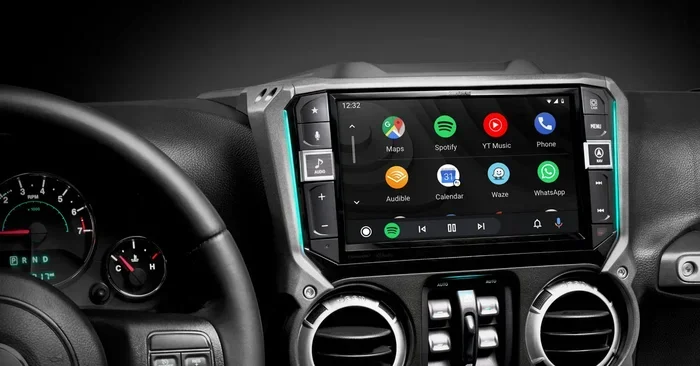
Android Auto projects your phone’s apps onto your car’s infotainment screen. You can use Google Maps or Waze for navigation. You can stream Spotify, Pandora, or YouTube Music. You can send and receive messages using voice commands. The system is designed to keep your eyes on the road and your hands on the wheel.
The platform works with both Android and iOS devices. However, the Android version offers deeper integration. It supports more apps and customization options. Google regularly adds new Android Auto features through software updates. These can include better voice recognition, new app support, and improved in-car technology.
How Android Auto Connects to Your Car
Android Auto connects to your car in two main ways. The first is through a USB cable. You plug your phone into the car’s USB port. The infotainment system recognizes the phone and launches the Android Auto interface. This wired connection is reliable and works with most vehicles.
The second method is wireless Android Auto. This uses Bluetooth or Wi-Fi to connect your phone to the car. No cable is needed. Wireless Android Auto is more convenient, but it requires a compatible head unit. Not all cars support this feature, especially older models.
Can Android Auto Be Upgraded on Your Vehicle?
The short answer is yes, in most cases. But the process varies widely. Some cars get Android Auto updates automatically. Others need a manual download. And some older vehicles simply cannot be upgraded beyond a certain version. Let us explore each scenario in detail.
Factory-Installed Android Auto Systems
If your car came with Android Auto built in, the upgrade process depends on the manufacturer. Many automakers push updates through their own software systems. For example, some brands use over-the-air updates. You simply connect to Wi-Fi, and the system downloads the latest version.
Other manufacturers require you to visit a dealership or service center. A technician connects your car to a diagnostic tool and installs the update. This is common with older models that lack internet connectivity.
Some cars use a dedicated app for Android Auto updates. You download the app on your phone, and it communicates with the car’s system. This method is common with brands like Volvo, Hyundai, and Kia.
Aftermarket Head Units and Android Auto
Aftermarket head units offer the most flexibility for Android Auto upgrades. These are replacement infotainment systems you install yourself or with a professional. Popular brands include Pioneer, Kenwood, Sony, and Alpine. Most modern aftermarket units support the latest Android Auto versions.
If your current head unit is outdated, replacing it is often the best path forward. A new head unit gives you access to the latest car infotainment upgrade options. You get wireless Android Auto, better audio quality, and support for newer apps. The cost varies, but many quality units are affordable.
When Your Car Cannot Be Upgraded
Not every vehicle supports Android Auto upgrades. Very old cars, especially those made before 2016, may not have the hardware needed. The head unit may lack the processing power or memory to run newer versions of Android Auto. In these cases, upgrading the head unit is the only real solution.
Some cars also have limited smartphone integration capabilities. The manufacturer may have locked the system to a specific Android Auto version. This is less common today but still happens with certain budget vehicles or older luxury models.
How to Check Your Current Android Auto Version
Before you upgrade, you need to know what version you are running. Checking your current Android Auto version is simple and takes just a few minutes.
First, open the Android Auto app on your phone. Go to Settings and look for the “About” section. You should see the version number listed there. Write this down or take a screenshot for reference.
Next, check the version running in your car. On the car display screen, go to Settings or the Android Auto menu. Look for system information or software version. Compare this with the version on your phone. If they do not match, you may need to update one or both.
You can also visit the Google Android Auto support page. It lists the latest version and compatibility requirements. This helps you determine whether an upgrade is available for your specific setup.
Step-by-Step Guide to Upgrading Android Auto
Upgrading Android Auto is straightforward in most cases. Here is a step-by-step guide to help you through the process.
Step 1: Check for Compatibility
Not every upgrade works for every car. Before you start, verify that your vehicle and head unit are compatible with the latest Android Auto version. Check the manufacturer’s website or contact their support team. You can also look for compatibility lists in Android Auto forums and communities.
Pay attention to the minimum requirements. Some updates require a certain amount of RAM or storage space on the head unit. If your system falls short, the update may not install properly.
Step 2: Update the Android Auto App on Your Phone
The first and easiest upgrade step is updating the app on your phone. Open the Google Play Store on your Android device. Search for Android Auto and check if an update is available. If so, install it.
For iPhone users, open the App Store and look for the Android Auto update. Keep in mind that the iOS version of Android Auto has fewer features than the Android version. Some advanced car connectivity options may not be available on iOS.
Step 3: Update the Head Unit Firmware
If your car has a built-in infotainment system, you may need to update the firmware. This is the software that runs the head unit itself. The process varies by manufacturer, so check your owner’s manual or the brand’s website for instructions.
Some head units allow firmware updates through a USB drive. You download the update file to a USB stick, plug it into the car, and follow the on-screen prompts. Others require a connection to a computer using a USB cable.
For wireless Android Auto systems, the firmware update may happen automatically if the head unit is connected to the internet. Check your car’s settings to see if automatic updates are enabled.
Step 4: Restart Your System
After updating, restart both your phone and your car’s infotainment system. This ensures that the new version loads correctly. Turn off the car, remove the key or press the start button to shut down the system. Wait a few seconds, then turn it back on.
Once the system restarts, check the Android Auto version again. It should now show the latest version number. Test the features to make sure everything works as expected.
Step 5: Troubleshoot if Needed
If the update does not work or you experience issues, do not panic. Common problems include connection drops, app crashes, and display glitches. Try unplugging and reconnecting your phone. Clear the Android Auto cache on your device. Uninstall and reinstall the app.
If problems persist, visit the manufacturer’s support page. Many brands have dedicated troubleshooting guides for Android Auto issues. You can also check online forums where other users share solutions for similar problems.
Benefits of Keeping Android Auto Updated
Staying current with Android Auto updates offers many advantages. Here are the key benefits of keeping your system up to date.
Better Navigation and Maps
Google constantly improves Google Maps integration with Android Auto. Updates bring better routing, real-time traffic data, and new points of interest. You get a more accurate and responsive navigation experience on the road.
Improved Voice Commands
Google’s voice recognition technology improves with every update. Newer versions of Android Auto understand commands more accurately. You can control navigation, music, and messaging with greater precision. This makes hands-free driving safer and more convenient.
New App Support
Each Android Auto update can add support for new apps. Popular apps like Spotify, Audible, and WhatsApp often receive Android Auto integration through these updates. Keeping your system current ensures you have access to the latest apps.
Enhanced Security
Software updates fix security vulnerabilities. They protect your personal data and keep your car multimedia system safe from potential threats. Regular updates are an essential part of maintaining a secure in-car technology setup.
Smoother Performance
Updates often include performance improvements. You may notice faster app loading times, smoother transitions, and fewer glitches. The overall user experience becomes more polished and responsive.
Common Mistakes People Make When Upgrading Android Auto
Avoid these common mistakes to ensure a smooth upgrade process.
- Skipping compatibility checks: Always verify that your car supports the latest Android Auto version before attempting an update.
- Ignoring firmware updates: Updating the app alone is not enough. The head unit firmware must also be current for the best experience.
- Using low-quality USB cables: A cheap or damaged cable can cause connection issues during and after an update. Use high-quality, certified cables.
- Forgetting to back up settings: Before any major update, back up your infotainment system settings. This lets you restore your preferences if something goes wrong.
- Interrupting the update process: Never disconnect your phone or turn off the car during an update. This can corrupt the software and cause serious problems.
- Assuming wireless always works: Wireless Android Auto can be finicky with certain phones or head units. If you experience issues, try a wired connection first.
Expert Insights on Android Auto Upgrades
Automotive technology experts agree that keeping Android Auto updated is one of the simplest ways to improve your driving experience. According to industry professionals, the biggest barrier to upgrades is a lack of awareness. Many car owners do not realize that updates are available or how to install them.
Experts also recommend checking for updates at least once a month. Google and car manufacturers release updates regularly. These updates often include bug fixes, new features, and performance improvements. By staying proactive, you ensure your in-car technology always performs at its best.
Another expert tip is to invest in a quality aftermarket head unit if your factory system is outdated. Modern head units from brands like Pioneer and Kenwood offer excellent automotive software support. They are easier to upgrade and provide a better overall experience than older factory systems.
Comparison: Factory vs Aftermarket Android Auto Upgrade Options
| Feature | Factory System | Aftermarket Head Unit |
|---|---|---|
| Upgrade Ease | Varies by manufacturer | Usually straightforward |
| Wireless Android Auto | Only in newer models | Available in most modern units |
| Cost | Included with the car | $200 to $1000+ |
| App Support | Limited by manufacturer | Full Google Android Auto support |
| Customization | Minimal | Extensive |
| Longevity | Limited by car model year | Can be upgraded independently |
Quick Tips for the Best Android Auto Experience
- Keep your phone charged and connected with a high-quality cable for the most stable connection.
- Enable automatic updates on your phone so you always have the latest Android Auto app version.
- Clear the Android Auto cache regularly to prevent slowdowns and glitches.
- Use a phone mount to keep your device secure and visible while driving.
- Explore the Android Auto settings to customize your preferred apps, layouts, and voice commands.
- Join online communities dedicated to Android Auto for tips, troubleshooting help, and the latest news.
Conclusion
Can Android Auto Be Upgraded? Yes, it can, and in most cases, the process is simpler than you think. Whether you have a factory-installed system or an aftermarket head unit, there are paths to getting the latest Android Auto version on your car’s display. The key is understanding your current setup, checking compatibility, and following the right steps for your specific vehicle.
Updating the Android Auto app on your phone is the easiest first step. From there, you can explore firmware updates, wireless Android Auto options, or even a full head unit replacement if needed. The benefits of staying current are clear. You get better navigation, improved voice commands, new app support, and a smoother overall experience.
Do not let an outdated infotainment system hold you back. Take the time to check your Android Auto version today and explore your upgrade options. Your daily commute and road trips will feel better for it. With the right approach, you can enjoy the latest car infotainment upgrade features without buying a new vehicle.
Stay curious, stay connected, and keep your car display screen running at its best. The road ahead is smarter with an updated Android Auto setup.
Frequently Asked Questions
Can I upgrade Android Auto on an older car?
Yes, you can upgrade Android Auto on an older car in most cases. The method depends on your head unit and whether it supports the latest Android Auto version. If your factory system is too old, installing an aftermarket head unit is the most effective upgrade path. This gives you full access to the latest Android Auto features and car connectivity options.
Is wireless Android Auto available after an upgrade?
Wireless Android Auto may become available after an upgrade, but only if your head unit supports it. Not all cars have the hardware needed for wireless connections. Check your manufacturer’s specifications to see if wireless smartphone integration is supported. If not, a new aftermarket head unit can add this feature.
How often does Android Auto receive updates?
Google releases Android Auto updates several times a year. These updates include new features, bug fixes, and performance improvements. Car manufacturers may also push their own updates on a different schedule. Checking for updates monthly is a good habit to stay current with the latest automotive software.
Do I need to replace my head unit to get the latest Android Auto?
Not always. Many head units can be updated through firmware downloads. However, if your head unit is very old or lacks the necessary hardware, replacement may be the only option. Aftermarket head units are a popular choice for drivers who want the latest mobile projection technology without buying a new car.
What happens if an Android Auto update fails?
If an update fails, do not panic. Try restarting both your phone and your car’s infotainment system. Disconnect and reconnect your phone. If the issue persists, uninstall and reinstall the Android Auto app. You can also check the manufacturer’s support page for troubleshooting steps. In rare cases, a factory reset of the head unit may be needed.
Are Android Auto updates free?
Yes, Android Auto app updates are free through the Google Play Store and Apple App Store. Firmware updates for factory head units are also typically free. Aftermarket head unit software updates may be free or require a small fee depending on the brand. Overall, keeping your car infotainment system updated does not have to cost much.