How Do I Connect My Toyota to My iPhone Step by Step
Connecting your Toyota to your iPhone is easier than you think. Whether you use a USB cable or wireless Apple CarPlay, this step-by-step guide walks you through every method. You will learn how to set up Bluetooth, stream music, make hands-free calls, and fix common connection problems. Follow our simple instructions to enjoy a safer, smarter driving experience with your Toyota and iPhone.
Have you ever hopped into your Toyota and wished your iPhone would just work with the car already? You are not alone. How Do I Connect My Toyota to My iPhone is one of the most searched questions among Toyota owners. The good news is that connecting these two devices is straightforward once you know the steps.
Modern Toyota vehicles come packed with smart features. From Apple CarPlay to Bluetooth audio streaming, your Toyota and iPhone can work together beautifully. This guide covers every method, every tip, and every fix you need. Whether you drive a brand-new 2024 RAV4 or an older Camry, you will find useful information here.
We will walk you through USB connections, wireless setups, Bluetooth pairing, and troubleshooting. By the end, you will wonder why you did not do this sooner. Let us get started with the basics of Toyota and iPhone connectivity.
Key Takeaways
- USB Connection: The most reliable way to link your Toyota and iPhone for CarPlay and charging.
- Wireless Apple CarPlay: Available on newer Toyota models for a cable-free experience.
- Bluetooth Pairing: Lets you make calls and stream audio without any wires at all.
- Troubleshooting Tips: Simple fixes resolve most Toyota-iPhone connection issues quickly.
- Hands-Free Safety: Siri and voice commands keep your eyes on the road while driving.
- Model-Specific Steps: Different Toyota years and trims may have slightly different setup processes.
📑 Table of Contents
- Understanding Your Toyota-iPhone Connection Options
- How to Connect Your Toyota to iPhone via USB
- Setting Up Wireless Apple CarPlay in Your Toyota
- Bluetooth Pairing: Connecting Without a Cable
- Troubleshooting Common Toyota-iPhone Connection Issues
- Making the Most of Your Toyota-iPhone Connection
- Tips for Maintaining a Stable Toyota-iPhone Connection
- Model-Specific Connection Tips
- Frequently Asked Questions
- Conclusion
Understanding Your Toyota-iPhone Connection Options
Before diving into the steps, it helps to know what connection options exist. Toyota offers several ways to link your iPhone to the car. Each method has its own benefits. Let us break them down so you can choose what works best for you.
Apple CarPlay: The Best iPhone-Toyota Integration
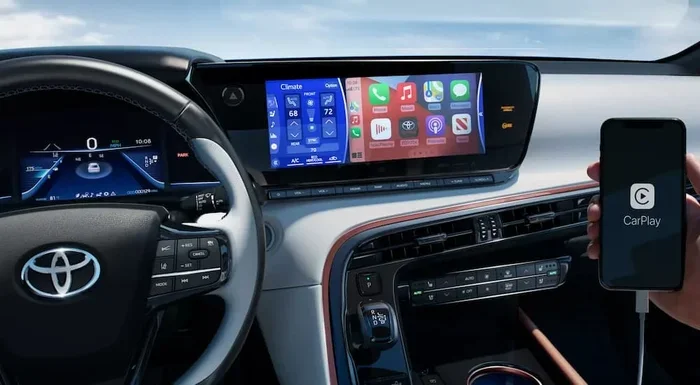
Apple CarPlay is the gold standard for iPhone connectivity in Toyota vehicles. It mirrors your iPhone screen onto the Toyota infotainment display. You get access to maps, music, messages, and calls — all through the car’s touchscreen.
CarPlay comes in two forms:
- Wired CarPlay: Uses a Lightning or USB-C cable. This is the most stable connection.
- Wireless CarPlay: Connects over Bluetooth and Wi-Fi. No cables needed, but it requires a compatible Toyota model.
Most Toyota models from 2018 onward support CarPlay. If your Toyota has a touchscreen infotainment system, there is a good chance it works with CarPlay. Check your owner’s manual or the Toyota website to confirm.
Bluetooth: The Wireless Standard
Bluetooth connectivity has been in Toyotas for many years. It lets you make phone calls and stream audio without any cables. Bluetooth does not offer the full CarPlay experience, but it is reliable and simple to set up.
Here is what Bluetooth gives you in a Toyota:
- Hands-free phone calls
- Audio streaming from Spotify, Apple Music, and podcasts
- Basic contact access
- Voice dialing through steering wheel controls
Bluetooth works on nearly every Toyota model ever made with an audio system. Even older Toyotas from the mid-2000s often support Bluetooth. This makes it the most universal connection option.
USB Connection: Simple and Dependable
A USB cable connection is the backbone of Toyota-iPhone integration. It charges your phone while transferring data. For CarPlay, a USB cable is often required unless your Toyota supports wireless CarPlay.
Toyota vehicles typically have USB ports in the center console and sometimes in the rear. Use a high-quality Lightning cable or USB-C cable depending on your iPhone model. Cheap cables can cause connection problems, so invest in a good one.
How to Connect Your Toyota to iPhone via USB
The USB method is the most common way to connect an iPhone to a Toyota. It works with almost every Toyota model that has a touchscreen. Here is the step-by-step process.
Step 1: Prepare Your iPhone
Before you touch your Toyota, get your iPhone ready. Unlock your phone and make sure it is awake. Go to Settings and check that Apple CarPlay is enabled. On newer iPhones, CarPlay turns on automatically when you plug in a compatible cable.
Also, make sure your iPhone is not in Low Power Mode. Low Power Mode can limit data transfer and cause CarPlay to disconnect unexpectedly. A fully charged or well-charged iPhone works best during setup.
Step 2: Locate the USB Port in Your Toyota
Open the center console and look for the USB port. Most Toyotas have the port tucked behind a small flap or inside the armrest area. Some models have USB ports in the dashboard area as well.
If you have a Toyota with a wireless charging pad, the USB port may be hidden beneath the pad. Remove the pad gently if needed to access the port.
Step 3: Plug In Your iPhone
Take your Lightning or USB-C cable and plug one end into your iPhone. Plug the other end into the Toyota USB port. You should see a notification on the Toyota screen within a few seconds.
If the screen goes to the CarPlay home screen automatically, you are all set. If not, press the CarPlay or Phone button on the Toyota infotainment system to switch inputs.
Step 4: Trust the Device
Your iPhone may display a prompt asking if you trust the Toyota. Tap Trust and enter your iPhone passcode if prompted. This step allows the Toyota and iPhone to share data securely.
Once trusted, your Toyota will remember your iPhone. Future connections should be automatic whenever you plug in the same cable.
Step 5: Configure CarPlay Settings
Now that the connection is live, take a moment to customize your settings. On the Toyota screen, you can choose which apps appear on the CarPlay home screen. You can also adjust audio settings, set default music apps, and configure Siri voice commands.
On your iPhone, go to Settings, then General, then CarPlay. Tap your Toyota name to manage connected apps and preferences. This small step makes a big difference in your daily driving experience.
Setting Up Wireless Apple CarPlay in Your Toyota
Wireless Apple CarPlay is a game-changer. No cables, no clutter, just a seamless connection every time you get in the car. Newer Toyota models support wireless CarPlay, and setting it up is simple.
Check If Your Toyota Supports Wireless CarPlay
Not all Toyotas support wireless CarPlay. Models from 2021 and newer are more likely to have this feature. The Toyota RAV4, Highlander, Camry, and Tacoma are among the models that often include wireless CarPlay support.
Check your infotainment system for a wireless CarPlay option. If you see it in the settings menu, your Toyota is compatible. If not, you will need to use the USB cable method described above.
Step-by-Step Wireless CarPlay Setup
Follow these steps to set up wireless CarPlay in your Toyota:
- Make sure Bluetooth and Wi-Fi are turned on in your iPhone Settings.
- Put your Toyota in park and start the engine.
- On the Toyota infotainment screen, go to Settings and select Wireless CarPlay.
- Your Toyota will search for available devices.
- Select your iPhone from the list of available devices.
- Accept the connection request on both your iPhone and Toyota screen.
- Wait a few seconds for the CarPlay home screen to appear.
That is it. Your Toyota and iPhone are now connected wirelessly. Every time you start your Toyota, it should automatically reconnect to your iPhone as long as Bluetooth is on.
Tips for a Strong Wireless Connection
Wireless CarPlay relies on Bluetooth and Wi-Fi signals. Here are a few tips to keep the connection strong:
- Keep your iPhone near the Toyota’s antenna area, usually in the center console.
- Restart both devices if the connection drops unexpectedly.
- Update your Toyota firmware and iPhone software regularly.
- Avoid placing your iPhone under a seat or far from the dashboard.
Bluetooth Pairing: Connecting Without a Cable
If your Toyota does not support CarPlay or you simply want a cable-free setup, Bluetooth pairing is the way to go. Bluetooth works on almost every Toyota ever made with an audio system.
How to Pair Your iPhone via Bluetooth
Here is how to pair your iPhone with your Toyota using Bluetooth:
- On your Toyota infotainment screen, go to Settings and select Bluetooth.
- Make sure Bluetooth is turned on and set to visible or discoverable mode.
- On your iPhone, open Settings and tap Bluetooth.
- Turn Bluetooth on if it is not already on.
- Look for your Toyota under Other Devices and tap on it.
- A pairing code may appear on both screens. Confirm the code matches.
- Tap Pair on both devices to complete the connection.
Once paired, your Toyota will automatically connect to your iPhone whenever you get in the car. You will see the Bluetooth icon on your Toyota screen, and your iPhone will show the Toyota in its Bluetooth device list.
Managing Bluetooth Settings
After pairing, you can manage several Bluetooth settings in your Toyota:
- Phone Audio: Controls whether you can stream audio from your iPhone.
- Phone Book: Allows the Toyota to access your iPhone contacts for easy calling.
- Voice Control: Lets you use Siri through the Toyota’s steering wheel buttons.
Go to your Toyota Bluetooth settings and make sure all these options are enabled for the best experience. You can also adjust these settings on your iPhone under Settings, Bluetooth, and tapping the info icon next to your Toyota.
Troubleshooting Common Toyota-iPhone Connection Issues
Even with the best setup, connection problems can happen. Do not worry. Most issues have simple fixes. Here are the most common problems and how to solve them.
iPhone Not Showing Up on Toyota Screen
If your Toyota does not detect your iPhone, try these steps:
- Unplug and replug the USB cable firmly.
- Try a different USB port in your Toyota.
- Use a different Lightning or USB-C cable.
- Restart your iPhone and try again.
- Restart the Toyota infotainment system by holding the power button for 10 seconds.
A dirty or damaged USB port is a common culprit. Inspect both the Toyota port and your iPhone port for lint or debris. A quick clean with a toothpick can work wonders.
CarPlay Keeps Disconnecting
Intermittent CarPlay connections are frustrating. This usually happens for one of these reasons:
- The USB cable is loose or low quality.
- Your iPhone is in Low Power Mode.
- The Toyota software needs an update.
- Your iPhone software is outdated.
Start by replacing the cable. If that does not work, update both your Toyota firmware and iPhone software. These updates often fix known connectivity bugs.
Bluetooth Audio Keeps Cutting Out
If your Bluetooth audio stutters or disconnects, try the following:
- Turn Bluetooth off and back on in both devices.
- Remove the Toyota from your iPhone Bluetooth list and pair it again.
- Move your iPhone closer to the Toyota’s center console.
- Check if other Bluetooth devices are interfering.
Bluetooth works best when there are no major obstacles between the devices. Keep your iPhone in the center console or on the passenger seat for the strongest signal.
Siri Not Working Through Toyota
If Siri does not respond when you press the steering wheel voice button, check these settings:
- Make sure Siri is enabled on your iPhone under Settings, Siri & Search.
- On your Toyota, go to Settings and ensure Voice Control is turned on.
- Check that your iPhone is connected via Bluetooth or CarPlay.
Restarting both devices usually fixes Siri issues quickly. It is a simple step that many people overlook.
Making the Most of Your Toyota-iPhone Connection
Once your Toyota and iPhone are connected, you can unlock a lot of useful features. Here is how to get the most out of the connection.
Hands-Free Calling and Messaging
Hands-free calling is one of the biggest safety benefits of connecting your iPhone to your Toyota. You can make and receive calls through the car’s speakers and microphone without touching your phone.
Use Siri to send and read text messages while driving. Just say “Hey Siri” and ask her to read your messages or send a reply. Your eyes stay on the road and your hands stay on the wheel.
Your Toyota can also show incoming call notifications on the infotainment screen. You can answer calls using the steering wheel buttons or the touchscreen, depending on your model.
Navigation with Apple Maps and Google Maps
With CarPlay, your Toyota’s screen becomes a navigation hub. Apple Maps works seamlessly, and Google Maps is also available through CarPlay. Both apps provide turn-by-turn directions with voice guidance.
Before you start driving, set your destination while parked. CarPlay will guide you with clear visuals and spoken directions. The Toyota screen displays the route, upcoming turns, and estimated arrival time.
Music and Podcast Streaming
Connect your Spotify, Apple Music, or podcast apps through CarPlay or Bluetooth. You can browse playlists, search for songs, and control playback directly from the Toyota touchscreen or steering wheel controls.
Some Toyotas support the Toyota App Connect feature, which works with both Apple CarPlay and Android Auto. This gives you access to a wide range of apps through your car’s interface.
For the best audio quality, use CarPlay over Bluetooth. Wired CarPlay provides a cleaner audio signal than Bluetooth streaming. If you care about sound quality, the USB connection is the way to go.
Charging Your iPhone While Driving
One of the practical benefits of the USB connection is that your iPhone charges while you drive. This is especially helpful on long trips when battery life matters.
Keep in mind that wireless CarPlay does not charge your iPhone. If battery life is a concern, use the USB cable method. Some Toyota models offer a wireless charging pad that can charge your iPhone while it is connected to wireless CarPlay, but this depends on the specific trim and model year.
Tips for Maintaining a Stable Toyota-iPhone Connection
A good connection does not just happen. A few simple habits keep your Toyota and iPhone working together smoothly.
- Update your software regularly. Both Toyota firmware and iPhone iOS updates often include connectivity fixes.
- Use quality cables. A certified Lightning or USB-C cable from Apple or a reputable brand prevents most connection issues.
- Restart your devices. A quick restart of both the Toyota and iPhone clears temporary glitches.
- Clear old pairings. If you are having trouble, remove the Toyota from your iPhone Bluetooth list and pair it fresh.
- Keep your iPhone clean. Dust and lint in the charging port cause connection problems more often than you would think.
These small habits take seconds but save you from hours of frustration. Make them part of your routine and your Toyota-iPhone connection will be rock solid.
Model-Specific Connection Tips
Different Toyota models have slightly different setup processes. Here are some quick tips for popular Toyota models.
Toyota RAV4
The RAV4 supports both wired and wireless CarPlay on newer trims. The USB port is located in the center console. If your RAV4 has the JBL audio system, the USB port may be near the gear shifter.
Toyota Camry
The Camry offers a smooth CarPlay experience. The touchscreen responds well to CarPlay gestures. Use the touchscreen or steering wheel controls to navigate CarPlay apps safely.
Toyota Tacoma
The Tacoma supports CarPlay through a USB connection. Some newer trims also offer wireless CarPlay. The truck’s infotainment system is intuitive and easy to navigate once CarPlay is active.
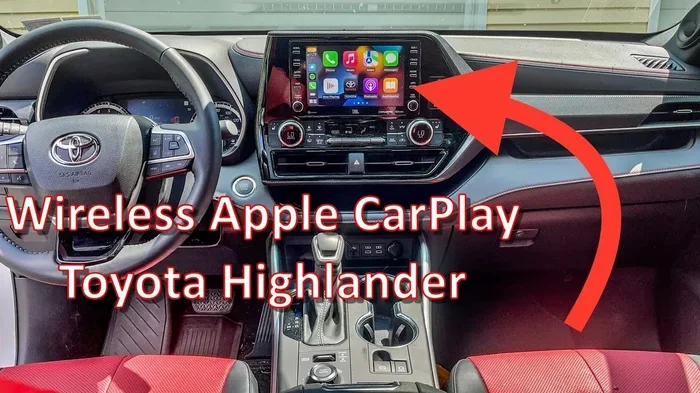
Toyota Highlander
The Highlander has a large infotainment screen that makes CarPlay easy to see and use. Wireless CarPlay is available on higher trims. The USB ports are located in the center console and rear areas.
Frequently Asked Questions
Can I connect my iPhone to any Toyota model?
Most Toyota models made after 2011 support Bluetooth, and most models from 2018 onward support Apple CarPlay. However, the exact features depend on your model year and trim level. Check your owner’s manual or the Toyota website for your specific vehicle’s connectivity options.
Why does my Toyota not show Apple CarPlay when I plug in my iPhone?
This usually happens because of a loose cable, a dirty USB port, or a software issue. Try a different cable, clean the USB port, and restart both your Toyota and iPhone. If the problem persists, check for Toyota firmware updates in your vehicle settings.
Do I need a special cable to connect my iPhone to my Toyota?
You need a standard Lightning cable or USB-C cable depending on your iPhone model. Apple-certified cables work best. Avoid cheap, uncertified cables as they often cause connection problems and may not support data transfer for CarPlay.
Can I use wireless CarPlay if my Toyota does not support it?
Unfortunately, wireless CarPlay requires hardware support from your Toyota. If your Toyota does not have wireless CarPlay built in, you cannot add it through software alone. However, a USB cable connection works just as well for most users.
How do I disconnect my iPhone from my Toyota safely?
To disconnect safely, unplug the USB cable or turn off Bluetooth on your iPhone. You can also go to your Toyota Bluetooth settings and unpair the device. Your Toyota will remember your iPhone and reconnect automatically the next time you get in the car.
Is it safe to use my iPhone while driving through my Toyota?
Yes, when you use CarPlay or Bluetooth, you can keep your eyes on the road and hands on the wheel. Use Siri voice commands for calls and messages. Avoid tapping the touchscreen while driving. Toyota’s CarPlay interface is designed to minimize distractions and keep you focused on the road.
Conclusion
How Do I Connect My Toyota to My iPhone is a question with a straightforward answer. Whether you choose USB, wireless CarPlay, or Bluetooth, the process is simple and well worth the effort. A connected Toyota and iPhone makes every drive safer, more entertaining, and more convenient.
Start with the USB method if you are new to this. It is the most reliable and gives you the full CarPlay experience. Then explore wireless CarPlay if your Toyota supports it. Set up Bluetooth as a backup for cable-free convenience.
Remember to troubleshoot quickly if issues arise. Most problems have simple fixes. Keep your software updated, use quality cables, and restart your devices when needed.
Your Toyota and iPhone are designed to work together. Once you make the connection, you will wonder how you ever drove without it. Follow the steps in this guide, enjoy the features, and drive with confidence knowing your phone and car are perfectly synced.