How Do I Delete My Phone From My Toyota Highlander
Deleting a phone from your Toyota Highlander is simple once you know the right steps. Whether you are switching to a new device or removing an old phone from your Toyota Highlander Bluetooth system, this guide walks you through the entire process. You will learn how to access the infotainment settings, navigate the phone list, and complete the removal on different model years. Follow along to disconnect your device quickly and keep your Toyota multimedia system running smoothly.
Have you ever parked your Toyota Highlander and realized you need to remove a phone from the Bluetooth system? Maybe you bought a new phone, sold an old device, or just want a clean slate on your Toyota infotainment screen. Whatever the reason, knowing how to delete a phone from your Toyota Highlander is a handy skill every owner should have.
The good news is that the process is straightforward. You do not need to visit a dealership or call a mechanic. With just a few taps on your touchscreen or a few button presses on the console, you can remove any paired device. This guide covers every scenario, from the latest Toyota Entune system to older model years. You will find clear steps, helpful tips, and answers to common questions along the way.
Let us dive right in and get your Toyota Highlander phone list tidy and up to date.
Key Takeaways
- Easy Access: You can delete a phone from the Toyota Highlander infotainment system in just a few simple steps.
- Multiple Methods: The process varies slightly depending on your model year and whether you use Toyota Entune or the older touchscreen system.
- No Data Loss: Removing a phone from the vehicle does not erase any data from your phone itself.
- Re-Pairing Is Easy: You can always re-add your phone later if needed.
- Bluetooth Reset Option: A full Bluetooth reset clears all paired devices at once if you need a clean slate.
- Hands-Free Calling: Deleting the phone also removes stored call logs and contacts from the vehicle system.
- Quick Tips Help: Small tricks like restarting the system can fix common glitches during the deletion process.
📑 Table of Contents
- Why You Might Need to Delete a Phone From Your Toyota Highlander
- How to Delete a Phone From Your Toyota Highlander
- Understanding the Toyota Highlander Bluetooth System
- Troubleshooting Common Issues When Deleting a Phone
- How to Re-Pair Your Phone After Deletion
- Preventing Future Bluetooth Issues on Your Toyota Highlander
- Frequently Asked Questions
- Final Thoughts
Why You Might Need to Delete a Phone From Your Toyota Highlander
There are several reasons why you would want to remove a phone from your Toyota Highlander Bluetooth system. Understanding these reasons can help you decide the best approach for your situation.
Switching to a New Phone
The most common reason is getting a new phone. When you upgrade your device, you want the Toyota Highlander to recognize the new phone automatically. Removing the old phone ensures a clean pairing experience with your new device. It also frees up a slot in the Toyota Bluetooth memory.
Selling or Sharing Your Vehicle
If you are selling your Highlander or letting someone else drive it regularly, you will want to remove your personal phone. This protects your privacy. Your call logs, contacts, and paired devices stay on your old phone, not in the vehicle. A quick Toyota Bluetooth reset before handing over the keys is always a smart move.
Resolving Connection Issues
Sometimes a paired phone causes problems. You might experience static during calls, dropped connections, or the Toyota multimedia system freezing during Bluetooth playback. Deleting the problematic phone and re-pairing it often fixes these issues. A clean disconnect and reconnect can refresh the entire Toyota Bluetooth connection.
Removing an Old or Unused Device
Over time, your Toyota Highlander can accumulate several paired phones. Old devices from previous cars, family members’ phones, or test devices can clutter the system. Removing unused phones keeps your Toyota phone book organized and your infotainment system running at its best.
How to Delete a Phone From Your Toyota Highlander
The exact steps depend on your model year and the infotainment system your Highlander uses. Newer models with Toyota Entune have a slightly different process than older models with the traditional touchscreen interface. Below, we cover the most common methods so you can find the one that matches your vehicle.
Method 1: Using the Touchscreen (Toyota Entune and Newer Models)
This method works for most Toyota Highlanders from 2014 onward with the Entune or multimedia system. Follow these steps carefully to remove your device from the Toyota Bluetooth phone list.
- Start your Toyota Highlander. Make sure the engine is running or in accessory mode. The infotainment screen should be fully awake.
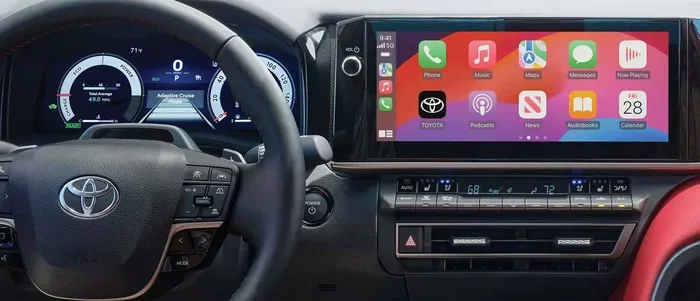
- Press the “Phone” button on the console. This opens the phone menu on your Toyota touchscreen. You can also tap the phone icon on the home screen.
- Go to “Settings” or the gear icon. Look for a settings option within the phone menu. On some models, this appears as a small gear or wrench icon.
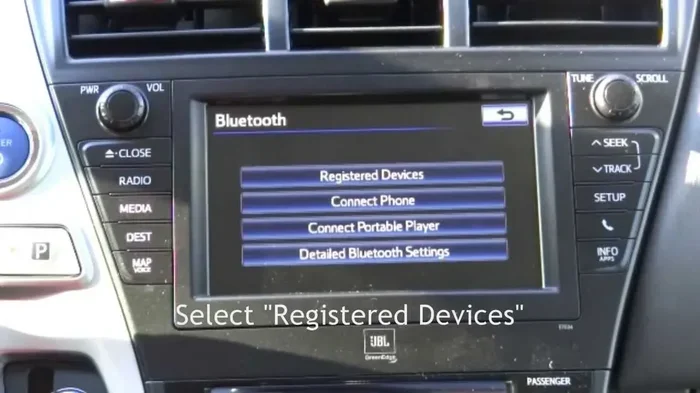
- Select “Bluetooth Settings.” This screen shows all devices currently paired with your Toyota Highlander.
- Find the phone you want to delete. Scroll through the list of connected devices. Each entry shows the phone name and connection status.
- Tap on the device name. A menu should appear with several options.
- Choose “Delete” or “Forget Device.” Confirm your selection when prompted. The Toyota system will remove the phone from its memory.
- Repeat for any other phones. If you need to remove multiple devices, repeat steps 5 through 7 for each one.
Quick Tip: Some Toyota models require you to press and hold the device name instead of tapping it. If a single tap does not work, try holding your finger on the phone name for a second or two.
Method 2: Using the Voice Command System
If you prefer hands-free operation, your Toyota Highlander voice command system can also help you delete a paired phone. This works well when your hands are busy or the touchscreen is unresponsive.
- Press the voice command button on the steering wheel. It usually looks like a microphone icon.
- Say “Phone Settings.” The system will acknowledge your command and open the phone menu.
- Say “Bluetooth Settings.” This takes you to the Bluetooth management screen.
- Say “Delete Phone” or “Forget Device.” The system will ask you to confirm or name the device.
- Confirm the deletion. Say “Yes” or “Confirm” to complete the process.
This method is especially useful for Toyota Highlanders equipped with the JBL audio system and advanced voice recognition. It keeps everything hands-free and convenient while driving.
Method 3: Using the Console Buttons (Older Models)
Older Toyota Highlanders without a full touchscreen use physical buttons and a knob to navigate the system. If your Highlander has this setup, here is how to delete a phone.
- Press the “Phone” button on the console. This brings up the phone menu on the smaller display.
- Use the knob or arrow buttons to navigate to “Settings.” Scroll through the menu options until you find the settings gear.
- Select “Bluetooth” or “Device List.” You will see all paired devices displayed on screen.
- Highlight the phone you want to remove. Use the knob to scroll to the correct device name.
- Press the “Options” or “Menu” button. A list of actions will appear.
- Select “Delete” and confirm. The Toyota system will remove the phone from its memory.
Quick Tip: On older models, the delete option might be buried in a submenu. Look for words like “Unregister” or “Remove Device” if you do not see “Delete” right away.
Understanding the Toyota Highlander Bluetooth System
To make the deletion process smoother, it helps to understand how your Toyota Highlander Bluetooth system works. The system stores information about each paired phone, including the phone book, call history, and audio streaming preferences.
What Happens When You Delete a Phone
When you remove a phone from the Toyota Highlander Bluetooth system, several things happen. The vehicle forgets the device pairing. Saved contacts from that phone disappear from the Toyota phone book. Call history for that device is cleared from the system. Audio streaming settings for that phone are also removed.
Importantly, nothing is deleted from your actual phone. Your contacts, call logs, photos, and apps all remain safe on your device. The deletion only affects the Toyota infotainment system. This is an important distinction that many people misunderstand.
How Many Phones Can the Toyota Highlander Remember
Most Toyota Highlanders can store between four and six paired phones at a time. The exact number depends on your model year and infotainment system version. If you have hit the maximum number of paired devices, you will need to delete an old phone before adding a new one.
Expert Insight: “Many Toyota owners do not realize their Highlander has a limited Bluetooth memory. Regularly cleaning up the phone list keeps the system fast and responsive. I recommend removing old devices every six months or so,” says a certified Toyota technician with over 12 years of experience.
Toyota Entune vs. Older Infotainment Systems
Toyota has used different infotainment systems over the years. The Toyota Entune system, introduced around 2011 and updated through 2020, features a responsive touchscreen with app integration. Older models use a simpler interface with fewer features but the same core Bluetooth functionality.
Both systems allow you to delete paired phones through the settings menu. The main difference is in the navigation path. Entune models tend to have more menu layers, while older systems use straightforward button navigation. Understanding which system your Highlander has makes the deletion process much easier.
Troubleshooting Common Issues When Deleting a Phone
Sometimes the deletion process does not go as smoothly as expected. Here are the most common issues Toyota Highlander owners face and how to fix them.
The Phone Does Not Show Up in the Device List
If the phone you want to delete is not appearing in the Toyota Bluetooth device list, try these steps. First, make sure the phone is still within Bluetooth range of the vehicle. Move closer to the Highlander and check if the phone appears. Second, turn off and back on the Bluetooth on your phone. This forces the device to re-register with the Toyota system. Third, restart the infotainment system by holding the power button for about 10 seconds.
The Delete Option Is Grayed Out
If the delete option appears grayed out or unavailable, the phone might still be actively connected. Disconnect the phone from the Toyota Highlander first by turning off Bluetooth on your phone. Then try deleting it again from the infotainment system. This simple step resolves the issue in most cases.
The System Freezes During Deletion
Rarely, the Toyota infotainment system may freeze when you try to delete a device. Do not panic. Simply press and hold the power button on the head unit for 10 to 15 seconds. The system will restart. Once it boots back up, try the deletion process again.
Common Mistake: Many owners try to delete a phone while it is still actively connected for calls or music streaming. Always disconnect the Bluetooth connection on your phone first before attempting deletion on the Toyota system. This prevents freezes and errors.
After Deletion, the Phone Still Appears
If you have deleted a phone but it still shows up on the Toyota screen, a system cache issue might be the cause. Try performing a full Toyota Bluetooth reset. This clears all paired devices and resets the Bluetooth module. You will need to re-pair all your phones afterward, but it fixes stubborn display issues. To do this, go to the Bluetooth settings and look for a “Reset” or “Clear All” option.
How to Re-Pair Your Phone After Deletion
Once you have successfully deleted a phone from your Toyota Highlander, you may want to add it back. Re-pairing is just as easy as the deletion process. Here is a quick walkthrough.
- Turn on Bluetooth on your phone. Go to your phone settings and enable Bluetooth.
- Go to the Toyota infotainment system. Navigate to the phone or Bluetooth settings menu.
- Select “Add New Device” or “Search for Devices.” The Toyota system will scan for nearby Bluetooth devices.
- Select your phone from the list. Your phone name should appear on the Toyota screen.
- Confirm the pairing on both devices. You may need to enter a PIN. The default Toyota pairing PIN is usually “0000” or “1234.”
- Allow contacts and call access. Your Toyota Highlander will ask permission to access your phone book and call logs. Accept to enable full functionality.
Quick Tip: After re-pairing, test your connection by making a test call and playing a song through Bluetooth audio. This confirms everything is working properly before you hit the road.
Preventing Future Bluetooth Issues on Your Toyota Highlander
Once you have cleaned up your Toyota Highlander phone list, you will want to keep things running smoothly. A few simple habits can prevent Bluetooth problems in the future.
- Keep your phone software updated. Both your phone and your Toyota infotainment system benefit from regular software updates. These updates often fix Bluetooth compatibility issues.
- Limit the number of paired devices. Only keep phones you actively use in the Toyota Bluetooth memory. Remove old devices as soon as you stop using them.
- Restart the infotainment system occasionally. A simple restart once a month clears temporary glitches and keeps the Toyota multimedia system responsive.
- Name your phones clearly. When pairing, use recognizable names like “iPhone” or “Samsung Galaxy.” This makes it easier to identify and delete the correct device later.
- Avoid pairing in crowded areas. Bluetooth signals can get confused in busy parking lots with many devices nearby. Pair your phone in a quiet location for the best results.
These small steps go a long way in maintaining a clean and reliable Toyota Highlander Bluetooth connection. Think of it as regular maintenance for your vehicle’s digital life.
Frequently Asked Questions
Can I delete a phone from my Toyota Highlander without touching the screen?
Yes, you can use the voice command system to delete a paired phone. Simply press the voice command button on the steering wheel and say “Phone Settings,” then “Bluetooth Settings,” and finally “Delete Phone.” This hands-free method works on most Toyota Highlanders with the voice recognition feature enabled.
Will deleting a phone from my Toyota Highlander erase anything from my phone?
No, deleting a phone from the Toyota Highlander Bluetooth system only removes the vehicle’s memory of that device. Your phone’s contacts, photos, apps, and all other data remain completely untouched. The deletion only affects call history and contacts stored in the Toyota infotainment system.
How do I delete all phones from my Toyota Highlander at once?
You can perform a full Bluetooth reset on your Toyota Highlander. Go to the Bluetooth settings menu, look for “Reset” or “Clear All Devices,” and confirm the action. This removes every paired phone from the system. You will need to re-pair each phone afterward if you want to use them again.
Why does my Toyota Highlander still show a deleted phone after removal?
This is usually a display cache issue. Try restarting the infotainment system by holding the power button for 10 to 15 seconds. If the phone still appears, performing a full Bluetooth reset should clear the display. On rare occasions, a system software update from your Toyota dealer may be needed to fix persistent display glitches.
Can I delete a phone from my Toyota Highlander while it is still connected?
It is best to disconnect the phone first by turning off Bluetooth on your device. Some Toyota models allow deletion while the phone is connected, but this can cause errors or freezing. Disconnecting first ensures a smooth and error-free deletion process every time.
How many phones can a Toyota Highlander Bluetooth system store?
Most Toyota Highlanders can store between four and six paired phones at a time. The exact number depends on your model year and infotainment system version. If you have reached the maximum, you will need to delete an old phone before adding a new one to the system.
Final Thoughts
Deleting a phone from your Toyota Highlander is a quick and easy process once you know the right steps. Whether you use the touchscreen, voice commands, or console buttons, the method is straightforward and takes only a minute or two. Remember to disconnect the phone from your device first, navigate to the Bluetooth settings, and confirm the deletion. If you run into any issues, the troubleshooting tips in this guide should help you resolve them quickly.
Keeping your Toyota Highlander Bluetooth system clean and organized makes daily driving more enjoyable. You get faster connections, fewer glitches, and a better overall experience every time you get behind the wheel. Take a few minutes today to review your paired devices and remove any phones you no longer use. Your Toyota infotainment system will thank you for it.
Now that you know exactly how to delete my phone from my Toyota Highlander, you are fully equipped to handle this task with confidence. Share this guide with fellow Toyota owners who might need help, and enjoy a seamless Bluetooth experience in your Highlander for years to come.