How Do I Pair My iPhone to My Car With This Simple Guide
Pairing your iPhone to your car is easier than you think. This guide walks you through Bluetooth, USB, and wireless CarPlay setup in simple steps. You will learn troubleshooting tips, expert advice, and quick fixes to keep your connection running smoothly every time you get behind the wheel.
Have you ever gotten into your car and realized your iPhone is just sitting there, disconnected and useless? You are not alone. How Do I Pair My iPhone to My Car is one of the most searched questions on the internet, and for good reason. Whether you want to stream music, use GPS navigation, or make hands-free calls, connecting your phone to your vehicle opens up a whole new world of convenience.
The good news is that pairing your iPhone to your car does not require any technical skills. In fact, most modern vehicles make the process incredibly simple. With just a few taps on your phone and a couple of buttons on your dashboard, you can be up and running in under five minutes. This guide will walk you through every method, every step, and every tip you need to know.
By the end of this article, you will feel confident connecting your device to any car, whether it is a brand-new model with Apple CarPlay or an older stereo system that only supports basic Bluetooth. Let us get started.
Key Takeaways
- Bluetooth pairing is the most common method and works with almost all modern vehicles.
- Apple CarPlay offers a smarter experience with navigation, music, and Siri built right into your car screen.
- USB cable connection provides reliable charging and a stable link for older car models.
- Common issues like interference or outdated software can be fixed with a few simple steps.
- Wireless CarPlay eliminates cables entirely for a cleaner, more convenient setup.
- Keeping your iPhone and car software updated prevents most pairing problems before they start.
📑 Table of Contents
- Why Pairing Your iPhone to Your Car Matters
- Before You Start: What You Need
- How to Pair iPhone to Car Using Bluetooth
- How to Set Up Apple CarPlay
- Using a USB Cable for Connection
- Troubleshooting Common Pairing Issues
- Tips for a Better iPhone-Car Connection
- Expert Insights on iPhone-Car Pairing
- Key Takeaways
- Conclusion
Why Pairing Your iPhone to Your Car Matters
Connecting your iPhone to your car is not just about playing music. It is about safety, convenience, and making your daily drive more enjoyable. When your phone is paired correctly, you can access features that make driving smarter and less distracting.
First, hands-free calling keeps your eyes on the road and your hands on the wheel. You can answer calls through your car speakers without ever touching your phone. Second, navigation apps like Google Maps or Apple Maps display directly on your car screen, so you do not have to prop your phone up on the dashboard.
Third, music streaming becomes seamless. Apps like Spotify, Apple Music, and Pandora stream through your car speakers with crystal-clear sound. Fourth, voice commands through Siri integration let you send texts, change songs, and set reminders without lifting a finger.
Finally, pairing your device ensures that your iPhone settings sync automatically every time you get in the car. Your preferred playlists, recent calls, and favorite navigation destinations all load up instantly. It is a small setup that delivers a big payoff.
Before You Start: What You Need
Before you dive into the pairing process, it helps to know what you are working with. Not all cars are the same, and the method you use depends on your vehicle’s features and your iPhone model.
Check Your Car’s Capabilities
Start by identifying what your car supports. Most vehicles made after 2015 come with Bluetooth connectivity built into the infotainment system. Some newer models also support wireless CarPlay, which lets you connect without any cables at all.
Older cars might only have a USB port or an auxiliary input. In those cases, you can still connect your iPhone, but the experience will be more basic. You will get audio playback and possibly charging, but you will miss out on screen mirroring and advanced features.
Here is a quick checklist to help you figure out what your car supports:
- Look for a Bluetooth or phone icon on your car’s display screen.
- Check your car manual for “phone connectivity” or “infotainment” features.
- Check if your car has a USB port labeled for data transfer, not just charging.
- Look for a CarPlay or Android Auto logo on the stereo unit.
- Test the touchscreen to see if it supports app integration.
What You Need on the iPhone Side
On the iPhone side, you need a few things in order. Make sure your iPhone software is up to date. Go to Settings, then General, then Software Update. Install any pending updates before you start pairing.
Also, make sure Bluetooth is turned on. You can do this from the Control Center by swiping down from the top right corner of your screen. The Bluetooth icon should light up blue. If you are planning to use CarPlay, make sure your car is compatible with Apple’s system. Most iPhones from the iPhone 5s onward support CarPlay in some form.
How to Pair iPhone to Car Using Bluetooth
Bluetooth pairing is the most universal method for connecting your iPhone to your car. It works with virtually every vehicle that has a built-in infotainment system. Here is exactly how to do it, step by step.
Step 1: Turn on Bluetooth on Your iPhone
Open the Settings app on your iPhone. Tap on Bluetooth and toggle it on. Your iPhone will immediately start searching for nearby devices. Make sure your iPhone is not connected to any other Bluetooth device at this point, as that can interfere with the pairing process.
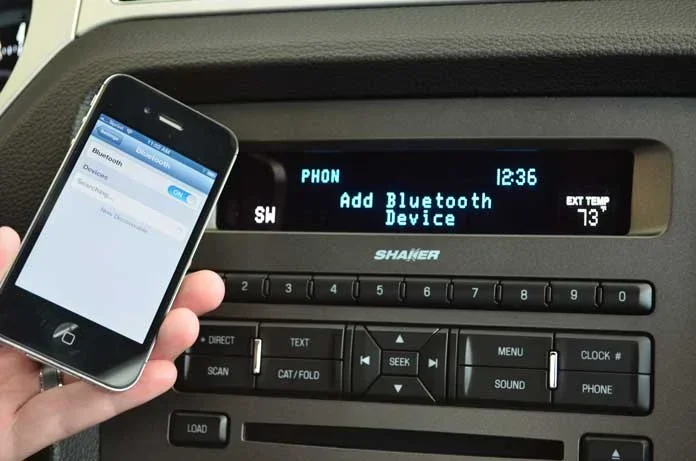
Step 2: Enable Discoverable Mode on Your Car
Now, go to your car and turn on the infotainment system. Navigate to the Bluetooth settings menu. This is usually found under Settings, Phone, or Connections, depending on your car brand. Select the option to search for new devices or make your car discoverable.
Some cars will automatically enter discoverable mode when you first turn them on. If you are not sure, consult your car manual or look for a Bluetooth or phone icon on the display screen.
Step 3: Find Your Car on Your iPhone
Go back to your iPhone and look at the list of available devices under Other Devices. Your car’s name should appear there. It might be the car brand name, the model name, or something generic like “Bluetooth Car.” Tap on it to start the pairing process.
A code will appear on both your iPhone and your car screen. Make sure the codes match, then tap Pair on your iPhone. This confirms that you are connecting to the right device and keeps your device pairing secure.
Step 4: Allow Permissions
Your iPhone will ask you to grant permissions. You will see options for Phone Calls, Messages, and Audio Sharing. Tap Allow for all of these. This gives your car access to make and receive calls, read notifications, and play audio through the car speakers.
Once you complete these steps, your iPhone and car are paired. You should see a confirmation on both screens. From now on, your iPhone will connect automatically whenever you get in the car, as long as Bluetooth is turned on.
How to Set Up Apple CarPlay
Apple CarPlay takes the iPhone-car connection to the next level. It mirrors key apps from your iPhone onto your car’s display screen, giving you a familiar and safe interface while driving. If your car supports CarPlay, this is the best way to connect.
Wired CarPlay Setup
For wired CarPlay, you need a Lightning to USB cable. Plug one end into your iPhone and the other into your car’s USB port. Make sure you use a data-USB cable, not just a charging cable. A charging-only cable will not transfer data, and your car will not recognize your iPhone.
Once plugged in, your car screen should display the CarPlay interface. If it does not, go to your car’s Bluetooth or source settings and select CarPlay as the input. On your iPhone, you may need to tap Trust This Computer if a prompt appears.
Wireless CarPlay Setup
Wireless CarPlay is even more convenient. It eliminates the need for any cables. To set it up, your car must support wireless CarPlay, and your iPhone must be running iOS 14 or later.
Go to Settings on your iPhone, then General, then CarPlay. Select your car from the list of available vehicles. Follow the on-screen instructions to complete the setup. After the first time, your iPhone will connect to CarPlay automatically whenever you start the car.
Getting the Most Out of CarPlay
Once CarPlay is running, you can access a range of apps directly from your car screen. Use Siri to send messages, set reminders, and make calls without touching your phone. Navigation apps like Google Maps, Waze, and Apple Maps work beautifully with CarPlay.
You can also control music streaming apps, podcasts, and audiobooks right from the dashboard. The Siri integration means you can say “Hey Siri, play my workout playlist” and it just works. It is one of the best reasons to pair your iPhone with your car.
Using a USB Cable for Connection
Not every car supports Bluetooth or CarPlay. Some older vehicles only have a USB port for music playback. In these cases, a simple USB cable is all you need to connect your iPhone to your car stereo.
Plug your iPhone into the car’s USB port using a compatible cable. The car stereo should switch to USB input automatically. If it does not, use the source or media button on your dashboard to select USB.
You will get two benefits from this connection: audio playback and battery charging. Your music and podcasts will play through the car speakers, and your iPhone will charge while you drive. However, you will not get hands-free calling or screen mirroring with a basic USB connection.
If your car has a USB port that only charges and does not transfer data, try a different port or a different cable. Some cars have dedicated media USB ports and separate charging ports. Look for a port with a lightning bolt or data icon next to it.
Troubleshooting Common Pairing Issues
Sometimes, iPhone connectivity does not work the first time. This is completely normal, and it does not mean anything is broken. Most pairing issues can be fixed with a few simple steps.
iPhone Not Showing Up on Car Screen
If your car cannot find your iPhone, the first thing to check is Bluetooth. Make sure it is turned on and that your iPhone is not connected to another device. Restart Bluetooth on your iPhone by turning it off and back on again.
Next, try restarting your car’s infotainment system. Turn the car off, wait 30 seconds, and turn it back on. This clears the Bluetooth cache and forces the system to search for new devices. If that does not work, restart your iPhone as well.
Paired but No Audio
If your iPhone connects but you cannot hear any sound, check the audio output settings on your iPhone. Go to Settings, then Bluetooth, and tap the info icon next to your car. Make sure Audio Sharing is turned on and that your car is selected as the audio output device.
Also, check the volume on both your iPhone and your car stereo. Sometimes the car volume is turned all the way down, and you have to crank it up after pairing. This is a common mistake that trips up many drivers.
Connection Drops Frequently
If your Bluetooth troubleshooting reveals that the connection keeps dropping, try moving your iPhone closer to the car’s antenna. The iPhone is usually best placed in the center console or glove box for strongest signal. Also, make sure your car and iPhone software are both up to date, as updates often fix connection bugs.
Reset Network Settings as a Last Resort
If nothing else works, you can reset your iPhone’s network settings. Go to Settings, then General, then Transfer or Reset iPhone, then Reset, and then Reset Network Settings. This will clear all saved Bluetooth connections, Wi-Fi passwords, and VPN settings. You will need to reconnect to your car and Wi-Fi after this, but it often solves stubborn pairing issues.
Tips for a Better iPhone-Car Connection
A good connection does not just happen by accident. A few small habits can make your iPhone and car integration experience much better every single day.
Keep Your Software Updated
Both your iPhone and your car’s infotainment system benefit from regular updates. Car manufacturers release firmware updates that improve Bluetooth performance and fix bugs. Check for car software updates at your dealership or through your car’s settings menu.
Delete Old Paired Devices
If your car has a long list of paired devices, it can slow things down. Go into your car’s Bluetooth settings and remove devices you no longer use. This keeps the connection clean and fast.
Use a High-Quality Cable
If you rely on USB or wired CarPlay, the cable matters more than you think. Cheap cables can cause connection drops, slow data transfer, and charging issues. Invest in a certified Lightning cable from a reputable brand for the best results.
Turn Off Other Bluetooth Devices
Your iPhone might be trying to connect to your headphones, smartwatch, or speaker at the same time it is connecting to your car. This can cause conflicts. Turn off Bluetooth on devices you are not using while driving to ensure a clean connection to your car.
Restart Before Long Trips
A quick restart of both your iPhone and car infotainment system before a long road trip can prevent unexpected issues. It clears temporary glitches and ensures everything is running smoothly from the start.
Expert Insights on iPhone-Car Pairing
Automotive tech experts agree that the key to a great phone integration experience is preparation. Do not wait until you are already driving to try connecting your phone for the first time. Set it up at home, test it out, and make sure everything works before you hit the road.
Experts also recommend familiarizing yourself with Siri voice commands before you need them. Practice saying “Hey Siri, call mom” or “Hey Siri, navigate to the nearest gas station” while parked. Once these commands become second nature, you will wonder how you ever drove without them.
Another expert tip is to enable iPhone mirroring for a seamless experience. This lets your car display show your notifications, upcoming calendar events, and even your photo library. It turns your car into an extension of your phone, making every drive more connected and productive.
Key Takeaways
- Bluetooth pairing is the foundation of iPhone-car connectivity and works with almost every modern vehicle.
- Apple CarPlay transforms your driving experience by bringing your favorite apps to your car screen.
- A quality USB cable can solve connection issues and provide reliable audio and charging.
- Most pairing problems are easy to fix with a simple restart or settings reset.
- Keeping both devices updated prevents compatibility issues and improves performance.
- Wireless CarPlay offers the cleanest setup with no cables required.
- Practicing Siri commands before you drive makes hands-free use safer and more natural.
Conclusion
Now you know exactly how to pair iPhone to car using every available method. Whether you choose Bluetooth, USB, or wireless CarPlay, the process is straightforward and takes only a few minutes. The key is to start with the basics, keep your software updated, and troubleshoot calmly if anything goes wrong.
Connecting your iPhone to your car is one of the simplest upgrades you can make to your daily driving routine. It makes calls safer, navigation easier, and music more enjoyable. Once you experience the convenience of a properly paired connection, you will wonder how you ever drove without it.
Take a few minutes today to follow the steps in this guide. How Do I Pair My iPhone to My Car does not have to be a mystery anymore. With the right setup, your iPhone and your car will work together like a well-oiled machine, making every trip smoother and more connected.
So go ahead, plug in your phone, and enjoy the ride. Your car and your iPhone are ready to work together.