How to Connect Apple CarPlay Wirelessly and Stream Music
Apple CarPlay wirelessly lets you stay connected, navigate, and stream music without fumbling with cables. This guide walks you through every step of the wireless CarPlay setup process for iPhone users. You will learn how to check compatibility, troubleshoot common issues, and get the most out of wireless CarPlay in your vehicle. Whether you drive a new car or use an aftermarket head unit, this article has you covered. By the end, you will know exactly how to go wireless with Apple CarPlay and enjoy a seamless driving experience.
Connecting Apple CarPlay wirelessly is one of the simplest ways to make your daily commute safer and more enjoyable. Instead of plugging in a cable every time you get behind the wheel, you can mirror your iPhone’s key features directly onto your car’s display. This means you can stream music in car, get turn-by-turn directions, send messages, and use Siri voice commands all without touching your phone.
Whether you just bought a new vehicle or are looking to upgrade your current setup, wireless CarPlay changes the game. It works with a growing list of CarPlay compatible vehicles and compatible head units from brands like Ford, BMW, Honda, and many more. In this guide, we will walk you through everything you need to know about setting up Apple CarPlay wirelessly, fixing common problems, and getting the best experience possible.
Key Takeaways
- Wireless Apple CarPlay eliminates cables: Enjoy a clutter-free dashboard and hands-free convenience every time you drive.
- Setup is simple and fast: Most modern cars and aftermarket head units support wireless CarPlay with just a few taps on your iPhone.
- Troubleshooting is straightforward: Common issues like disconnections can usually be fixed with a quick reset or software update.
- Not all cars support it natively: Check your vehicle or head unit compatibility before expecting wireless CarPlay to work.
- Streaming music is a breeze: Apple CarPlay wireless makes it easy to access Spotify, Apple Music, and other apps on the road.
- Keep your iPhone and car software updated: Updates often fix bugs and improve wireless CarPlay performance.
📑 Table of Contents
- What Is Wireless Apple CarPlay and Why It Matters
- How to Set Up Wireless Apple CarPlay Step by Step
- Wireless CarPlay vs USB: Which Connection Is Better
- Common Wireless CarPlay Problems and How to Fix Them
- Best Cars and Head Units for Wireless Apple CarPlay
- Tips for the Best Wireless CarPlay Experience
- Conclusion
What Is Wireless Apple CarPlay and Why It Matters
Apple CarPlay is a smart feature that mirrors the most useful parts of your iPhone onto your car’s infotainment screen. With the wireless CarPlay connection, you no longer need a USB cable to access maps, music, calls, and messages. The connection happens through Bluetooth and Wi-Fi, giving you a clean and cable-free dashboard.
The wireless CarPlay benefits are real and immediate. First, you say goodbye to cable clutter. No more tangled cords or searching for the right USB port. Second, iPhone mirroring in car feels seamless. Your phone connects automatically when you sit behind the wheel. Third, CarPlay audio streaming works flawlessly with apps like Apple Music, Spotify, and Podcasts. You get high-quality sound without any extra setup.
How Wireless CarPlay Differs from USB CarPlay
The main difference between USB CarPlay vs wireless comes down to convenience. USB CarPlay requires you to plug your iPhone into a cable every time. Wireless CarPlay uses a Bluetooth CarPlay pairing process that stays active as long as both your phone and car are turned on. Both versions offer the same features, but wireless feels much more natural for daily use.
Here is a quick look at how the two compare:
| Feature | USB CarPlay | Wireless CarPlay |
|---|---|---|
| Connection Type | USB Cable | Bluetooth and Wi-Fi |
| Setup Speed | Fast, but requires cable | Automatic after initial pairing |
| Cable Clutter | Yes | No |
| Charging While Connected | Yes | No (unless car supports wireless charging) |
| Compatibility | Almost all CarPlay cars | Newer models and select head units |
| Connection Stability | Very stable | Very stable when updated |
Both options are excellent. If your car supports wireless CarPlay, it is definitely worth using. The freedom of a cable-free connection makes every drive feel smoother.
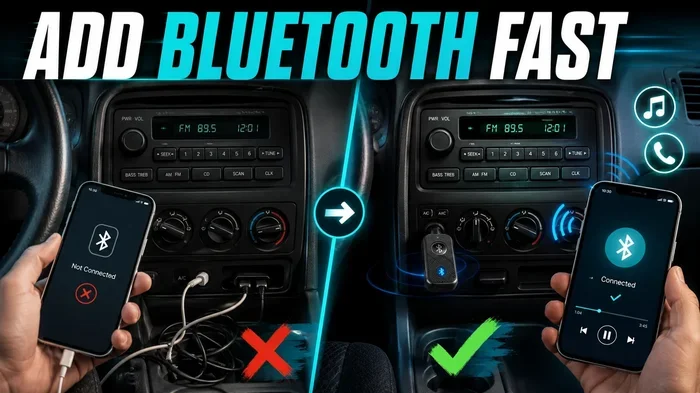
Quick Tip: If your car only supports USB CarPlay, you can still add wireless CarPlay aftermarket adapters. These small devices plug into your existing head unit and enable wireless connectivity. They are an affordable way to upgrade older cars.
How to Set Up Wireless Apple CarPlay Step by Step
Setting up Apple CarPlay wirelessly is easier than most people think. The process takes just a few minutes, and once it is done, your phone connects automatically every time you start the car. Here is exactly how to do it.
Step 1: Check Compatibility
Before you begin, make sure your car or head unit supports wireless CarPlay. Not every vehicle with CarPlay has the wireless version. Check your car’s manual or visit the manufacturer’s website. You can also look for a CarPlay settings menu on your car’s display. If you see a “Wireless” option, you are good to go.
Here are some quick ways to check:
- Look for a wireless CarPlay icon on your car’s infotainment screen.
- Check your car’s manual for “wireless Apple CarPlay” support.
- Search online for your car model plus “wireless CarPlay compatible.”
- Ask your dealer or check the infotainment system settings.
Step 2: Make Sure Your iPhone Is Ready
Your iPhone needs to be running iOS 14 or later for the best wireless CarPlay experience. Go to Settings > General > Software Update to check. You should also make sure CarPlay settings on your phone are enabled. Go to Settings > General > CarPlay > Your Car and make sure it is set up.
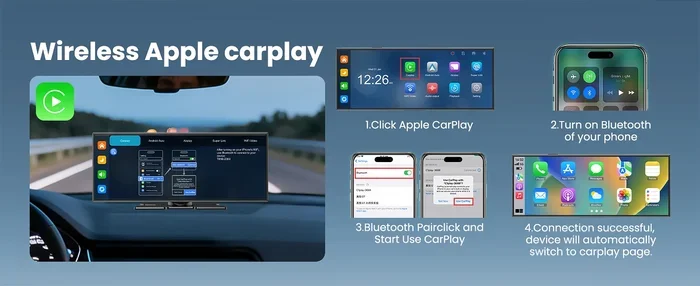
Also, turn on Bluetooth and Wi-Fi on your iPhone. Wireless CarPlay uses both connections to work properly. If either is off, the connection will fail.
Step 3: Connect Wirelessly
Now for the fun part. Start your car and make sure the infotainment system is on. On your car’s display, look for the Apple CarPlay option. Select it and choose “Wireless.” Your iPhone should appear on the screen. Tap on it to pair.
You may need to confirm the connection on both your car screen and your iPhone. Once paired, the iPhone CarPlay interface will appear on your dashboard. From there, you can access maps, music, messages, and more.
Expert Insight: Some cars require you to first connect via USB cable at least once before switching to wireless. If your car does not show the wireless option, try plugging in your iPhone with a cable first, enabling CarPlay, and then unplugging it. The next time you start the car, it should connect wirelessly.
Step 4: Set CarPlay as Your Default Display
After connecting, go into your car’s settings and set Apple CarPlay as the default display mode. This way, every time you start your car, CarPlay launches automatically. You can also customize which apps appear on the CarPlay home screen. Rearrange them by holding down an icon and dragging it to your preferred spot.
Wireless CarPlay vs USB: Which Connection Is Better
The debate between USB CarPlay vs wireless comes up often among car owners. Both methods deliver the same core Apple CarPlay features, but the experience differs in important ways. Let us break it down so you can decide what works best for you.
When USB CarPlay Makes Sense
USB CarPlay is still a great choice in certain situations. If your car does not support wireless CarPlay, USB is your only option. USB connections also charge your iPhone while you drive, which is helpful on long road trips. And for older vehicles, a USB cable connection is often more reliable than a wireless one.
When Wireless CarPlay Wins
For most daily drivers, wireless Apple CarPlay is the better option. The automatic connection means you never have to think about cables. It keeps your dashboard clean and your phone accessible for wireless charging if your car supports it. The wireless CarPlay setup process is also faster after the initial pairing.
If you frequently switch between drivers, wireless CarPlay is a huge plus. Each driver can connect their own iPhone automatically without sharing cables. It is a small thing that makes a big difference in households with multiple iPhones.
Common Mistakes: One mistake many people make is assuming all CarPlay connections are wireless. Always double-check your car’s specifications. Another error is forgetting to keep both Bluetooth and Wi-Fi turned on. Without both, wireless CarPlay will not work.
Common Wireless CarPlay Problems and How to Fix Them
Even with the best setup, you might run into issues with Apple CarPlay wirelessly. The good news is that most problems have simple fixes. Here are the most common issues and how to solve them.
CarPlay Not Connecting Wirelessly
If your CarPlay not connecting issue happens, start with the basics. Turn Bluetooth and Wi-Fi off and back on. Restart your iPhone. Restart your car’s infotainment system. Often, a simple reboot of both devices resolves the problem instantly.
If that does not work, try unpairing and re-pairing the connection. Go to your car’s CarPlay settings, forget the device, and set it up again from scratch. This fresh start usually fixes stubborn connection problems.
Frequent Disconnections
Frequent disconnections are frustrating but common. They often happen when your iPhone moves out of range or when another Bluetooth device interferes. Make sure your iPhone is within range of the car’s system. Also, check that your car’s software is up to date. Manufacturers regularly release CarPlay updates that fix connectivity bugs.
Slow Performance or Lag
If your wireless CarPlay feels slow, your iPhone might be running low on storage. Close unused apps and free up space. You should also check for CarPlay updates on both your iPhone and your car’s system. A slow connection often improves dramatically after a simple update.
Quick Tips for Wireless CarPlay Troubleshooting:
- Always restart both your iPhone and car system before trying advanced fixes.
- Make sure your iPhone is unlocked when connecting for the first time.
- Disable VPN apps on your iPhone, as they can interfere with CarPlay.
- Reset your car’s infotainment system if problems persist.
- Check for iOS updates on your iPhone regularly.
Best Cars and Head Units for Wireless Apple CarPlay
Not every car comes with wireless CarPlay out of the box. But many popular models do, and there are also great aftermarket options if your current vehicle does not support it. Here is a look at some of the best choices for wireless CarPlay compatible cars.
Factory Cars with Wireless CarPlay
Many 2020 and newer vehicles come with wireless CarPlay as standard or optional equipment. Brands like Toyota, Honda, Ford, BMW, Mercedes-Benz, and Hyundai offer it across many of their models. If you are shopping for a new car, look for “wireless Apple CarPlay” in the features list. It is becoming a standard expectation for buyers, so most manufacturers now include it.
Aftermarket Head Units with Wireless CarPlay
If your current car does not have wireless CarPlay, do not worry. Compatible head units from brands like Pioneer, Kenwood, and Sony offer wireless CarPlay support. These units replace your factory radio and bring modern smart features to older vehicles. Installation is straightforward, and many units support both iPhone CarPlay and Android Auto.
When choosing an aftermarket head unit, look for these features:
- Built-in wireless CarPlay and Android Auto support
- Touchscreen display for easy navigation
- Bluetooth connectivity for hands-free calling
- GPS navigation capability
- Support for CarPlay audio streaming apps
Expert Insight: When buying an aftermarket head unit, make sure it supports the latest CarPlay update standards. Newer versions of CarPlay offer better Siri integration, improved map navigation, and faster wireless CarPlay connection speeds. Always check the product specifications before purchasing.
Tips for the Best Wireless CarPlay Experience
Getting Apple CarPlay wirelessly connected is only half the battle. To truly enjoy the experience, you need to optimize your setup and habits. Here are some proven tips that make a real difference.
Keep Your iPhone and Car Software Updated
Software updates are crucial for wireless CarPlay performance. Apple regularly releases updates that improve connectivity, fix bugs, and add new features. Similarly, your car’s infotainment system may need periodic updates. Check for updates at least once a month to keep everything running smoothly.
Use Siri Voice Commands While Driving
One of the best Apple CarPlay features is Siri integration. You can ask Siri to play music, make calls, send messages, and navigate to a destination without taking your hands off the wheel. Simply say “Hey Siri” and speak your command. This keeps you focused on the road and makes wireless CarPlay even safer and more convenient.
Optimize Your CarPlay Home Screen
Take a few minutes to organize your CarPlay settings and home screen. Pin your most-used apps like Spotify, Google Maps, and Messages to the front row. Remove apps you never use. A clean, organized home screen makes it faster to find what you need while driving.
Stream Music Without Interruptions
For the best CarPlay audio streaming experience, download your playlists and podcasts over Wi-Fi before you drive. This ensures smooth playback even if your cellular signal is weak. You can also adjust the audio quality settings in apps like Spotify and Apple Music for the best sound through your car’s speakers.
Enable Auto-Reply for Messages
When you are driving, Siri can automatically reply to incoming messages. You can set it up in CarPlay settings so that people who text you get an automatic response saying you are driving. This reduces distractions and keeps you focused on the road.
Key Takeaways:
- Update regularly: Keep both your iPhone and car software current for the best performance.
- Use Siri: Voice commands keep your eyes on the road and hands on the wheel.
- Organize your screen: A clean CarPlay home screen saves time and reduces distractions.
- Download content first: Pre-download music and maps for uninterrupted playback.
- Set auto-replies: Let Siri handle texts so you can focus on driving safely.
Conclusion
Connecting Apple CarPlay wirelessly is a game-changer for anyone who spends time behind the wheel. It removes the hassle of cables, keeps your dashboard clean, and gives you seamless access to maps, music, and messages. With the wireless CarPlay setup steps outlined in this guide, you can get started in just a few minutes.
Remember that wireless CarPlay works best when you keep your iPhone and car software updated. Troubleshooting is usually simple, and most issues resolve with a quick restart or re-pairing. Whether you drive a new car with factory wireless support or use an aftermarket head unit, the experience is remarkably similar and incredibly convenient.
The ability to stream music in car, get directions, and stay connected without distractions is what makes Apple CarPlay wirelessly such a valuable feature. Take the time to set it up properly, customize your preferences, and enjoy a smarter, safer driving experience every time you hit the road.
Frequently Asked Questions
Can I use wireless Apple CarPlay with any iPhone?
Most iPhones running iOS 14 or later support wireless CarPlay. However, your car or head unit must also support the wireless feature. Check both your iPhone model and your vehicle’s specifications to confirm compatibility before expecting wireless Apple CarPlay to work.
Why does my wireless CarPlay disconnect frequently?
Frequent disconnections usually happen due to Bluetooth interference, low iPhone battery, or outdated software. Try turning Bluetooth and Wi-Fi off and back on, restarting both devices, or checking for CarPlay updates. Keeping your wireless CarPlay connection stable also depends on staying within range of your car’s system.
Is wireless Apple CarPlay as fast as USB CarPlay?
Yes, wireless CarPlay is just as fast as USB for most tasks like navigation, music streaming, and messaging. The only minor difference is that USB may charge your phone while connected, whereas wireless does not. For everyday use, the speed difference is barely noticeable and the convenience of wireless far outweighs any small trade-off.
Can I use wireless CarPlay to stream Spotify and other music apps?
Absolutely. Apple CarPlay wirelessly supports Spotify, Apple Music, Pandora, YouTube Music, and many other audio apps. You can control playback, create playlists, and enjoy high-quality CarPlay audio streaming directly through your car’s speakers. Just make sure the app is installed on your iPhone and enabled in CarPlay settings.
Do I need a special app for wireless Apple CarPlay?
No. Wireless Apple CarPlay is built directly into iOS and does not require any additional apps. Your car or head unit must simply support the wireless feature. If your vehicle does not have native wireless support, you can use a wireless CarPlay aftermarket adapter, but no separate app is needed.
Is wireless Apple CarPlay safe to use while driving?
Yes, wireless CarPlay is designed to minimize distractions. You can use Siri voice commands to make calls, send messages, and change music without taking your hands off the wheel. The large CarPlay display is also easier to read at a glance than a small phone screen, making it a safer option for staying connected on the road.