How to Preset Radio Stations and Find Your Favorites Fast
Learning how to preset radio stations saves you time and lets you jump to your favorite channels instantly. Whether you use a car radio, home stereo, or portable player, setting presets is quick and easy. This guide walks you through every device type with clear, simple steps. You will also learn pro tips for organizing and troubleshooting your presets. By the end, you will never have to search for a station again.
Key Takeaways
- Radio presets let you save favorite stations: You can store your most-listened channels for one-touch access in seconds.
- The process is similar across devices: Car radios, home stereos, and portable players all follow a basic save-and-store method.
- Organizing presets boosts efficiency: Grouping stations by genre or frequency makes finding music or news effortless.
- Common issues are easy to fix: Problems like lost presets or dead buttons usually have simple solutions.
- Digital radios offer more presets: Most digital and smart radios let you store 30 to 50 stations or more.
- Regular updates keep presets current: Refreshing your saved stations ensures you always have the best frequencies on hand.
📑 Table of Contents
- What Are Radio Presets and Why Use Them
- How to Preset Radio Stations on Your Car Radio
- How to Preset Radio Stations on a Home Stereo
- How to Preset Radio Stations on a Portable Radio
- Tips for Organizing Your Radio Presets
- Common Mistakes When Presetting Radio Stations
- Expert Insights on Radio Presets
- Conclusion
What Are Radio Presets and Why Use Them
Radio presets are saved channels that you store in your radio’s memory. Instead of scanning through the dial every time, you press one button and go straight to your favorite station. Think of them as shortcuts for your ears.
Most modern radios come with preset buttons. These are usually numbered from 1 to 6 on car stereos. Home stereos and portable radios may offer even more slots. The idea is simple. You find a station you love. You save it. You press the button later to return instantly.
Using radio presets saves a ton of time. Imagine driving during rush hour. You do not want to fiddle with a dial while staying in your lane. One press of a button and your favorite song or news update plays right away.
Beyond convenience, presets also help you discover more. When your go-to stations are easy to reach, you explore them more often. This means you hear more music, more talk shows, and more local updates. It is a small feature that makes a big difference.
The process of how to preset radio stations varies slightly by device. But the core steps remain the same across almost every radio. In the sections below, we break it down for each type of radio you might own.
How to Preset Radio Stations on Your Car Radio
Car radios are the most common place people use presets. Whether you drive a sedan or an SUV, the steps are very similar. Let us walk through them one by one.
Preset Radio Stations on a Factory Car Stereo
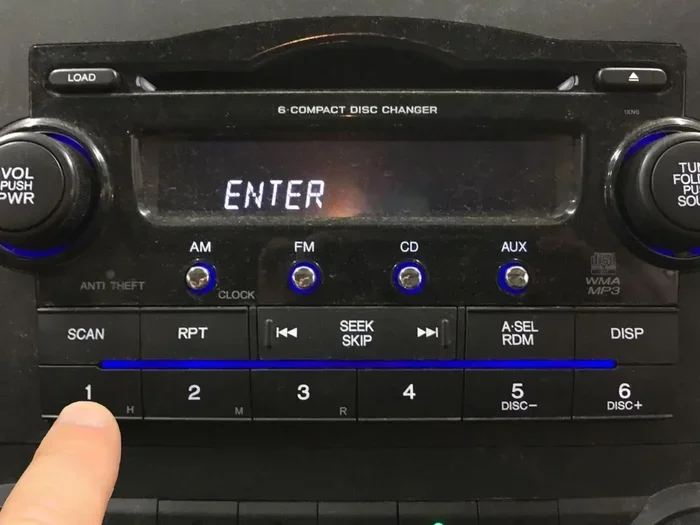
Factory car stereos usually have a limited number of preset buttons. Here is the basic process:
- Step 1: Turn on the radio and tune to the station you want to save.
- Step 2: Press and hold the preset button you want to assign. The button number will usually flash or beep.
- Step 3: Release the button. The station is now saved.
- Step 4: Press that button anytime to return to the station.
Some car stereos use a different method. You may need to press a “Set” or “Memory” button first. Check your car manual if the steps above do not match. The manual will give you the exact preset radio stations instructions for your model.
Preset Radio Stations on an Aftermarket Car Stereo
Aftermarket stereos, like those from Pioneer, Sony, or Kenwood, often have more features. Many come with 6 to 30 preset slots. The process is similar but offers more flexibility.
- Tune to your desired station using the dial or seek button.
- Locate the preset button or hold down the number pad.
- Select an empty preset slot by pressing the number.
- Confirm the save if prompted on the screen.
Some aftermarket stereos let you name your presets. This is a great feature. You can label slots as “Classic Rock,” “News,” or “Top 40.” It makes finding your favorite radio channels even faster.
How to Preset Radio Stations on a Smart Car Radio
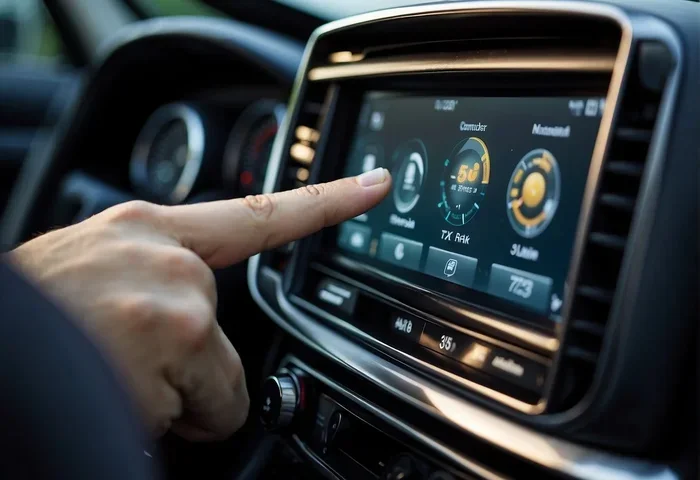
Smart car radios, like those with Apple CarPlay or Android Auto, add a digital twist. You can often save stations within the app. The radio app on your phone syncs with the car system.
To save a station on a smart radio:
- Open the radio app on your phone or the car screen.
- Find the station you want to save.
- Look for a “Heart” icon, a star, or a “Save” button.
- The station is now added to your favorites list.
This method is especially useful because you can sync your presets across devices. Your saved stations follow you from the car to a compatible home system.
How to Preset Radio Stations on a Home Stereo
Home stereos offer more room for presets than car radios. Most modern home stereos have a digital display and multiple preset slots. The process is straightforward.
Preset Radio Stations on a Traditional Home Stereo
Traditional home stereos often have a row of preset buttons on the front panel. Here is how to set them up:
- Turn on the stereo and select the FM or AM band.
- Tune to the station you want to save.
- Press and hold the preset button until the display confirms the save.
- Repeat for each station you want to store.
Many home stereos allow 10 to 30 presets. This gives you plenty of room to organize by genre, mood, or time of day. You might set one preset for morning news and another for evening jazz.
Preset Radio Stations on a Bluetooth or Smart Speaker
Smart speakers and Bluetooth radios work a bit differently. They rely on apps for station management. To save a station:
- Open the companion app on your phone.
- Navigate to the radio section.
- Find the station and tap “Add to Favorites” or “Save Station.”
- The station now appears in your preset list within the app.
Some smart speakers let you use voice commands. You can say, “Save this station,” and the device stores it for you. This makes how to preset radio stations even easier for people who prefer hands-free control.
Preset Radio Stations on a Receiver or Amplifier
Audio receivers and amplifiers often have a full digital display. They support many more presets than standard stereos. Some models store up to 50 or more stations.
The process typically involves:
- Selecting the FM or AM band on the receiver.
- Tuning to the desired frequency.
- Pressing and holding a preset number until it stores.
- Using the display to confirm the station name or frequency.
Receivers are great for audiophiles. They let you fine-tune your radio frequency presets for the clearest sound. You can also assign presets to specific speakers in a multi-room setup.
How to Preset Radio Stations on a Portable Radio
Portable radios are compact and convenient. They are perfect for the office, the gym, or travel. Setting presets on these devices is just as easy.
Preset Radio Stations on a Handheld Portable Radio
Most handheld portable radios have 5 to 10 preset buttons. The process mirrors that of a car radio:
- Power on the radio and tune to your desired station.
- Press and hold the preset number you want to use.
- Release when you hear a beep or see a confirmation.
- Test by pressing the preset button to return to the station.
Portable radios are great for quick access. You can set one button for your morning commute station and another for your workout playlist. Radio presets on portable devices make staying connected effortless.
Preset Radio Stations on a Digital Portable Radio
Digital portable radios, like those from brands like Sangean or Roberts, offer better reception and more presets. They often support both FM and AM bands with multiple preset slots for each.
To save stations on a digital portable radio:
- Select FM or AM mode on the radio.
- Use the tuning dial or buttons to find your station.
- Press and hold the preset button until the radio beeps.
- The station is now saved to that preset slot.
Some digital radios also allow auto-scanning. The radio searches for all available stations and lets you save them in bulk. This is a huge time-saver if you live in an area with many strong signals.
Preset Radio Stations on a Smartphone Radio App
Many smartphones now have built-in FM chips or support radio apps. Apps like TuneIn, iHeartRadio, and NextRadio let you save stations as presets.
The steps are simple:
- Download a radio app from your app store.
- Open the app and search for a station.
- Tap the heart or star icon to save it.
- The station now appears in your favorites or preset list.
Smartphone apps often let you create custom playlists of radio stations. You can group stations by category and access them with a single tap. This is one of the easiest ways to save radio station favorites on the go.
Tips for Organizing Your Radio Presets
Saving stations is only half the battle. Organizing them well makes your radio experience much better. Here are some practical tips.
Group Presets by Genre or Mood
One of the best ways to organize presets is by genre. Set your first few buttons for music stations. Assign the next ones for news and talk. Leave the last ones for sports or local weather.
For example:
- Button 1: Classic Rock station
- Button 2: Pop Hits station
- Button 3: Jazz and Blues station
- Button 4: Local News station
- Button 5: Sports Talk station
- Button 6: Weather and Traffic station
This kind of organization makes your radio station memory feel intuitive. You always know exactly which button does what.
Label Your Presets When Possible
If your radio supports labeling, take advantage of it. Writing “Top 40” on preset 1 takes the guesswork out of pressing buttons. Some stereos let you input custom names through the display.
For radios without labeling, you can use small stickers or a note on the dashboard. It sounds old-school, but it works incredibly well.
Update Your Presets Regularly
Radio frequencies change. Stations shift formats or go off the air. Make it a habit to review your presets every few months. Remove stations you no longer listen to and add new ones you discover.
Updating your preset radio memory keeps your radio fresh and relevant. You will always have the best stations at your fingertips.
Use the Auto-Save Feature
Many radios have an auto-save or auto-scan feature. This scans all available stations and saves them automatically. It is a great way to build a full list of presets quickly.
To use auto-save:
- Go to the radio settings menu.
- Select “Auto Scan” or “Auto Preset.”
- Let the radio find and save all available stations.
- Review the list and delete any you do not want.
This feature is especially useful for digital radio tuning where many stations are available in your area.
Common Mistakes When Presetting Radio Stations
Even simple tasks come with pitfalls. Here are common mistakes and how to avoid them.
Forgetting to Hold the Button Long Enough
The most common mistake is not holding the preset button long enough. A quick tap will not save the station. You must press and hold until you get a confirmation beep or flash.
If your station does not save, try holding the button for two to three seconds. This is usually enough time for most radios to register the command.
Saving on the Wrong Band
Make sure you are on the correct band before saving. If you tune to an FM station but save it while on AM mode, the preset will not work correctly. Always double-check the band indicator on your display.
Not Clearing Old Presets
Over time, preset slots fill up with stations you no longer listen to. Cluttered presets slow you down. Take a few minutes to clear out unused slots and reorganize your radio favorites list.
Most radios let you delete a preset by holding the button and pressing it again. Check your manual for the exact method.
Ignoring Signal Strength
Saving a station with a weak signal is a waste of a preset slot. Always save stations that have strong, clear reception. A station that fades in and out will frustrate you every time you press the button.
Before saving, listen to the station for a minute. Make sure the audio is clean and consistent. Only then should you commit the preset.
Expert Insights on Radio Presets
We spoke with audio engineers and radio enthusiasts to gather their best advice on managing presets. Here is what they had to say.
Start with your top five. Do not try to fill every preset slot at once. Pick your five most-listened stations first. Use them daily. Once you are comfortable, add more.
Use presets for local content. Local stations often provide the most relevant information. Weather alerts, traffic updates, and community news are best saved as presets for quick access during your day.
Keep a written backup. Write down your preset assignments in your car manual or on a note in your phone. If you ever need to reset your radio, you will not have to start from scratch.
Explore new stations regularly. Presets should not be static. Set aside time every month to scan for new stations. You might discover a great station you never knew existed.
These insights come from years of experience in audio and radio. They will help you get the most out of your radio presets and keep your listening experience enjoyable.
Conclusion
Learning how to preset radio stations is one of the simplest yet most rewarding skills for any radio listener. It transforms your radio from a device you search through into one that responds instantly to your needs.
Whether you are using a car radio, a home stereo, a portable player, or a smartphone app, the core process is the same. Find your station. Save it to a preset button. Access it with a single press. The time you save adds up over days, weeks, and months.
Organization is the key to making presets truly useful. Group your stations by genre, mood, or purpose. Label them when possible. Update them regularly. These small habits make a big difference in your daily listening experience.
Avoid common mistakes like saving on the wrong band or keeping weak-signal stations in your presets. A little maintenance goes a long way in keeping your preset list clean and effective.
Now that you know how to preset radio stations and organize them like a pro, it is time to take action. Go to your radio right now. Pick your favorite stations. Save them. Enjoy the convenience of instant access every single time you turn on the dial.
Frequently Asked Questions
How many radio presets can I store on a typical car stereo?
Most factory car stereos allow 6 to 12 presets. Aftermarket stereos can support 30 or more. The exact number depends on your model. Check your stereo manual for the specific preset limit.
Can I reset my radio presets if I make a mistake?
Yes, most radios let you reset presets to factory defaults. Look for a “Reset” option in your radio settings menu. You can also manually delete individual presets by holding the preset button and pressing it again.
Do radio presets work when the power is turned off?
Yes, presets are stored in memory and typically remain saved even after the radio is turned off. In cars, presets persist through ignition cycles. If presets are lost after a battery disconnect, you will need to save them again.
What is the difference between FM and AM presets?
FM presets cover frequency modulation stations, which offer better sound quality. AM presets cover amplitude modulation stations, which often carry talk shows and sports. Most radios let you save presets separately for each band.
Can I preset radio stations on a smart speaker like Alexa or Google Home?
Yes, smart speakers support radio presets through their companion apps. You can save stations in apps like TuneIn or iHeartRadio. Then you can use voice commands to play your saved presets hands-free.
Why do my radio presets keep disappearing?
Presets may disappear after a power loss, battery replacement, or factory reset. If the problem persists, check for a firmware update on your radio. Also ensure you are holding the preset button long enough to save properly.