Why Is My Phone Not Connecting to CarPlay Right Now
Your phone not connecting to CarPlay can turn a smooth drive into a frustrating experience. This guide walks you through the most common causes and simple fixes to restore your Apple CarPlay connection. You will learn quick troubleshooting steps for both wired and wireless setups. With the right checks, you can get back to using maps, music, and messages safely. Let us solve this together.
If your phone not connecting to CarPlay is driving you crazy, you are not alone. Many drivers face this problem every day. The good news is that it is usually easy to fix. You do not need to be a tech expert. A few simple checks can bring your Apple CarPlay back to life. In this guide, we will walk you through the most common reasons and the best fixes. You will learn how to troubleshoot both wired and wireless setups. Let us get you back on the road with your favorite apps working again.
CarPlay connection issues can happen for many reasons. Sometimes it is a cable problem. Other times, it is a settings glitch. Rarely, it is a deeper hardware issue. This article covers all the bases. We will look at the top causes, quick fixes, and long-term solutions. You will also find expert tips to prevent future problems. By the end, you will know exactly what to do when CarPlay fails to connect.
Key Takeaways
- A loose or damaged cable is the #1 cause of CarPlay not connecting. Always check the USB port and cord first.
- Outdated iPhone or car software often breaks the CarPlay link. A simple update can fix many issues.
- Wireless CarPlay problems usually stem from Wi-Fi or Bluetooth interference. Restarting both devices helps.
- Wrong CarPlay settings on your iPhone can block the connection. Make sure CarPlay is enabled and your car is listed.
- Dirt in the USB port or on the lightning cable tip stops data transfer. A quick clean can bring it back.
- If all else fails, a full reset of CarPlay settings often works. It clears old pairings and glitches.
📑 Table of Contents
Why Does My Phone Refuse to Connect to CarPlay?
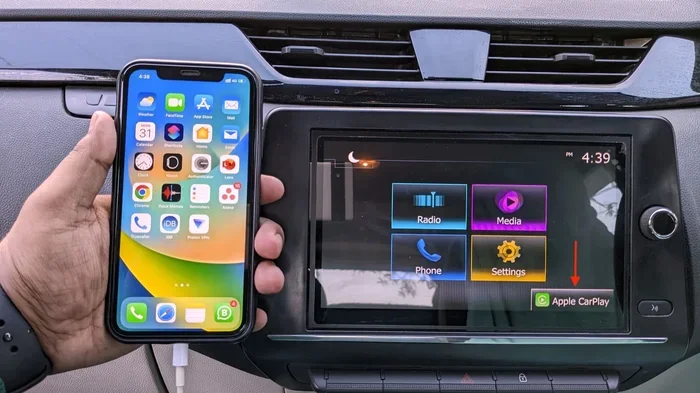
Before you try random fixes, it helps to understand how CarPlay works. Apple CarPlay mirrors key iPhone features on your car’s screen. It uses a USB cable or a wireless Bluetooth and Wi-Fi link. When that link breaks, you get a CarPlay not connecting message. The problem can live on your phone, in the car, or in the cable itself. Let us break it down into simple parts.
The Basics of CarPlay Connection
CarPlay needs three things to work: a compatible car stereo, a working iPhone, and a good connection. The connection can be a lightning cable or a wireless Wi-Fi Direct link. If any one of these parts fails, CarPlay will not start. Think of it like a chain. The weakest link breaks the whole thing. Most of the time, the cable or the port is the weak link.
When the Problem Is Your iPhone
Sometimes the issue lives inside your phone. An old iOS version can clash with your car’s system. Background apps might block CarPlay from launching. Even a simple restart can clear these tiny software hiccups. If your iPhone not recognized by car pops up, do not panic. It is often a quick fix. We will cover those fixes in the next section.
Top Reasons Your CarPlay Won’t Connect
Here are the most common culprits behind a failed CarPlay link. Check each one to narrow down the cause.
Faulty USB Cables and Ports
A damaged cable is the number one reason for CarPlay not showing up. Frayed wires, bent tips, or loose connections kill data transfer. Dust and lint in the car’s USB port also block the signal. If you use a cable that only charges and does not transfer data, CarPlay will not work. Always use the cable that came with your iPhone or a certified MFi cable (Made for iPhone).
Outdated Software on Your iPhone or Car
Both your iPhone and your car’s infotainment system need to run updated software. An old iOS version can lack the right CarPlay drivers. Car manufacturers also push updates that fix connection bugs. If you have not updated in a while, this could be the cause. Go to Settings > General > Software Update on your iPhone. Check your car manual for update steps.
CarPlay Settings Gone Wrong
It sounds simple, but CarPlay settings can get toggled off by accident. You might have disabled CarPlay for your car in the past. Or a recent iOS reset cleared your preferences. To check, go to Settings > General > CarPlay on your iPhone. Tap your car name and make sure it is set to “Show CarPlay.” If your car does not appear, try restarting both devices.
Wireless CarPlay Interference and Bluetooth Issues
Wireless CarPlay uses both Bluetooth and Wi-Fi. If either signal is weak or crowded, the connection drops. Other devices in the car can cause interference. A crowded Wi-Fi network or a nearby Bluetooth speaker might confuse the link. This is a common reason for wireless CarPlay connection problems. A quick restart of your iPhone and car system often clears this up.
Quick Fixes to Get CarPlay Working Right Now
If you need a fast solution, try these steps in order. Most people solve the problem in under five minutes.
The Simple Restart Trick
Turn off your car’s infotainment system completely. Wait 30 seconds. Turn it back on. Then restart your iPhone. This clears temporary glitches and refreshes both connections. It is the easiest and most effective first step for CarPlay troubleshooting.
Re-pairing Your iPhone and Car
If restarting does not work, remove and re-pair the connection. On your iPhone, go to Settings > General > CarPlay. Tap your car name and choose “Forget This Car.” Then restart your car’s system. When the car appears on your iPhone screen, tap it again to pair. This rebuilds the connection from scratch.
Resetting CarPlay Settings
For stubborn issues, reset all CarPlay settings. Go to Settings > General > Transfer or Reset iPhone > Reset > Reset Network Settings. This clears saved Wi-Fi and Bluetooth pairings, including CarPlay. You will need to re-enter your Wi-Fi passwords, but it often fixes deep connection bugs.
Quick Tips for Immediate Relief
- Try a different USB port. Many cars have multiple ports. Some only charge; others transfer data.
- Use a short, high-quality cable. Long or thin cables can lose data signal strength.
- Clean the USB port with a toothpick. Gently remove any lint or debris. Do not use metal.
- Turn off other Bluetooth devices in the car. Reduce interference while testing.
- Check for a CarPlay update in your car’s settings. Some systems have a separate update menu.
Wired vs. Wireless CarPlay: Which Connection Is Failing?
Knowing whether you use a cable or wireless helps you target the fix. The troubleshooting path is different for each. Here is how to tell which one is causing your phone not connecting to CarPlay problem.
Troubleshooting Wired Connections
With a wired setup, the cable does all the work. If CarPlay fails, start with the cable. Swap it with a known-good cable. Try a different USB port in the car. If the car screen shows a “No Data” or “Charging Only” message, the cable or port is likely the issue. A lightning cable that only charges will not trigger CarPlay.
Fixing Wireless CarPlay Problems
Wireless CarPlay needs a strong Wi-Fi and Bluetooth link. If it fails to connect, check both. Make sure your iPhone’s Wi-Fi and Bluetooth are on. Go to Settings > General > CarPlay and ensure your car is listed. If you see a CarPlay black screen after connecting, it is often a Wi-Fi conflict. Toggle Airplane Mode on and off to reset both radios.
Comparison Table: Wired vs. Wireless Issues
| Problem | Wired CarPlay | Wireless CarPlay |
|---|---|---|
| No connection at all | Bad cable or dirty port | Wi-Fi or Bluetooth off |
| Connection drops while driving | Loose cable or faulty port | Signal interference or weak Wi-Fi |
| CarPlay shows but is frozen | Data transfer error | Software glitch or outdated iOS |
| Car not listed on iPhone | Car not in pairing mode | Car not in wireless mode |
| Quick fix | Swap cable, clean port | Restart iPhone, toggle Airplane Mode |
Common Mistakes That Break CarPlay
Small habits can cause big CarPlay headaches. Avoid these common pitfalls to keep your connection stable.
Using the Wrong Cable
Not all USB cables are created equal. Many cheap cables only support charging. They lack the data wires needed for CarPlay. If you use a cable from a gas station charger or a random brand, it might not work. Always look for MFi certification (Made for iPhone) on the packaging. This ensures the cable meets Apple’s data standards.
Ignoring Software Updates
CarPlay relies on both iOS and your car’s firmware. Skipping updates means you miss bug fixes. An old iOS version can cause CarPlay keeps disconnecting issues. Make it a habit to check for updates once a month. It takes just a few minutes and prevents many problems.
Overlooking Car Settings
Your car’s infotainment system has its own settings for CarPlay. Some cars let you choose between wired and wireless modes. If you switch modes, you may need to re-pair. Also, some cars require you to enable CarPlay in the main settings menu. Check your car manual or the manufacturer’s app for guidance.
Expert Insights and Long-Term Solutions
Once you fix the immediate problem, you want to stop it from happening again. These expert tips build a stable, long-lasting CarPlay setup.
How to Keep CarPlay Stable
Keep your lightning cable clean and stored properly. Coil it loosely and avoid tight bends. Store the cable in the glove box to protect it from heat and dust. On your iPhone, enable automatic updates so you always have the latest CarPlay drivers. If your car supports it, use a wireless CarPlay setup for daily driving. It reduces wear on the port and cable.
When to Visit a Professional
Most CarPlay issues are software or cable related. But sometimes the problem is deeper. If your car’s USB port is physically damaged, you may need a repair. If the infotainment system crashes every time you plug in, a dealership can run diagnostics. Do not open the car’s electronics yourself. A professional can check the wiring harness and replace faulty parts safely.
Key takeaway: A phone not connecting to CarPlay is almost always fixable with simple steps. Start with the cable and port. Move to settings and updates. Then try a reset. By following this order, you save time and avoid unnecessary stress. Keep this guide handy for your next CarPlay hiccup.
Frequently Asked Questions
Why does CarPlay keep disconnecting while driving?
This usually happens because of a loose cable or a weak wireless signal. Check that your USB cable is firmly plugged in. If you use wireless CarPlay, move away from devices that cause Wi-Fi interference. A quick restart of both your iPhone and car system often solves this.
Can a dirty USB port cause CarPlay not to connect?
Yes, dirt and lint in the port block the data connection. Use a wooden toothpick or a soft brush to gently clean the port. Do not use metal objects. After cleaning, plug the cable back in and see if CarPlay starts.
Does my iPhone model affect CarPlay connection?
All iPhones from the iPhone 5s and newer support CarPlay. However, older models may run slower or have trouble with the latest CarPlay features. If you have a very old iPhone, updating iOS to the latest supported version can improve stability.
What should I do if CarPlay shows a black screen?
A black screen often means the connection is there but the software is stuck. Try locking your iPhone and unlocking it again. You can also go to Settings > General > CarPlay on your iPhone, forget the car, and re-pair. This refreshes the display link.
Is wireless CarPlay less reliable than wired?
Wireless CarPlay is convenient but depends on a strong Wi-Fi and Bluetooth signal. Wired CarPlay is generally more stable because it uses a direct data connection. If you face frequent wireless drops, switching to a cable for a while can help you isolate the problem.
How do I update CarPlay on my iPhone?
CarPlay updates come with iOS updates. Go to Settings > General > Software Update and install any available updates. Some car manufacturers also release infotainment updates through their own apps or dealership visits. Check your car maker’s website for details.