How Do I Put My Phone on Pairing Mode Step by Step Guide
Learning how to put your phone on pairing mode is the first step to connecting your device wirelessly to your car. Whether you use Android or iPhone, the process is simple and takes less than a minute. This guide walks you through every step so you can enjoy Bluetooth pairing, hands-free calling, and wireless streaming without any hassle.
You just got into your car, ready to hit the road. You want to play your favorite music, take a call, or use GPS navigation. But before any of that works, you need to know how do I put my phone on pairing mode. It sounds technical, but it really isn’t.
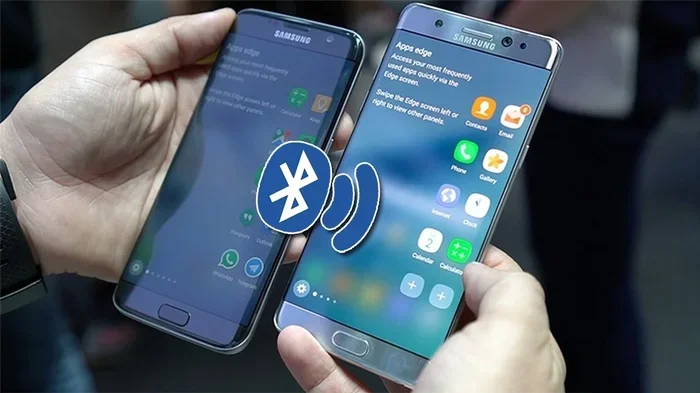
Pairing mode is simply the state your phone enters when it becomes visible to other Bluetooth devices nearby. Think of it like ringing a doorbell. Your phone rings out a signal, and your car’s infotainment system answers. Once they connect, you can stream audio, make calls, and use apps without touching your phone.
This guide covers everything you need to know. We will walk you through the steps for both Android and iPhone. We will also cover how to pair your phone with your car, fix common problems, and keep your connection strong. By the end, you will be a Bluetooth pairing pro.
Let us start with the basics. Understanding what pairing mode actually does will make the whole process much easier.
Key Takeaways
- Pairing mode makes your phone visible: It allows your car’s infotainment system to find and connect to your device.
- Android and iPhone have different steps: Each platform has its own way to turn on Bluetooth and enter discovery mode.
- The pairing process is quick: Most connections take under 60 seconds once both devices are ready.
- Common issues are easy to fix: Restarting devices, updating software, and deleting old pairings solve most problems.
- Keep your software updated: The latest updates improve phone connectivity and fix known Bluetooth pairing issues.
- One phone at a time works best: Managing connected devices prevents interference and keeps your connection stable.
- Professional help is rare: Most pairing problems can be solved at home with simple troubleshooting steps.
📑 Table of Contents
What Is Pairing Mode and Why Does It Matter?
How Pairing Mode Works
When your phone is in pairing mode, it broadcasts a signal. This signal says, “Hey, I am here. Come and connect.” Your car’s Bluetooth system picks up this signal and shows your phone on its screen. You then confirm the connection on both devices.
This process is called device discovery mode. It is a safety feature. Your phone does not just connect to any Bluetooth device nearby. You have to approve the connection. This keeps your data safe and prevents unwanted connections.
Wireless connection between your phone and car relies on Bluetooth technology. Bluetooth uses short-range radio waves to send data. The typical Bluetooth range is about 30 feet. Once paired, your phone and car remember each other. You do not need to repeat the process every time you get in the car.
Why Your Car Needs to Find Your Phone
Modern cars come with car infotainment systems. These systems control your music, navigation, phone calls, and more. But they cannot do any of that without a connection to your phone.
When you pair devices, you create a bridge. Your phone sends music to your car speakers. It sends call audio to your car’s microphone. It shares GPS data for navigation. All of this happens wirelessly, which is why phone car sync is so important.
Without pairing mode, your car cannot find your phone. It is like trying to make a friend in a crowded room when nobody is talking. Turning on pairing mode is your phone raising its hand and saying, “Pick me!”
How to Put Your Phone on Pairing Mode Step by Step
Now let us get into the real steps. How do I put my phone on pairing mode? The answer depends on whether you use Android or iPhone. Both are simple, but the steps are a little different.
Pairing Mode on Android Phones
Most Android phones make it easy to enter Bluetooth discoverable mode. Here is exactly what to do:
- Open your Settings app. Look for the gear icon on your home screen or app drawer.
- Tap Bluetooth. It is usually near the top of the Settings menu. You can also swipe down from the top of your screen and tap the Bluetooth icon for quick access.
- Turn Bluetooth ON. Tap the toggle switch so it turns blue or green, depending on your phone.
- Check for a discoverable option. On most Android phones, your phone automatically becomes visible when Bluetooth is on. Some older models may show a “Pair new device” or “Scan” option. Tap it if you see it.
- Wait for your car to appear. On your car’s screen, look for your phone name. It may show as your phone model or a custom name you set earlier.
- Tap your phone name on the car screen. If a pairing code appears, confirm it matches on both devices. Then tap “Pair” or “Connect.”
That is it. Your phone connectivity is now active. You should see a Bluetooth icon in your phone’s status bar at the top of the screen.
Pairing Mode on iPhone
iPhone users follow a very similar process. Apple keeps things simple, which is always nice:
- Open Settings. Tap the gray gear icon on your home screen.
- Tap Bluetooth. It is near the top of the Settings menu.
- Turn Bluetooth ON. Tap the toggle switch. It will turn green.
- Wait for devices to appear. Your iPhone automatically enters device discovery mode when Bluetooth is on. Under “Other Devices,” you should see your car’s name.
- Tap your car’s name. Your car’s screen may also prompt you to confirm. Follow any on-screen instructions on both devices.
- Enter the pairing code if asked. Some cars require you to type a number shown on the car screen into your iPhone. Others connect automatically.
Once connected, you will see your car listed under “My Devices” with a status that says “Connected.” Wireless streaming of music and calls will begin right away.
How to Pair Your Phone with Your Car
Putting your phone in pairing mode is only half the battle. You also need to make sure your car is ready to receive the connection. Here is how to do it from the car side.
Using the Car’s Infotainment System
Every car is a little different, but the general steps are the same:
- Start your car. You do not always need to start the engine, but you do need to power on the infotainment system.
- Go to Settings. Look for a gear icon or a “Settings” menu on your car’s screen.
- Find Bluetooth. It may be listed as “Bluetooth,” “Phone,” “Connections,” or “Device Pairing.”
- Turn on Bluetooth in the car. Make sure the car’s Bluetooth is set to “Discoverable” or “Visible.”
- Wait for your phone to appear. The car screen will scan for nearby devices.
- Select your phone. Tap your phone name when it shows up on the list.
Some cars require you to press a physical Bluetooth button on the steering wheel or the center console. Check your car’s manual if you cannot find the Bluetooth menu. The button is usually marked with a phone icon and a Bluetooth symbol.
Entering the Pairing Code
When your phone and car connect, they often ask you to confirm a pairing code. This is a security measure. It makes sure you are connecting to the right device.
The code is usually a four- to six-digit number. It will appear on both your phone screen and your car screen. If the numbers match, tap “Yes” or “Pair” on both devices. If they do not match, do not connect. Something may be wrong.
Some newer cars and phones use passkeyless pairing. This means no code is needed. The connection happens automatically. This is becoming more common in 2020 and newer car models.
Common Pairing Problems and How to Fix Them
Even when you follow every step correctly, things can go wrong. Bluetooth pairing issues are frustrating, but they are almost always easy to fix. Here are the most common problems and their solutions.
Phone Won’t Show Up on the Car Screen
This is the most common complaint. Your phone is in pairing mode, but the car cannot find it. Try these steps:
- Turn Bluetooth off and back on on both your phone and your car.
- Restart your phone. A quick reboot clears temporary glitches that can block Bluetooth settings from working properly.
- Move closer to the car. Bluetooth range is about 30 feet. If your phone is in your pocket or bag in the back seat, move it to the center console or cup holder.
- Check if your phone is already connected to another device. If your phone is connected to headphones or a smartwatch, it may not broadcast to the car. Turn off other Bluetooth connections temporarily.
- Delete old pairings. On both your phone and your car, remove any previous pairing with this device. Start fresh.
Connection Keeps Dropping
A stable wireless connection should stay connected the entire time you are driving. If it keeps disconnecting, here is what to check:
- Update your phone’s software. Go to Settings, then Software Update. New updates often fix phone connectivity bugs.
- Update your car’s infotainment system. Many newer cars support over-the-air updates. Check your car manufacturer’s app or website.
- Clear old paired devices. If your car has a long list of old pairings, it can slow things down. Delete devices you no longer use.
- Check for interference. Other Bluetooth devices, USB cables, or even phone cases with metal plates can interfere with the signal.
Tips for a Stronger and More Reliable Bluetooth Connection
Once you have your phone and car paired, you want the connection to stay strong. Here are some easy tips to keep things running smoothly.
Keep Your Software Updated
Software updates are not just about new features. They fix bugs that can cause Bluetooth pairing issues. Make it a habit to check for updates once a month. Both your phone and your car benefit from the latest software.
Manage Connected Devices
Your phone can connect to many devices at once. But too many connections can weaken your phone car sync. Go through your Bluetooth settings and remove devices you no longer use. This keeps things fast and reliable.
Restart Before Long Trips
A quick restart of both your phone and your car’s infotainment system before a long road trip can prevent problems. It clears the memory and refreshes the Bluetooth settings. Think of it like stretching before a workout.
Use Voice Commands When Driving
Once your phone is paired, use voice commands to make calls or change music. This keeps your hands on the wheel and your eyes on the road. Hands-free calling is one of the biggest benefits of Bluetooth pairing, so use it.
When Should You See a Professional?
Most pairing problems are simple to fix. But sometimes, the issue is not software. It is hardware.
Hardware Issues to Watch For
Watch for these signs that something may need professional attention:
- Bluetooth will not turn on at all. If the Bluetooth toggle is grayed out or missing, there may be a hardware problem.
- Your car’s Bluetooth worked before but stopped. If it worked fine for months and suddenly stopped, the car’s Bluetooth module may need replacement.
- Your phone connects to other devices but not your car. This suggests the car’s Bluetooth system has an issue, not your phone.
- You hear static or crackling during calls. This can indicate a problem with the car’s microphone or Bluetooth antenna.
Dealer Service vs. DIY Fixes
If you suspect a hardware issue, you have two options. You can visit your car dealer. They have specialized tools to diagnose Bluetooth problems. Or you can visit a car audio shop. Independent shops are often less expensive and just as capable.
Before you spend money, make sure you have tried every software fix first. A Bluetooth troubleshooting session at home costs nothing and solves the problem most of the time.
Conclusion
Knowing how do I put my phone on pairing mode is one of the simplest yet most useful skills you can learn. It unlocks hands-free calling, wireless streaming, and seamless phone car sync. Whether you drive an Android phone or an iPhone, the process is quick and straightforward.
Start with the basics. Turn on Bluetooth, enter pairing mode, and let your car find your phone. If something goes wrong, the fixes are usually simple. Restart your devices, update your software, and delete old pairings.
Bluetooth pairing should feel easy. It is designed to be simple. Once you have it set up, you will wonder how you ever drove without it. So go ahead, try it today, and enjoy the freedom of a wireless connection every time you get behind the wheel.
Frequently Asked Questions
How long does it take to put a phone on pairing mode?
It takes less than 30 seconds. You just need to open your Bluetooth settings and turn it on. Your phone immediately enters device discovery mode and becomes visible to nearby devices like your car.
Why won’t my car find my phone even though pairing mode is on?
This usually happens when Bluetooth is turned off on one of the devices, when the phone is too far away, or when old pairings are causing conflicts. Try turning Bluetooth off and back on, moving closer to the car, or deleting old paired devices from both your phone and car.
Can I pair more than one phone with my car?
Yes, most car infotainment systems can store multiple pairings. However, only one phone can stream audio at a time. If two phones are connected, the car will usually connect to the last phone that was used.
Do I need to put my phone in pairing mode every time I get in the car?
No. Once your phone and car are paired, they remember each other. As long as Bluetooth is turned on, they will automatically reconnect when you get in the car. You only need to enter pairing mode when setting up a new connection.
Is Bluetooth pairing safe for driving?
Yes, it is very safe. Hands-free calling and wireless streaming let you keep your eyes on the road and hands on the wheel. Most states now have laws requiring hands-free devices while driving, so Bluetooth pairing helps you stay legal and safe.
What should I do if the pairing code does not match?
If the pairing code shown on your phone does not match the one on your car screen, do not connect. This can happen when another device is trying to pair. Turn off Bluetooth on both devices, wait a few seconds, turn it back on, and try again.
=== CONCLUSION ===
How do I put my phone on pairing mode? Now you know the answer. The process is simple, fast, and works the same way whether you use Android or iPhone. Enter Bluetooth discoverable mode, let your car find your phone, confirm the pairing code, and you are connected.
Remember to keep your software updated, manage your connected devices, and restart when things go wrong. These small habits make a big difference in your phone connectivity and Bluetooth range.
Bluetooth pairing is one of those small things that makes a huge difference in your daily driving. Once you set it up, you will never go back to plugging in a cable. Enjoy the freedom of a wireless connection and the convenience of hands-free calling every time you drive.