Why Isnt My iPhone Finding Bluetooth Devices Anymore
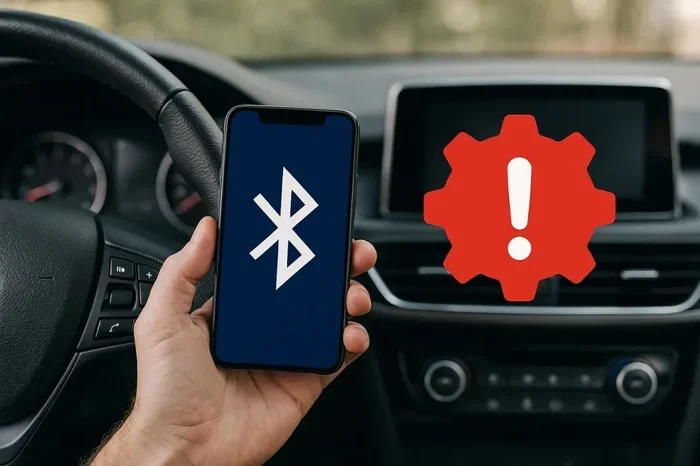
Why isn’t my iPhone finding Bluetooth devices anymore? This frustrating issue usually stems from software glitches, outdated iOS versions, or Bluetooth settings that need a quick reset. In this guide, we walk you through every proven fix, from basic troubleshooting to advanced resets, so you can get your iPhone Bluetooth working again fast. Whether your car Bluetooth won’t connect or your wireless headphones won’t pair, this article has you covered.
Have you ever been in your car, ready to play your favorite playlist, and suddenly your iPhone Bluetooth just stops working? Or maybe you’re trying to connect your wireless headphones, and your phone simply won’t find them. It’s incredibly frustrating, especially when you need it the most. You’re not alone. Thousands of iPhone users face this exact problem every day, and the good news is that it’s almost always fixable.
This guide breaks down every reason your iPhone might not be finding Bluetooth devices anymore. We’ll cover quick fixes you can try right now, deeper settings you should check, and even car-specific Bluetooth tips. By the end, you’ll know exactly what to do to get your wireless connections back up and running. Let’s dive in.
Key Takeaways
- Restart Your iPhone: A simple reboot clears temporary Bluetooth glitches and refreshes wireless connections.
- Check Your iOS Version: Outdated software is one of the top causes of Bluetooth connectivity issues on iPhones.
- Forget and Re-Pair Devices: Removing old pairings often solves persistent Bluetooth pairing problems.
- Reset Network Settings: This clears all saved Bluetooth caches and restores factory wireless defaults.
- Distance and Interference Matter: Physical barriers and signal interference can block Bluetooth device detection.
- Car Bluetooth Has Unique Quirks: Your car’s system may need its own reset to sync with your iPhone.
- When All Else Fails: A full factory reset or Apple Support visit resolves deep-rooted iPhone Bluetooth problems.
📑 Table of Contents
Common Reasons Your iPhone Can’t Find Bluetooth Devices
Before you start pressing buttons randomly, it helps to understand what’s actually going on. Bluetooth connectivity issues on iPhones usually come from a handful of common causes. Once you identify the root problem, the fix becomes much easier.
Bluetooth Is Turned Off or in Airplane Mode
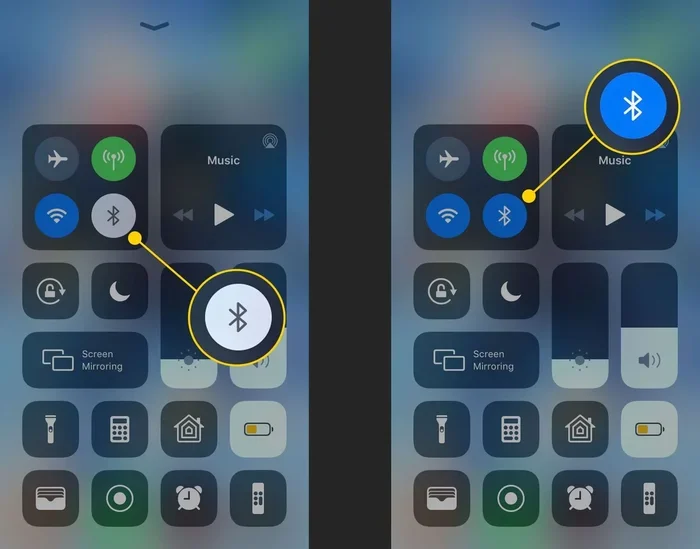
This sounds obvious, but you’d be surprised how often it happens. Sometimes a accidental tap turns off your Bluetooth, or Airplane Mode gets switched on without you noticing. When Airplane Mode is active, it shuts down all wireless connections, including Bluetooth device detection. Swipe down from the top right corner of your screen and check if the Bluetooth icon is highlighted. If it’s not, tap it to turn it back on.
Your iPhone Is Too Far from the Device
Bluetooth has a limited range. Most devices work within about 30 feet of each other. Walls, furniture, and even your own body can weaken the signal. If your phone is in another room or buried deep in your bag, it might not detect nearby devices. Move closer to the device you’re trying to pair and see if that helps.
Software Glitches and Temporary Bugs
iPhones are powerful, but they’re not perfect. Sometimes the Bluetooth module in your phone just hits a temporary bug. This is especially common after major iOS updates or when you’ve connected to many devices in a short time. These glitches don’t mean anything is broken — they just need a quick refresh.
Outdated iOS or Device Firmware
Running an older version of iOS can cause iPhone Bluetooth not working problems. Apple regularly releases updates that fix bugs and improve wireless performance. Similarly, your Bluetooth accessory — like your car stereo or wireless headphones — might need a firmware update of its own. Always keep both your iPhone and your accessories up to date.
Quick Fixes to Try Right Now
Before you dig into deeper settings, try these simple steps first. Most people solve their Bluetooth troubleshooting problems with just one or two of these fixes.
Fix 1: Toggle Bluetooth Off and On
Go to Settings, tap Bluetooth, and switch it off. Wait about 10 seconds, then switch it back on. This forces your iPhone to re-scan for nearby devices. It’s the fastest way to resolve minor connection hiccups.
Fix 2: Restart Your iPhone
A restart clears your phone’s temporary memory and refreshes all wireless modules, including Bluetooth. To restart, press and hold the power button plus either volume button (on newer iPhones) until the slider appears. Slide to power off, wait 30 seconds, then turn it back on. This simple step fixes more Bluetooth pairing problems than people realize.
Fix 3: Toggle Airplane Mode
Swipe into Control Center and turn on Airplane Mode. Wait 15 seconds, then turn it off. This resets all your wireless connections at once, including Wi-Fi and cellular. It’s like a mini restart for your phone’s radio systems.
Fix 4: Move Closer and Remove Obstacles
Take your iPhone closer to the device you want to pair. Remove any thick cases or metal objects that might be blocking the signal. Sometimes just standing in the same room makes all the difference.
Quick Tips
- Tip: Always check that the device you’re trying to connect is powered on and in pairing mode.
- Tip: If you’re connecting to a car, make sure the car’s ignition is on. Many systems won’t broadcast Bluetooth signals when the engine is off.
- Tip: Restart both your iPhone and the Bluetooth device for the best results.
Bluetooth Settings That Might Be Causing the Problem
If the quick fixes didn’t work, it’s time to look at your settings more closely. Several hidden settings can interfere with Bluetooth device detection on your iPhone.
Check for Multiple Connected Devices
iPhones can connect to multiple Bluetooth devices at once. But sometimes, your phone gets stuck trying to manage too many connections. Go to Settings > Bluetooth and look at the list of previously connected devices. If you see devices you no longer use, tap the “i” icon next to them and select Forget This Device. Clearing out old pairings frees up resources and often fixes detection issues.
Check for Background App Refresh Issues
Some apps use Bluetooth in the background. If an app is misbehaving, it can block other devices from connecting. Go to Settings > General > Background App Refresh and make sure Bluetooth-related apps aren’t being restricted. This is a less common cause, but it’s worth checking if nothing else works.
Location Services and Bluetooth
This one surprises a lot of people. On newer iPhones, Bluetooth uses Location Services to discover nearby devices. If you’ve turned off Location Services for Bluetooth, your phone might not find devices. Go to Settings > Privacy & Security > Location Services and make sure it’s enabled. Some Bluetooth features depend on it.
Low Power Mode Can Interfere
When Low Power Mode is on, your iPhone reduces wireless activity to save battery. This can prevent Bluetooth low energy devices from being discovered. Turn off Low Power Mode by going to Settings > Battery and toggling it off. You’ll likely find your Bluetooth devices appear right away.
Common Mistakes People Make
- Mistake 1: Not putting the accessory in pairing mode. Many devices only broadcast a discoverable signal for a short time after you press their pairing button.
- Mistake 2: Trying to pair with a device that’s already connected to another phone. Most Bluetooth devices can only maintain one active connection at a time.
- Mistake 3: Ignoring the “Other Devices” list in Bluetooth settings. Sometimes your iPhone finds the device but it shows up under “Other Devices” instead of the main list.
Why Bluetooth Fails in Your Car
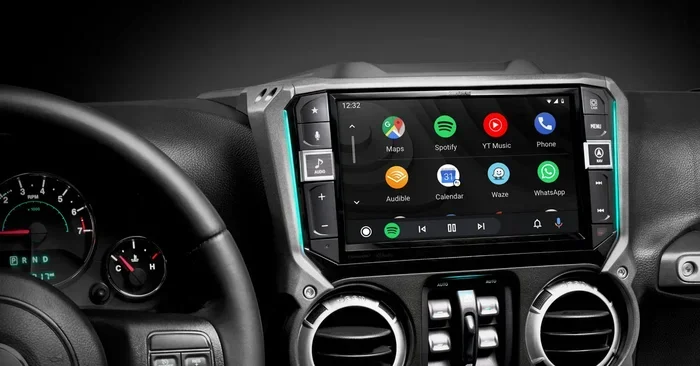
Since we’re in the Car Care category, let’s talk about car Bluetooth specifically. Your car’s Bluetooth system and your iPhone need to communicate perfectly for everything to work. When they don’t, it can be really annoying, especially during your daily commute.
Car Bluetooth Won’t Show Up on iPhone
If your car’s Bluetooth isn’t appearing on your iPhone, the car’s infotainment system might not be broadcasting properly. Try turning your car’s Bluetooth off and back on. In most cars, you can do this through the settings menu on the dashboard screen. Also, make sure your car isn’t already paired with another phone. Many car systems only allow one active phone connection at a time.
iPhone Connects but No Audio Plays
Sometimes your iPhone finds the car’s Bluetooth, but you can’t hear any audio. This usually happens because the audio output is set to something else. During a phone call or when playing music, swipe down from the top right of your screen and tap the AirPlay icon. Select your car’s Bluetooth system from the list. This routes the audio correctly.
Car Bluetooth Keeps Disconnecting
If your connection drops frequently, interference might be the culprit. Other wireless devices in your car — like phone chargers, dash cams, or even USB cables — can create signal noise that disrupts Bluetooth. Try moving your iPhone to a different location in the car, away from these devices. Also check that your car’s Bluetooth firmware is up to date, as many modern cars receive over-the-air updates that fix connection stability.
Comparison: Common Car Bluetooth Issues and Solutions
| Problem | Likely Cause | Best Fix |
|---|---|---|
| Car not showing on iPhone | Car Bluetooth not broadcasting | Restart car infotainment system |
| Connected but no sound | Wrong audio output selected | Switch AirPlay output to car |
| Frequent disconnections | Signal interference or outdated firmware | Move phone position; update car firmware |
| iPhone won’t pair with car | Old pairing data conflict | Forget car on iPhone and re-pair |
| Phone book not syncing | Privacy permissions not granted | Allow contacts access in Bluetooth settings |
When to Update or Reset Your iPhone
If none of the quick fixes worked, it’s time to take stronger action. Updating your software or resetting your network settings can resolve deep-rooted iPhone Bluetooth problems.
Update Your iOS
Apple releases iOS updates regularly, and many of them fix Bluetooth bugs. Go to Settings > General > Software Update and check if there’s an update available. If there is, download and install it. After the update, restart your iPhone and try connecting your Bluetooth devices again. This alone resolves the problem for many users.
Reset Network Settings
This is one of the most effective fixes for persistent Bluetooth connectivity issues. Resetting network settings clears all saved Wi-Fi passwords, cellular settings, and Bluetooth pairings. Don’t worry — your data stays safe. Go to Settings > General > Transfer or Reset iPhone > Reset > Reset Network Settings. You’ll need to enter your passcode. After the reset, reconnect to your Wi-Fi and re-pair your Bluetooth devices.
Reset All Settings
If resetting network settings doesn’t work, you can try resetting all settings. This goes further than a network reset but doesn’t delete your photos, apps, or personal data. Go to Settings > General > Transfer or Reset iPhone > Reset > Reset All Settings. Your preferences like wallpaper, display settings, and privacy options will return to defaults, but everything else stays intact.
Expert Insight
According to Apple Support, most Bluetooth reset iPhone issues are resolved by resetting network settings rather than performing a full factory reset. A factory reset should always be your last resort. Before going that far, make sure you’ve tried every step in this guide first.
How to Prevent Bluetooth Problems in the Future
The best way to deal with Bluetooth connectivity issues is to prevent them from happening in the first place. Here are some habits that keep your wireless connections running smoothly.
- Keep your iPhone updated. Always install the latest iOS updates as soon as they’re available. These updates contain bug fixes for wireless connectivity.
- Restart your iPhone weekly. A regular restart clears temporary files and refreshes all system modules, including Bluetooth.
- Forget unused devices regularly. Go through your Bluetooth settings every few weeks and remove pairings for devices you no longer use. This keeps your connection list clean and responsive.
- Avoid extreme temperatures. Both hot and cold weather can affect your iPhone’s wireless performance. Keep your phone at room temperature when possible.
- Check accessory batteries. Low battery levels on Bluetooth devices like headphones or car key fobs can cause connection drops. Keep them charged.
- Minimize wireless interference. Keep your iPhone away from crowded Wi-Fi networks, microwaves, and other Bluetooth devices when trying to pair something new.
Expert Tips for Car Bluetooth Users
If you use your iPhone with your car’s Bluetooth system, a few extra habits can save you a lot of headaches. Always make sure your car is fully started before trying to connect. Some cars need a full ignition cycle to activate their Bluetooth module. Also, if you switch phones or get a new iPhone, always unpair your old phone from the car first. This prevents pairing conflicts that can make your iPhone Bluetooth stop working.
When to Seek Professional Help
Most Bluetooth problems are software-related and can be fixed at home. But if you’ve tried every fix in this guide and your iPhone Bluetooth still won’t find any devices, there might be a hardware issue. This is rare, but it does happen. Visit an Apple Store or an authorized service provider if you suspect a hardware problem. They can run diagnostic tests and determine if your iPhone’s Bluetooth antenna needs replacement.
Conclusion
Why isn’t my iPhone finding Bluetooth devices anymore? The answer is usually simpler than you think. Whether it’s a quick toggle, a software update, or a network settings reset, most Bluetooth problems on iPhones have straightforward solutions. The key is to work through the fixes systematically, starting with the simplest ones and moving to the more advanced steps only if needed.
Don’t let Bluetooth problems ruin your day. With the tips and fixes in this guide, you’ll be back to streaming music, taking calls, and using your car’s wireless features in no time. Keep your iPhone updated, your devices clean, and your connections fresh, and you’ll rarely have to deal with Bluetooth connectivity issues again.
Take action now. Try the quick fixes first, and work your way through the list. You’ll be surprised how often just a simple restart or settings reset solves the problem entirely.
Frequently Asked Questions
Why won’t my iPhone find any Bluetooth devices at all?
This usually happens when Bluetooth is turned off, your iPhone is in Airplane Mode, or there’s a temporary software glitch. Try toggling Bluetooth off and on, restarting your iPhone, or checking that Low Power Mode isn’t interfering. If the problem persists, reset your network settings to clear any cached Bluetooth data that might be causing the issue.
How do I force my iPhone to find a Bluetooth device?
First, make sure the device you want to connect is powered on and in pairing mode. On your iPhone, go to Settings > Bluetooth and toggle it off and back on. If the device still doesn’t appear, try resetting your network settings. You can also move closer to the device and remove any physical barriers between your phone and the accessory.
Why does my car Bluetooth keep disappearing from my iPhone?
This is often caused by the car’s Bluetooth system resetting or going to sleep when the car is turned off. To fix this, try forgetting the car on your iPhone and re-pairing it. Also check that your car’s infotainment system is set to always broadcast its Bluetooth signal, even when the ignition is off. Updating your car’s firmware and your iPhone’s iOS can also resolve this issue.
Can a VPN or firewall app block Bluetooth on my iPhone?
VPN and firewall apps primarily affect Wi-Fi and cellular data, not Bluetooth directly. However, some security apps can interfere with your phone’s overall network settings, which may indirectly affect Bluetooth performance. If you recently installed a new security app and noticed Bluetooth problems, try disabling it temporarily to see if that resolves the issue.
Does resetting network settings delete my Bluetooth music playlists?
No. Resetting network settings only clears Wi-Fi passwords, cellular settings, VPN configurations, and Bluetooth pairings. Your music playlists, photos, apps, and personal data are completely safe. After the reset, you’ll just need to reconnect to your Wi-Fi and re-pair your Bluetooth devices.
What should I do if my iPhone Bluetooth still won’t work after trying everything?
If you’ve gone through all the troubleshooting steps and Bluetooth still isn’t working, there may be a hardware issue with your iPhone’s Bluetooth antenna. In this case, contact Apple Support or visit an Apple Store or authorized service provider. They can run professional diagnostics and determine if a repair or replacement is needed. Before doing that, make sure to back up your iPhone data just in case.