How to Connect to Hyundai Wi-Fi – Step by Step Guide
Connecting to Hyundai Wi-Fi is easier than you think. This step-by-step guide walks you through the entire process, from turning on your Hyundai WiFi hotspot to troubleshooting common connection issues. You will learn how to set up the Hyundai Bluelink system, find your WiFi password, and get your devices online in minutes.
Have you ever been stuck in a long drive and wished you could stay connected? How to Connect to Hyundai Wi-Fi is a question many Hyundai owners ask. The good news is that setting up your Hyundai WiFi hotspot is straightforward once you know the steps. Whether you need to stream music, check emails, or keep the kids entertained, your Hyundai car can become a rolling WiFi hub. In this guide, we will walk you through everything you need to know, from turning on the hotspot to fixing common connection problems.
The Hyundai WiFi system is part of the Bluelink connected car platform. It lets you create a mobile hotspot right from your vehicle. This means you and your passengers can browse the internet, use apps, and stay online without using your phone’s data. Understanding how this system works will make the whole process much smoother. Let us dive in and explore every detail.
Key Takeaways
- Hyundai Wi-Fi works through the Bluelink system: You need an active Bluelink subscription and a compatible Hyundai model to access the WiFi hotspot.
- Turning on the WiFi hotspot takes just a few taps: Navigate to Settings, select Network, and toggle the WiFi hotspot on from the infotainment screen.
- Common issues are easy to fix: Most connection problems stem from incorrect passwords, outdated software, or weak signal range.
- You can connect up to 5 devices at once: The Hyundai WiFi hotspot supports multiple devices, making it great for families on the road.
- Data plans vary by model and provider: Check your specific Hyundai plan to understand data limits and pricing.
- Regular software updates improve performance: Keeping your infotainment system updated ensures the best WiFi experience.
📑 Table of Contents
- Understanding Hyundai Wi-Fi and Bluelink
- How to Turn on Hyundai Wi-Fi Hotspot
- Step-by-Step Guide: How to Connect to Hyundai Wi-Fi
- Hyundai Wi-Fi Troubleshooting: Fixing Common Issues
- Maximizing Your Hyundai Wi-Fi Experience
- Hyundai Wi-Fi vs. Other Car WiFi Options
- Common Mistakes to Avoid When Using Hyundai Wi-Fi
- Expert Insights on Hyundai Wi-Fi
- Conclusion
Understanding Hyundai Wi-Fi and Bluelink
Before you learn how to connect to Hyundai Wi-Fi, it helps to understand what the system is and how it works. Hyundai Bluelink is the brand’s connected car technology. It uses a built-in modem and antenna inside your vehicle to create a WiFi network. This network broadcasts a signal that your phones, tablets, and laptops can pick up.
The Hyundai WiFi hotspot is not the same as your home internet. It uses a cellular data connection, similar to what your phone uses. Your car connects to a cellular tower, and then shares that connection with your devices. This is called WiFi tethering or mobile hotspot sharing.
What You Need for Hyundai Wi-Fi
Not every Hyundai model supports WiFi. Here is what you need to get started:
- A compatible Hyundai vehicle: Most newer models from 2019 onward support Bluelink WiFi. Check your owner’s manual to confirm.
- An active Bluelink subscription: Some plans include WiFi data, while others require a separate data plan.
- A working cellular signal: Your car needs to be in an area with cell coverage to create a WiFi hotspot.
- The Hyundai Bluelink app: This app lets you manage your WiFi settings and data usage from your phone.
Once you have these items ready, you are in great shape. The next step is learning how to turn on the WiFi hotspot in your car.
How to Turn on Hyundai Wi-Fi Hotspot
Turning on your Hyundai WiFi hotspot is simple. The exact steps may vary slightly depending on your model year, but the general process is the same. Follow these steps carefully to get your hotspot running.
Step 1: Start Your Vehicle
First, start your Hyundai engine or put it in accessory mode. The infotainment screen needs to be on for you to access the WiFi settings. Wait for the system to fully boot up before moving to the next step.
Step 2: Navigate to the Settings Menu
On the infotainment screen, look for the Settings icon. It usually looks like a gear or cogwheel. Tap on it to open the main settings menu. From there, find the Network or Connections option.
Step 3: Access WiFi Hotspot Settings
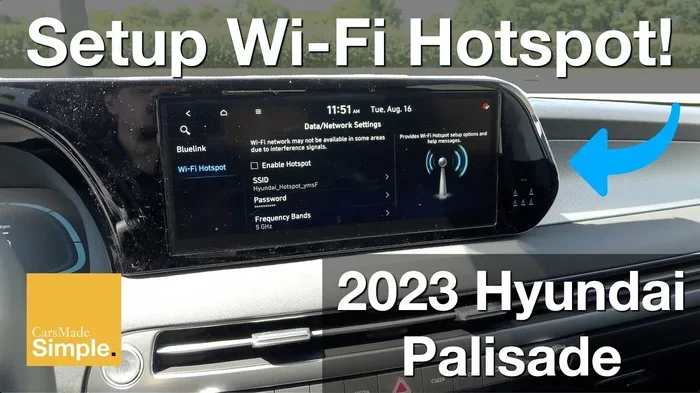
Inside the Network menu, look for WiFi Hotspot or Mobile Hotspot. Tap on it. You should see a toggle switch to turn the hotspot on. Switch it on, and your Hyundai WiFi router will start broadcasting a signal.
Step 4: Customize Your WiFi Settings
Once the hotspot is on, you can customize a few settings:
- Network Name (SSID): This is the name of your WiFi network. You can keep the default or change it to something recognizable.
- Password: Set a strong password to keep your connection secure. Use a mix of letters, numbers, and symbols.
- Security Type: WPA2 is the most secure option. Always choose this if available.
After you save these settings, your Hyundai WiFi hotspot is live and ready for devices to connect.
Step-by-Step Guide: How to Connect to Hyundai Wi-Fi
Now that your hotspot is on, let us walk through connecting your devices. This is the part most people want to see first, so let us get right into it.
Connecting Your Phone
Open the WiFi settings on your phone. Look for the network name you set earlier. Tap on it and enter the password. Within a few seconds, your phone should be connected to the Hyundai WiFi hotspot. You can now browse the web, use apps, and stream content.
Connecting a Tablet or Laptop
The process is the same for tablets and laptops. Go to your WiFi settings, find the Hyundai network, and enter the password. These devices usually connect faster because they have stronger antennas than phones.
Connecting Multiple Devices
One of the best things about Hyundai WiFi is that you can connect multiple devices at once. The system typically supports up to 5 devices simultaneously. This is perfect for family road trips where everyone needs to stay online.
Keep an eye on your data usage when connecting multiple devices. More devices mean more data consumption. If you have a limited data plan, you may want to set usage limits through the Bluelink app.
Quick Tips for a Smooth Connection
- Stay within range: The Hyundai WiFi signal works best inside the vehicle. If you step out, the signal may weaken.
- Keep the engine running: The WiFi hotspot works best when the engine is on. Some models allow it in accessory mode, but performance may vary.
- Restart if needed: If a device struggles to connect, restart both the device and the infotainment system.
- Check for updates: Make sure your infotainment system is running the latest software version for the best performance.
Hyundai Wi-Fi Troubleshooting: Fixing Common Issues
Even with the best setup, you might run into problems. Hyundai WiFi troubleshooting is usually simple. Here are the most common issues and how to fix them.
WiFi Hotspot Not Showing Up
If your devices cannot find the Hyundai WiFi network, try these steps:
- Make sure the hotspot is turned on in the infotainment settings.
- Check that your vehicle has a cellular signal. Without signal, the hotspot cannot broadcast.
- Restart the infotainment system by holding the power button for 10 seconds.
- Move closer to the vehicle. The WiFi range is limited to about 30 feet.
Slow WiFi Speeds
Slow speeds can be frustrating. Here is what causes them and how to fix them:
- Weak cellular signal: Drive to an area with better coverage. The WiFi speed depends entirely on the cellular signal strength.
- Too many connected devices: Disconnect devices you are not using to free up bandwidth.
- Outdated software: Update your infotainment system. Go to Settings, then System Update, and check for available updates.
- Data throttling: Some data plans slow down after a certain usage threshold. Check your plan details.
Connection Drops Frequently
If your WiFi connection keeps dropping, try these fixes:
- Restart the infotainment system.
- Forget the network on your device and reconnect with the password.
- Check that your Bluelink subscription is active and not expired.
- Reset the WiFi hotspot settings and set them up again from scratch.
Forgot WiFi Password
Forgot your Hyundai WiFi password? No worries. Go to Settings, then Network, then WiFi Hotspot. Your password should be displayed there. You can change it anytime from the same menu.
Maximizing Your Hyundai Wi-Fi Experience
Once you have your Hyundai WiFi up and running, you want to get the most out of it. Here are some expert tips to improve your experience.
Choose the Right Data Plan
Hyundai offers different data plans through Bluelink. Some plans include a set amount of data per month, while others are unlimited. Consider how you will use the WiFi. If you only need it for navigation and light browsing, a smaller data plan may work. If you plan to stream videos or work remotely, go for a larger plan.
Use WiFi While Parked
Your Hyundai WiFi hotspot works best when the vehicle is parked or stationary. While driving, the connection may be less stable due to movement and signal changes. Use WiFi for browsing and streaming when you are stopped at a rest area or parked at a destination.
Keep Your Devices Close
The Hyundai WiFi range is typically around 30 feet. Stay inside the vehicle or very close to it for the best signal. If you sit too far away, your connection may drop.
Monitor Data Usage
Use the Bluelink app to track your data usage in real time. This helps you avoid surprises on your bill. You can also set data alerts to notify you when you are running low.
Update Your System Regularly
Hyundai releases software updates that improve WiFi performance and fix bugs. Check for updates at least once a month. An updated system means a faster, more reliable connection.
Hyundai Wi-Fi vs. Other Car WiFi Options
How does Hyundai WiFi compare to other car WiFi systems? Let us take a quick look.
| Feature | Hyundai WiFi | Other Brands |
|---|---|---|
| Hotspot Range | Up to 30 feet | Varies by brand |
| Max Connected Devices | 5 devices | 3 to 10 devices |
| Data Plans | Bluelink plans | Varies by brand |
| Subscription Required | Yes | Usually yes |
| Setup Complexity | Simple, step-by-step | Varies by brand |
| WiFi Speed | 4G LTE | 4G or 5G depending on model |
Hyundai WiFi holds its own against competitors. The setup is user-friendly, and the Bluelink app makes managing your connection easy. While some brands offer faster 5G WiFi, Hyundai’s 4G LTE is more than enough for most users. Streaming, browsing, and video calls all work smoothly on a stable 4G connection.
Common Mistakes to Avoid When Using Hyundai Wi-Fi
Even experienced users make mistakes. Here are some common ones to watch out for.
- Forgetting to pay your Bluelink subscription: An expired subscription means no WiFi. Keep your billing information up to date.
- Leaving the hotspot on when not in use: This drains your data plan quickly. Turn the hotspot off when you do not need it.
- Using a weak password: A simple password makes your network vulnerable. Always use a strong, unique password.
- Ignoring software updates: Updates fix bugs and improve performance. Skipping them can lead to connection issues.
- Connecting too many devices: Overloading the hotspot slows everyone down. Limit connections to essential devices only.
Expert Insights on Hyundai Wi-Fi
According to automotive tech experts, Hyundai’s WiFi system is one of the most user-friendly in the industry. The Bluelink platform integrates seamlessly with the infotainment system, making setup a breeze. However, experts also note that WiFi performance depends heavily on your cellular coverage area. If you frequently drive through rural or remote areas, you may experience slower speeds or dropped connections.
Another expert tip is to use a WiFi extender or signal booster if you need coverage beyond the car. Some aftermarket devices can extend the Hyundai WiFi range, though this may void your warranty. Always check with your dealer before adding external hardware.
Conclusion
How to Connect to Hyundai Wi-Fi is a skill every Hyundai owner should have. With this guide, you now know how to turn on the hotspot, connect your devices, troubleshoot issues, and get the most from your WiFi experience. The Hyundai WiFi system is a powerful tool that keeps you connected on the road. Whether you are on a long road trip or just running errands, staying online has never been easier.
Remember to keep your Bluelink subscription active, update your software regularly, and use your data wisely. Follow the tips in this article, and you will enjoy a fast, reliable Hyundai WiFi connection every time you hit the road. Stay connected, stay safe, and enjoy the ride.