How to Use Trip A and Trip B for Accurate Mileage Tracking
Trip A and Trip B are built-in tools on your car’s dashboard that let you track two separate distances at the same time. Whether you are monitoring fuel economy, logging commute miles, or planning a road trip, knowing how to use Trip A and Trip B correctly makes a huge difference. This guide walks you through everything from basic setup to advanced tracking strategies so you get the most accurate mileage data every time you drive.
Have you ever glanced at your car’s dashboard and wondered what those little buttons next to the speedometer actually do? If you have ever seen “Trip A” and “Trip B” on your display and felt confused, you are not alone. These two small trip meters are hidden gems that can transform the way you understand your driving habits. They give you a second odometer that you can reset whenever you want. This means you can track two completely separate distances at the same time. Once you learn how to use Trip A and Trip B, you will wonder how you ever drove without them.
The beauty of these trip meters lies in their simplicity. You do not need expensive gadgets or complicated apps. Your car already has everything built right into the dashboard. Whether you want to monitor fuel economy, log commute miles, or plan a long road trip, Trip A and Trip B give you the data you need right at your fingertips. This guide will walk you through every step of using these tools effectively. By the end, you will know exactly how to get accurate mileage tracking that actually helps you save money and drive smarter.
Key Takeaways
- Trip A and Trip B track two separate distances independently: Use one for your daily commute and the other for road trips or fuel tests.
- Resetting your trip meter is simple: A quick button press on your dashboard or steering wheel controls lets you start fresh anytime.
- Tracking fuel economy becomes easy with Trip A and Trip B: Reset at the pump and compare distance to fuel used for accurate MPG calculations.
- Common mistakes include forgetting to reset and confusing the two trips: A quick habit check prevents inaccurate data.
- Trip computers offer more than just mileage: Many cars also display average speed, fuel consumption rates, and estimated range.
- Using trip data for vehicle maintenance logs saves money: Track oil change intervals and service schedules based on real driving distances.
- Consistent tracking builds better driving habits: Over time, trip data reveals patterns in your fuel efficiency and driving behavior.
📑 Table of Contents
- What Are Trip A and Trip B?
- How to Set Up and Reset Your Trip Meters
- Using Trip A and Trip B for Fuel Economy Tracking
- Trip A vs Trip B: Best Uses for Each
- Common Mistakes People Make with Trip Meters
- Expert Tips for Getting the Most from Trip A and Trip B
- Why Accurate Mileage Tracking Matters
- Conclusion
What Are Trip A and Trip B?
Trip A and Trip B are two independent trip odometers built into your car’s trip computer. They work just like your main odometer, which records the total distance your vehicle has ever traveled. But here is the key difference. You can reset Trip A and Trip B whenever you choose. Your main odometer never resets. It keeps counting from the day your car was manufactured. The trip meters, on the other hand, give you a fresh start every time you need one.
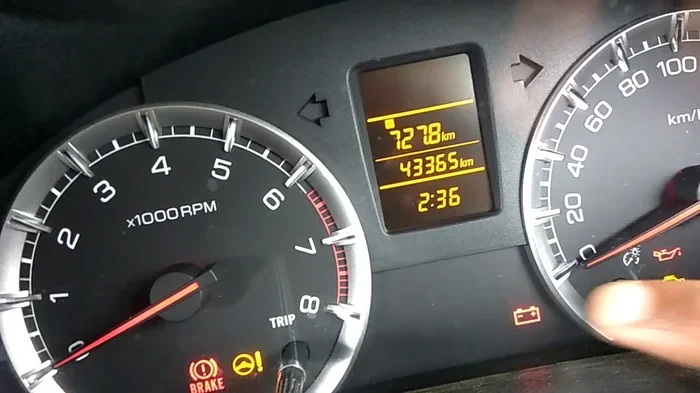
Most modern vehicles come with a trip computer display located behind the steering wheel or on the instrument cluster. You access it using buttons on your steering wheel or a small stalk near the dashboard. The display shows numbers that represent distance in miles or kilometers. Some cars also show additional data like average fuel consumption, estimated range, and average speed. Understanding what each trip meter does opens up a lot of possibilities for tracking your driving more accurately.
How the Trip Computer Works
Your car’s trip computer uses sensors connected to the wheels to measure distance. Every time a wheel completes a full rotation, the sensor sends a signal to the computer. The computer then calculates how far the car has traveled based on the tire size and rotation count. This is the same basic technology that powers your main odometer. The only difference is that trip meters are software-based counters that you can control manually.
When you press the reset button, the trip meter goes back to zero. It starts counting from that moment forward. This gives you a clean slate for tracking a specific journey or time period. The data stays stored in the car’s computer until you reset it again. Even if you turn off the engine, the trip reading stays saved. This makes it incredibly reliable for tracking mileage over days, weeks, or even months.
How to Set Up and Reset Your Trip Meters
Setting up Trip A and Trip B is straightforward, but the exact steps vary slightly depending on your car model. Most vehicles follow a similar process. Let us walk through the general steps so you can get started right away.
Step-by-Step Reset Process
Follow these simple steps to reset your trip meters:
- Turn on your ignition without starting the engine. Press the start button or turn the key to the accessory position.
- Locate the trip button on your steering wheel or dashboard stalk. It is usually labeled “Trip,” “Reset,” or “TRIP.”
- Press the button once to scroll through the display options. You will see Trip A, Trip B, and your main odometer.
- Select the trip meter you want to reset by pressing and holding the button for two to three seconds.
- The display will flash and then return to zero. Your reset is complete.
Some vehicles require you to press the button while the trip reading is visible on the screen. Others have a dedicated reset button on the instrument cluster itself. Check your owner’s manual for the exact method for your specific car model. The manual will also explain what each display symbol means on your trip computer screen.
Setting Trip A and Trip B for Different Purposes
Once you know how to reset, the next step is deciding what each trip meter will track. Here is a simple approach that works for most drivers:
- Trip A: Use this for your daily commute or regular short-distance driving. Reset it every time you fill up your gas tank.
- Trip B: Use this for road trips, long journeys, or tracking a specific route. Reset it when a new trip begins.
This setup gives you two useful data points at all times. You can compare your daily fuel efficiency with your long-trip fuel efficiency. You can also track how many miles you drive to work each week versus how many miles you drive on weekends. The possibilities depend entirely on what you want to measure.
Using Trip A and Trip B for Fuel Economy Tracking
One of the best reasons to learn how to use Trip A and Trip B is tracking fuel economy. Gas prices fluctuate constantly, and knowing your actual miles per gallon helps you understand your spending. Trip meters make this calculation surprisingly simple. You do not need any external apps or devices. Your car already has the tools built in.
The Fill-Up Method for Accurate MPG
The fill-up method is the most reliable way to calculate fuel economy using your trip meter. Here is how it works:
- Drive until your fuel tank is nearly empty.
- Fill the tank completely at a gas station. Note the number of gallons or liters you added.
- Reset Trip A to zero immediately after filling up.
- Drive normally until your next fill-up.
- Fill the tank completely again. Note the number of gallons or liters.
- Check the Trip A reading on your display. This is the distance you traveled on that tank of fuel.
- Divide the trip distance by the number of gallons you added. This gives you your miles per gallon for that trip.
For example, if Trip A shows 350 miles and you added 12 gallons of fuel, your fuel economy is about 29 miles per gallon. This method gives you real-world data that reflects your actual driving habits. It is far more accurate than the generic estimates printed on your vehicle’s window sticker.
Why Trip B Works Great for Fuel Testing
You can also use Trip B to test different driving techniques. For instance, try driving one week using gentle acceleration and steady speeds. Reset Trip B at the start of that week. Then compare the fuel economy results to Trip A, which tracks your normal driving. This side-by-side comparison helps you see exactly how driving habits affect fuel consumption. It is a powerful way to save money at the pump without buying a new car.
Trip A vs Trip B: Best Uses for Each
Understanding the best uses for Trip A and Trip B helps you get the most value from your trip computer. Many drivers use both meters for completely different purposes, and this dual-tracking approach provides a much fuller picture of your driving patterns.
Common Uses for Trip A
- Daily commute tracking: Reset Trip A each morning before heading to work. Check the reading when you arrive to know your exact commute distance.
- Fuel economy monitoring: Use Trip A with the fill-up method to track miles per gallon over regular driving cycles.
- Short trip logging: Track quick errands like grocery runs, school drop-offs, or coffee shop visits.
- Maintenance intervals: Monitor miles between oil changes, tire rotations, and other scheduled services.
Common Uses for Trip B
- Road trip distance tracking: Start Trip B when you begin a vacation or long journey. It gives you the total distance traveled without affecting your daily commute data.
- Route comparison: Test two different routes to the same destination. Reset Trip B each time and compare distances and fuel usage.
- New driver monitoring: If a teenager or new driver is using your car, Trip B can track their specific mileage and driving patterns.
- Business trip logging: Track miles driven for work purposes separately from personal driving. This makes tax deductions and expense reports much easier.
Quick Comparison Table
| Feature | Trip A | Trip B |
|---|---|---|
| Primary Use | Daily commute and fuel tracking | Long trips and route testing |
| Reset Frequency | Often, sometimes daily | Less often, per trip |
| Data Type | Short-distance, repeated routes | Long-distance, one-off journeys |
| Best For | Fuel economy and maintenance logs | Road trips and business travel |
| Tracking Period | Days to weeks | Single trips or weeks |
Common Mistakes People Make with Trip Meters
Even though trip meters are simple tools, people still make mistakes that lead to inaccurate data. Avoiding these common errors ensures your mileage tracking stays reliable and useful.
Forgetting to Reset After a Trip
The most common mistake is forgetting to reset the trip meter after completing a journey. If you do not reset Trip A after tracking a fuel fill-up, the next reading will include old data. This throws off your fuel economy calculations completely. Make it a habit to reset the meter the moment you finish pumping gas. Keep a small note on your dashboard or set a phone reminder until the habit sticks.
Confusing Trip A with Trip B
Another frequent error is accidentally pressing the wrong button and resetting the wrong trip meter. If you meant to keep Trip B data but reset Trip A instead, you lose that information. Always double-check which trip meter is currently displayed before pressing any buttons. Most cars show “Trip A” or “Trip B” as a label on the screen so you know exactly which one is active.
Ignoring Tire Size Changes
Your trip computer calculates distance based on the factory-installed tire size. If you change to larger or smaller tires, the trip meter readings become slightly inaccurate. Larger tires cover more ground per rotation, so the trip meter underreports your actual distance. Smaller tires do the opposite. If you have changed your tire size, keep this in mind when interpreting trip data. The difference is usually small but can add up over thousands of miles.
Relying Only on the Trip Computer
While trip computers are convenient, they are not perfect. Factors like tire wear, temperature changes, and slight variations in tire pressure can affect accuracy. For the most precise odometer readings, especially for resale value or legal purposes, rely on your main odometer. Use trip meters for tracking relative changes in distance and fuel economy rather than absolute precision.
Expert Tips for Getting the Most from Trip A and Trip B
Experienced drivers and automotive professionals share several tips that take trip meter usage to the next level. These strategies help you extract maximum value from your car’s built-in trip computer.
Track Seasonal Fuel Economy Changes
Fuel economy often changes with the seasons. Cold weather reduces efficiency, while mild weather improves it. Use Trip A to track fuel economy during different seasons. Reset at the start of each season and compare results over time. This gives you realistic expectations and helps you plan your fuel budget more accurately.
Use Trip Data for Vehicle Maintenance Logs
Keeping a maintenance log based on trip meter readings is a smart habit. Record your Trip A reading every time you get an oil change or tire rotation. When the next service is due, you can estimate the mileage interval between services. This helps you stay on top of your vehicle maintenance schedule without relying solely on calendar dates or guesswork.
Monitor Average Speed on Long Drives
Many trip computers display average speed alongside distance. Use this feature on road trips to understand your actual driving pace. If you notice your average speed is lower than expected, you can adjust your route or driving style. This is especially useful for estimating arrival times and planning rest stops.
Compare Fuel Costs Across Gas Stations
Reset Trip A when you fill up at a cheaper gas station. Then compare the fuel economy at that station versus a more expensive one. Sometimes the price difference per gallon does not offset the slight difference in fuel quality or station location efficiency. Tracking this data helps you make smarter fueling decisions over time.
Share Data with Your Mechanic
When you visit the mechanic for a service or repair, sharing your trip meter data can be very helpful. Tell them your Trip A reading and the distance driven since your last visit. This gives the mechanic context about your driving patterns and helps them diagnose issues more accurately. It also ensures they recommend services based on your actual mileage rather than generic guidelines.
Create a Personal Fuel Diary
Keep a simple notebook or use a phone app to record Trip A readings, fuel amounts, and dates. Over weeks and months, this diary reveals patterns you might not notice otherwise. You may discover that your fuel economy drops on certain routes or during specific weather conditions. This awareness empowers you to make adjustments that save money and improve your driving efficiency.
Why Accurate Mileage Tracking Matters
Accurate mileage tracking goes beyond just knowing how far you have driven. It affects several important aspects of vehicle ownership. From resale value to insurance claims, the data your trip meters provide carries real weight.
When it comes time to sell your car, buyers want to see accurate mileage records. A well-maintained trip log proves you have kept up with regular maintenance based on actual driving distance. This builds trust and can increase your resale value. Buyers are willing to pay more for a vehicle with documented, accurate mileage history.
Accurate tracking also helps you budget for fuel costs. If you know exactly how many miles you drive each week and what your fuel economy is, you can predict monthly gas expenses with confidence. This removes the guesswork from your household budget and helps you plan for price changes at the pump.
For business owners and freelancers who use their vehicles for work, trip meter data is essential. The IRS allows deductions for business mileage, but you need accurate records to support your claims. Trip A and Trip B make it easy to separate personal and business driving. This simplifies tax preparation and ensures you claim every deduction you deserve.
Conclusion
Learning how to use Trip A and Trip B is one of the simplest yet most impactful things you can do as a car owner. These two trip meters give you a powerful toolkit for tracking mileage, monitoring fuel economy, and logging driving data without any extra equipment. The process is straightforward. Reset Trip A for your daily commute and fuel tests. Use Trip B for road trips, business travel, and route comparisons. Avoid common mistakes like forgetting to reset or confusing the two meters. Follow the expert tips shared in this guide to extract maximum value from your trip computer.
Start today. The next time you fill up your tank, reset Trip A and pay attention to the numbers. Within a few weeks, you will have a clear picture of your fuel efficiency and driving patterns. That knowledge puts you in control of your fuel costs, maintenance schedule, and overall driving experience. Your car has been giving you this data all along. Now you know exactly how to use it.
Frequently Asked Questions
What is the difference between Trip A and Trip B on a car?
Trip A and Trip B are two separate trip odometers built into your car’s trip computer. They both measure distance, but you can reset each one independently. Most drivers use Trip A for daily commutes and fuel tracking, while Trip B is used for road trips or long journeys. Both meters start at zero when you reset them and count up from there until you reset again.
How do I reset Trip A or Trip B on my dashboard?
To reset your trip meter, turn on your ignition and locate the trip button on your steering wheel or dashboard stalk. Scroll to the trip meter you want to reset, then press and hold the button for two to three seconds. The display will flash and return to zero. The exact button location varies by car model, so check your owner’s manual if you are unsure.
Can Trip A and Trip B help me save money on fuel?
Yes, absolutely. By using Trip A with the fill-up method, you can calculate your actual miles per gallon based on real driving data. This helps you understand how your driving habits affect fuel economy. Over time, you can identify patterns and make adjustments that reduce your fuel spending. Many drivers notice significant savings within just a few weeks of consistent tracking.
Is the trip computer mileage accurate?
Trip computers are generally accurate for tracking relative distance and fuel economy changes. However, they are based on factory tire size settings. If you change your tire size or experience significant tire wear, the readings may be slightly off. For legal or resale purposes, rely on your main odometer. For everyday tracking and fuel calculations, trip computers are highly reliable and very useful.
What should I do if my trip meter stops working?
If your trip meter stops displaying or becomes unresponsive, try turning your ignition off and back on. If the issue persists, check your owner’s manual for a reset procedure specific to your car model. In some cases, a blown fuse or a wiring issue may be the cause. If basic troubleshooting does not resolve the problem, visit a qualified mechanic to inspect the trip computer system.
Can I use Trip A and Trip B for business mileage tracking?
Yes, Trip A and Trip B are excellent tools for business mileage tracking. Use one meter exclusively for business trips and the other for personal driving. This separation makes tax time much easier and ensures your records are clean and organized. Many business owners and freelancers rely on trip meter data to support their mileage deduction claims during tax filing.